MacBook trackpads are famous for their precision and intuitive gestures, however, sometimes they may not work properly due to various reasons. If your trackpad is not unresponsive, erratic, or displaying strange behavior, here are some simple troubleshooting tips to resolve the issue.
Diagnose the Problem
Before diving into solutions, identify the symptoms. Some common trackpad issues include:
- Unresponsiveness or lag.
- Erratic cursor movement.
- Gestures not working.
- Clicking or tapping issues.
- Trackpad not detected by macOS.
Understanding exactly what’s wrong will help you target the fix more effectively. Basic troubleshooting steps can help to fix the issues in most cases, otherwise, follow the advanced steps.
1. Basic Troubleshooting Steps
- Restart Your Mac – A simple restart can often resolve many minor glitches. Click the Apple menu and select “Restart”.
- Check for macOS Updates – Software bugs are often addressed through updates. Check macOS updates by going to “Apple menu > System Settings > General > Software Update” section. If an update is available, install it, then restart your Mac.
- Clean the Trackpad – Dirt, grease, or moisture can interfere with trackpad sensitivity. Gently clean the trackpad’s surface and if required use slightly damp cloth for cleaning.
- Disconnect External Devices – Sometimes, USB or Bluetooth devices can interfere with the Mac’s input system, especially if a mouse is connected. Disconnect all external mice and trackpads, then test the built-in trackpad.
- Check for App Conflicts – Recently installed applications, especially those related to input devices or system utilities, can interfere with trackpad function. Try removing or disabling such apps to see if the problem resolves.
This article deals with fixing built-in Mac trackpad’s problems. If you’re using an external trackpad and it’s not working, replace the batteries or recharge the device, ensure Bluetooth is enabled and the device is paired, and remove and re-pair the device from Bluetooth settings.
2. Adjust Trackpad Settings
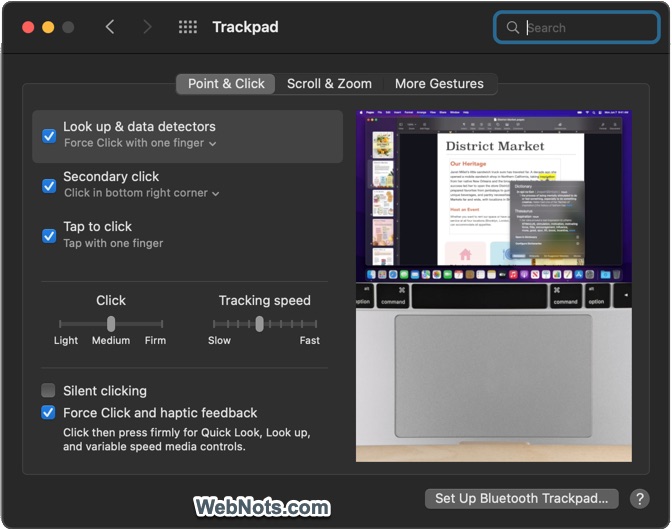
Go to “Apple Menu > System Settings… > Trackpad” (or “Apple Menu > System Preferences… > Trackpad” on older systems). Here, you can:
- Toggle Tap to Click, Force Click, and other gestures.
- Adjust tracking speed and click sensitivity.
- Adjust scrolling, zooming, and gesture functionalities.
Sometimes, simply changing a setting and reverting it can refresh trackpad functionality.
3. Reset SMC (System Management Controller) On Old Macs
The SMC controls low-level hardware functions, including the trackpad. Resetting it can resolve trackpad issues. Apple Silicon Macs (M series) do not have an SMC to reset. If you are using older Mac, follow the below steps:
- Intel-based Mac with a T2 chip: Shut down your Mac. Press and hold “Control + Option + Shift (right side)” for 7 seconds, then press and hold the power button as well for 7 more seconds. Release all keys, wait for few seconds, and then power on.
- For older Intel Macs: Shut down your Mac. Press and hold “Shift + Control + Option (left side)” and the power button for 10 seconds. Release all keys and turn the Mac back on.
4. Reset NVRAM/PRAM
Sometimes, trackpad settings stored in NVRAM or PRAM can become corrupted:
- Shut down your Mac.
- Power on the device and immediately press “Option + Command + P + R” keys.
- Hold for about 20 seconds, then release the keys.
5. Boot into Safe Mode
Safe Mode loads only essential macOS components, which can isolate problematic extensions or software:
- Shut down your Mac.
- Power on the device, then hold Shift right away.
- Release when you see the login window.
Test the trackpad in Safe Mode. If it works, a third-party app or extension may be causing problems.
6. Create a New User Account
Sometimes, user-specific settings or corrupted profiles cause trackpad issues. You can test this by creating a new user account:
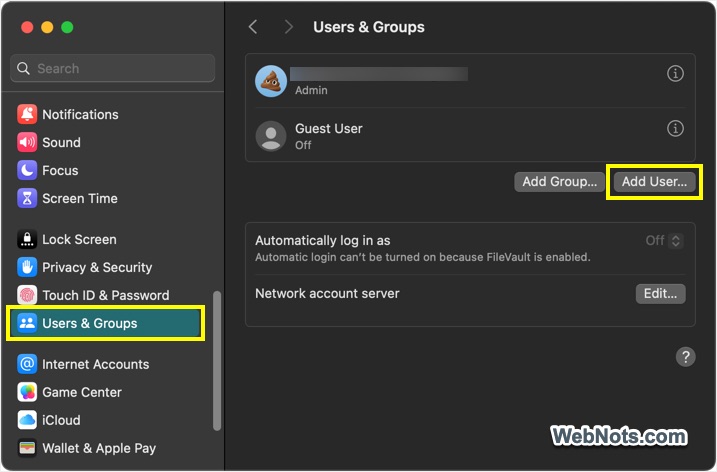
- Go to “Apple Menu > System Settings… > Users & Groups”.
- Click “Add User…” button to add a new user.
- Log in and test the trackpad under the new account to check if the problem persists.
7. When to Seek Professional Help
If none of the above steps resolve your issue, it may be time to contact Apple Support or visit a certified repair center. Also, if your MacBook has suffered a drop, spill, or swelling battery, the trackpad mechanism could be physically damaged. Signs of hardware issues include:
- Trackpad bulging or raised.
- Clicks not registering or stuck.
- No response after all software fixes.
In such cases, a visit to an Apple Store or authorized repair center is recommended.
Final Words
In most cases, one of the above explained troubleshooting steps will fix your Mac’s trackpad. However, if hardware damage is suspected, seeking assistance from certified professionals is essential to avoid further complications.