
In our earlier article, we have explained different ways to delete a file or folder on Mac. However, have you ever got frustrated trying to delete a file on your Mac without success? There are many reasons preventing you from deleting a file or folder on Mac. If you are stuck unable to delete a file or frequently facing problems while deleting items, here are some reasons and potential solutions to fix the issue.
Deleting a File on Mac
By default, Mac will not show a confirmation prompt whenever you delete an item. You can select an item and press “Command + Shift” keys or right-click (Control + click) and select “Move to Trash” option to send the item to Trash bin.

This will not be a problem when you delete a single file. However, it can create confusion if you select and delete few files in a folder as the files might not be deleted at all. Follow the below suggestions and see if that helps.
1. App Restores File After Deletion
Unlike Windows, Mac will not show a warning if you delete a file when it is opened in another app. However, some apps can put the file back or ask your permission to save again if the original file was deleted. So, you will wonder why the file is not deleted as it will reappear again. Let’s see how it works with few apps when the original file is deleted but the content is still open in the app:
- Notes – will still save the content with the prefix timestamp added to the file name in Trash.

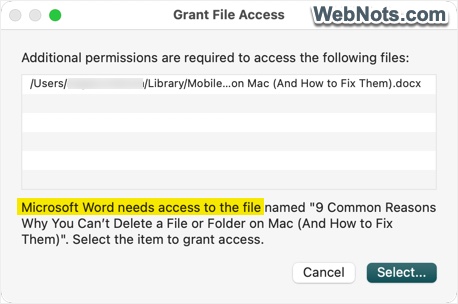
- Microsoft Word – will ask your permission to access the file and you can save as a new file in any location.
- Visual Studio Code – the file will be put back in its original location when saving the content and you will not see any warning or message that the file was deleted before.
So, make sure to close the app that might be using the file. If you still find the file is not deleted, restart your Mac to terminate all processes running in background and then try to delete the file again. Remember, simply pressing “Command + Z” after deleting a file or folder will undo your action and restore the item.
2. Insufficient Permissions
You might not have the proper permissions to delete the file or folder which generally happens if the file belongs to another user in the system.
- Right-click on the file or folder and select “Get Info” option from the context menu.
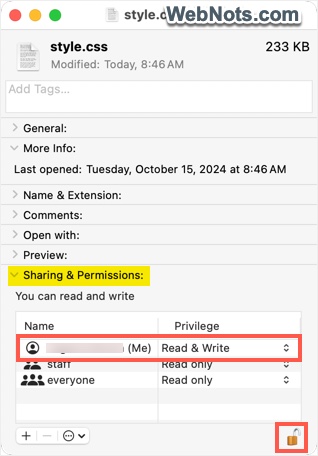
- Expand “Sharing & Permissions” section and check the “Privilege” column against your username. It should show “Read & Write” as your privilege.
- If not, click the lock icon showing on bottom right corner of the pop-up and unlock the screen with your Touch ID or admin password.
- Click the privilege dropdown and change your access level to “Read & Write”.
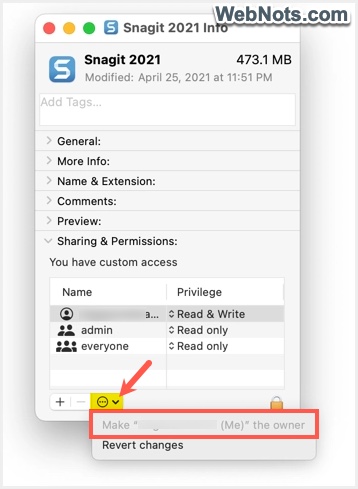
- If the file is managed by another user, you need to take over the permissions. Click the circle icon (with three dots inside) showing on the bottom left and select “Make <Your username> (Me)” the owner”. You should be an administrator to take over files from other users.
Learn more about fixing app and file permissions on Mac.
3. File is Locked
The file may be locked, which prevents it from being deleted or modified. This generally happens when you transferred files from Windows supported file systems (like FTFS or FAT32) to your Mac.
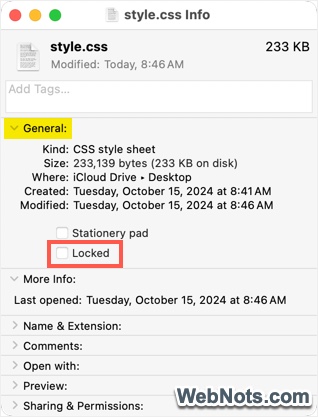
- Right-click on the file or folder, select “Get Info”.
- Under “General” section, uncheck the “Locked” checkbox.
- Now, close the pop-up and try to delete the file.
4. System Protected Files
Some folders (like /System and /Library) are protected by macOS to prevent accidental modification or deletion, as they are critical to the operating system’s functionality. Be cautious about trying to delete files from system-protected locations. If it is necessary, you can disable System Integrity Protection (SIP), but this is not recommended unless you are sure of what you are doing.
- Restart your Mac and boot into Recovery Mode by holding down “Command + R” keys during startup.
- Open Terminal app from “Finder > Applications > Utilities” folder.
- Type the following command in the prompt and press enter key.
csrutil disable- Restart your Mac normally and try to delete the files or folders.
5. Unsupported External Drives
Mac works on APFS file system (Apple File System). Though Mac can open files from NTFS or FAT32 external drives (normally used on Windows), you can’t edit or delete the files. You have two options in this case:
- Copy and transfer files to another APFS formatted drive.
- Use third-party apps like Paragon NTFS for Mac to get write permissions.
6. Corrupted Files and Folders
The file may be corrupted or damaged, which could prevent macOS from processing the deletion request. You can force delete a file from Terminal app using the following command.
sudo rm -rf [file or folder path]Note that this command will permanently delete the file without confirmation.
7. Boot in Safe Mode
Sometimes background processes or bugs can cause issues in macOS that prevent deletion. This might be the case especially when you have problems in deleting files created with certain apps. In this case, you can boot the system in Safe Mode and try to delete the files.
- Restart your Mac by holding the Shift key.
- This will boot the system in Safe Mode.
- Try deleting the file or folder.
8. Deleting iCloud Files
If you are working on multiple Apple devices with iCloud sync, make sure you are connected to internet when deleting files / folders. Otherwise, deleted files / folders will be restored from other devices when your Mac is re-syncing with iCloud.
Let’s take an example that you have a MacBook Pro and iPhone and enable the iCloud synchronization of “Desktop & Documents” folder on Mac. Now, you are not connected to internet and delete a folder on your Mac. After some time when you re-connect to internet, the deleted folder will be restored from your iPhone to Mac.
If you do not want this iCloud sync:
- Go to “Apple logo menu > System Settings…” on your Mac.
- Click on your Apple account and then go to “iCloud” section.
- Under “Saved to iCloud” section, click on the “Drive” tile or click “See All” button and select “iCloud Drive” option.
- On the pop-up that appears, turn off “Sync this Mac” and “Desktop & Documents Folders” options.
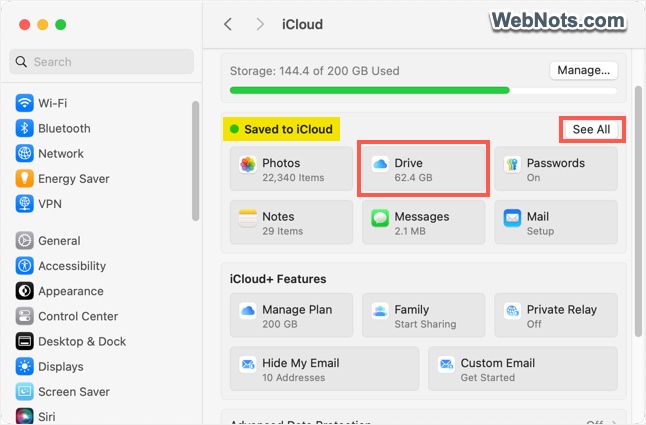
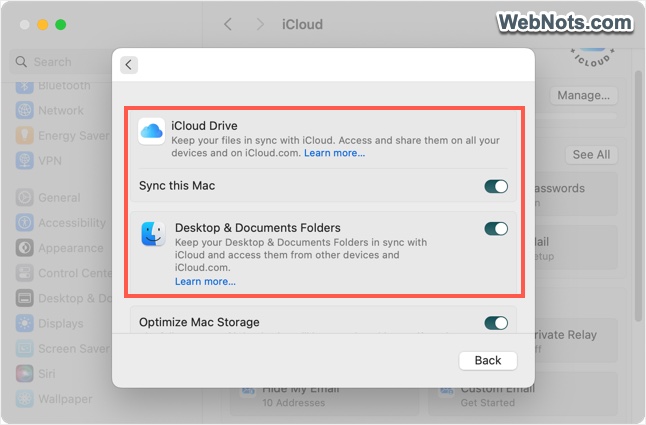
Note: It is not necessary to have multiple devices for using iCloud. This means, deleted items can also be restored from iCloud.com website when syncing is enabled on your Mac.
9. Problems with Emptying Trash
If you have moved a file to the Trash but can’t empty it, this could be because of locked files, permissions issues, or the file being in use.
- Right-click on the Trash icon and select Empty Trash while holding the Option key to force the action.
- If this does not work, use the following Terminal command:
sudo rm -rf ~/.Trash/*Final Words
Insufficient permissions, file locking and corrupted files are the major reasons preventing you from deleting files and folders on Mac. Some apps also restore the deleted file as explained in point 1. You can fix these issues easily as an administrator and delete the content. Otherwise, force deleting from Terminal or from Safe Mode can be other resorts.


