Nowadays, hosting companies install WordPress by setting up the environment automatically. Because of this, users are not aware of how WordPress works in the backend. Most users know WordPress needs a database and a hosting server runs with PHP backend. However, there are lot of PHP extensions needed for running a WordPress site. If you notice a functionality is not working on your site, it is a good idea to check whether all required PHP extensions are installed and enabled on your hosting setup.
Needed PHP Extensions for WordPress
JSON and mysqli or mysqlnd are the two required PHP extensions for WordPress. In addition, there are also handful of recommended and optional extensions available. You can go through the official WordPress documentation to check all the extensions needed for running a WordPress setup.
For example, some image editor functions in WordPress may not work properly if the recommended imagick PHP extension is not enabled on your setup. Similarly, emoji symbols will not display properly in PHP 8.1 if you have mysqli and you need to use nd_mysqli extension as discussed in this support thread. So, you may face unexpected problems when missing PHP extensions on the server. In this article, we will show you how to install PHP extensions in standard cPanel setup and enable extensions in custom Site Tools panel in SiteGround.
Install PHP Extensions in cPanel
- Login to your hosting account and open cPanel. Alternatively, you can use the server address with :2083 suffix to open cPanel and login with your account.
- Search and open “PHP PEAR Packages” tool (PEAR stands for PHP Extension and Application Repository).

- On the next screen, type the extension name in “Find a PHP Extension and Application Package” box and click “Go” button. Otherwise, click on the “Show Available Modules” button to view all available extensions.

- Find your extension from the result and click on “Install” link.

You will see a message showing that the installation is completed successfully. Though the process is same in all cPanel setup, you may find the screens look bit different if your hosting company customized the setup (like using different theme). Also, the available list of extensions will change depending on the PHP version installed on your site. You can change the PHP version using “MultiPHP Manager” tool in cPanel.
Enable PHP Extensions in SiteGround Site Tools
If you are using custom hosting panel like Site Tools in SiteGround, all you need is to enable the required PHP extension.
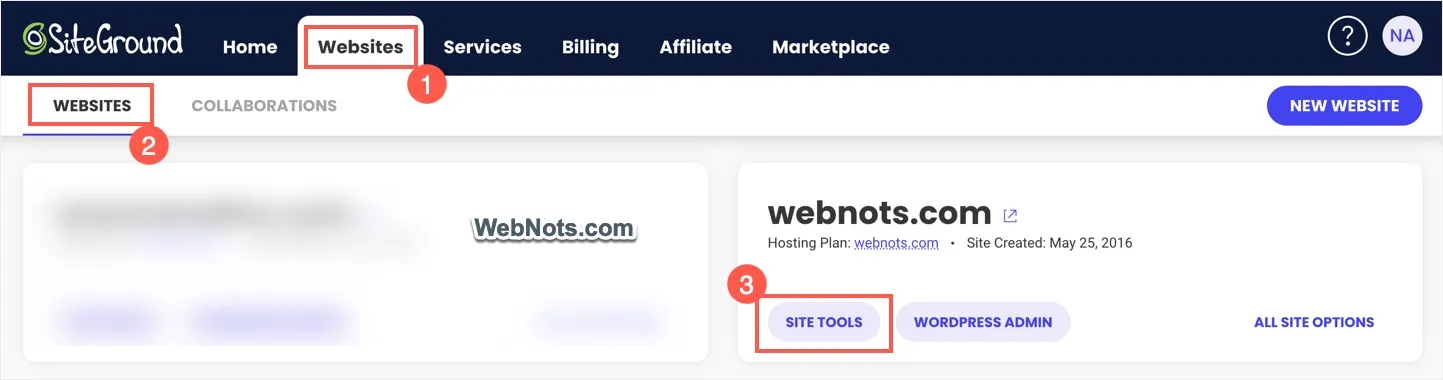
- Login to your SiteGround hosting account.
- Click the “Site Tools” option showing below the site that you want to edit under “Websites” tab.
- Go to “Devs > PHP Manager” section from left sidebar.
- Navigate to “PHP Extensions” tab on the right pane where you can find all available items like geoip, imagick, memcached, opcache, redis, etc.

- If the status is in “Off” condition for the extension you are looking for, click on the pencil icon (Change Value) showing below the “Actions” column.
- Change the status to “On” and click “Confirm” button.

Though required extensions are enabled by default, you can confirm the status from Site Tools section. For example, check “memcached” PHP extension is enabled if your object caching is not working with Speed Optimizer plugin.
Final Words
Since PHP extensions are related to server configuration, you will not see all the items are available for installation or enabling. Your hosting company decides the list of items that you can use with your setup. So, if you are not finding an extension, contact your hosting support to confirm whether you can use that on your WordPress installation.