File extension is a suffix added after the file name to help users and system to identify what type of file it is. It can be a two, three or four characters added after a dot. For example, .app is the extension for application files and .pages is the extension for Pages documents in Mac. By default, Mac does not show file extensions and hide all system files. However, you can easily show or hide file extensions in Mac whenever needed.
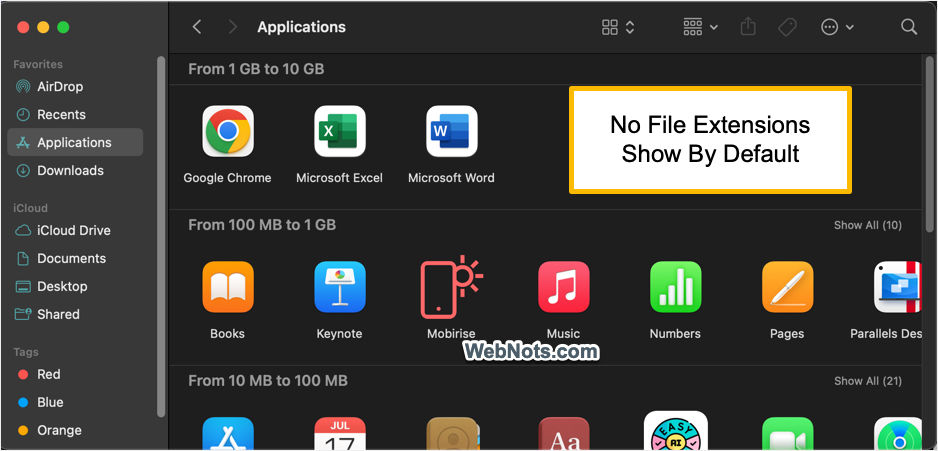
Showing All File Extensions
There are two ways you can force Mac to show all file extensions in Finder and Desktop.
Show File Extensions from Finder Settings
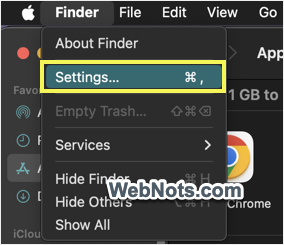
- Launch Finder app and go to “Finder > Settings…” or “Finder > Preferences…” menu.
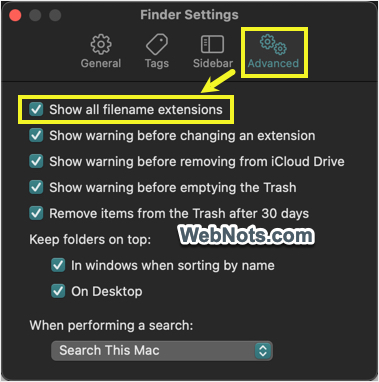
- Go to “Advanced” tab and enable “Show all filename extensions” option.
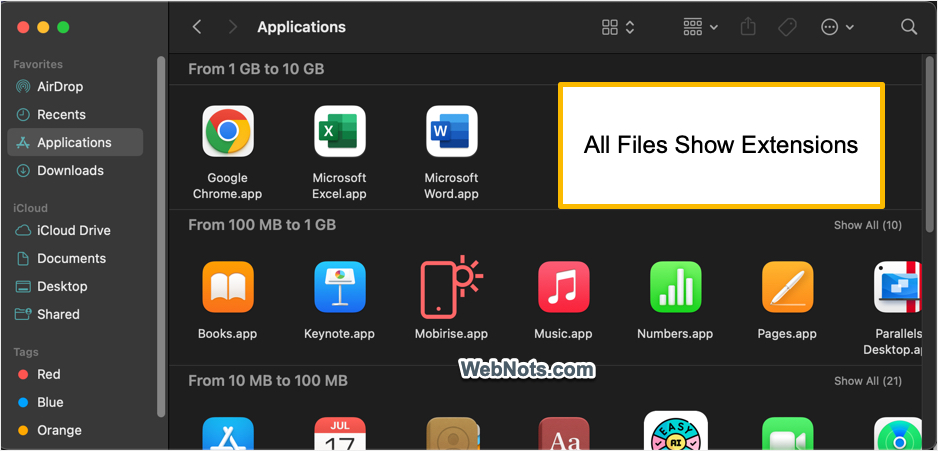
Now, you can see all files are showing their extensions in Finder. Anytime, you can uncheck the option to hide all extensions.
Note: When you are in Finder app, press “Command + Comma” keys to open its settings/preferences. Check out complete list of keyboard shortcuts for Mac Finder app.
Using Terminal to Show File Extensions
- Press “Command + Space” to open Spotlight Search.
- Type “terminal” and open Terminal app.
- Type the following command and press enter to show all file extensions:
defaults write NSGlobalDomain AppleShowAllExtensions -bool true- After that relaunch Finder by using the following command:
Killall Finder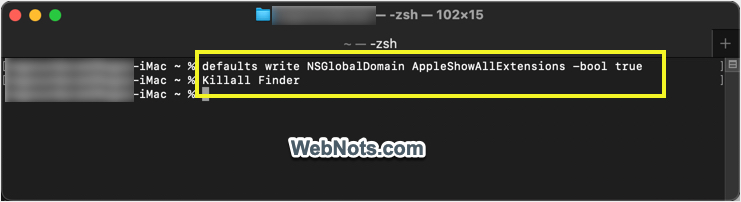
- Run the following command to again hide all file extensions.
defaults write NSGlobalDomain AppleShowAllExtensions -bool false- After that, relaunch Finder with the following command.
Killall Finder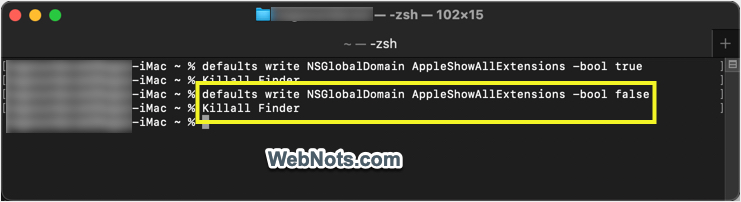
The true / false commands will check / uncheck “Show all filename extensions” in Finder settings as explained above. Instead of “Killall Finder” command, you can hold “Option” key and control-click on the Finder icon on Dock and select “Relaunch” from the context menu.
Note: System and hidden files having only extensions without file names will NOT show with the above methods. For example, .htaccess is Apache local server file which you can’t view by showing file extensions from Finder or Terminal. The only option in that case is to force showing hidden files on Mac.
Showing File Extension for One File
If you want to show or hide only one file extension, then follow the below steps.
- Browse and find your file in Finder or Desktop.
- Control-click (right-click) on the file and select “Get Info” option.
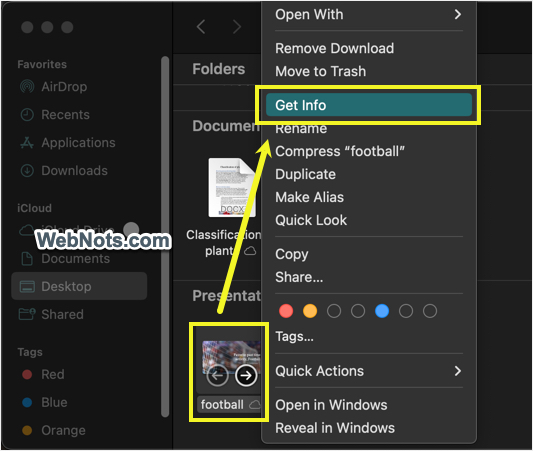
- Uncheck “Hide extension” option under “Name & Extension:” section.

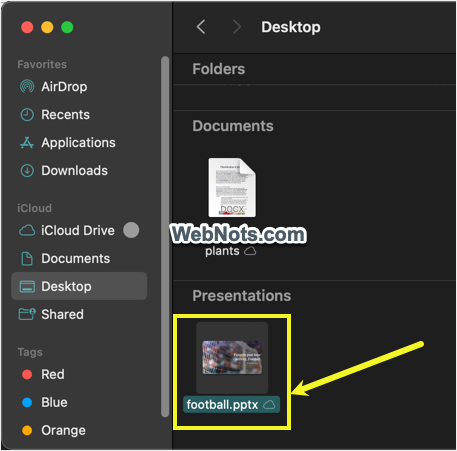
This will instantly show the extension only for the selected file and you do not need to relaunch Finder. Anytime, you can check the “Hide extension” option again to hide the file’s extension.
Why to View File Extensions?
Showing file extensions in Mac is useful in many situations:
- Knowing File Type – you can easily find the file type without checking the meta data or opening it. For example, file.png is an image while file.txt is a plain text file.
- App Association – file type helps system to assign a default app for opening the files. For example, double clicking on a .docx file by default will open with Microsoft Word app. Learn more on how to change file association with apps.
- Avoiding Confusion – it is common to have same file names with different extensions. For example, you may have assets.css and assets.js files in the same project folder. In such cases, showing file extensions can help to avoid confusions and you can easily open the correct files whenever needed.
- Finding Malicious Files – by looking at the file extension, you can easily understand whether it is legitimate or malicious file. For example, if you have downloaded an app from a website, it should be a .dmg or .pkg file. Otherwise, you should avoid opening the file or scan with an antivirus app before trusting the file.