Many users think that managing a WordPress website is all about creating engaging content and keeping the setup (theme/plugins/core) up to date. However, in reality, you may need to spend a considerable time in dealing with the backend tasks like examining the server log files. This is especially true when your site is hosted on managed, VPS, or dedicated server. These logs are invaluable for troubleshooting errors, monitoring security threats, and tracking user activity. If you are new to WordPress, it’s important to understand the process of checking server log files and debug the errors.
What are Server Log Files?
As the name indicate, server logs are the files automatically created by your web server. These files capture various activities and events that occur on your website, for example, every user visit (with IP and URL), PHP errors occurred on each page load, and every requests received by the server. The most common types of logs relevant to WordPress users include:
- Access Logs – Real-time visitors log recording every request made to your hosting server.
- Error Logs – Records of WordPress and PHP errors encountered by the server while processing requests.
- Debug Logs – This is generated only if you have manually enabled the debug logging feature in wp-config.php file (explained below). Otherwise, it won’t be available and it’s also recommended to delete it after debugging.
These log files are generally in huge size without any extension names and the name of these files vary depending on your server setup (for example: error_log or php_errorlog).
Why to Check Server Log Files?
Understanding and monitoring these logs can help you identify problems early, optimize performance, and protect your site from malicious activities. Here are some of the reasons why you should frequently keep a track of these log files:
- Log files can reveal the source of problems like the white screen of death, slow loading times, or failed plugin installations.
- Suspicious login attempts, file modifications, or brute-force attacks often leave traces in your log files (like huge direct traffic from a single IP).
- By tracking errors and resource usages, you can pinpoint inefficiencies and bottlenecks (like which PHP scripts are loading frequently consuming more RAM and CPU).
- It’s also sometimes important to maintain log files for legal regulatory compliance and audit purposes.
- Debug log will exactly show the PHP source file’s line item causing that error. This can be of huge help to fix PHP related errors.
Logs in WordPress can easily accumulate and the files will become huge in size (in terms of GBs). So, you may need to backup and delete them frequently even if there are no issues on your site. As mentioned, your server will automatically generate the files and start accumulating the logs again.
How to Check Your Log Files?
Log files are created in the same WordPress installation root directory, which is /public_html/ in general. However, the location may change depending on your hosting environment (server type and hosting panel). Here, we’ll explain with the standard cPanel and a custom Site Tools panel in SiteGround.
Note: If you don’t want to login to your hosting account, it’s also possible to browse through the server files directly from your WordPress admin panel using plugins like File Manager or use FTP to access the files.
Using Standard cPanel (Control Panel)
Most shared hosting companies provide cPanel setup for managing your files on the server.
Checking PHP Error Logs:
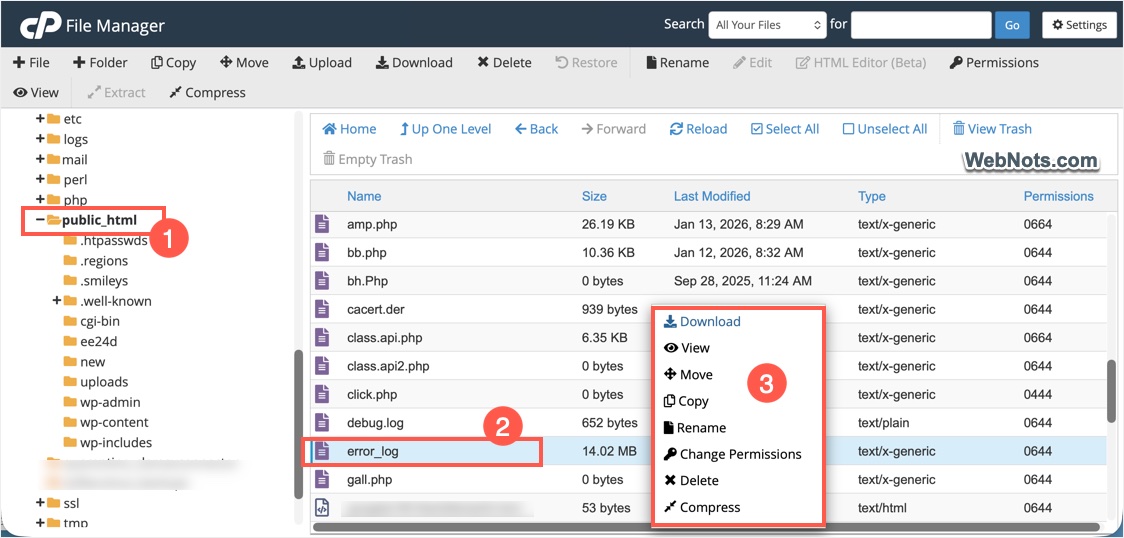
- Log in to your cPanel account or access it through your hosting account.
- Navigate to /public_html/ or to the root directory of your WordPress installation.
- Find the error_log file and select it.
- Right-click on the file and select “Download” or “View” option. Alternatively, use the toolbar icons to download or view the file.
Checking Raw Access and Server Error Logs:
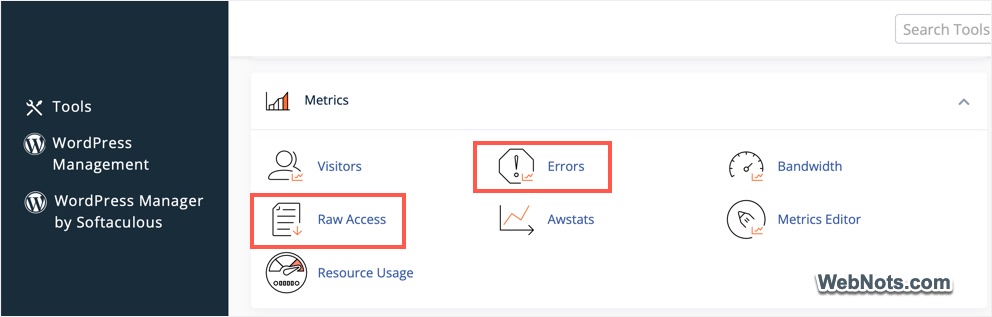
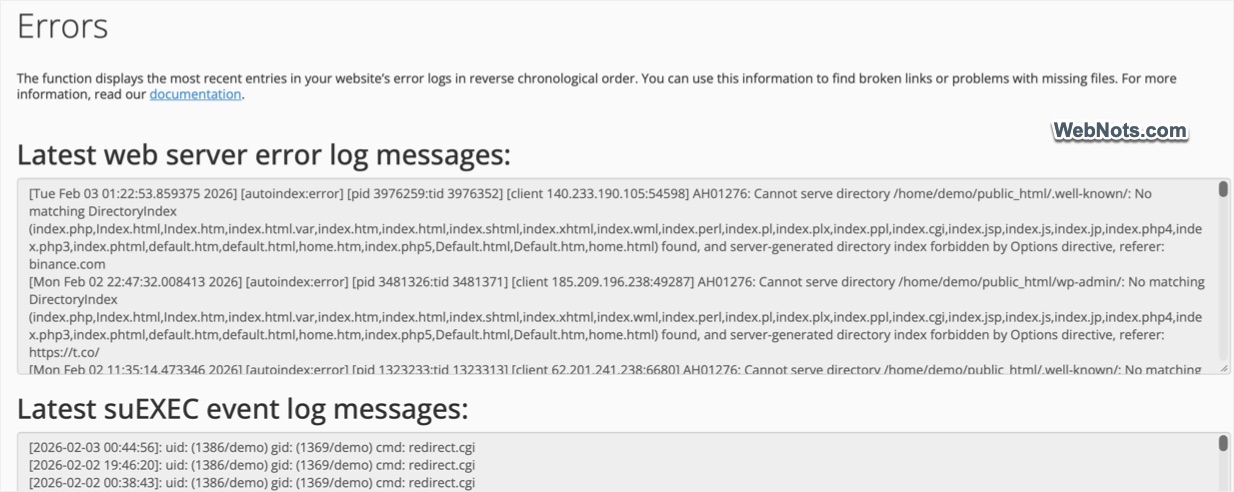
- In cPanel, expand “Metrics” section and open “Errors” link to find the server level log entries.
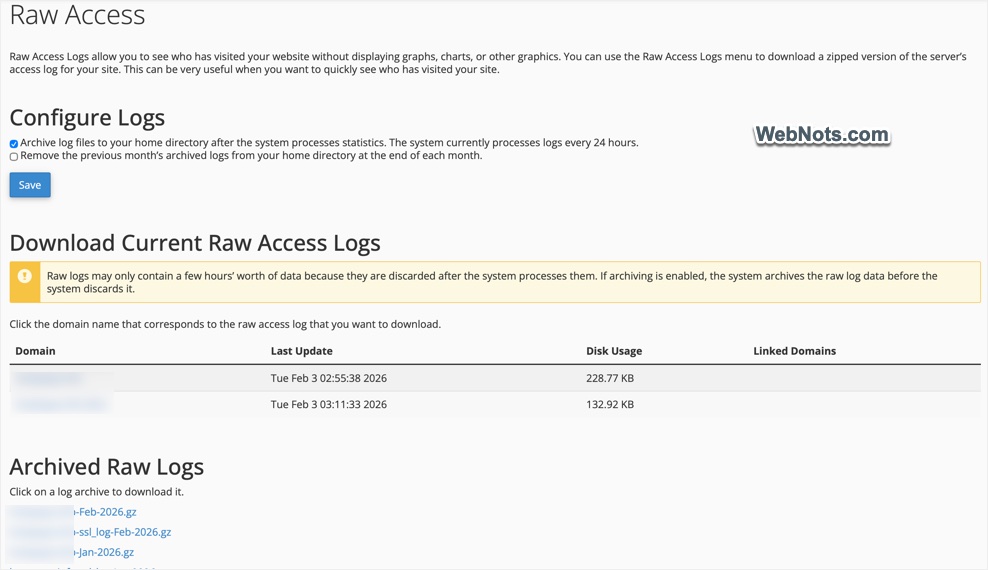
- Similarly, open “Raw Access” link under “Metrics” section to find all archived raw access files for downloading.
Via Custom Site Tools in SiteGround
Almost every managed WordPress hosting companies like SiteGround, Kinsta, and WP Engine offer a custom panel.
Checking PHP Error Logs in SiteGround:
- Login to your SiteGround hosting account and open the Site Tools section.
- Go to “Site > File Manager” and navigate to the root installation directory.
- Find php_errorlog file, right-click on it and select “Edit” or “Download” option. You can also use the toolbar icons for this.
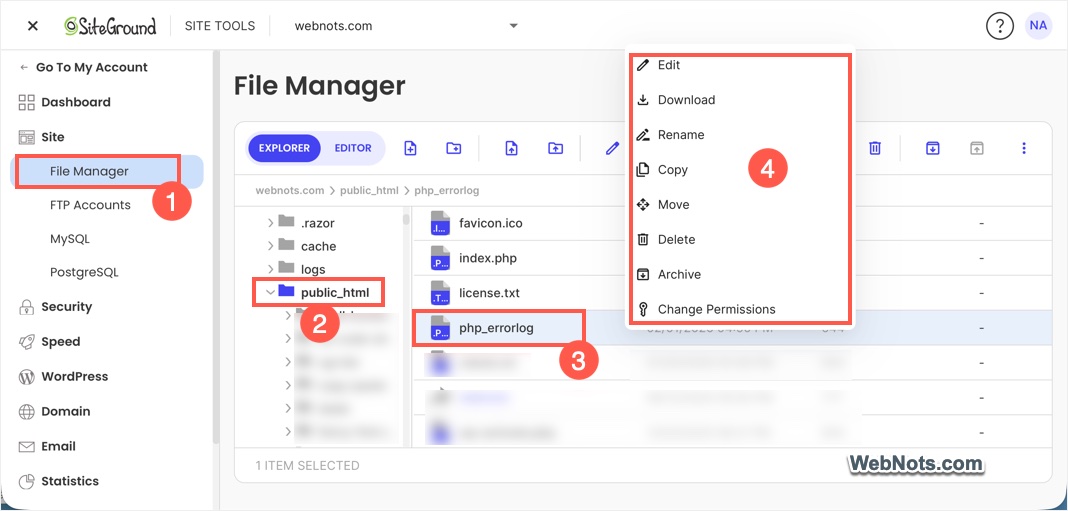
Important Note: Every directory will have its own error_log or php_errorlog file. The files available on the root directory generally records the important data. However, you can also view the files in other directories like /wp-content/ or /wp-include/ to find the applicable logs.
Checking Server Error and Access Logs:
- When you are in the Site Tools section, expand “Statistics” option.
- Go to “Error Log” to find the recent 300 errors and go to “Access Log” to view the real-time access details.
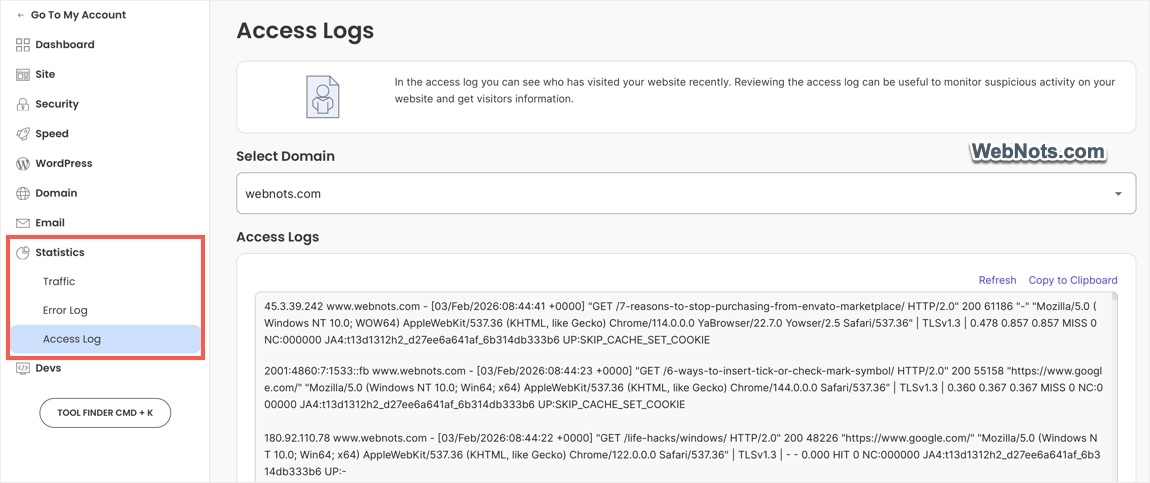
Unlike cPanel, you can’t download the access log files in SiteGround. You can only copy the latest information to clipboard.
Note: Both cPanel and custom panels offers a “Logs” folder, which contains a compressed archive log files for each day which you can download and analyze when needed.
Using Debug Logging in WordPress
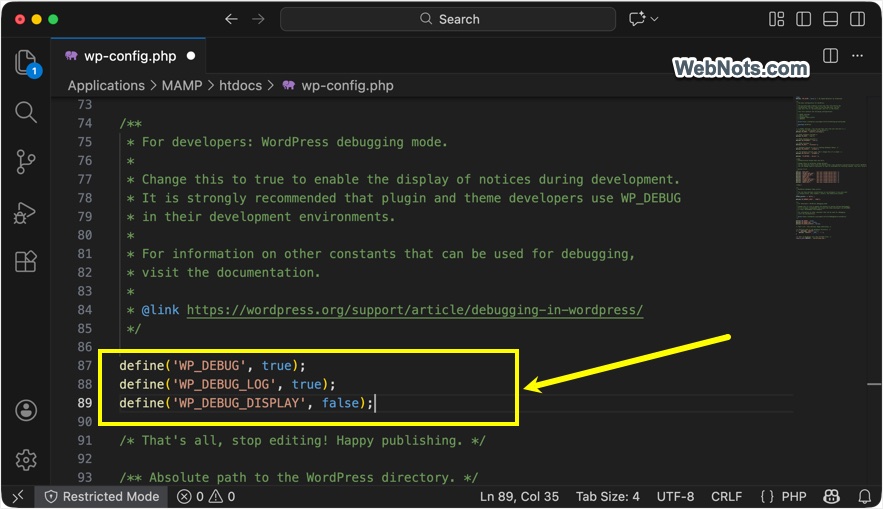
As mentioned, you can manually enable PHP error logging in WordPress by modifying the wp-config.php file.
- Go to File Manager in your hosting account.
- Find and edit the wp-config.php file, which is also the file available in WordPress root installation directory.
- Add the following lines below /* That’s all, stop editing! Happy publishing. */ and save your file.
define('WP_DEBUG', true);
define('WP_DEBUG_LOG', true);
define('WP_DEBUG_DISPLAY', false);- Now, WordPress will log the errors to debug.log file in /wp-content/ folder. You can download this file for troubleshooting and fixing the error.
- Remember to remove the code from wp-config.php file and delete your debug.log file after fixing your site’s errors.
Using Plugins to Manage Server Logs
If browsing through your hosting account and finding the error and debug log files are difficult for you, then there are plugins to mar the task easier. However, these plugins will help only if you have access to the WordPress admin panel. If you cannot login to the admin panel, then you need to use the File Manager (or FTP) as explained above.
- File Manager – browse through hosting files from admin panel.
- Error Log Viewer – view error log files and set notification alert when the log changes.
- Debug Bar – monitor debagging information.
Analyzing Error Logs in WordPress
Analyzing the logs is the ultimate objective either for troubleshooting or for getting information.
- If the file size is smaller (like debug log), you can directly view its content in File Manager.
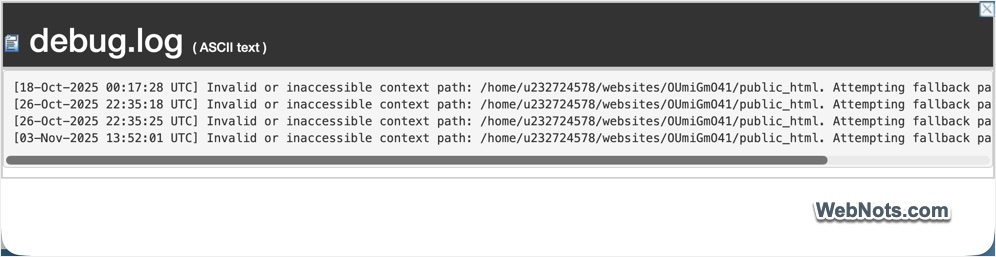
- For large file size (like PHP error log), make sure to download and view its content using a text editor app like Notepad, TextEdit or VS Code.

- Real-time server error logs can be viewed directly to find the latest generated errors.
- Raw access logs help to get the live traffic details like page URL, IP address, user agent, etc. You can use this to find and block malicious IPs or user agents.
Make sure to find the error details for the corresponding date and time. If you cannot understand the error, get the help from your hosting support or developer to analyze the logs.
Final Words
Hope the above information helped to find the server logs files on your WordPress setup. As the tools and steps vary based on the server, you may need to get in touch with the hosting support for any help. You should check logs routinely and delete the older files to save space. In addition, make sure only the trusted users can access the files and avoid posting the file content on public forums like the WordPress support forums.