Apple introduced a new iPhone Mirroring app in iOS 18. This app helps to view iPhone screen on Mac and access all the apps seamlessly. It also allows you to receive all iPhone notifications on Mac. Though this is useful to keep you updated, it will distract when you are doing important tasks on Mac. If you have mistakenly enabled this feature, here is how to disable it.
1. During iPhone Mirroring Setup
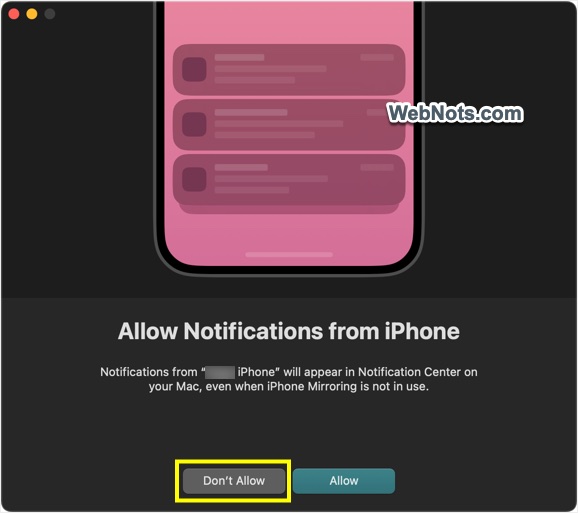
When you first time open iPhone Mirroring app on Mac, it will prompt you to confirm whether you want to receive iPhone notifications or not. Make sure to select “Don’t Allow” option.
If you have allowed the notification, follow the below steps:
- Open iPhone Mirroring app on your Mac.
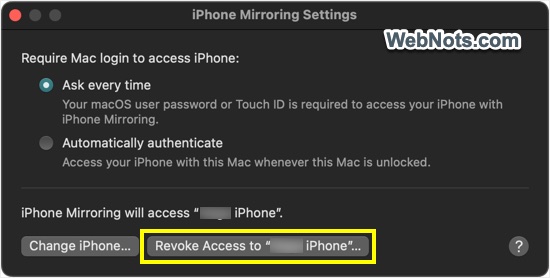
- Go to “iPhone Mirroring > Settings…” menu.
- You will see a pop-up and click on “Revoke Access to Your iPhone…” button.
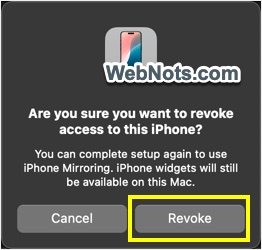
- Confirm your action by clicking on “Revoke” button.
Again, reconnect your iPhone and when prompted don’t allow the notifications.
2. Switch to Another iPhone
Sometimes you have multiple iPhones and switch the phone from which you want to receive notifications on your Mac.
- Open iPhone Mirroring app, navigate to “iPhone Mirroring > Settings…” menu and then click on “Change iPhone…” button.
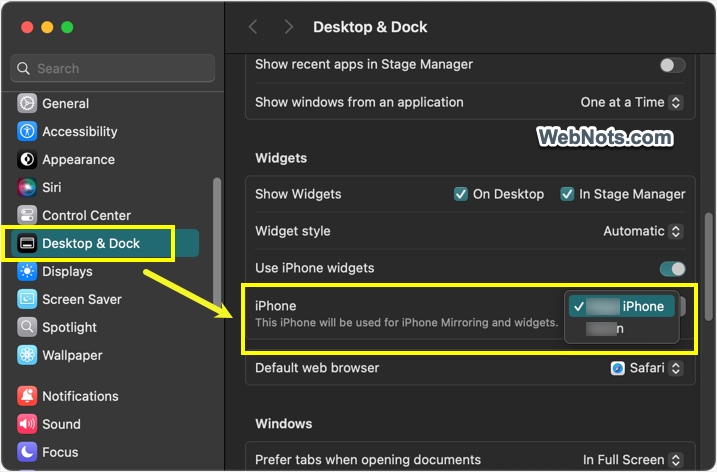
- Alternatively, go to “Apple Menu > System Settings… > Desktop & Dock” section.
- Click the dropdown against “iPhone” under “Widgets” section.
- Select the iPhone from which you want to receive notifications on Mac.
3. Disable Notifications for Individual Apps
If you are annoyed with certain apps, then it is possible to disable notifications on Mac only for those apps.
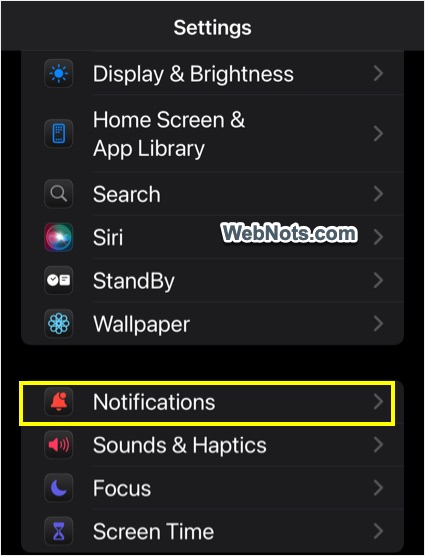
- Open Settings app on your iPhone and go to “Notifications” section.
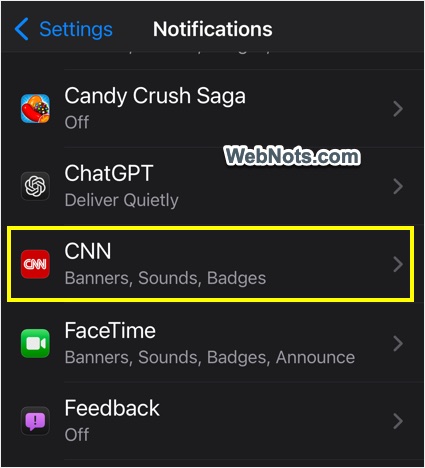
- Scroll down and tap on the app you want to disable notifications.
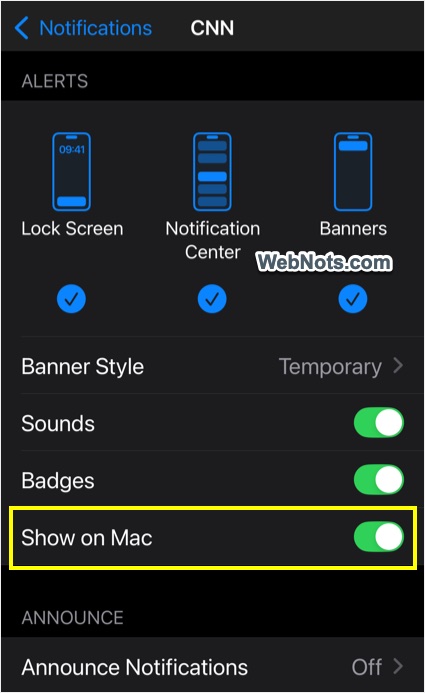
- Turn off “Show on Mac” option.
Final Words
As you can see there are multiple options to manage the iPhone notifications on Mac. You can either turn off entire notifications or only for certain apps sending too many annoying notifications. It is also possible to switch iPhones, if you have multiple devices.