
Inode or file count is nothing but the total number of files available in your hosting account. Though every hosting provider says unlimited free hosting while signup, it always has a hidden restriction on file count limit. Normally, the sales page of hosting company’s website will show details of hosting plans something like below. Clicking on the unlimited link also will not show any details on file count restriction. So, it is really difficult for anyone to find out what exactly the file count limit is.

In this article, we will explain with Bluehost as an example and you will find similar situation with most hosting services. The user agreement of Bluehost also does not mention the limit on hosting and has the following content under “Unlimited usage policy and definitions” section:
a. Unlimited Hosting Space; excessive MySQL files
Bluehost does not set arbitrary limits on the amount of disk space a Subscriber can use for the Subscriber’s website, nor does Bluehost charge additional fees based on an increased amount of storage used, provided the Subscriber’s use of storage complies with these Terms. Please note, however, that the Bluehost service is designed to host websites. Bluehost does NOT provide unlimited space for online storage, backups, or archiving of electronic files, documents, log files, etc., and any such prohibited use of the Services will result in the termination of Subscriber’s account, with or without notice. Accounts with a large number of files (inode count in excess of 200,000) can have an adverse affect on server performance. Similarly, accounts with an excessive number of MySQL/PostgreSQL tables (i.e., in excess of 1000 database tables) or of database size (i.e., in excess of 3GB total MySQL/PostgreSQL usage or 2GB MySQL/PostgreSQL usage in a single database) negatively affect the performance of the server. Bluehost may request that the number of files/inodes, database tables, or total database usage be reduced to ensure proper performance or may terminate the Subscriber’s account, with or without notice.
What is File Count Limit?
The inode count includes each file, folder, email or anything you store on your account. For example, if you have a theme folder in your WordPress directory having 99 files inside then the inodes or file count is accounted as 100 files (99 file + 1 Folder). The maximum limit of inodes for a shared hosting account is 50,000. Bluehost sets this limit as a soft limit, which means you shall exceed this within another hard limit of 200,000 inodes.
The hard limit for Pro hosting account is set as 300,000. Bluehost mention this is in its support article as:
Shared Hosting Accounts
We only allow 50,000 inodes per cPanel account, because that is where we see optimal server performance. We do understand that not all of our customers can reduce their file count that far; for this reason this is a “Soft limit” meaning that while the limit is reached, you will still be able to upload files. Once the account exceeds 200,000 files then it will be in violation of our Terms of Service and can result in possible suspension.
Pro Hosting Accounts
With the upgrade to the Pro account the inode limit is increased to 300,000.
Here is the comparison of file count limit between Bluehost and other hosting providers like GoDaddy and HostGator.
| Hosting Company | Soft File Count or Inode Limit | Hard File Count or Inode Limit |
|---|---|---|
| Bluehost Standard Hosting | 50,000 | 200,000 |
| Bluehost Pro Shared Hosting | 50,000 | 300,000 |
| GoDaddy Shared Hosting | 250,000 for Linux and 500,000 for Windows Hosting | |
| HostGator Shared Hosting | 100,000 | 250,000 |
If you are frustrated with shared hosting limitations, consider going for Cloud hosting with companies like SiteGround with autoscaling resources feature.
What will Happen if You Exceed the File Count?
You will be still able to upload files even after your account exceeds the soft limit of 50K inodes. When you reach 200K then you will receive a violation warning email from Bluehost to reduce your file count within certain period of time. Bluehost will take down your site from the server if you are not able to reduce the file count.
How to Check File Count Limit in Bluehost?
Follow the below step by step instructions to check file count or inode limit of your Bluehost hosting account.
- Login to your Bluehost account.
- Go to “Hosting” section from sidebar.
- Scroll down to see your account “Usage” section.
- Check the “File Count” item to find the number of files hosted and the total number allowed for your account.
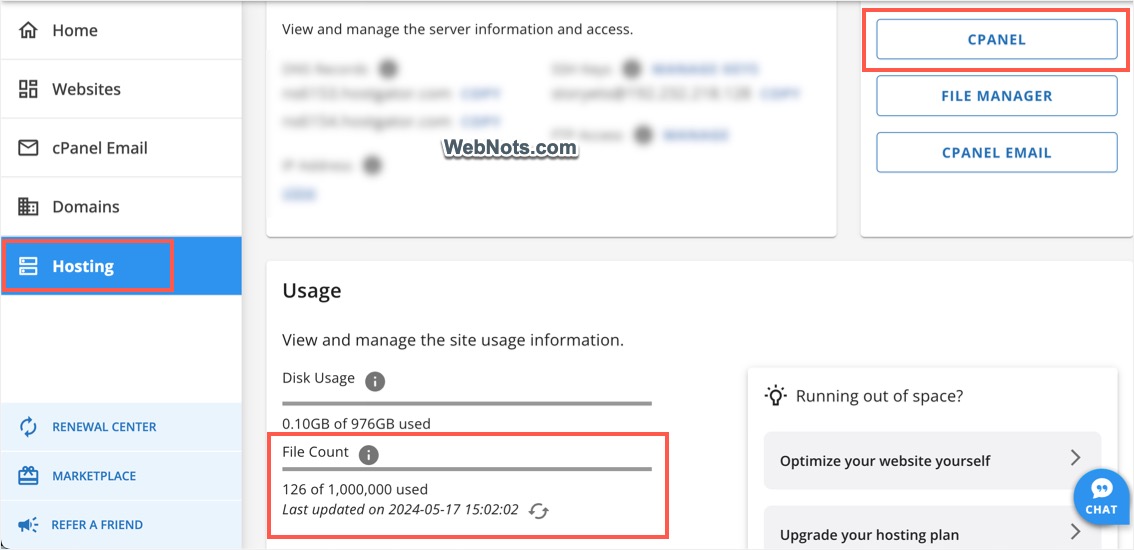
- If you do not see the “File Count”, click on the cPanel button.
- Check the right sidebar in cPanel under “Usage” and “Statistics” section.
- Your account’s File Count or Inodes is shown here.

Viewing Directory wise Detailed File Count
If you want to check detailed file count of each directory in your account, then click on the “Inodes” link on the sidebar. This will open detailed view of the directory wise file count in your account.
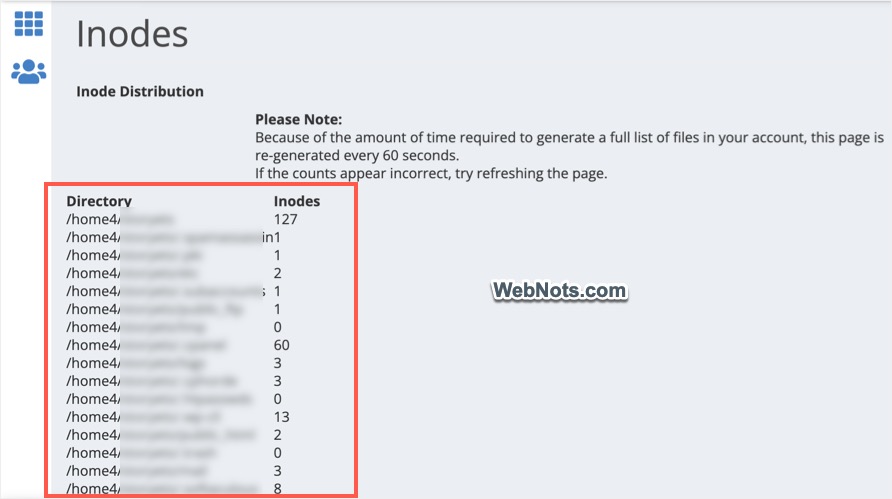
You also can click on the “Disk Usage” link to find the detailed view of disk space usage in your account. Using this feature, you can easily check which directory has more files and delete the unwanted files from that directory.
How to Reduce File Count Limit?
Here are some simple tips to reduce your Inodes or file count drastically to ensure it is within the allowable limit.
- The number of files might have gone over the limit when your site started growing in size due to the images, plugins and themes you might have uploaded or installed over the period of time. Check which directory has most number of files probably it should be your “Media” folder containing all your images. The reason is the various sizes of thumbnails generated for each image you uploaded in your site.
- Each inactive theme in your WordPress installation will also increase the file count; hence you can delete those inactive themes to reduce the file count. Keep two themes on your installation – one is the active theme and the other is the fallback theme in case of issues with the active theme. Learn here how to delete inactive theme in your WordPress site.
- The next probable cause will be your plugins directory. Like themes, each inactive plugin will still have files in your hosting account. Especially user management plugins with login and registration features will generate lot of files to store each user profile separately.
Note: Deleting a plugin from admin panel may not remove all the related files. There will be other folders and database tables still left over on the server. These residual files are used to restore the settings, when you reinstall the plugin again. If you don’t need the plugin anymore then scan through your hosting account and delete all those unnecessary files occupying the space and increasing the file count.
How to Delete those Files?
Well, now you know all the unnecessary files lying on your server. If you wonder how to delete it on bulk – there are two ways to delete files from your hosting account.
- Delete Files Using “File Manager”
- Use FTP software to remove files and folders
1. Delete Files using File Manager
cPanel offers powerful File Manager to view, arrange and delete your files. Login to your Bluehost account, click on the cPanel button under “Hosting” section and find the “File Manager” app.
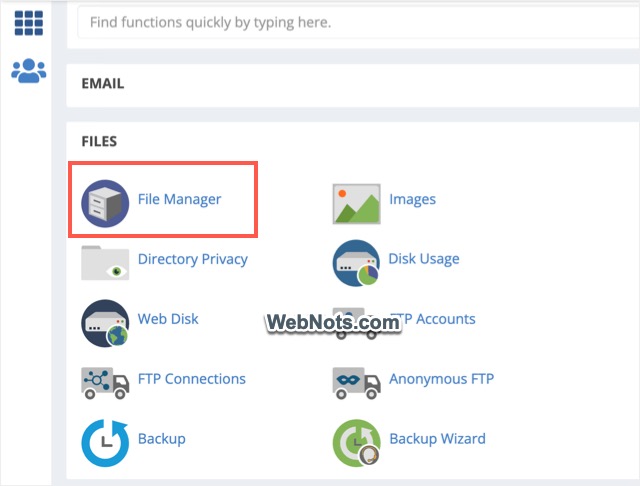
Click on the “File Manager” icon and go to “public_html” section where you can find all your installation files. You can select any folder or file here and click on the “Delete” icon to remove the files permanently from your server thus resulting in reduced file count limit.

2. Delete Files Using FTP Software
Using “File Transfer Protocol” is another option to delete files from your hosting account. You need to create an FTP account in cPanel in order to use this option and need an FTP software like “FileZilla” installed on your local PC or Mac configured to remotely access the hosting account.
Open your FTP software and connect to hosting account. Navigate to the directory and delete the files you want to remove from your server.

Note: You can also create FTP account access to specific folder and then delete the FTP account including the folder. This will instantly delete all the files inside the folder which otherwise will take hours together using FileZilla.
Final Words
WordPress sites will look attractive but remember there is a cost behind that attractiveness. Any additional theme or plugin you install will have direct impact on the inodes or file count limit of your shared hosting account. So, install only what you need for your site instead of installing unnecessary things. You can check and reduce the inodes or file count as explained above to have your hosting account in good status. If you foresee any problems, proactively discuss with the support team of your host and resolve the issue before they send you warning email on violation or account suspension.






I don’t see the “file count” option
Really usefull, same problem facing from longback for my website newsbreaking.in, now fixed the issue by following above method.
Thanks so much for the info. I found 12 unused themes to delete on one of my domains, and have about 20 more domains to check, to remove unused images, themes and plugins.
Thanks so much. It helped me a lot