If you manage multiple websites for yourselves or for clients, it is important to manage the Google Analytics accounts properly under correct Google account (Gmail ID). For some reasons, if you want to transfer a website (property) to another Google account, it is super easy to do that.
Transferring Analytics Property
Google Analytics has this structure: Google Account > Analytics Account > Property > Data Stream. You can have up to 100 Analytics accounts under a single Google account and 2000 properties under an Analytics account. So, do not confuse with Analytics account and Google account. It is possible to move a property:
- From one Google account to another.
- From one Analytics account to another (within the same Google account).
Though the primary purpose of this article to explain the first topic, we will also touch upon the process for the second topic.
Move Property to Another Google Account
Let’s assume, you want to move a property from Gmail-1 to Gmail-2. There are two steps in the process.
Step 1 – Add Gmail-2 as an Administrator for the Property
- Go to Google Analytics and login with your Gmail-1.
- Click the gear icon showing on bottom left corner to open “Admin” section.
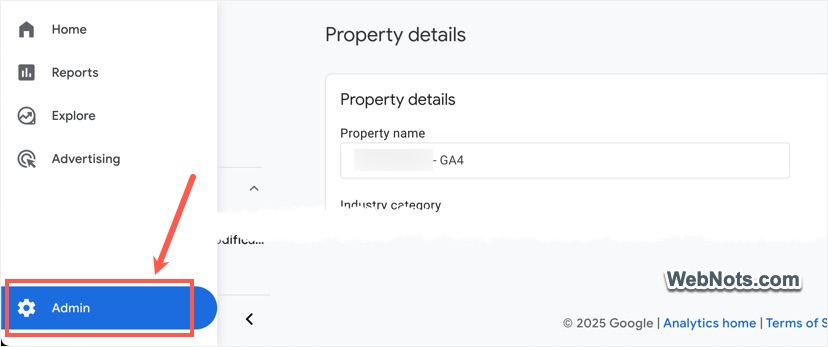
- Expand “Account settings” then expand “Account” section and click “Account access management” option.

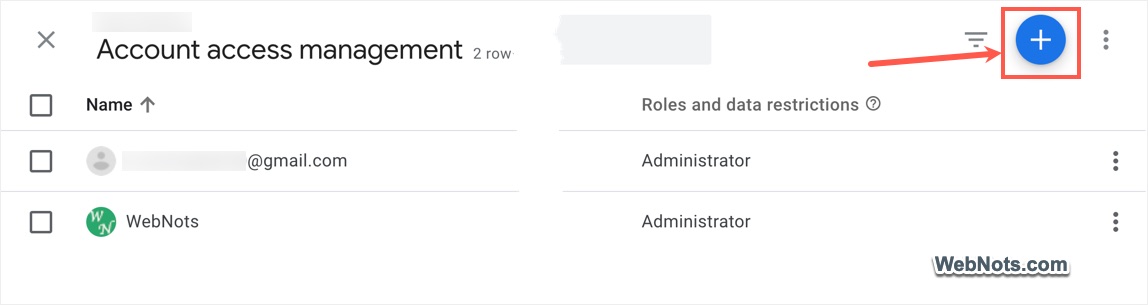
- This will open a slide out showing the list of users currently having access to the Analytics account.
- Click the + button showing on top right corner of the slide out and select “Add users”.
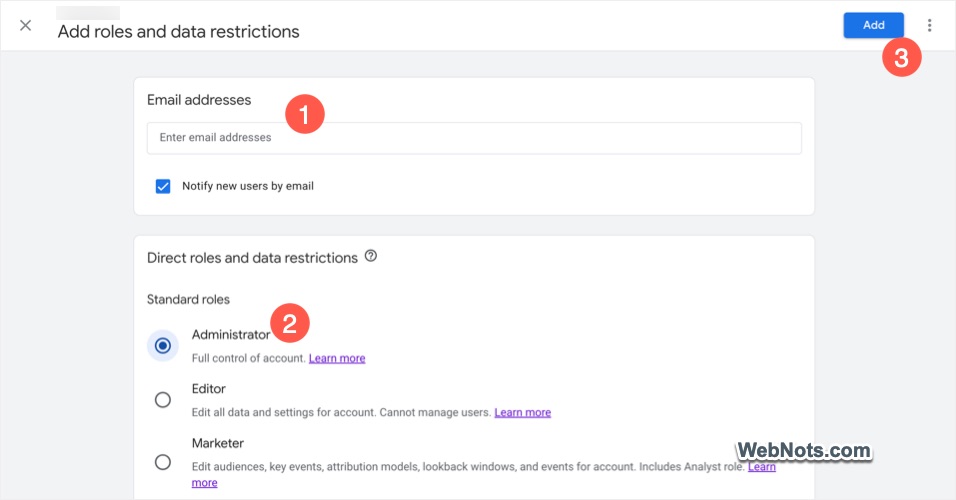
- Enter the Gmail-2 id and select “Administrator” as a role.
- Click “Add” button to add the Gmail-2 account as an administrator.
Step 2 – Remove Gmail-1’s Access
Gmail-2 will receive an email from Google that permission has been granted for accessing a property. At this point, both Gmail-1 and Gmail-2 owners can access the property in their Analytics account. This is an optional step if you want to remove property’s access to Gmail-1 (original owner).
- Open Analytics website and login with Gmail-2 ID.
- You will see the transferred Analytics account is already showing traffic details and reports.
- Go to “Admin > Account settings > Account > Account access management” section.
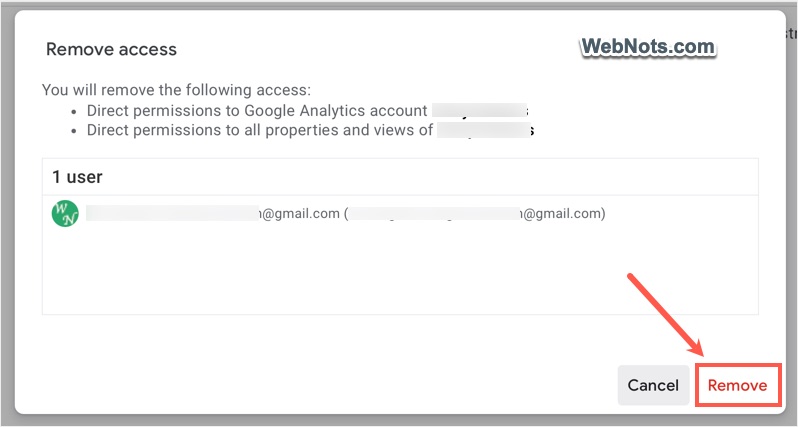
- Select the Gmail-1 and click “Remove access” under the three dots icon.
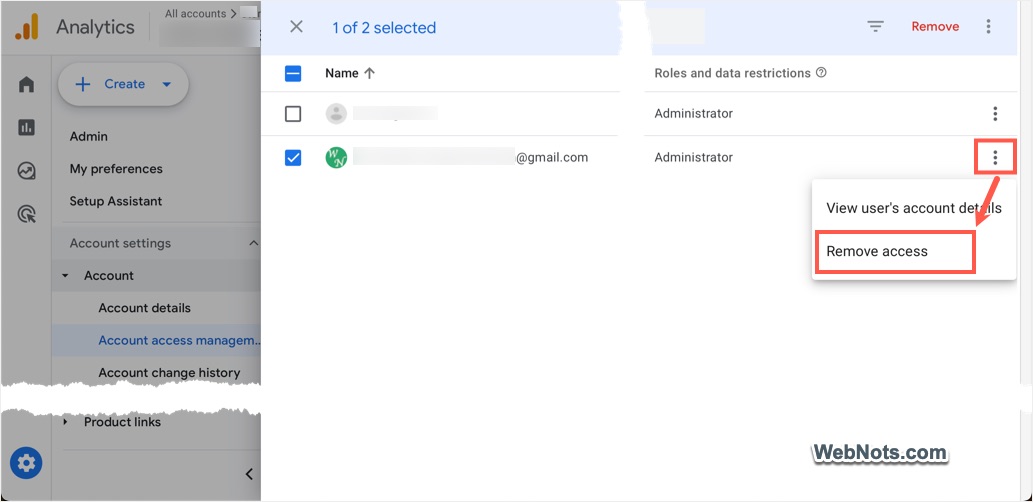
- Confirm your action by clicking on “Remove” in the pop-up.
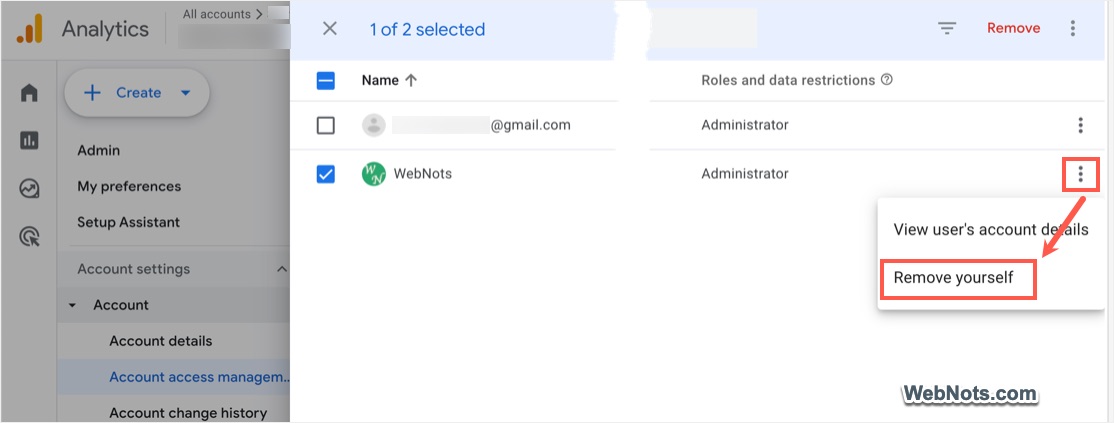
Note: Alternatively, Gmail-1 can also remove their own access from the settings page of their Analytics account. In this case, click the three dots icon and select “Remove yourself” option. This means all you need is to add another Google account as an administrator without the need of any acceptance from that owner. Once added, you can simply remove your access to remove the property from your Google / Analytics account.
Move Property to Another Analytics Account (Within Same Google Account)
Sometimes, you may want to move the property to another Analytics account (within the same Google account) for reporting purposes. Follow the below steps in this case:
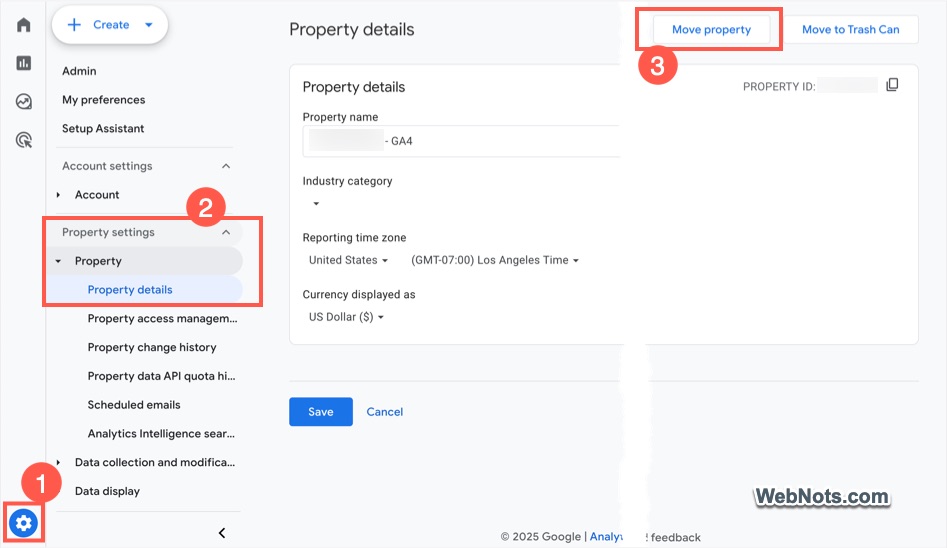
- Login to your Google Analytics account and navigate to “Admin” section.
- Go to “Property settings > Property >Property details” section.
- Click “Move property” button showing next to “Move to Trash Can” button.
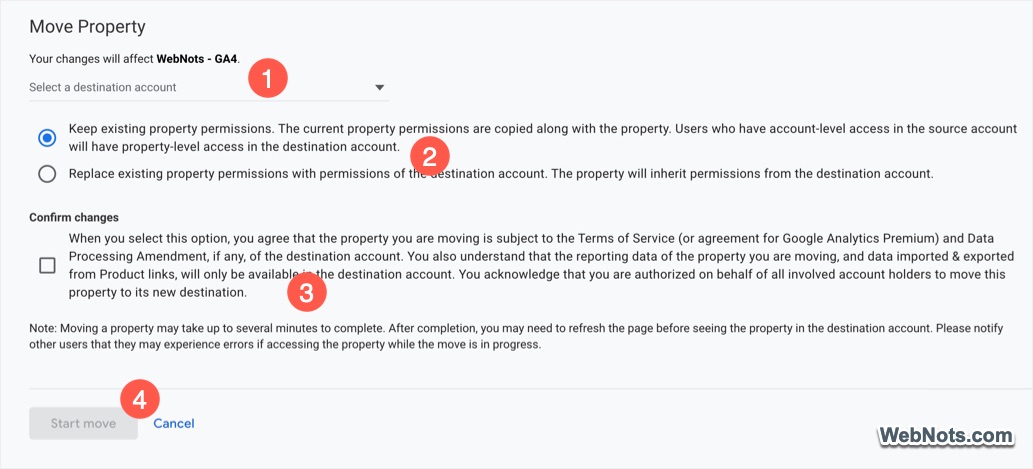
- Select the destination account from the dropdown and then select the permissions option.
- Check the “Confirm changes” box and click on “Start move” button.
- Wait for the process to complete and you will see the property is moved to the selected Analytics account.
Final Words
If you have multiple Google or Analytics account, it is a good idea to transfer the properties to correct account and manage the reporting properly. It will take just few minutes to do this and then you are good to go with the new setup. Note that moving an Analytics account or a property will affect the dependent setup. For example, you need to re-verify the site in Google Search Console if you have verified using Google Analytics tracking code.