By default, folder properties dialog box in Windows 11 shows a few tabs like General, Sharing, Security, Previous Version and Customize. In our earlier article, we have explained why the Security tab will miss and how to fix that issue. Similarly, there are situations you will not find the Sharing tab in folder properties. In this article, we will explain various options to bring the Sharing tab back.
Sharing Tab in Folder Properties
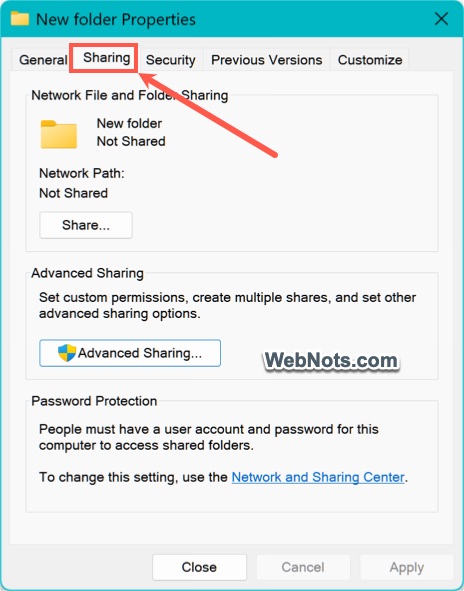
- Sharing tab allows you to configure network sharing permissions like granting access to specific users or groups on your local network.
- It’s part of Windows’ built-in Server Message Block (SMB) protocol, which enables file sharing between computers.
- Without this tab, setting up advanced sharing options becomes less intuitive, though basic sharing is still possible through other means.
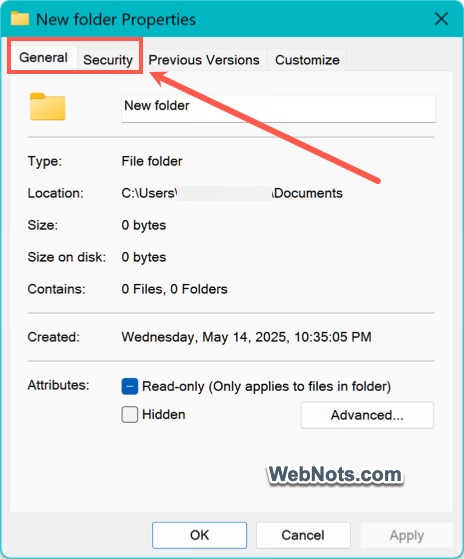
1. Unblock Sharing Tab in Registry
One of the primary reasons the Sharing tab disappears is a block in the Windows Registry. This blocks might have happened due to app or Windows Updates and here is how to remove it. Make sure to take a backup of your registry entries before making any changes.
- Press Windows Logo + R keys to open Run dialog box.
- Type regedit in the box and press “OK” button to open the Registry Editor.
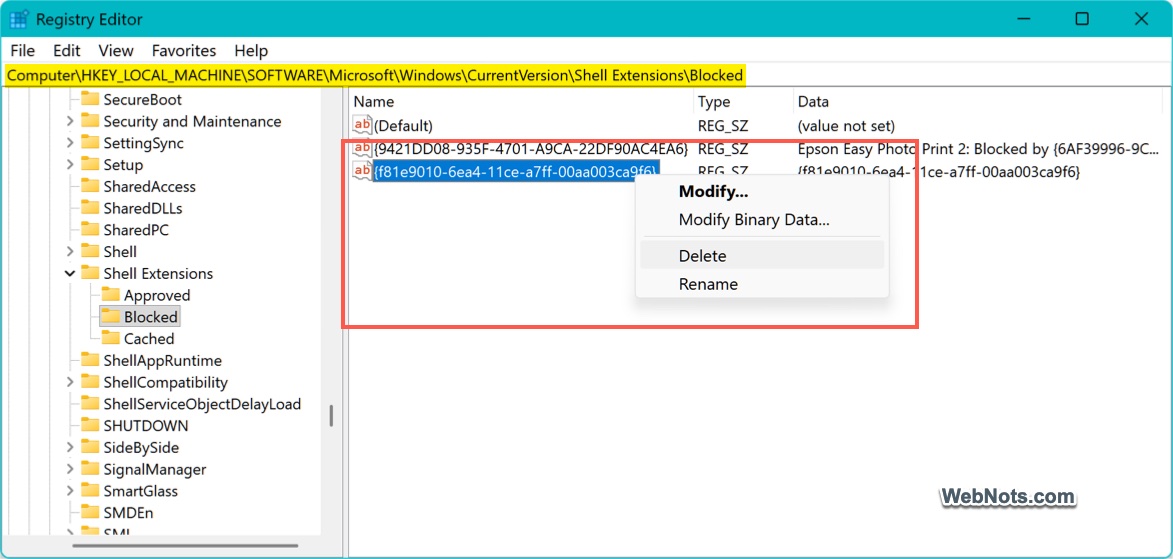
- Copy the following path, paste in the Registry Editor’s address bar and press enter to navigate to that location.
HKEY_LOCAL_MACHINE\SOFTWARE\Microsoft\Windows\CurrentVersion\Shell Extensions\Blocked
- Look for the key named {f81e9010-6ea4-11ce-a7ff-00aa003ca9f6} on the right-pane.
- Right-click on it and select “Delete” option.
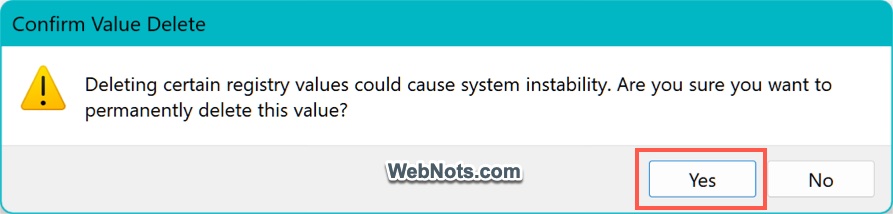
- Click “Yes” button in the warning pop-up to confirm the deletion.
- Close the Registry Editor and restart your PC.
- Now, select any folder and open its properties (by pressing Alt + Enter keys). You should see the Sharing tab with all the options.
2. Check Required Services are Running
If the previous option does not resolve the issue, verify that all required Windows services are running in the background. Windows depends on specific services to enable file and printer sharing features. If the Server service is stopped or configured with a manual startup type, the Sharing tab will not be displayed. Additionally, related services such as Function Discovery Provider Host and SSDP Discovery can affect sharing functionality, particularly when network discovery is disabled. Ensure these services are running and set to the appropriate startup type.
- Press Windows Logo + R keys to open Run dialog box.
- Type services.msc in the box and press “OK” button to open Windows Services.
- Find the “Server” service in the list under the “Name” column (click the column’s header to sort alphabetically to find it easily).
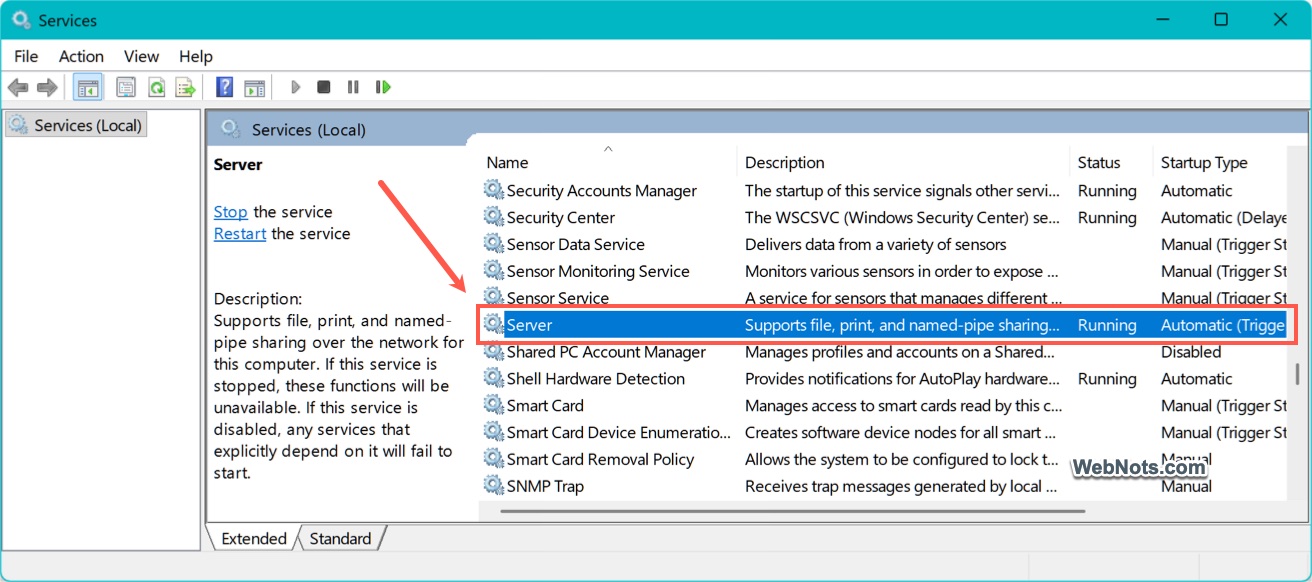
- Double-click on the service name to open its properties.
- Select the “Startup type” as “Automatic” and click the “Start” button if it is stopped.
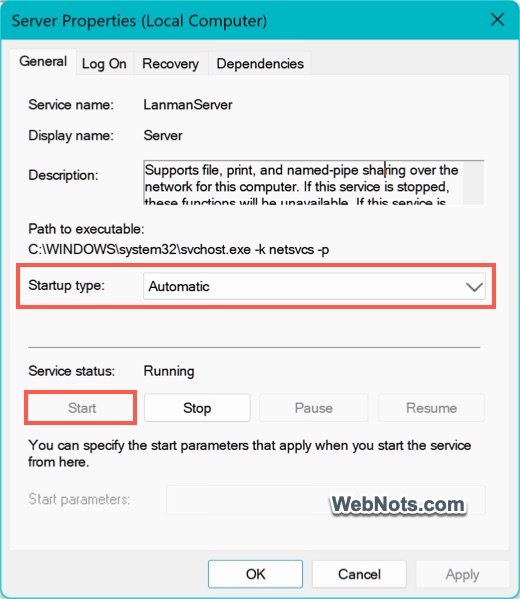
- Repeat the steps for “Function Discovery Provider Host” and “SSDP Discovery” services to confirm those services are also running automatically.
- Close the Windows Services and press Windows Logo + I keys to open the Settings app.
- Navigate to “Network & internet > Advanced network settings > Advanced sharing settings” section.
- Turn on “Network discovery” and “File and printer sharing” options.
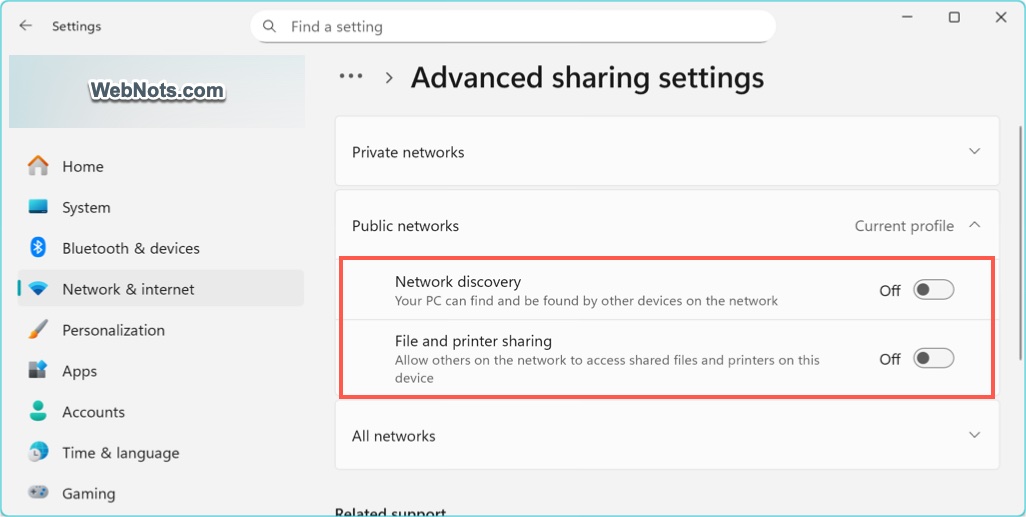
If the problem was caused by a service configuration issue, restoring these services should make the Sharing tab visible.
3. Other Things to Check
- If you are using third-party antivirus or firewall app, make sure it is not interfering with the Windows shell extensions causing tabs like Sharing to vanish. You can temporarily disable the antivirus app to confirm this.
- Update to latest Windows versions as previous updates might have removed the Sharing tab.
- Make sure you are using an administrator account or you are the folder owner.
- Ensure your IT or network administrator disabled the tab through policy settings, which is more common in organizational setups.
Conclusion
In most cases, deleting the Registry entry will bring the missing Sharing tab in Windows 11 folder Properties. On other hand, you can simply add the Registry key to remove the Sharing tab from all the folders.