The People feature in the iPhone Photos app is a powerful way to sort, share, and remember your memories by the people in them. iPhone uses advanced machine learning to detect faces in your pictures and group them into “People” albums. This makes it easy to browse your photo collection by the friends, family members, and pets you care about. Over time, the Photos app gets better at recognizing faces, but sometimes, it creates multiple entries for the same individual or fails to automatically combine them.
Why Merge People?
- Merging keeps your People album tidy and prevents duplicates.
- It helps you quickly find all photos of a person, even if they were split across multiple profiles.
- Photos will be grouped properly (under People > Groups)when the people are identified correctly.
- Slideshows, Memories, and sharing are more accurate and enjoyable.
Add People Section
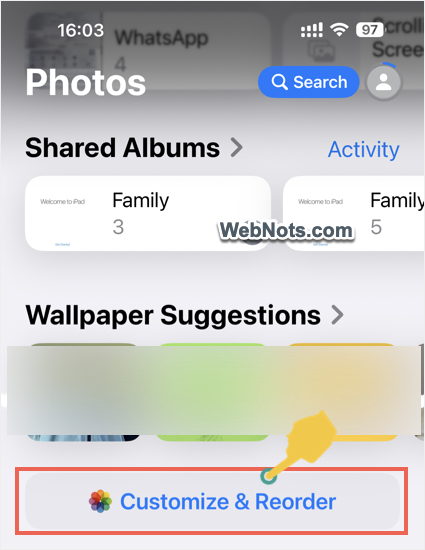
Before merging people, make sure you are using the latest iOS version (features may differ slightly on older versions) and your Photos app has scanned your photo library and populated the People album. By default, Photos app will show “People” section. However, If you are not seeing it, scroll down to the bottom in Photos app and tap on “Customize & Reorder” button.
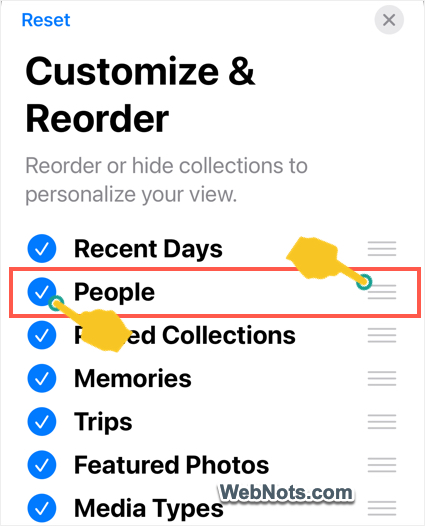
Make sure to select “People” option and use the three lines hamburger icon to rearrange the order (hold the icon and move up or down).
Merging Duplicate Profiles
- Now, scroll down to the “People” section and tap on that heading.
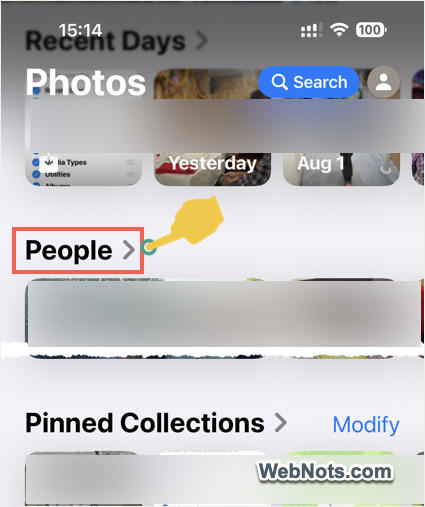
- You will see “Groups” and “People” automatically identified by the iPhone.
- Tap on “Edit” button on top right corner.
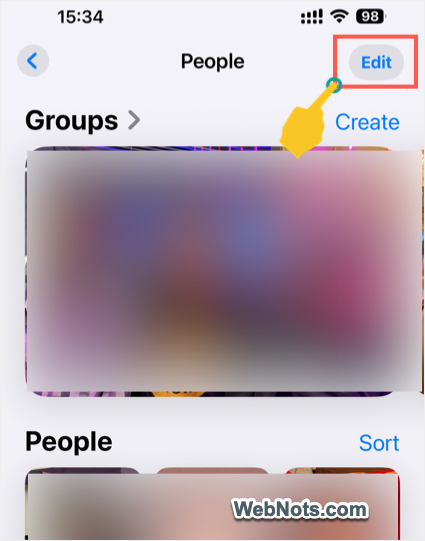
- Scroll down and browse through the People and identify duplicate profiles for the same person. You might see the same face represented in two or more separate frames.
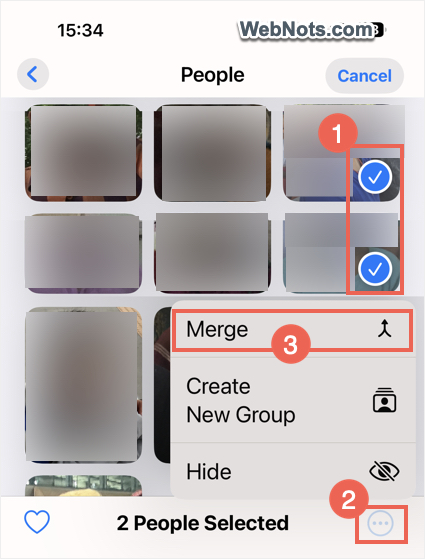
- Tap each thumbnail representing the same individual.
- Tap the “More Options” icon, represented by three dots within a circle, located at the bottom right corner.
- Select “Merge” option and confirm your action.
- The Photos app will combine the selected profiles into one, merging their images and albums.
Name the Merged Person (Optional)
After merging, you can give the combined profile a name.
- Tap the person’s thumbnail in “People” section to view all the photos and movies of that person.
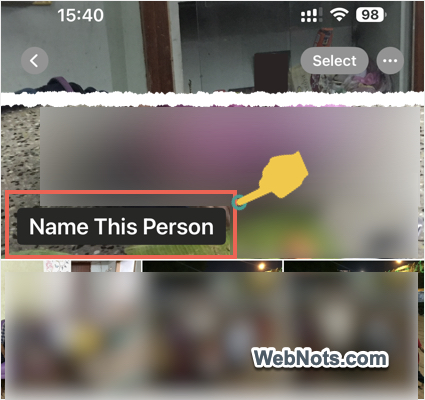
- Now, tap on the “Name This Person” caption showing on the preview slides.
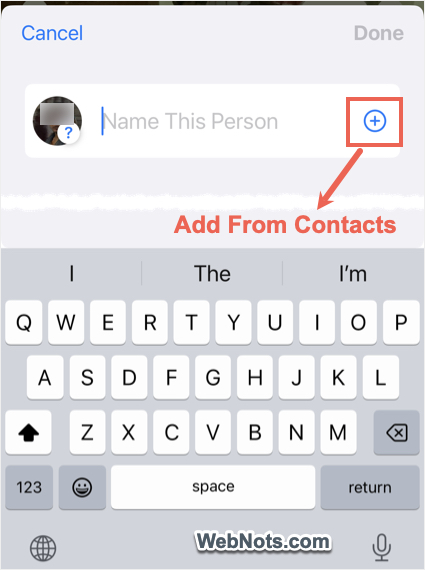
- Enter the person’s name and tap “Done”. You can also select the name from your contact list to identify the person (tap the ⨁ icon and select the name from your contacts).
Names help Photos recognize people more accurately in the future.
Troubleshooting: What If You Can’t See Merge Option?
Sometimes, the “Merge” menu will be grayed out not allowing you to combine the profiles. It may be because of the following reasons:
- The Photos app isn’t confident enough that the selected profiles are the same person. You can use the “Not This Person” feature to correct mistakes or manually confirm additional photos to help Photos learn.
- If you have just imported new photos, wait for the Photos app to finish scanning your photo library.
- Try updating your iPhone to the latest version of iOS, as the feature improves with software updates.
Frequently Asked Questions
Yes, if you use iCloud Photos, any changes you make to your People album (including merges) should sync across all devices signed into the same Apple account.
Currently, the Photos app doesn’t provide an undo option for merging people. If you accidentally merge two separate people, you’ll need to manually remove incorrectly assigned photos and let the app re-learn.
No, merging people combines all the photos from the selected profiles. No images are deleted, but duplicates may be resolved.