Windows comes with a lot of hidden features and restartable app is one such feature many users may not aware of. This helps to automatically launch the app with its previous state after a system reboot. This can easily save your time and sometimes effort from having to reopen everything manually.
How Restartable Apps Work?
Let’s take an example to explain how it works.
- You have Google Chrome and opened five tabs reading web pages.
- Suddenly the system crashed or you have manually triggered Windows Update.
- Windows will reboot and you login to the system.
- Now, Google Chrome will launch automatically with the same five tabs allowing you to continue where you left off.
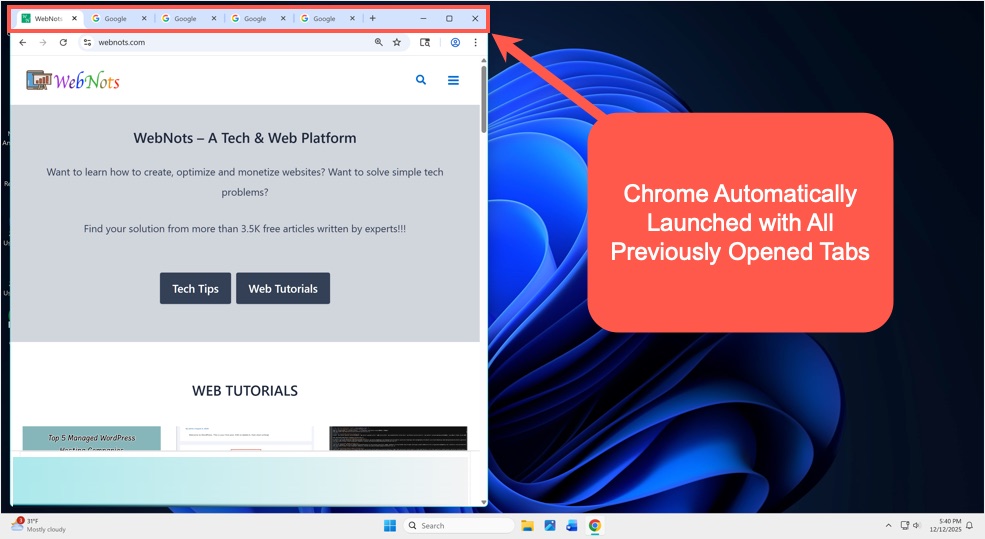
By default, Chrome will not launch after restart and you need to manually register Chrome as a restartable app for this to work. There are two steps needed to enable this feature for your favorite app.
1. Enable Restartable Apps Settings
This is the first step to be enabled in Windows Settings app.
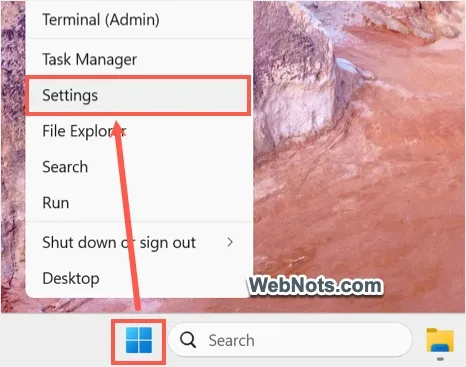
- Right-click on Start button or press “Win + X” keys and select “Settings” menu.
- Navigate to “Accounts” section from left sidebar.
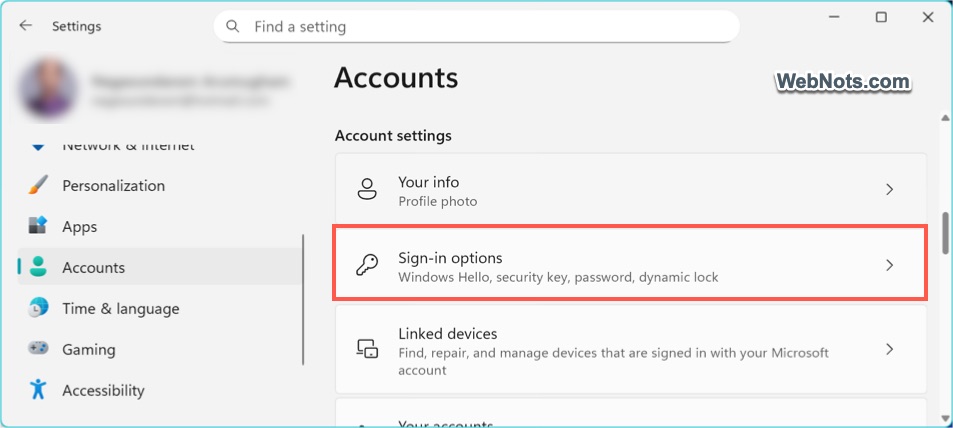
- Click “Sign-in options” under “Account settings” heading on the right pane.
- Scroll down to “Additional settings” section and turn on “Automatically save my restartable apps and restart them when I sign back in” option.
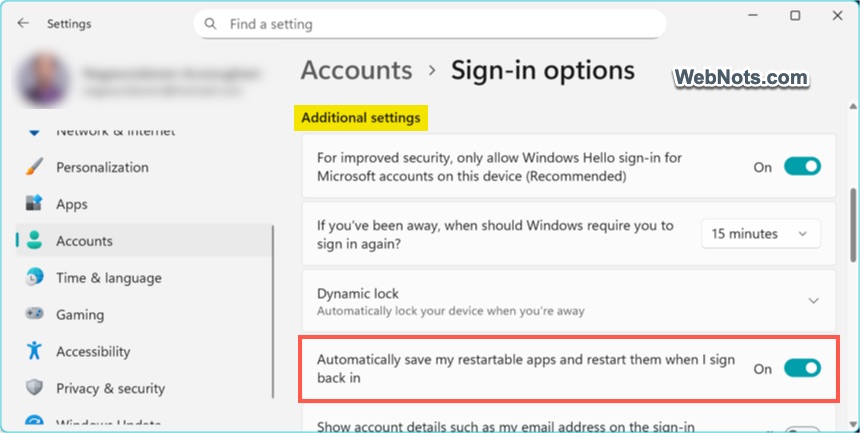
With this settings turned on, Windows will now try to save and restore supported apps when you sign in after a restart.
2. Register an App as Restartable
This is the second step to be enabled in individual app’s properties.
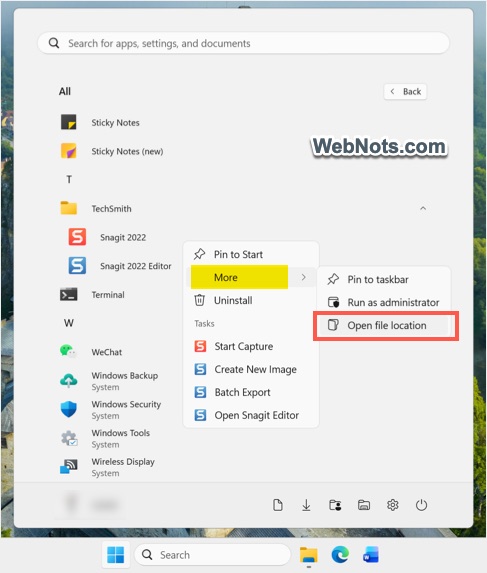
- Locate the app’s executable file. The easy way is to find the app in Start menu list and right-click on it. Select “Open file location” from “More” menu. This will generally open the app’s shortcut. Again, right-click on the shortcut and select “Open file location” to go to the application file’s location.
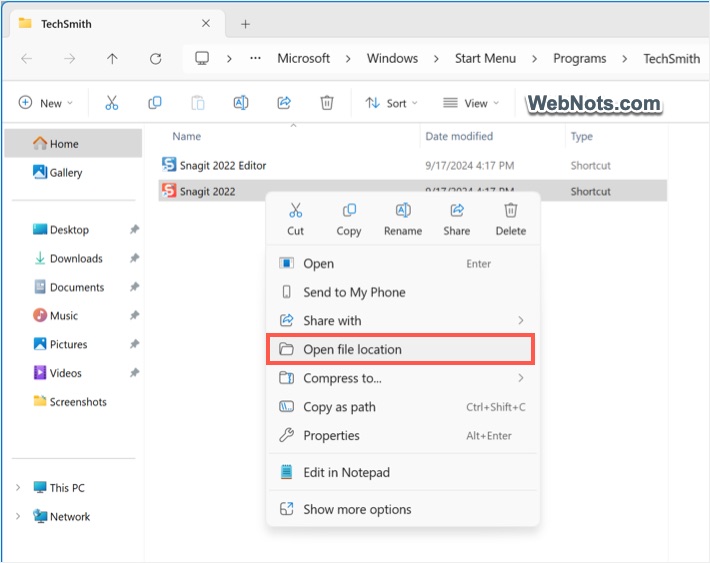
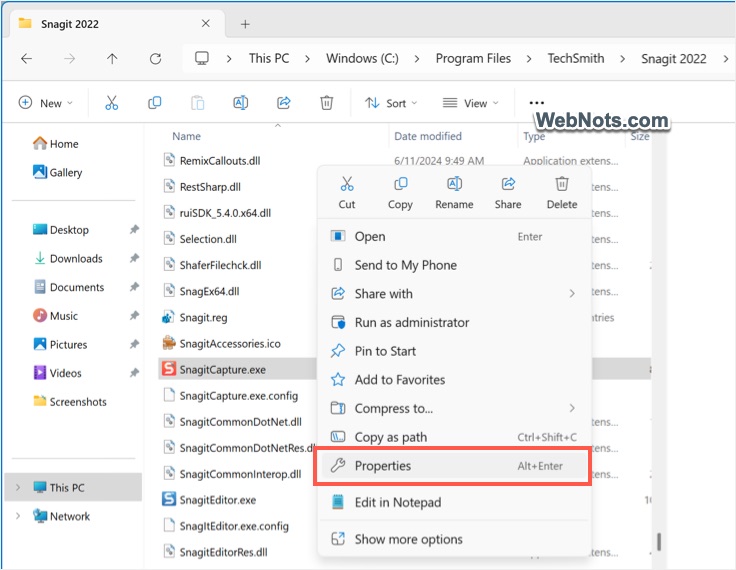
- After finding the application file, right-click on it and select “Properties” to open app’s properties dialog box.
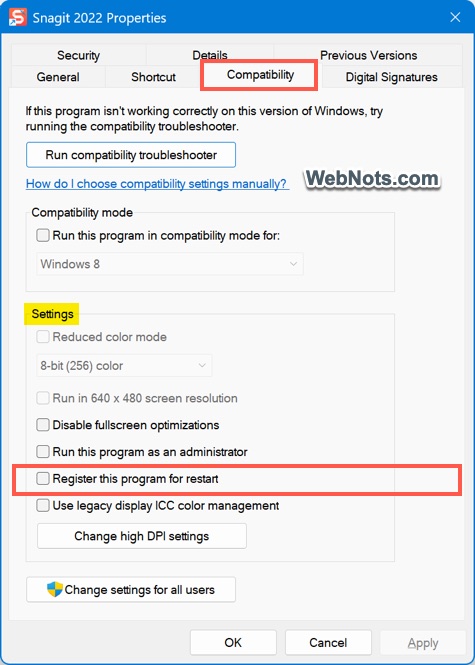
- Navigate to “Compatibility” tab and check “Register this program for restart” option under “Settings” heading.
- Click “Apply” and then “OK” buttons to save your changes.
Hereafter, the app will automatically launch with its previous state whenever a system reboot happens. Though this feature is useful, apps may not support this. In that case, you will not find the register option in compatibility tab.
Restartable Vs Startup Apps
At this point, one thing might be confusing you – what’s the difference between the startup apps and restartable apps?
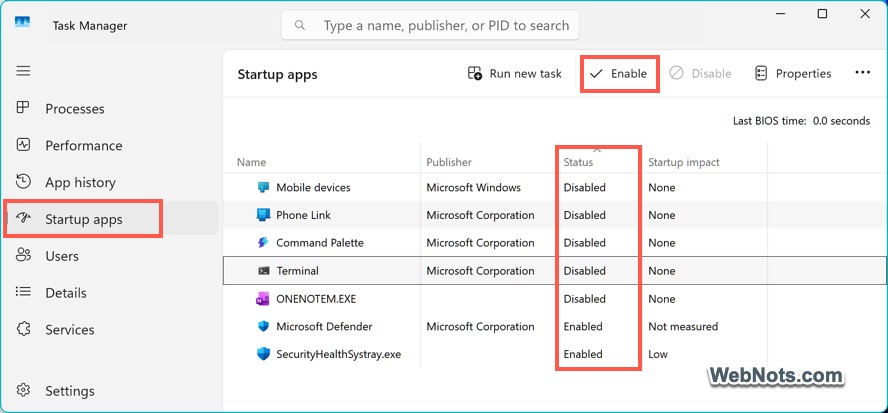
- Startup apps also will launch automatically after booting. For example, Microsoft Defender will start automatically and start protecting your system real-time. However, startup apps will not launch with its previous state, like Chrome reopens with all previous tabs.
- Open an app, then go to “Task Manager > Startup apps” section. Now, select the app and click “Enable” to add it to the startup apps list. You can also select any app in the list and click “Disable” to remove it from the list.
- You will not find the registered restartable apps in Task Manager as they are different from Startup apps.