In our earlier article, we have explained why emails notifications are not delivered instantly on iPhone Mail app. The way your phone checks for new messages (for each account) affects how quickly you receive notifications. Apple offers three methods for getting new email: Push, Fetch, and Manual. Each method works a little differently and understanding them helps you to choose the right option for your needs. In this article, we will explain how email fetching works on iPhone and how to configure it.
iPhone Mail App
The process explained in this article applies only to email accounts added to the default Mail app on iPhone. Many email providers also offer their own dedicated apps, such as the Gmail app from Google. If you use those apps, you must sign in and configure your account directly within the app. Email notifications and fetching will then follow the settings available in that specific app. This article focuses only on configuring email fetching in the iPhone’s built-in Mail app and does not cover third-party email applications.
Understanding Push, Fetch, and Manual Email
Before setting anything up, it helps to understand the difference between the three delivery methods.
1. Push
This method automatically delivers new emails to your iPhone the moment they arrive on the mail server. Instead of your phone checking periodically, the server pushes the message directly to your device. However, Push is only supported by a few email services, such as iCloud. If your account supports Push and it is enabled, you will receive emails instantly without needing to refresh the Mail app.
Push is the fastest method and is ideal if you want immediate notifications.
2. Fetch
Most email providers, including Gmail and Yahoo, use Fetch instead of Push. With Fetch, your iPhone checks the email server at scheduled intervals to see if new messages are available. The schedule can be configured in your settings.
Typical fetch schedules include:
- Every 15 minutes.
- Every 30 minutes.
- Every hour.
Because your phone checks periodically rather than continuously, there may be a delay between when an email arrives on the server and when it appears on your iPhone. For example, if your fetch schedule is set to 30 minutes, a new email could take up to 30 minutes to appear.
Fetch balances convenience and battery usage, which is why it is the default for many accounts.
3. Manual
With Manual fetching, your iPhone does not automatically check for new email at all. Instead, emails are downloaded only when you open the Mail app and refresh the inbox. This means you will not receive notifications for new messages until you manually check.
Manual mode is useful if:
- You want to conserve battery life.
- You rarely use a particular email account.
- You prefer to check email only when needed.
How to Configure Email Fetching on iPhone?
Follow these steps to change how your iPhone retrieves emails.
- Open the Settings app on your iPhone.
- Scroll down to bottom and tap “Apps” option.
- Find “Mail” app in the list and tap on it.
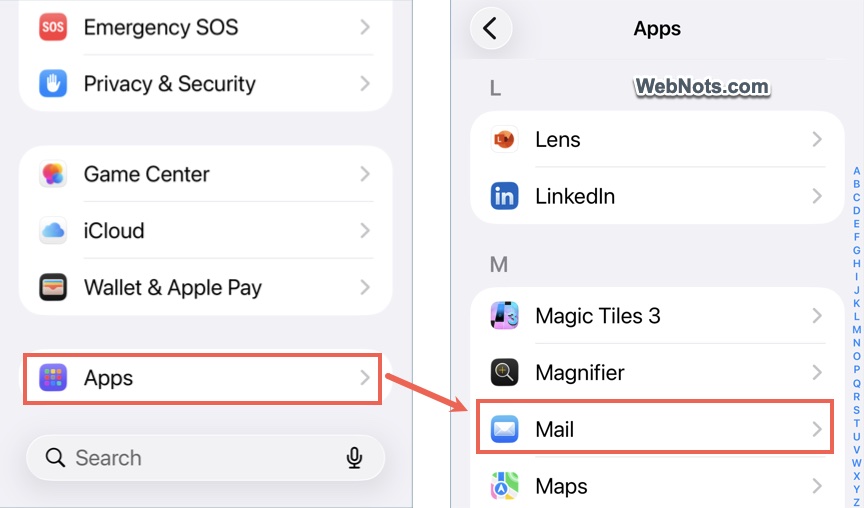
- Tap on the “Mail Accounts” option showing on the top.
- You will see a list of your email accounts, scroll down to bottom and tap on “Fetch New Data” option.
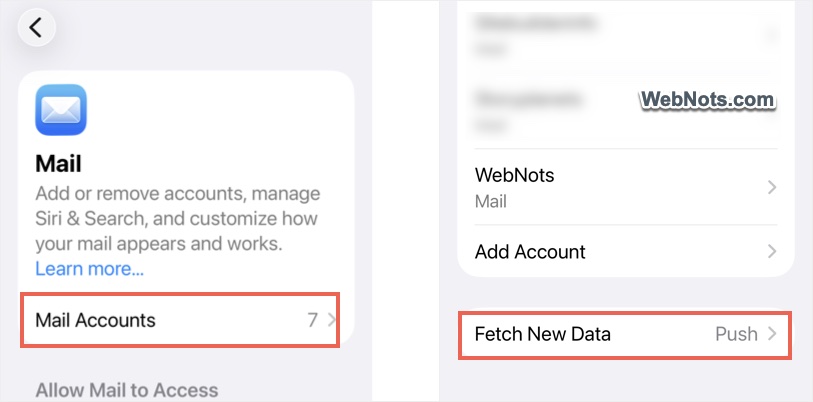
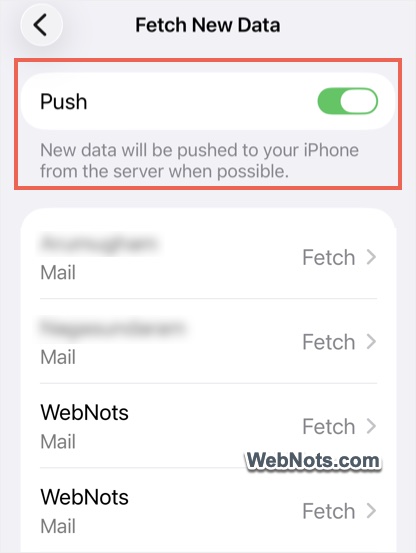
- This section controls how your iPhone retrieves emails. At the top of the screen, you will see a Push toggle.
- Turn Push ON so that all email accounts will use that method when supported. If Push is not supported, iPhone will use Fetch instead for that particular account.
Configure Individual Accounts
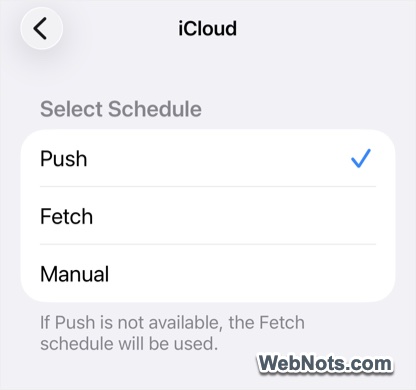
You can also customize settings for each email account. Under the “Fetch New Data” screen, tap an account and choose:
- Push (if supported)
- Fetch
- Manual
This lets you prioritize certain accounts while limiting background activity for others.
Choose a Fetch Schedule
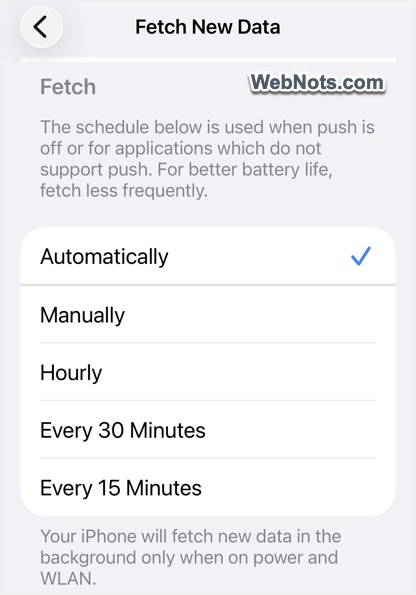
Scroll down to bottom on the “Fetch New Data” setting page and find “Fetch” section. Here you can select how often your iPhone checks for new email:
- Automatically
- Manually
- Hourly
- Every 30 Minutes
- Every 15 Minutes
The shorter the interval, the faster you will receive new messages. The automatic option will allow iPhone to fetch emails in the background only when on power and connected to WLAN.
Choosing the Right Email Fetch Method
Setting up email fetching on the iPhone Mail app helps you control how quickly you receive new messages and how much battery your phone uses. Here is a quick way to decide which option is best for you.
- Use Push if your provider supports it and you want instant notifications. This works for perfectly for Apple’s iCloud email accounts.
- Use Fetch if Push is unavailable and you want regular automatic updates. This is the common method for popular email services like Gmail.
- Use Manual if you want maximum battery savings and do not need immediate notifications. This is perfect for distraction free working without email notification pop-ups.