Though there are many reasons for your Windows 11 PC (laptop or desktop) to perform slower, your hard drive is the first thing you should check for the problems. The easy trick you can use is the defragmentation or retrim – it’s an old-school trick that still matters – at least for some systems. In this article, we’ll explain what defragmentation and retrim means, why it matters, and how to optimize your drives in Windows 11.
What Is Defragmentation?
To understand defragmentation, you need to know how files are stored. Below is how the fragmentation or disintegration of files happen:
- On a traditional spinning hard drive (HDD with moving head), files are broken into chunks.
- These chunks are written to the first available spaces on the disk.
- Over time, parts of the same file get scattered across different areas. This is called fragmentation.
This obviously slows down the file retrieving speed as your drive’s read head has to jump around to fetch all the pieces of a file. Defragmentation is the process of simply rearranging the data so that files are stored in continuous blocks. That means your system can retrieve and load them faster.
Retrim for SSD
If you’re using a solid-state drive (SSD), defragment is generally not needed. SSDs don’t have moving parts and fragmentation doesn’t affect them the same way. In fact, defragmenting an SSD can shorten its lifespan. Instead, Windows uses TRIM command and triggers a process called retrim to keep SSDs running efficiently.
- Whenever files are deleted, Windows will show the corresponding storage space as available.
- However, the data will be still present on the SSD until overwritten.
- Retrimming or the TRIM command permanently remove the deleted or unused data thus improving the performance.
How to Optimize Your Drives in Windows 11?
Windows 11 comes with a built-in tool called “Optimize Drives” that handles defragmentation (for HDDs) and TRIM (for SSDs). So, this tool is useful regardless of whether you use HDD or SSD and here’s how to use the tool:
- Click the Start Menu button and type “defragment” in the search box. Find and click on the “Defragment and Open Drives” tool from the search results.

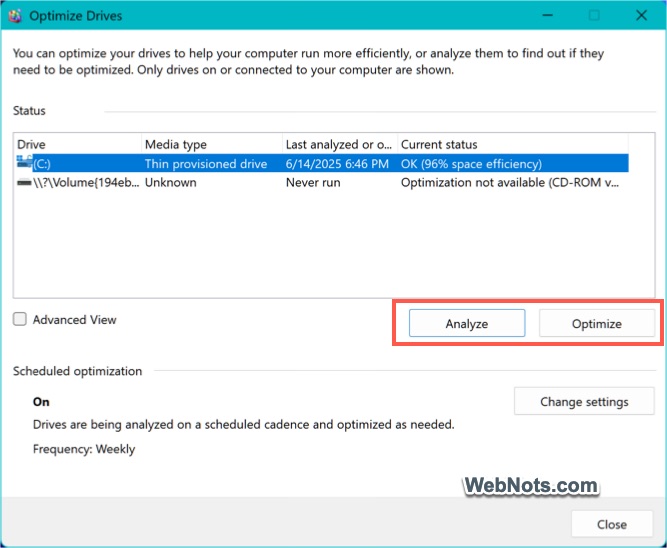
- You’ll see a list of your drives, their media type (HDD or SSD), and their current status. Choose the drive you want to optimize (let’s say C: drive).
- The “Analyze” button will be enabled only for HDDs and click on that to check the level of fragmentation. Check under “Current Status” column to find the % of storage efficiency for that drive. If defragmentation is needed, click “Optimize” to start the defragmentation process.
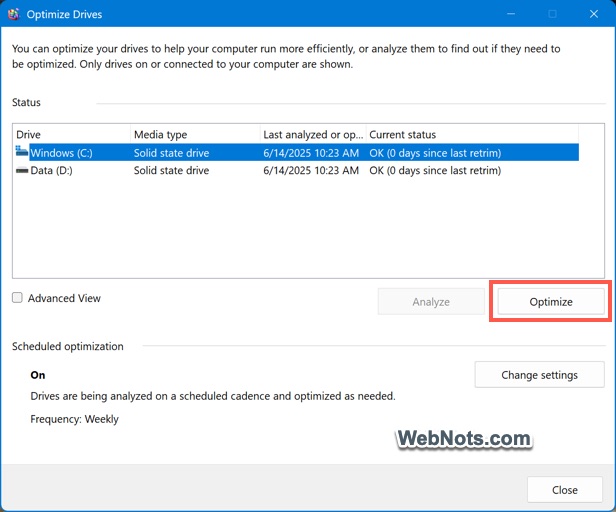
- As mentioned, the tool will run retrim for SSDs (instead of defragmentation) when you click “Optimize” – which is safe and beneficial.
If you’re not finding a drive in the list, check “Advanced View” option which will show all drives. You can also find the last analyzed date and whether optimization is needed for that drive.

Setup a Schedule for Optimization
Good thing is that you can easily schedule the optimization process so that it runs automatically in the background.
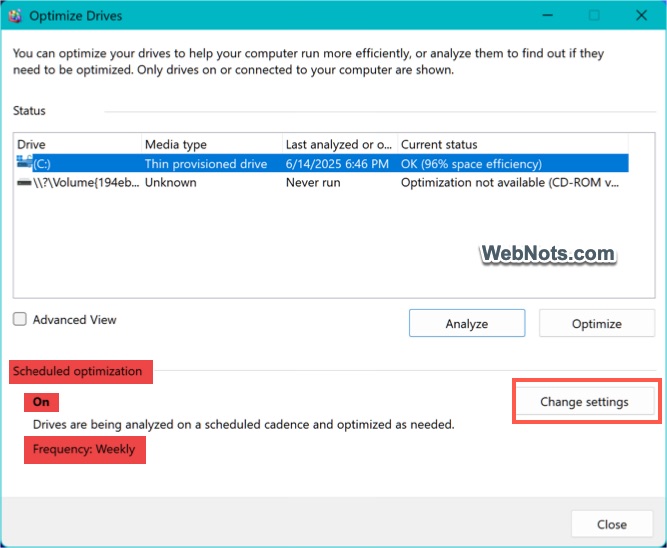
- Check under “Scheduled optimization” heading to find the current status (it will be scheduled Weekly by default). If it is turned off or you want to change the schedule, click the “Change settings” button.
- Make sure “Run on a schedule (recommended)” option is checked to turn it on. Select the “Frequency” as daily, weekly, or monthly. Also, check “Increase the task priority, if three consecutive schedules are missed” option.
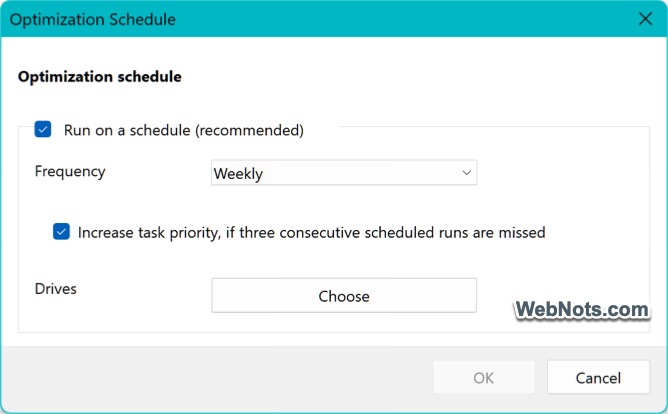
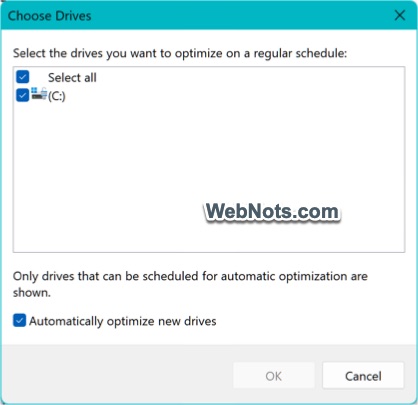
- Click “Choose” button against “Drives” and select the drives that you want to include. Check “Automatically optimize new drives” option so that any additional drives you create will be automatically included in the optimization schedule.
Final Thoughts
Keeping your storage optimized is one of the easiest ways to squeeze better performance out of your system – especially if you’re still using a traditional hard drive. Windows 11’s built-in optimizer is sufficient for most users. It’s safe, it’s automatic, and it’s smart enough to know whether your drive is an SSD or HDD. Third-party defragmentation tools may offer more options or visualizations, but they’re generally not necessary and can even cause problems if misused – especially on SSDs.