
Weebly offers a background image editor to help site owners change or adjust the background image of any element. Adding background image is useful mainly in case of landing pages. You can select a layout for header or any section (added using Section element) and change its background. It is also possible to edit the background image and customize the appearance using Weebly Image Editor.
Background Image for Weebly Site
You can add an image, plain color, gradient colors or video to the background. However, video background is premium feature for Professional and other plans. There are some restrictions in using this feature:
- Make sure to select a responsive theme as Section element will be available only in responsive themes.
- You can add one of the default layout image or use a custom image.
- It is possible to use different images for header and in the content area on each page.
- Footer does not have an option to add a background image even for premium plan users.
- Your theme will impact the options, so select the latest theme which supports background images.
Follow the below steps to try out the image editor or else click here for setting different background images for different pages of a same site using a non-responsive theme.
Step 1 – Choosing a Correct Theme
Go to “Themes” tab in Weebly editor and click on the “Change Theme” button.

Find a theme from the list and choose it for your site. The themes shown are responsive and support Section element. Do not click on the “Show Old Themes” button showing at the bottom of the page. That will show non-responsive themes which do not support backgrounds.
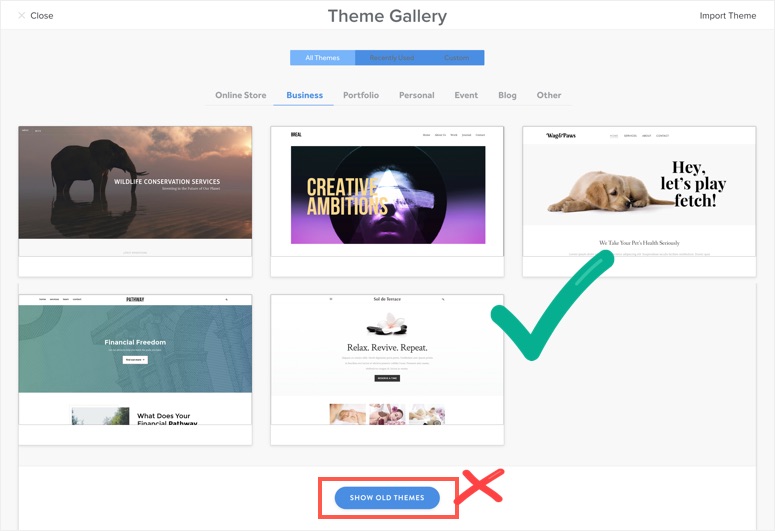
After choosing a theme, go to “Themes” tab again and click on “Theme Options” button. Make sure to enable background related features if any.
Step 2 – Choosing Layout for Header and Sections
For using a header image, go to “Pages” tab and select the page. Click the dropdown below “Header Type” and select “Header” option.
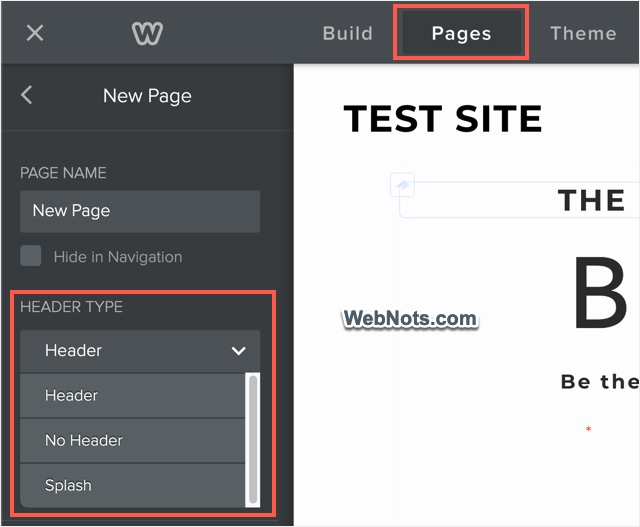
Weebly will use the default header layout defined in your theme. Click on the header element and select “Replace Header Layout” option. You will see a list of options and select the layout you like to use for your header.
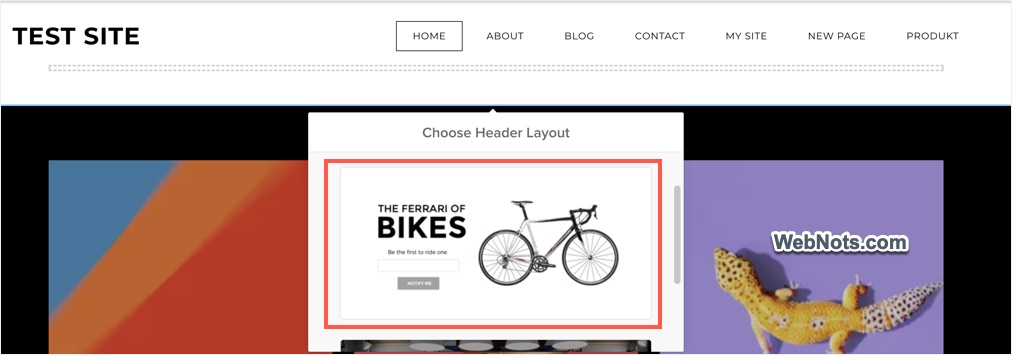
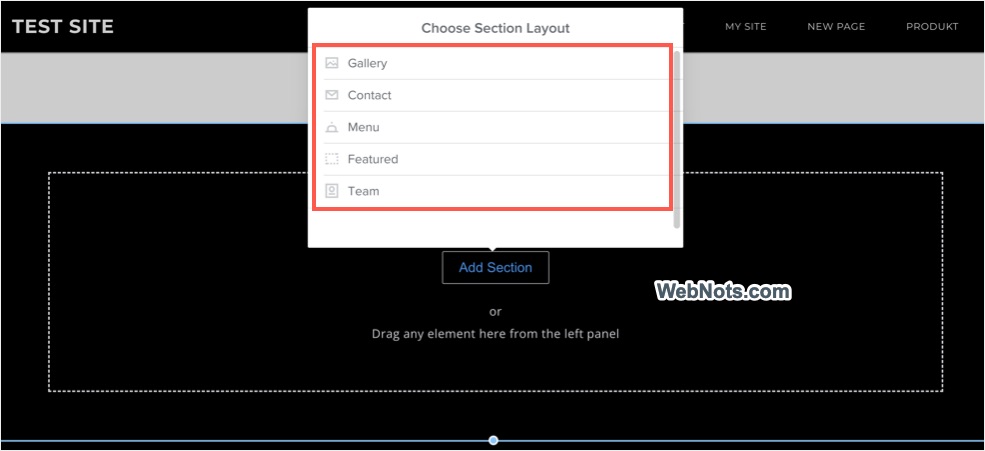
Similarly, you can drag a “Section” element on the content area and choose a layout to insert in that section.
Step 3. Selecting Background Image
Whether it is a header or section, simply click on the element and select “Edit Background” option.
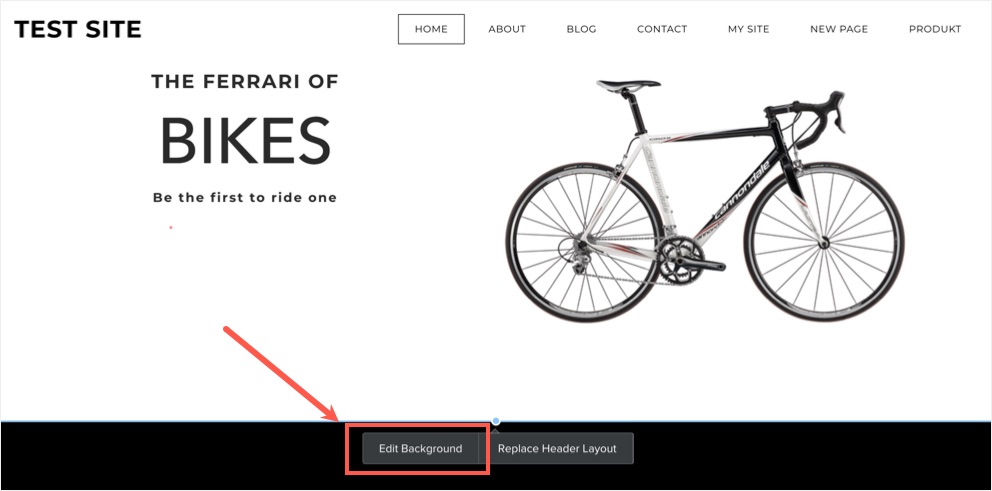
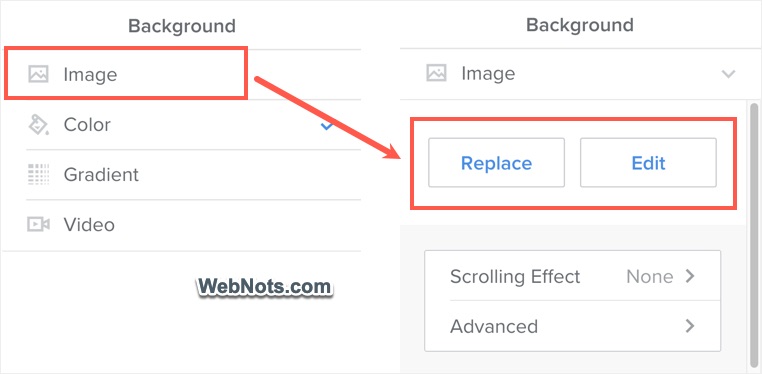
You will see a pop-up and make sure to select “Image” option. Click on the “Replace” button to select a different image instead of the currently selected on in the layout.
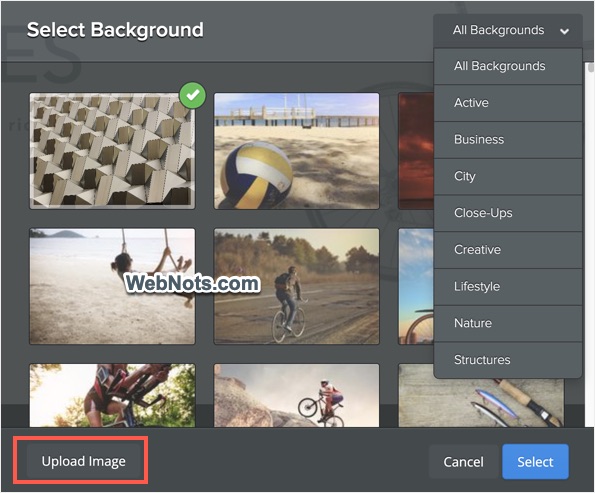
You will see a pop-up showing free stock images from Weebly. You can either choose an image the list or upload your own image using “Upload Image” button. If required, click the “All Backgrounds” button and filter images from specific category.
Step 4 – Customizing Background Image
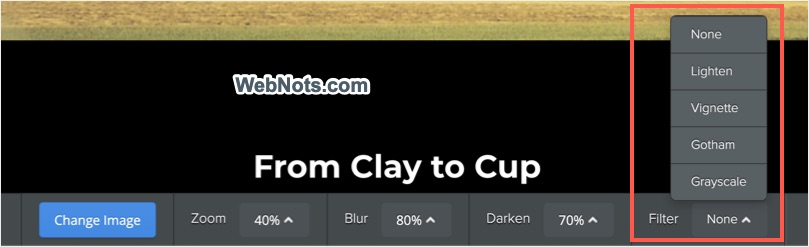
Once you selected an image, Weebly Image Editor opens with lot of customizing options as shown in the below picture. You can change the image again, adjust the zoom, darkness and blur of the image to suit your site’s layout.

Image Editor also offers filters to choose from Lighten, Vignette, Gotham or Grayscale options. Save your image and it will be set as your background image.
Step 5 – Apply Parallax Effect
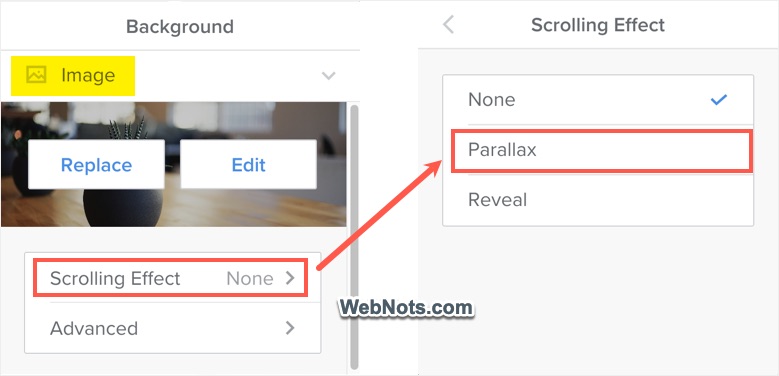
Click the header or section layout and select with a background image and select “Scrolling Effect” option. By default, Weebly do not apply any scrolling effect for your image. You can select “Parallax” or “Reveal” effect as needed.
Step 6 – Apply Same Header Background to Multiple Pages
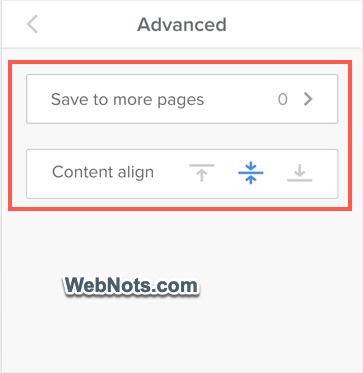
The “Advanced” settings allows you to adjust the vertical alignment and click on the “Save to more pages” option.
You will see a list of all pages on your site including the “Search Results” option. Choose the pages where you want to apply the same header background image and click “Save” link.

Note that applying background image to multiple pages will work only for header and NOT for Section element. For this to work, you should select “Header” as Header Type for the selected pages.





As you can enable video background?
It is a premium feature.
You realize this doesn’t work anymore, right? Weebly’s theme selection process has changed, so your tutorial is outdated.
Article is updated as per the latest interface.