Writing long form articles is a good option for covering in-depth research, guides, and tutorials. However, with the reduced attention span of users in this distracted digital age, it makes sense to offer a feature for users to effortlessly navigate lengthy articles. Here comes the use of a well-structured table of contents (TOC) something you might have frequently seen in Microsoft Word and other documents. WordPress offers a decent number of plugins to generate and manage tables of contents with minimal effort and maximum customization. In this article, we’ll explore the leading Table of Contents plugins for WordPress, dissecting their standout features, advantages, potential drawbacks, and best use cases.
Why Use a Table of Contents Plugin?
It not only improves the readability of your posts but also enhances SEO and accessibility.
- TOCs make it easier for visitors to scan and jump directly to the sections that interest them.
- Search engines favor well-structured content. A TOC can help your pages appear in rich snippets and sitelinks in search results.
- TOCs aid differently-abled users in navigating your content more efficiently.
- A neatly organized TOC gives your site an authoritative and polished look.
Top Table of Contents Plugins for WordPress
Below, we’ve curated the most popular and effective TOC plugins for WordPress, each with unique features suited to different needs and preferences. Though (almost) all these plugins offer similar interface and settings, the source code (the way the headings are processed) is different in some cases.
Note: Popular SEO plugins like Yoast (premium), Rank Math, All in One SEO, etc. offer TOC Gutenberg block. Though we didn’t include them here, most of the listed plugins here also offer a Gutenberg block (like Heroic TOC which only offers a block). Using a block works when you have limited number of posts to manually insert TOC on each post. However, it does not make any sense when you have hundreds of thousands of posts on your site. Also, Yoast premium and few other plugins will process the headings and add custom CSS IDs to them automatically when you add TOC. These CSS IDs will be permanently present in your site’s source code even you remove the TOC blocks or delete the plugin. These CSS IDs are sufficient for search engines to index your heading level content though you don’t have TOC on the page. This will also create problem when you want to use another TOC plugin as the headings are already having the sectional IDs. So, make sure to understand how the plugin adds CSS IDs to heading and avoid automatic processing.
1. Easy Table of Contents
This is the most popular TOC plugin available in WordPress plugin repository. This is a widely recognized and intuitive plugin that automatically creates a table of contents for your pages, posts, and custom post types. The free version is sufficient in most cases while the pro version ($49 per site for a year) offers additional features like sticky TOC, block for Gutenberg, Elementor widget, show read time, etc.
- Automatic or manual insertion of TOC with sticky option.
- Highly customizable appearance (colors, width, bullet style, etc.) and shortcodes (for manual insertion).
- Supports posts, pages, and custom post types.
- Smooth scroll functionality for a seamless user experience.
- Option to exclude specific headings or sections.
- Compatible with Gutenberg, Classic Editor, and popular page builders.
- Possible to use pure CSS or JavaScript.
- The plugin also allows to create sitemap for posts and categories.
- Import and export entire settings.
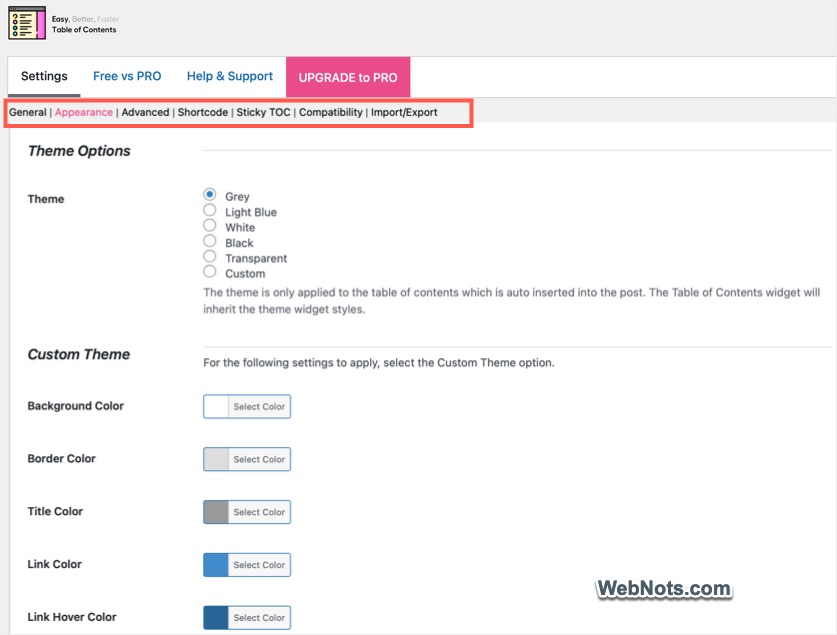
Though the plugin’s interface has a sticky top navigation for quickly reaching the corresponding sections, all the settings are available on the same page. You need to scroll down to the bottom for saving any changes made. Also, some users may not like the bold upgrade tab in the interface.
2. Table of Contents Plus (TOC+)
Table of Contents Plus is a widely-used, robust plugin that offers both simple and advanced configuration. The abandoned plugin is now resumed by All in One SEO team offering simple features.
- Automatic insertion based on positions like before / after heading or top / bottom of post.
- Hierarchical TOCs for complex documents.
- SEO-friendly with support for smooth scroll and jump links.
- Supports custom post types and selective exclusion.
- Can generate a sitemap listing all pages and categories.
- Easy to select templates with visual previews.
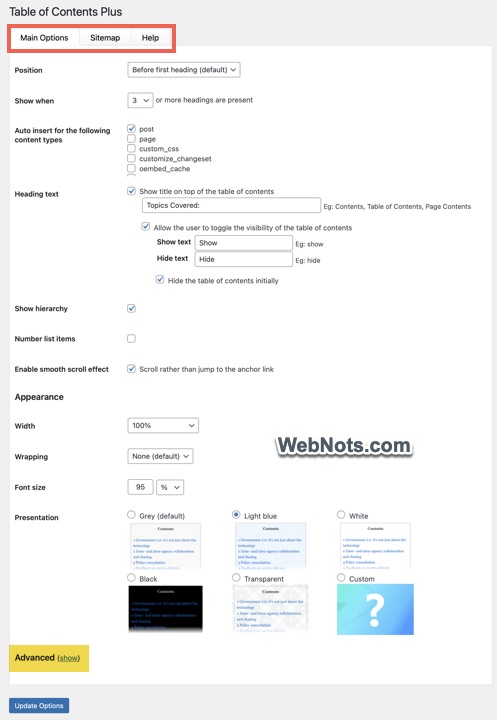
This is the one plugin which does not add special CSS class / id to each heading. It simply uses the span tag with the same heading name as ID without any additional CSS class.
3. LuckyWP Table of Contents
LuckyWP Table of Contents brings a modern, visually appealing take on TOCs, integrating seamlessly with both Gutenberg and Classic Editor. It was abandoned for a while and the developer now seems to update frequently.
- Automatic or manual TOC insertion.
- Customizable appearance with color schemes and options for title, font, and more.
- SEO friendly – compatible with Google snippets.
- Shortcode and block support for flexible placement
- Optional automatic processing of headings.
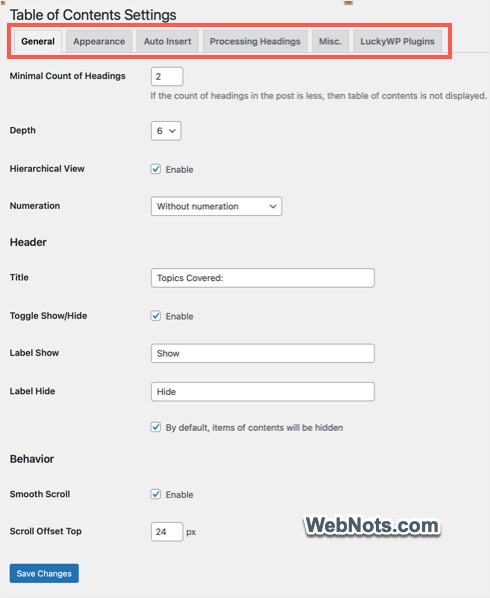
The interface is clean with tabs; however, each tab will load on a new page taking some time. As mentioned above, enabling post types under “Processing Headings” tab will automatically add CSS class / ID to each heading. These source codes may not be removed even after you disable and delete the plugin from your site.
4. Heroic Table of Contents
Heroic Table of Contents is a block-based plugin that makes adding TOCs to Gutenberg-powered sites a breeze.
- Native WordPress block for quick insertion.
- You can select from the pre-designed styles and hide specific headings.
- Drag-and-drop to reorder or rename headings.
- Collapsible and expandable sections.
- Highly accessible and mobile responsive.
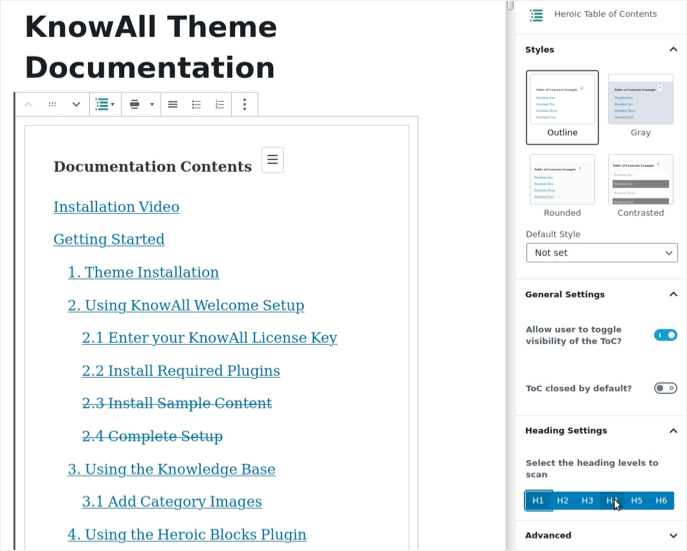
Unfortunately, there are no automatic insertion available with this plugin.
5. Joli Table of Contents
A lightweight and efficient plugin, Joli Table of Contents is optimized for speed and user experience, making it ideal for resource-conscious sites.
- Automatic or manual insertion.
- Minimal impact on page load time.
- Responsive design with collapsible sections.
- Customizable colors, fonts, and icons.
- Real-time preview in the back end.
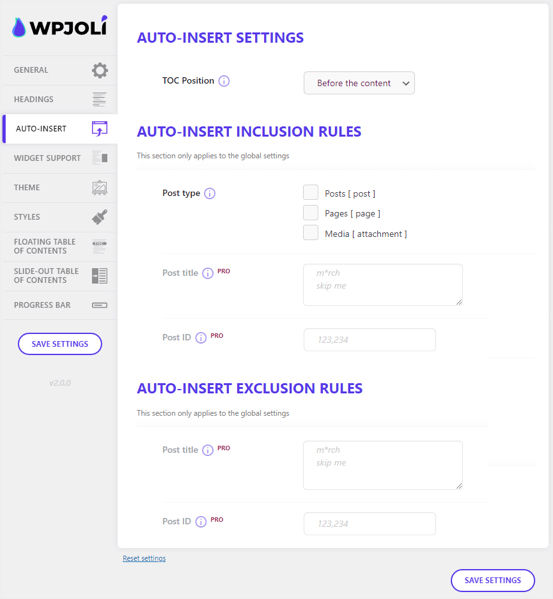
The interface is cluttered with upsells which may annoy some users.
6. CM Table of Contents
CM Table of Contents by CreativeMinds is a feature-rich plugin perfect for large websites with complex content structures.
- Multi-level TOCs for complex documents.
- Widget support and shortcodes.
- Customizable numbering and headings.
- Selective display based on page type or category.
- Integration with other CreativeMinds plugins.
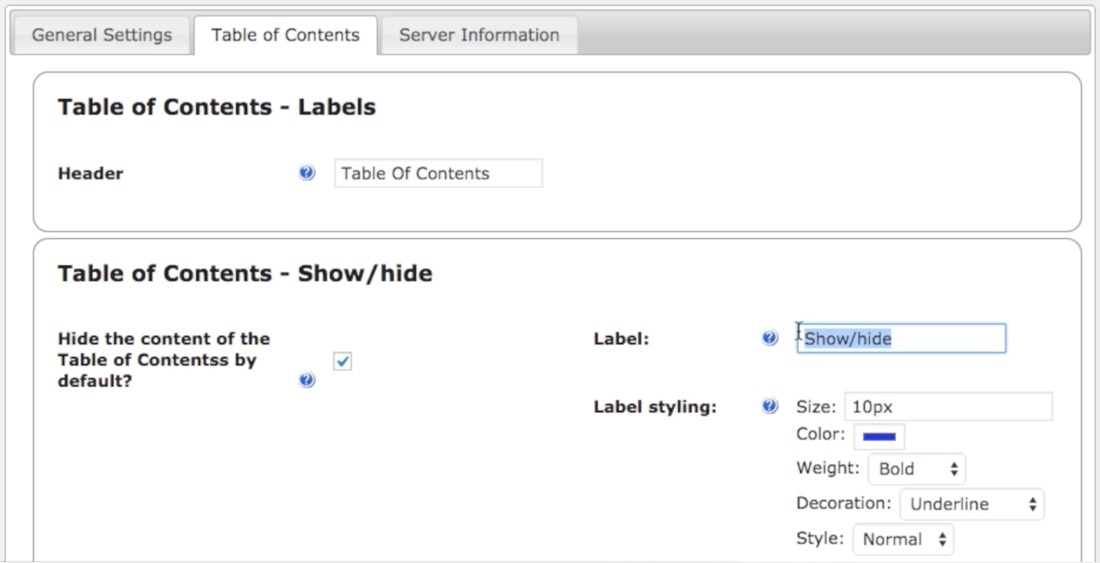
The problem with CM plugins is that they aggressively upsell the premium version and other plugins (like CM Glossary). So, if you are ready to pay ($39 for single site license), then this will be an ideal plugin for your site. Be away, if you are looking for a completely free plugin.
7. Tocer – TOC Make for WordPress
Earlier knows as Fixed TOC, Tocer is a premium only plugin available in Codecanyon marketplace for $21. It’s renowned for its sticky, interactive sidebar tables of contents, making navigation persistent and ever-present.
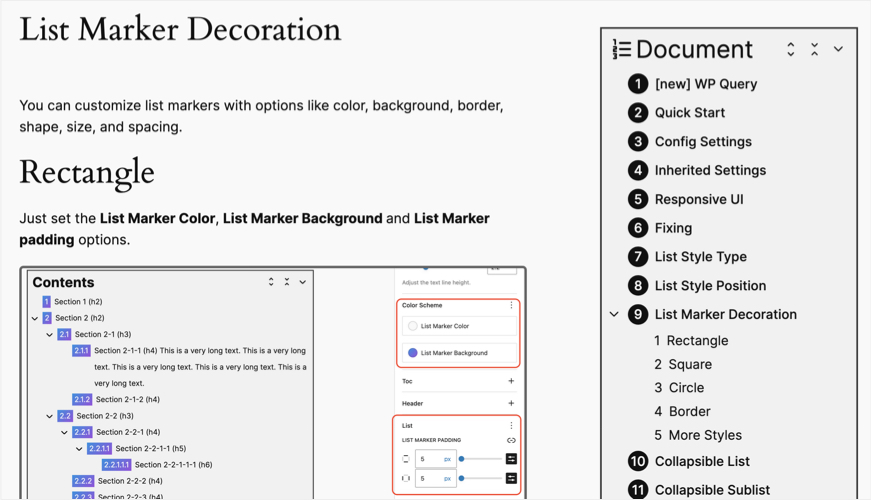
- Sticky sidebar or floating TOC excellent for long form articles.
- Animated scrolling and highlighting.
- Responsive and mobile-friendly.
- Powerful style customization allows you to create colorful TOCs.
- Supports custom post types.
Best Practices for Using Table of Contents Plugins
Though there are not much things to customize in table of contents, but be aware that it can drastically affect your search engine visibility and user experience. So, here are some of the important points you should consider:
- Use consistent heading structures in your content (H2, H3, etc.) for optimal TOC generation.
- Position the TOC early in your post (like before first heading or after first paragraph) making it accessible but avoid obstructing core content.
- Enable collapsible sections for lengthy TOCs to keep your layout tidy. You can choose to hide or collapse by default thus allowing users to decide whether they want to expand and view the TOC links.
- Some plugins offer pure CSS or JS option. Make sure to test the feature thoroughly if you choose pure CSS as some features like smooth scroll may not work.
Consider your website’s content strategy and user behavior before choosing one of the above explained TOC plugin for your WordPress site.