
macOS comes with a built-in Screenshot app that is functional and sufficient for basic needs. Pressing “Command + Shift + 4” or “Command + Shift + 5” provides quick access to screen capture tool, letting users grab full screens, windows, or custom regions. You can also do basic editing with the in-built Markup editor. However, for users who want more flexibility, editing capabilities, annotations, sharing options, and productivity features, third-party screenshot apps offer much more.
This article explores some of the best screenshot apps for Mac that serve as excellent alternatives to the default Screenshot tool. Whether you’re a developer, designer, content creator, or just someone who frequently shares visuals, these apps will elevate your screen capture experience.
App Permission for Screen Capturing and Recording on Mac
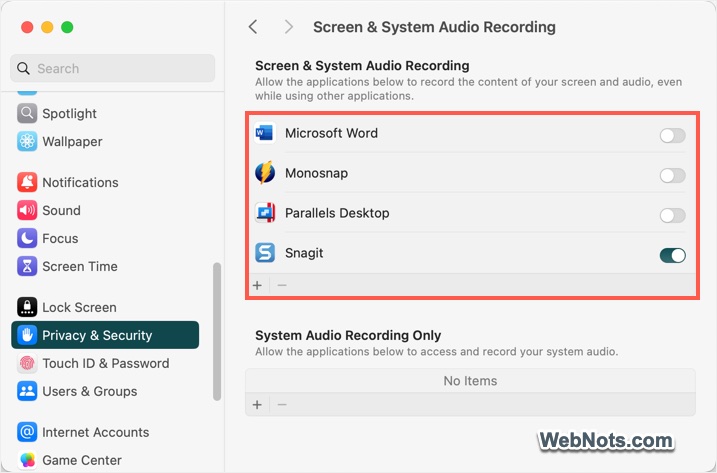
Default Screenshot app does not need any special permission to use on Mac. However, other third-party apps (regardless of the app you use) need a permission for capturing or recording the screen. You should see a notification asking for permission when you launch the app first time. Otherwise, go to “Apple Menu > System Settings… > Privacy & Security > Screen & System Audio Recording” section and enable or disable the permission for the app.
Best Screenshot Apps for Mac
Here’s a summary table showing the app with the pricing if applicable. If the subscription is offered through both Mac Store and developer’s website, make sure to purchase the item from developer’s site as the version offered through the website has more flexibility in general.
| App Name | Starting Price | Download From |
|---|---|---|
| CleanShot X | $29 / year | Website |
| Snagit | $39 / year | App Store / Website |
| Shottr | $12 | Website |
| Skitch | Free | App Store |
| Lightshot | Free | App Store |
| Monosnap | Free ($2.5 / month) | Website |
| Droplr | $6 / month | App Store / Website |
Let’s explore the features of each app in the following section.
1. CleanShot X
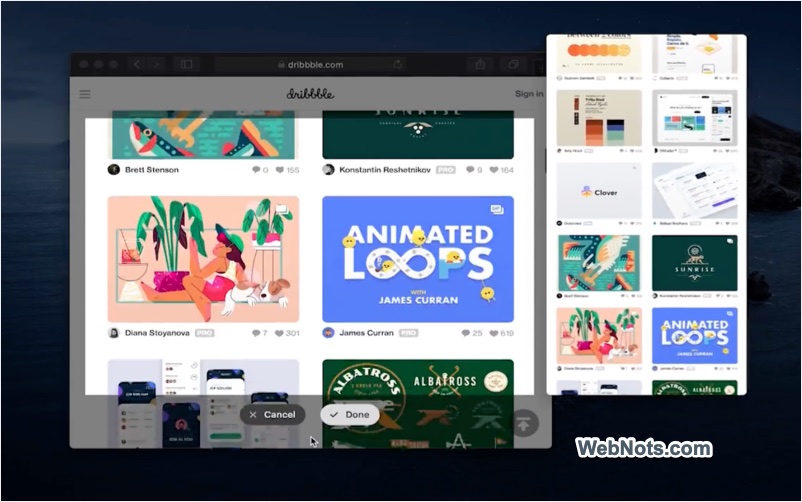
CleanShot X is arguably the most powerful and polished screenshot tool available for macOS. This will help to replace the default macOS tool with a sleek, feature-rich experience. It is a best app for power users, content creators, and productivity enthusiasts. However, CleanShot is only available through the developer’s website as a premium app. You can purchase it for a one-time $29 payment with one-year free updates. The optional renewal subscription will cost you $19 per year and the Cloud subscription will cost you $8 per user / month.
Key Features:
- Capture full screen, window or selected area.
- Record screen with optional webcam and mic input (save as a video or GIF).
- Built-in annotation and markup tools.
- Scrolling capture which is great for long webpages or chat logs.
- Extract text from images using OCR technology.
- Hide desktop icons and clean up backgrounds automatically.
- Cloud uploading and sharing with custom short links.
Pros:
- Extremely polished and Mac-native UI.
- Fast cloud sharing, lightweight and efficient.
- Frequent updates and active support.
Cons:
- Only paid option available – one-time payment or optional subscription for cloud features)
2. Snagit
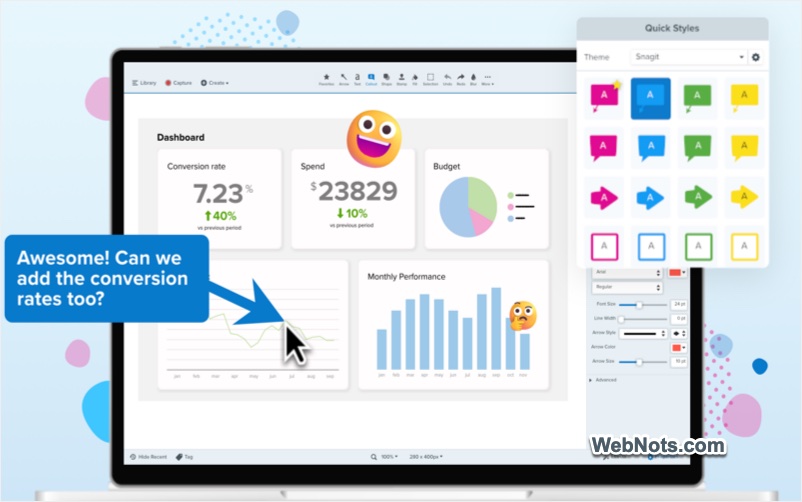
Snagit by TechSmith is a heavyweight in the screenshot and screen recording category. It goes beyond just capturing images – it’s designed to create documentation, tutorials, and walkthroughs. This is best for professionals, bloggers, educators and enterprise users. We use Snagit for more than a decade and all the screenshots on this site are captured with this tool.
The app is available for individuals on subscription basis ($39 per year) and for business / teams ($48 per year). We strongly recommend purchasing the business / teams version as it can be used with a software key. The individual version will work on email and the app will stop working if you are not renewing the subscription. You can test the app with their 15 days free trial.
Key Features:
- Capture images and video from your screen.
- Advanced editing and annotation.
- Combine multiple captures into one image.
- Create step-by-step instructions automatically.
- GIF creation from video clips.
- Template-based documentation tool (you have predefined templates to use).
Pros:
- Feature-rich and professional-grade.
- Excellent for documentation and instructional material.
- Powerful image editing capabilities.
Cons:
- Higher price point, especially individual subscription license will stop working if you do not renew.
- Heavier footprint than lighter alternatives. The project files will occupy too much storage if not cleanup regularly.
3. Shottr
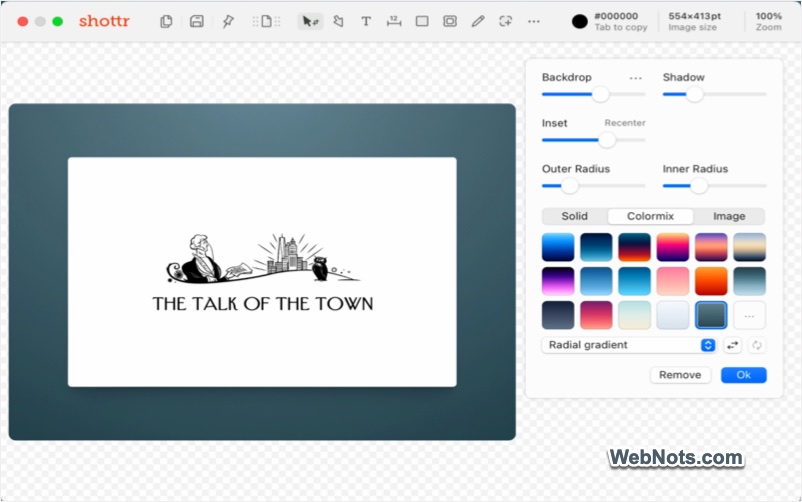
Shottr is an incredibly fast and lightweight screenshot tool built specifically for macOS. It’s ideal for tech-savvy users who need speed, scrolling screenshots, and instant editing. There is 30 days free version available and then you need to pay a one-time fee of $12.
Key Features:
- Super-fast performance with tiny file size (~1MB).
- Instant scrolling screenshots.
- Pixel-level selection and ruler tool.
- Text recognition (OCR).
- Redaction and blur tools.
Pros:
- Lightning-fast and efficient.
- Advanced tools for developers and designers.
- Free for personal use.
- Native Apple Silicon support.
Cons:
- UI is functional but not as refined as CleanShot X.
- Fewer cloud-sharing features.
4. Skitch (by Evernote)
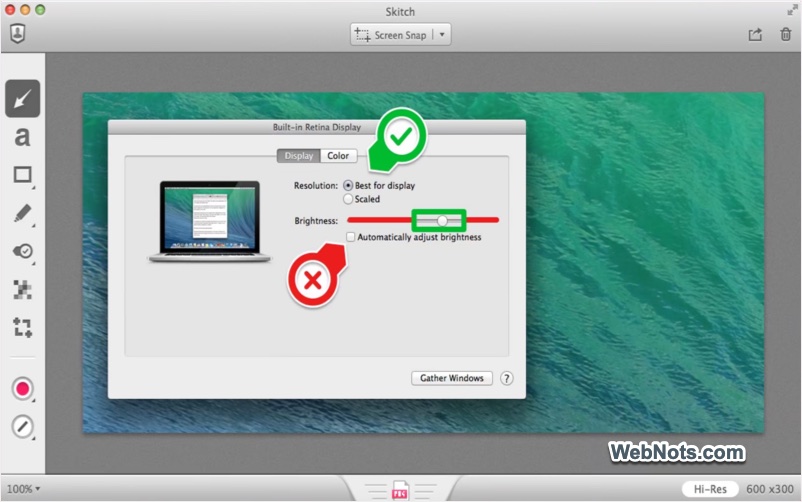
Skitch is a user-friendly screenshot and markup tool from the team behind Evernote. This will be perhaps one of the oldest screen capturing apps available for Mac. Though the app is not updated for many years, you can still download it from Mac App Store with the latest macOS. It’s designed with simplicity in mind, focusing on quick annotations and sharing.
Key Features:
- Easy screen captures.
- Fun and bold annotation tools.
- Integration with Evernote for syncing and organization (account needed).
- Export in multiple formats.
Pros:
- Simple and intuitive.
- Great for quick notes and annotations.
- Lightweight and free.
Cons:
- Limited advanced features.
- Development was stopped in recent years.
5. Lightshot
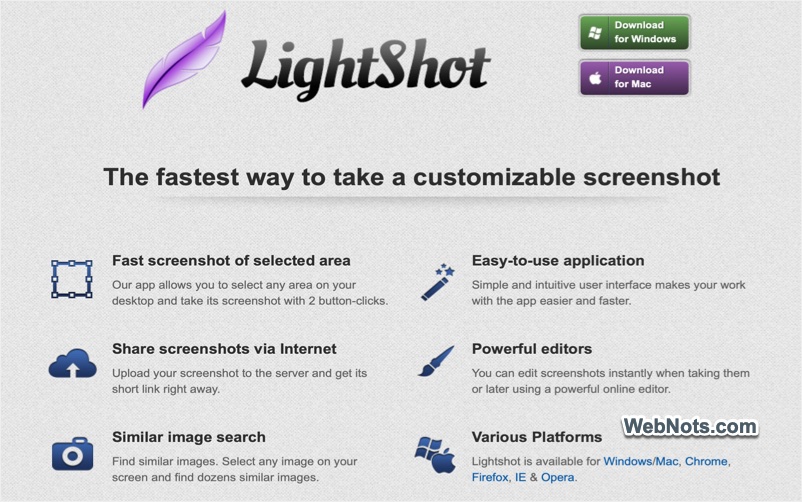
Lightshot is a free screenshot tool known for its ease of use and online sharing functionality. It’s minimal but effective for quick tasks. The app can be downloaded from Mac App Store or you can use the Chrome extension.
Key Features:
- Easy selection and capture.
- Upload to their server and get a short link for sharing.
- Simple annotation tools.
Pros:
- Very easy to use.
- Free to download.
- Quick online storage and sharing.
Cons:
- Minimal features compared to competitors.
- Not updated actively, though the app works fine.
6. Monosnap
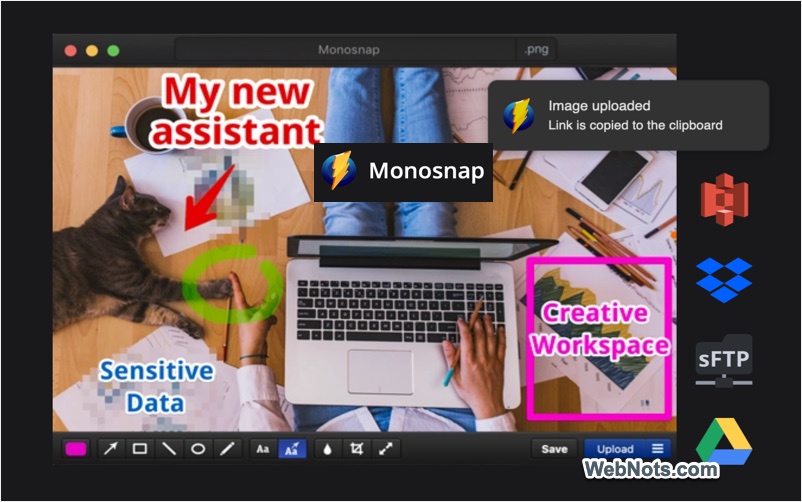
Monosnap offers a versatile set of tools that cater well to teams who need cloud syncing and collaboration. It supports screenshots, recordings, and uploading to cloud services. You can test the app for 30 days with full integration and then decide to purchase (non-commercial license will cost $2.5 per month and commercial license will cost $5 per month). You can also continue to use the free app for taking screenshots and with the limited features only for non-commercial purposes.
Key Features:
- Image and video capture.
- Annotate and blur images.
- Upload to Monosnap Cloud, Dropbox, Google Drive, AWS S3, etc.
- Integrates with team workflows and bug trackers.
Pros:
- Highly customizable.
- Good integrations for developers and remote teams.
- Free tier available.
Cons:
- Interface isn’t the most modern.
- Some features locked behind paid plan.
7. Droplr
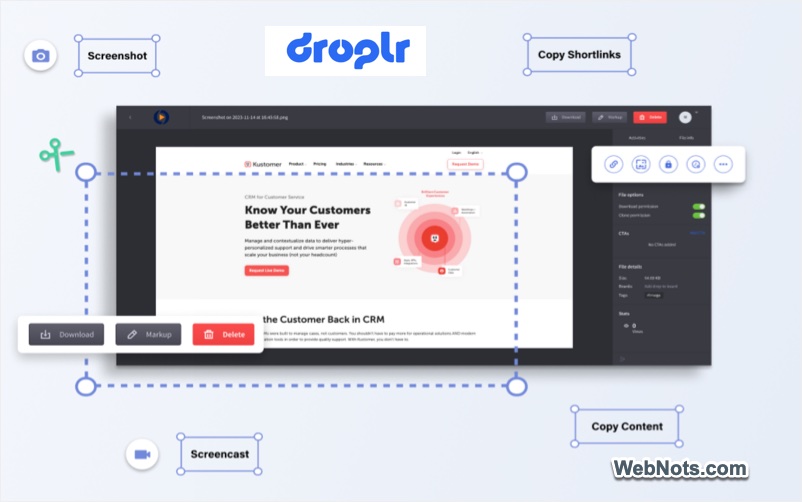
Droplr combines screen capturing with visual communication tools. It’s ideal for sharing annotated screenshots and videos with teams or clients. You can get 3 days free trial by creating an account, otherwise, the premium plan for individuals starts with $6 per month.
Key Features:
- Capture and annotate screenshots and videos.
- Store and organize captures in the cloud.
- Share via links with analytics.
- Integrates with tools like Slack, Trello, and Zendesk.
Pros:
- Streamlined for collaboration.
- Good for client-facing workflows.
- Business-focused features.
Cons:
- Monthly subscription required.
- Cloud-based, which may not be ideal for sensitive content
Final Thoughts: Which Screenshot App is Right for You?
Choosing the best screenshot app for Mac depends on your needs:
- For advanced features and polish: CleanShot X
- For enterprise and documentation: Snagit
- For speed and performance: Shottr
- For simple annotations: Skitch or Lightshot
- For team collaboration and cloud: Monosnap or Droplr
While macOS’s default Screenshot app is sufficient for occasional use, anyone working with visuals regularly will appreciate the power and convenience offered by these third-party tools. Whether you want better annotation tools, cloud sharing, or advanced features like scrolling screenshots and OCR, there’s a solution that fits your workflow.
Before deciding, most of these apps offer free trials – so try a few and see which one matches your needs best.


