In today’s digital world, having a strong online presence is vital for businesses, bloggers, and entrepreneurs. At the heart of many successful websites is WordPress, the world’s most popular content management system (CMS). While WordPress provides the tools to build and manage a website, choosing the right hosting provider plays an important role in your site’s performance, security, and reliability.
This guide is designed to help you navigate the complexities of WordPress hosting. Whether you’re a beginner launching your first blog or an experienced webmaster managing multiple sites, you’ll find practical advice to make informed decisions. Let’s dive into everything you need to know about hosting your WordPress website.

Part 1: Understanding WordPress Hosting
1.1. WordPress.com vs. WordPress.org
One of the first things you need to know for creating a WordPress website is whether to use WordPress.com or WordPress.org. While both platforms share the same core software, they cater to different needs and operate differently.
1.1.1. WordPress.com
WordPress.com is a hosted platform managed by a company called Automattic. It allows users to create and manage websites without worrying about hosting or server management. While it’s beginner-friendly, it comes with limitations:
- Limited customization options unless you upgrade to a paid plan.
- Restricted access to themes and plugins.
- Hosting and domain are included, but you’ll have less control over the backend.
1.1.2. WordPress.org
WordPress.org is a self-hosted platform that gives you full control over your website. With WordPress.org:
- You’ll need to purchase web hosting and a domain name separately.
- You have complete freedom to customize your site using thousands of themes and plugins.
- It’s ideal for businesses, bloggers, and developers who want full ownership and flexibility.
Unlike WordPress.com, where hosting is provided as part of the package, WordPress.org requires you to choose and manage your own web hosting. This guide focuses on helping you select the right hosting provider for your WordPress.org site, ensuring optimal performance, security, and scalability.
1.2. Types of WordPress Hosting
WordPress hosting comes in various forms, each suited to different needs, budgets, and levels of experience. Whether you are just starting with a blog or managing a high-traffic website, understanding the types of hosting will help you make an informed decision. Here’s a brief overview of the main types of WordPress hosting:
1.2.1. Shared Hosting
Shared hosting is the most affordable option, where multiple websites share the same server resources. While it’s cost-effective, it may not offer the performance or security optimizations of other types of hosting.
1.2.2. Managed WordPress Hosting
Managed WordPress hosting is a type of web hosting optimized specifically for WordPress websites. Unlike general-purpose hosting, it includes features designed to enhance performance, security, and ease of use for WordPress users.
1.2.3. VPS Hosting
Virtual Private Server (VPS) hosting offers a balance between cost and performance. With a VPS, you get dedicated resources on a shared server, allowing for better scalability and control compared to shared hosting.
1.2.4. Dedicated Hosting
Dedicated hosting provides a server entirely for your website. This option offers maximum performance, security, and customization, but it’s also the most expensive.
1.2.5. Cloud Hosting
Cloud hosting uses a network of servers to distribute resources dynamically. It’s highly scalable and reliable, making it a great choice for growing sites or those with fluctuating traffic.
1.3. Managed WordPress Hosting Vs. Regular Web Hosting
Managed WordPress hosting is tailored to WordPress users and includes features not found in general-purpose hosting, such as:
- Ease of Use: Pre-installed WordPress or one-click installation.
- Automatic Updates: Ensures your WordPress core, themes, and plugins are always up to date.
- Performance Optimizations: Includes caching, CDNs, and server-level optimizations.
- Expert Support: Customer support teams with WordPress-specific expertise.
However, the issue with many managed WordPress hosting companies is that they often use custom control panels instead of the widely used cPanel. While this can make migrating your website a bit more challenging, it’s generally not a major problem. It’s far better to start with a reliable, high-quality hosting provider, even if they don’t use cPanel, than to opt for a cheaper option simply because it does.
Part 2: Features to Look For in a WordPress Host
There are a wide variety of features presented on the sales pages of web hosting companies, each designed to attract customers. For instance, SiteGround’s pricing plans page highlights several key offerings, but the list doesn’t stop there. A link labeled “Compare All Features” at the bottom reveals an even more extensive breakdown, providing additional details to entice potential customers.
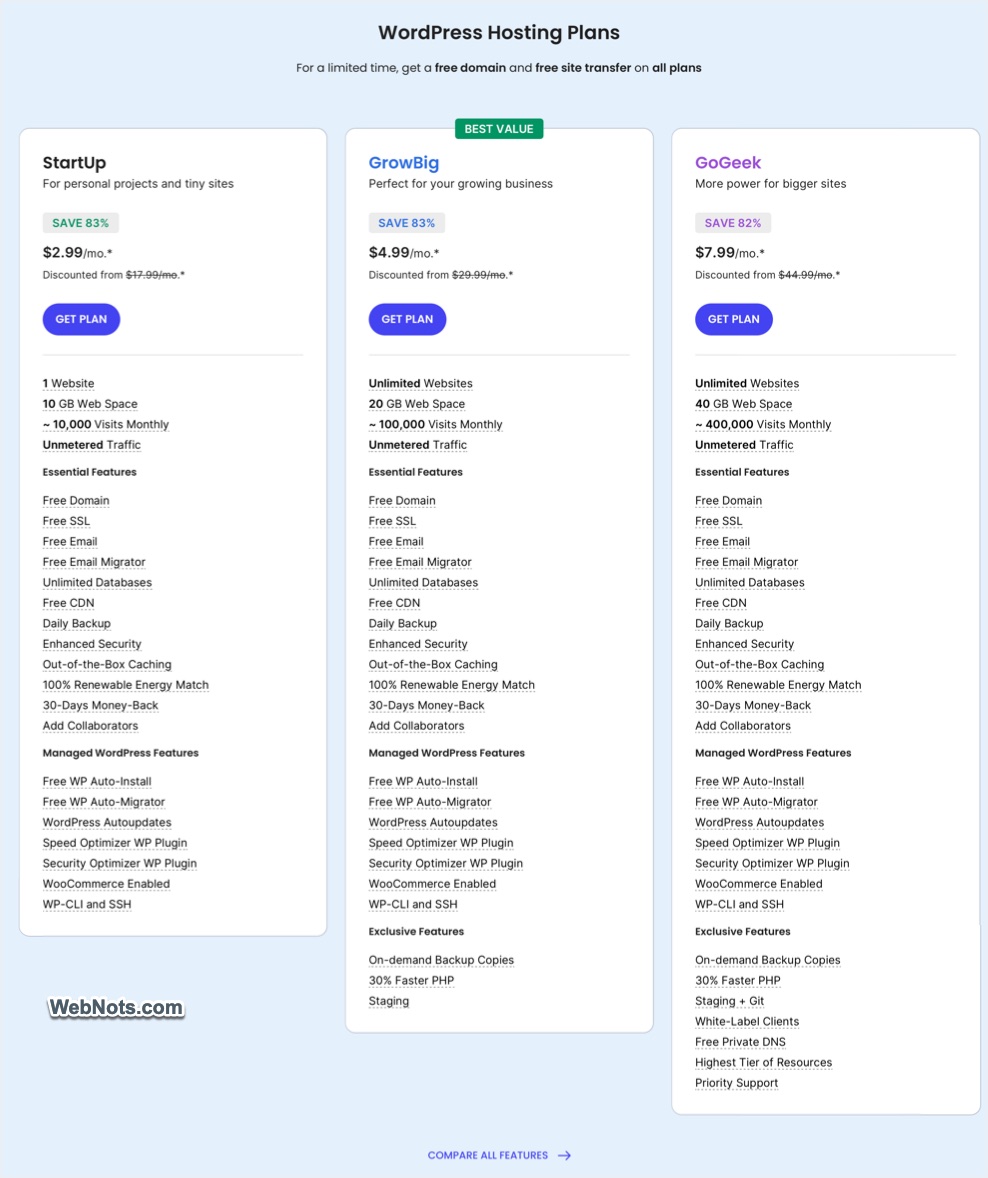
However, it’s important to focus on the most critical features that truly impact your WordPress website. Below, we’ll highlight the most prominent factors you should prioritize when evaluating hosting options.
2.1. Performance
A fast website improves user experience and boosts search engine rankings. Look for hosting providers that offer:
- Solid-State Drives (SSDs): Faster data retrieval compared to traditional hard drives.
- Content Delivery Networks (CDNs): Distribute your content across multiple servers worldwide to reduce latency.
- Built-in Caching: Speeds up page load times by storing static versions of your site.
2.2. Reliability
Downtime can damage your reputation and cost you revenue. Ensure your host offers:
- Uptime Guarantees: Look for providers with at least a 99.9% uptime guarantee.
- Regular Backups: Automatic backups ensure you can recover your site if something goes wrong.
2.3. Ease of Use
Beginners and advanced users alike appreciate hosting that’s easy to use:
- Control Panels: cPanel or proprietary dashboards to simplify server management.
- One-Click Installations: Quickly set up WordPress without technical expertise.
2.4. Scalability
As your website grows, your hosting plan should scale with you:
- Resource Upgrades: Easy options to increase storage, bandwidth, or processing power.
- Traffic Handling: Hosting that can handle traffic spikes without crashing. This is called autoscaling resources to manage CPU and RAM of your server.
2.5. Security
Protecting your site from hackers and malware is important:
- SSL Certificates: Encrypt data between your site and visitors (most hosting companies offer free service from Let’s Encrypt).
- Malware Scanning: Detects and removes malicious files.
- Firewall: Blocks unauthorized access.
2.6. Customer Support
Responsive customer support can save you time and stress:
- 24/7 Availability: Assistance whenever you need it.
- WordPress Expertise: Support agents familiar with WordPress-specific issues.
Part 3: Choosing the Best WordPress Host
You can find the officially recommended WordPress hosting companies on the WordPress.org hosting page. However, it’s important to note that not all hosting providers offer the best experience. For instance, companies like Bluehost have faced criticism due to their subpar customer support models, which may not meet the needs of WordPress users.
In this guide, we recommend two managed WordPress hosting companies (SiteGround & Kinsta) for optimal performance and support.
3.1. SiteGround
We are using SiteGround Cloud hosting for a decade. SiteGround is an excellent option for both beginners and experienced users due to its combination of performance, robust security features, and top-notch customer support.
- Offers managed WordPress hosting that includes automatic updates for WordPress core, themes, and plugins. It also includes security measures such as daily backups, malware scanning (premium), CDN (free and premium), and enhanced firewall protection. These features make it easier for users to maintain a secure and up-to-date website without manual intervention.
- Optimized for high performance, thanks to features like Google Cloud Platform, Solid-State Drives (SSDs), free CDN (Content Delivery Network) integration, and built-in caching mechanisms. These features significantly boost website load times and enhance user experience.
- Known for their stellar customer service, SiteGround offers 24/7 support through live chat, phone, and email. The support team is WordPress-specific, meaning they have expertise in resolving any WordPress-related issues, ensuring faster problem resolution.
- From the entry-level shared hosting to advanced cloud hosting options, SiteGround offers flexibility to meet the needs of all types of users, from bloggers to enterprise-level businesses.
- Good thing is that all hosting plans include a free email hosting, allowing users to set up professional email addresses associated with their domain name.
Only problem is the custom control panel (called Site Tools) which may create some additional effort if you plan to migrate your site another hosting provider at later point. Below are the pricing plans offered by SiteGround (at the time of publishing this article) for the managed WordPress hosting service:
| Plan / Details | StartUp | GrowBig | GoGeek |
|---|---|---|---|
| Price (initial term) | $2.99/month | $4.99/month | $7.99/month |
| Best for | Small blogs or websites that are just getting started. | Growing websites that need more resources. | Larger, high-traffic websites, including e-commerce. |
| Features | 1 website, 10 GB web space, 10,000 monthly visits, daily backup, free CDN, and email hosting. | Unlimited websites, 20 GB web space, 100,000 monthly visits, free CDN, free backup, and enhanced caching for better performance. | Unlimited websites, 40 GB web space, 400,000 monthly visits, free CDN, free backup, staging tool, and advanced caching. |
| Try StartUp | Try GrowBig | Try GoGeek |
SiteGround offers a 30-day money-back guarantee, giving you a risk-free trial of their service. With multiple data centers across the world (US, Europe, and Asia), you can serve content faster to global audiences. They also offer a free migration service for new users, which can be invaluable if you’re moving an existing WordPress site to their servers.
3.2. Kinsta
Kinsta stands out as a premium WordPress hosting provider with unparalleled performance, security, and developer tools. Although it is pricier than other options, it is worth the investment for websites requiring speed, reliability, and scalability. It is ideal for businesses, agencies, and developers seeking robust hosting for WordPress sites.
- Kinsta is built on the Google Cloud Platform (like SiteGround) and uses its premium content delivery network for ultra-fast, reliable hosting. With access to 37 global data centers, Kinsta ensures low latency and exceptional speed for users worldwide.
- Automatic updates for WordPress core, ensuring security and functionality.
- Daily backups (14 days retention) to protect your data and provide easy restoration options. You also can use the staging environments or DevKinsta app for testing site changes or new features before going live.
- Kinsta’s hosting is designed to handle traffic spikes seamlessly. Resources are dynamically allocated as needed, making it an excellent choice for high-traffic websites and growing businesses.
- Built-in Edge Caching using Cloudflare enterprise CDN from 260+ locations ensure faster delivery of assets like images and scripts.
- Access to a custom dashboard (MyKinsta) designed for ease of use while still providing powerful tools for developers.
- DDoS protection, hardware firewalls, and continuous monitoring to safeguard your site.
- 24/7 customer support with a team of WordPress specialists available via chat.
- Offers free professional migrations for moving existing WordPress websites to their platform, handled by their experts to ensure zero downtime.
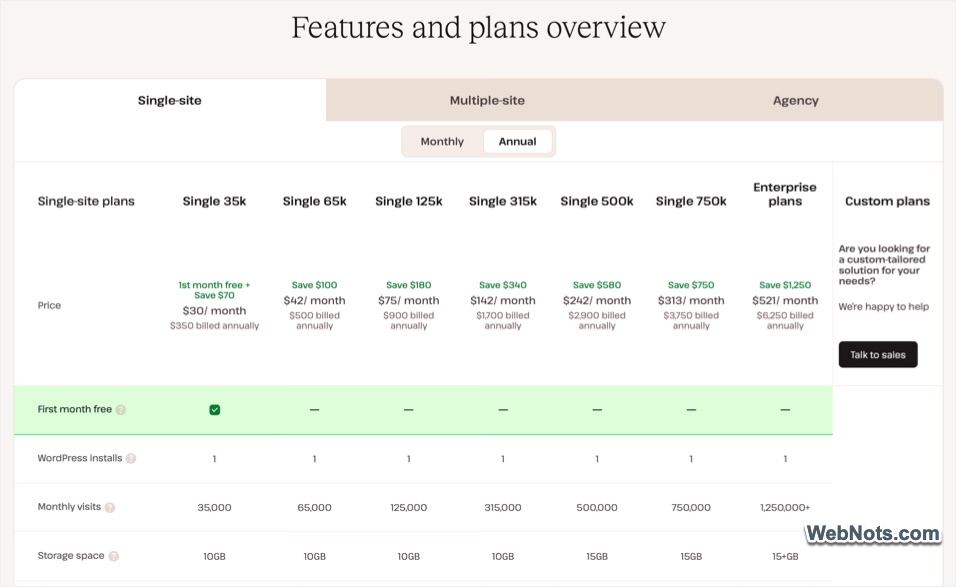
Kinsta’s pricing is structured into several tiers to accommodate a range of user needs. The single site basic plan starts at $30 per month, which can be scaled up based on your traffic growth.
3.3. Avoid Common Hosting Mistakes
While the details of SiteGround and Kinsta provide insight into managed WordPress hosting offerings, it’s equally important to avoid common mistakes that could lead to unexpected costs or poor service. Here are some pitfalls to watch out for when selecting a hosting plan:
3.3.1. Contract Term
Many hosting providers offer discounted rates for long-term commitments (for example – 1-year or 3-year plans). While these savings can be attractive, locking yourself into a long contract without testing the service can backfire if the hosting doesn’t meet your expectations. Always look for money-back guarantees or shorter contract options to test their service.
3.3.2. Renewal Price
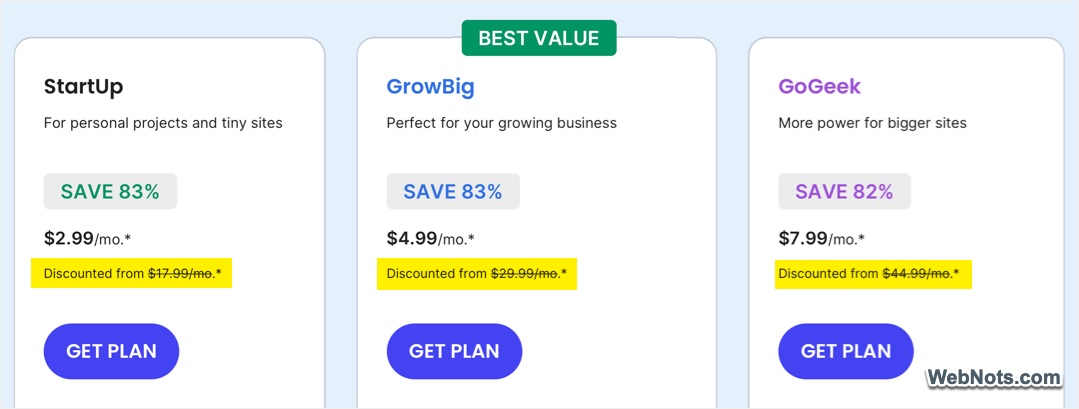
Hosting companies often promote low introductory prices, but these can skyrocket upon renewal. Be sure to read the fine print to understand the regular pricing structure after the promotional period ends. Knowing this upfront will prevent unpleasant surprises later.
3.3.3. Hidden Costs
Some providers advertise budget-friendly plans but charge extra for essential features like SSL certificates, backups, or domain privacy. You should also check for over-usage charges and violation rules for CPU, RAM, and bandwidth usage. Before committing to a plan, review what’s included and account for any additional costs for must-have features.
3.3.4. Fake Reviews
The internet is filled with reviews, but not all of them are trustworthy. Be cautious of overly positive reviews that lack detail or seem promotional (written for affiliate commissions). Instead, look for feedback from independent sources, such as forums, unbiased review sites, or WordPress community discussions, to get an authentic understanding of the host’s performance.
Part 4: Setting Up Your WordPress Hosting
After deciding the hosting company and your desired plan, the next step is to go through the purchasing process and install WordPress.
4.1. Selecting a Domain Name
The first step in setting up your hosting plan is selecting a domain name, which will serve as the web address for your site (for example – www.yourwebsite.com. Though you can build your site on a temporary domain and the point to a real domain later, it is always a good idea to purchase a domain before installing WordPress.
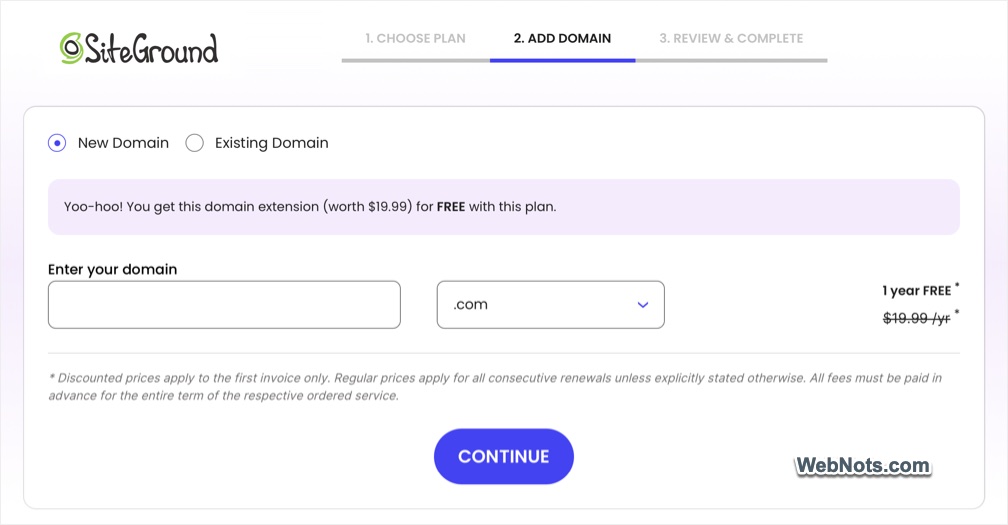
You can either purchase your domain through the hosting provider or via a separate domain registrar. Many hosting companies offer free domain registration for the first year when you sign up for their hosting plan, making it easier and more affordable to get started. Here’re some of the factors to consider when choosing a domain:
- Your domain name should align with your brand, business, or the content you’re offering. It should be easy to remember and reflect the essence of your website.
- Choose a domain that is short, simple, and easy to type. Avoid hyphens or complex spellings that could confuse potential visitors.
- While .com is the most popular and widely recognized domain extension, you can also consider others like .net, .org, .co, or even niche extensions like .tech, .store, etc.
Note: If you have purchased a domain from another registrar, you need to change the DNS setup and point to your hosting servers. Learn more on how to change DNS nameservers in GoDaddy to get an idea.
4.2. Completing Registration and Purchase
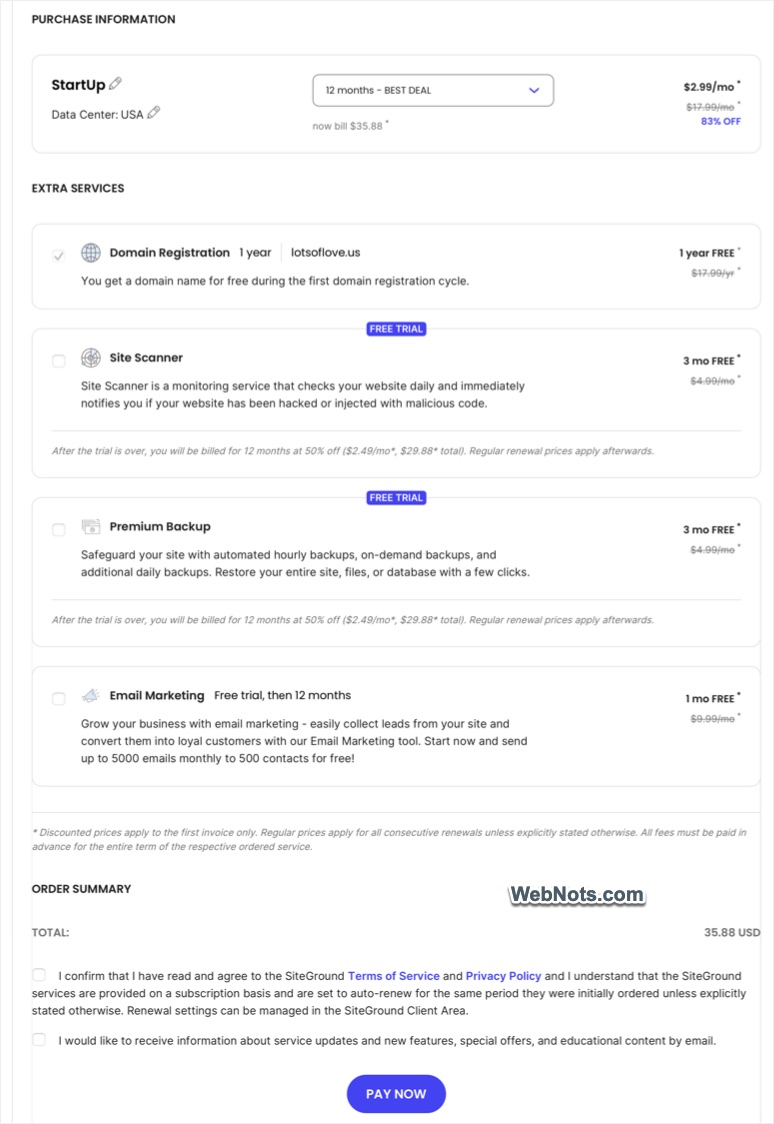
Once you’ve selected your hosting plan and domain, it’s time to complete the registration process. This involves providing your details and setting up payment information. Hosting plans are typically billed on a monthly or annual basis. You’ll need to provide valid payment details, such as a credit card or PayPal account. Some hosting providers offer discounts for longer-term plans (e.g., one- or two-year commitments), which can be a good deal if you’re sure about your choice of hosting.
Most hosting providers will offer additional services at this stage. These could include SSL certificate, domain privacy protection (protects your personal information from being publicly accessible), CDN, email hosting, etc. Make sure to only select the required items as it will increase your budget. With the registration process complete, your hosting plan is live, and you’re ready to start building your website!
4.3. Installing WordPress
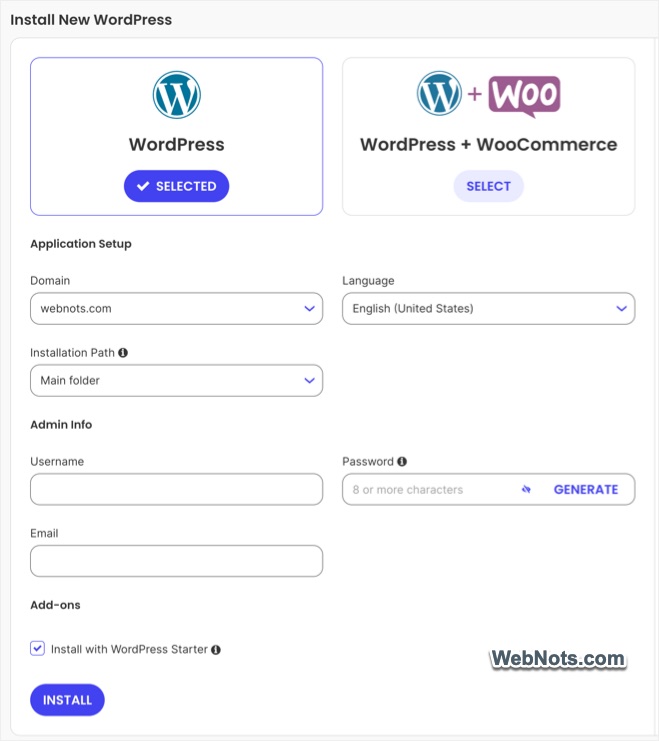
Most hosting providers make WordPress installation quick and hassle-free by offering a one-click installation feature. This option allows WordPress to be automatically installed on your chosen domain immediately after purchasing the hosting plan, making it an excellent choice for beginners.
Alternatively, if you prefer greater control over the setup process, you can manually download WordPress from wordpress.org and upload it to your server’s root directory. However, this method is more complex and typically not recommended for beginners, as it involves creating a database separately and connecting it to your site manually. With automatic installation, all these steps are handled in the background, enabling you to quickly access your WordPress admin panel and start building your content right away.
Regardless of the way you install WordPress, note down the username (email address) and password for logging into your administrator panel.
4.4. Configuring Your Hosting Account
Once WordPress is installed on your domain, it’s essential to configure your hosting account settings to ensure optimal performance, security, and functionality before you start building your content. Follow these steps to get your hosting environment fully optimized:
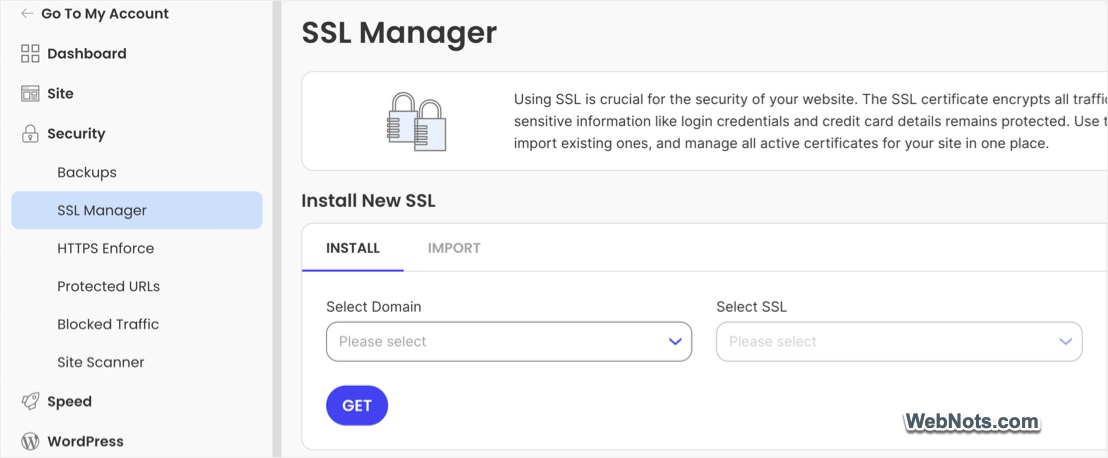
4.4.1. Verify SSL Installation
Check your hosting dashboard to confirm that SSL is properly installed and active on your domain. You can verify SSL by checking if your website uses https:// instead of http://. If not, activate it through the control panel or contact your hosting provider for assistance.
4.4.2. Set Up Professional Email Accounts
If email service is offered by your hosting, create email addresses associated with your domain, such as [email protected], to set up email accounts directly through your hosting dashboard. Be sure to configure spam filters and email forwarding options for smoother operations.
4.4.3. Enable Server-Level Caching
Many hosting providers offer server-level caching features, which can dramatically improve your website’s speed and performance. This caching reduces server load by storing a copy of your site’s content and serving it to users quickly. Enable caching through your hosting dashboard and consider pairing it with a WordPress caching plugin like WP Rocket or W3 Total Cache for even better results.
4.4.4. Explore Additional Performance Features
Depending on your hosting provider, there may be other features you can enable to boost your website’s speed and reliability. These may include:
- Content Delivery Network (CDN): Activate a CDN to distribute your website content across multiple servers worldwide, reducing latency for global visitors.
- PHP Version: Ensure your hosting account is using the latest PHP version, as newer versions offer better speed and security for WordPress.
- Automatic Backups: Check that your hosting account has daily or on-demand backups enabled. This ensures that you can recover your website in case of errors or data loss.
Configuring these settings in your hosting account will lay a strong foundation for your WordPress website, ensuring it is secure, fast, and ready for growth. Taking the time to optimize these features now can save you significant effort and headaches down the line.
Part 5: Managing Site Settings and Content in WordPress Admin Panel
The WordPress Admin Panel is the command center of your website, giving you the tools to create, edit, and manage content, customize your design, and configure settings. Mastering its features will enable you to build and maintain a professional and functional website.
5.1. Login to WordPress Admin Panel
You can login to WordPress admin panel from your hosting account (generally this does not need username and password) or use one of the following URLs and login with your credentials (relace yoursite.com with your domain).
- https://www.yoursite.com/wp-admin/
- https://www.yoursite.com/wp-login.php
5.2. Managing Site Settings & Content
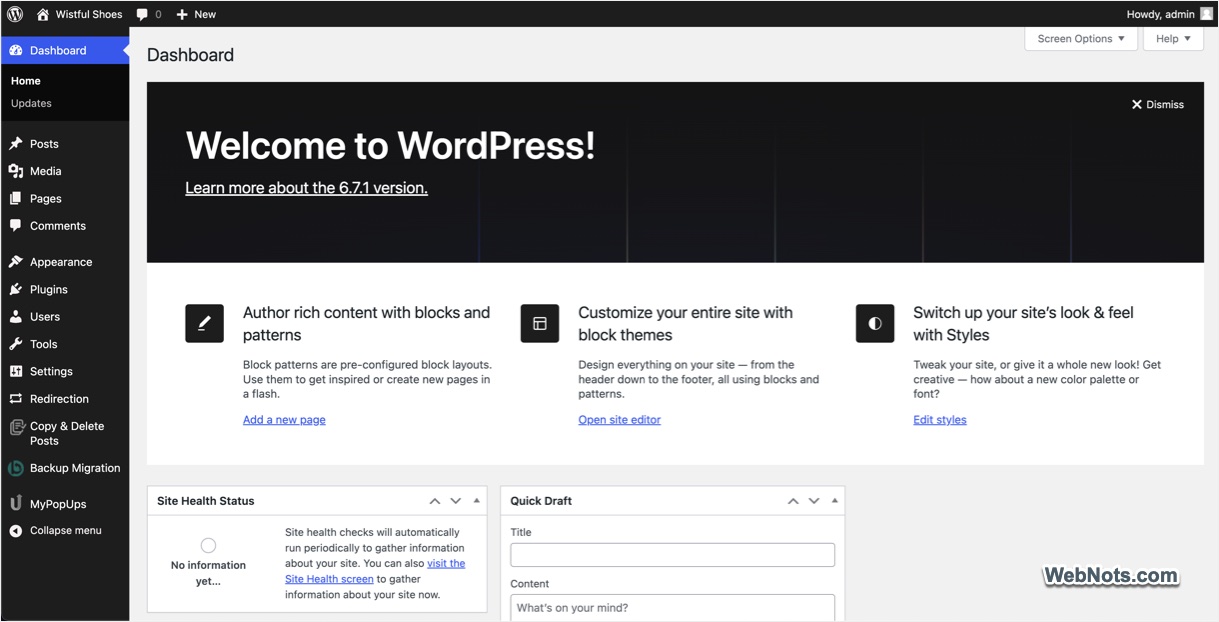
Once you log in, you are greeted with the WordPress Dashboard. This serves as an overview of your site’s activity, providing quick access to key areas like posts, pages, and settings. First, go to Settings menu and customize the essential options for your website under various sections. For example, go to “Settings > Permalinks” section to setup your URL structure for better SEO by choosing a readable format.
Navigate to the various sections to create posts, pages, menus, widgets and upload images required for your site.

5.3. Themes and Plugins
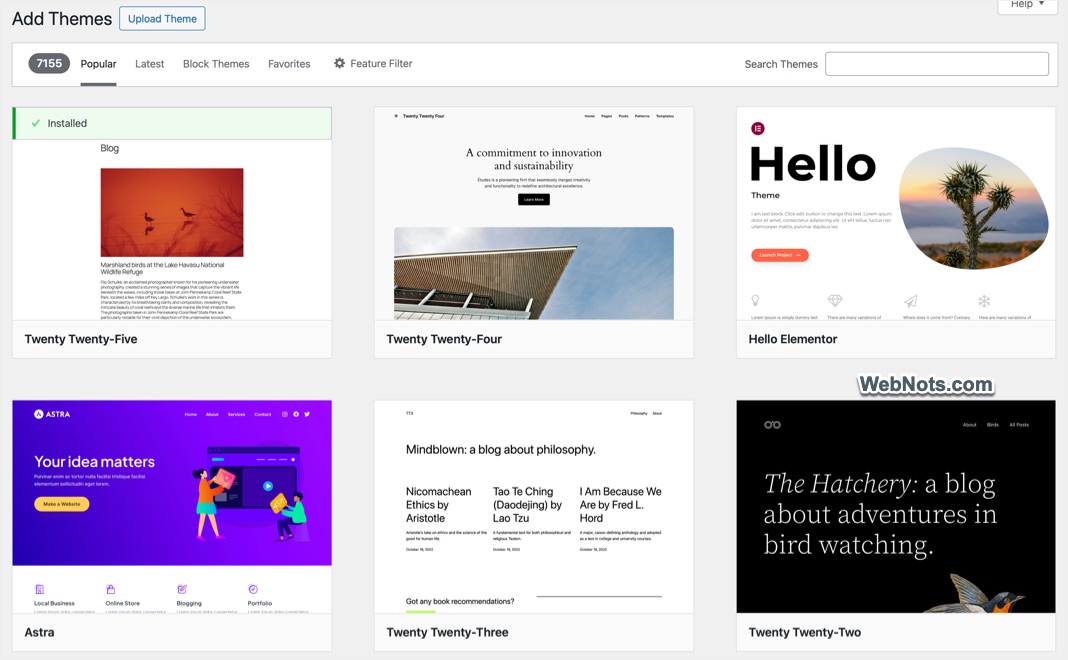
Themes control the overall design and layout of your site. By default, WordPress will use block-based themes like twenty-twenty five. However, we recommend using classic themes like Astra or GeneratePress to get additional features (menu items will change after installing a classic theme). Go to “Appearance > Themes > Add New Theme” to browse and install a classic theme. You can customize the theme through “Appearance > Customize”, where you can adjust site colors, fonts, menus, and widget areas.
Plugins are tools that add features to your website. Go to “Plugins > Add New Plugin” and search for the functionality you need, such as SEO optimization, caching, or contact forms.
By becoming familiar with the WordPress Admin Panel’s features, you’ll gain the confidence to manage your website effectively, create engaging content, and provide a seamless experience for your visitors.
Part 6: Optimizing Your WordPress Hosting
Optimizing your WordPress site and hosting setup is essential to ensure your website performs at its best. Below, we explore specific strategies to improve your hosting environment and website functionality.
6.1. Improving Site Speed
- Start by compressing images using tools like TinyPNG, which reduce file sizes without sacrificing quality. This minimizes the load time for pages containing high-resolution visuals. If your hosting plan offers WebP conversion, make use of it to reduce your workload.
- Leverage caching with plugins like WP Rocket, which store static versions of your site to serve users more quickly and reduce server load.
- Additionally, opt for lightweight themes such as Astra or GeneratePress, which are designed for fast performance and minimal resource usage.
6.2. Enhancing Security
- Regularly updating WordPress, along with its themes and plugins, ensures you’re using the latest versions with security patches.
- Install a security plugin like Wordfence to scan for and eliminate malicious files.
- For added protection, enable two-factor authentication (2FA), which requires a second verification step when logging in, making it significantly harder for unauthorized users to access your site.
6.3. Regular Maintenance
- Use tools like UptimeRobot to monitor your website’s uptime and ensure any downtime issues are addressed promptly.
- Backup your site regularly with services like UpdraftPlus to safeguard your data and enable quick recovery in case of a problem.
- Additionally, periodically review your hosting resources and upgrade them if necessary to accommodate growth and maintain optimal performance.
Part 7: Advanced Topics
For more experienced WordPress users or those managing complex sites, diving into advanced topics can help unlock the full potential of your hosting and website.
7.1. WordPress Multisite Hosting
WordPress Multisite is a powerful feature that allows you to manage multiple WordPress websites from a single dashboard. This setup is ideal for networks of blogs, educational institutions, or businesses with multiple subdomains. To implement multisite hosting effectively, choose a hosting provider with robust server resources capable of handling the increased demands of a multisite installation, ensuring optimal performance across all sites.
7.2. Hosting for E-commerce Sites
Running an e-commerce site, particularly with WooCommerce, requires specialized hosting to ensure smooth transactions and customer satisfaction. Secure transactions are critical, so your hosting should include SSL certificates and PCI compliance to protect customer data. Additionally, scalability is vital to handle high traffic and transaction volumes, especially during peak sales periods.
7.3. Migrating Your WordPress Site
If you are planning to migrate your existing WordPress site to a new host, make use of the free migration service offered by the hosting company. As mentioned above, this will use easier if you are moving from cPanel to another cPanel setup. In this case, you can move the entire site (including database and site files) without downtime or data loss. Otherwise, you may need to use a custom migration plugin offered by the new hosting company or use plugins like Duplicator. Regardless of the method, carefully verify your site’s functionality post-migration to address any potential issues.
Part 8: Dealing with Common Hosting Issues
Even with the best hosting provider, issues can arise that may impact your website’s performance. Being proactive and equipped with the right troubleshooting strategies can save you time and stress.
- Analyze your site using tools like Google PageSpeed Insights or GTmetrix to determine what’s slowing it down and fix that issue. Replace resource-heavy plugins with lightweight ones and use caching plugin or server-level caching / CDN provided by your host to improve speed. If your site has outgrown the current plan, consider upgrading to a higher-tier plan.
- Use tools like UptimeRobot to get alerts if your site goes down. If downtime persists, check with your hosting provider for server status updates or possible maintenance schedules.
- Ensure WordPress core, PHP version, all installed plugins and themes are updated to their latest version to avoid compatibility issues.
- Use security plugins like Wordfence or Sucuri to identify and remove malicious files if the site is infected with malware. If the breach is severe, consider restoring your site from the most recent clean backup.
Working closely with your hosting provider and implementing preventive measures will ensure a smooth experience for you and your visitors.
Conclusion
Choosing the right WordPress hosting is an investment in your website’s success. By understanding your options, evaluating key features, and optimizing your hosting environment / site, you can ensure your site performs at its best. Use this guide as a resource to navigate the world of WordPress hosting and build a website that stands out.