Bing, Yahoo and DuckDuckGo all use a common Bing search engine; hence you can pull traffic from these search results by submitting your site to Bing Search Engine. Bing also partnered with Baidu, the famous search engine in China, for displaying English search results, which offers an additional traffic source. So, ensuring your website is indexed and performing well on Bing is essential for any online business or blog. In this article, we will explain the steps to add your website to Bing Webmaster Tools and make the most out of its features.
What is Bing Webmaster Tools?
Bing Webmaster Tools (shortly BWT) is a free service from Microsoft that allows website owners to:
- Submit their site to the Bing index so it appears in search results.
- Monitor website performance in Bing’s search results, including click-through rates, search queries, AI performance, IndexNow status and backlinks.
- Receive SEO reports and suggestions to improve website performance.
- Submit sitemaps and URLs for faster indexing and crawling.
Although Google is the dominant search engine, Bing still accounts for nearly 6% of global searches, making it a platform worth optimizing for. Additionally, Bing Webmaster Tools offers some unique features that can help you gain further insights into your website’s SEO and performance.
Creating Bing Webmaster Tools Account
Earlier, you could anonymously submit your site to Bing without registering for the Webmaster Tools account. However, this option was removed and BWT is the only was to submit your site.
- Go to Bing Webmaster Tools site and sign in with a Microsoft account. If you don’t already have one, you can sign up for a free Microsoft account using your email address (similar to creating an account for Google).
- Once you have logged in with your Microsoft account, you will be taken to the Bing Webmaster Tools dashboard.

Adding Your Website to Bing Webmaster Tools
Once your account is set up, the next step is to add your website.
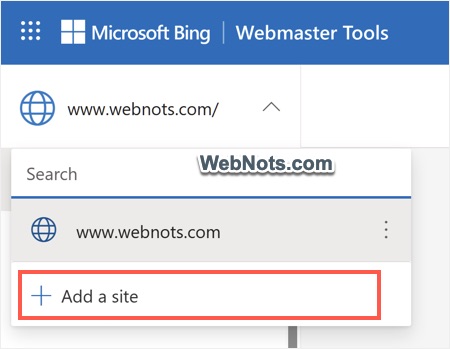
- In Bing Webmaster Tools dashboard, click “Add a Site” at the top of the page. You can also click the dropdown on top-left and select “Add a site” option.
- Bing allows two options – import from Google Search Console or manually add the site. For manually adding, input your website’s full URL, including the protocol (like https://www.webnots.com).
- Click “Add” button to submit your site to Bing.
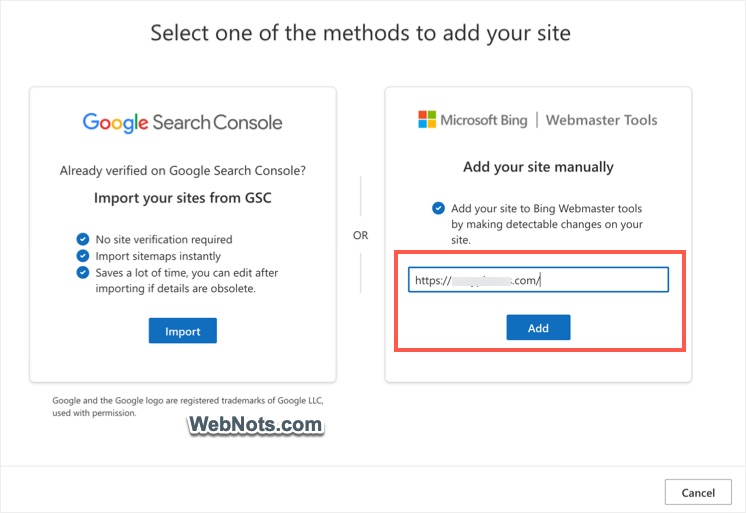
Note: Make sure to enter the exact URL as it appears in your browser. If your website uses https://, ensure this is included to avoid errors in tracking and reporting. If you have multiple versions of your site (non-www and www versions), be sure to add the one you primarily use.
Verifying Ownership of Your Website
Before Bing can start tracking data for your website, you must verify that you are the legitimate owner of the site. There are three main ways to verify ownership.
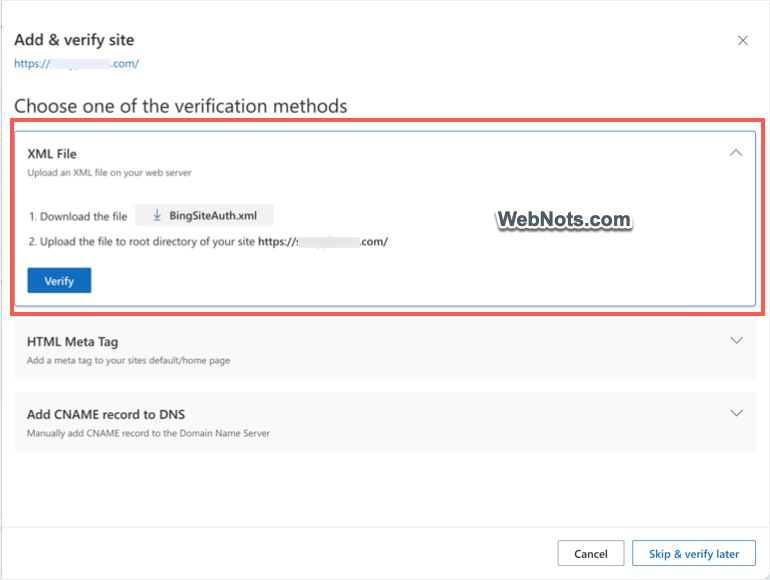
Method 1: XML File
- Click “XML File” option and download the file provided by Bing.
- Upload this file to the root directory of your website.
- Once uploaded, go back to Bing Webmaster Tools and click “Verify”.
Method 2: HTML Meta Tag (Recommended)
- Expand “HTML Meta Tag” section and copy the provided code.
- Add this meta tag to the <head> section of your website’s homepage HTML.
- Once added, go back to Bing Webmaster Tools and click “Verify”.

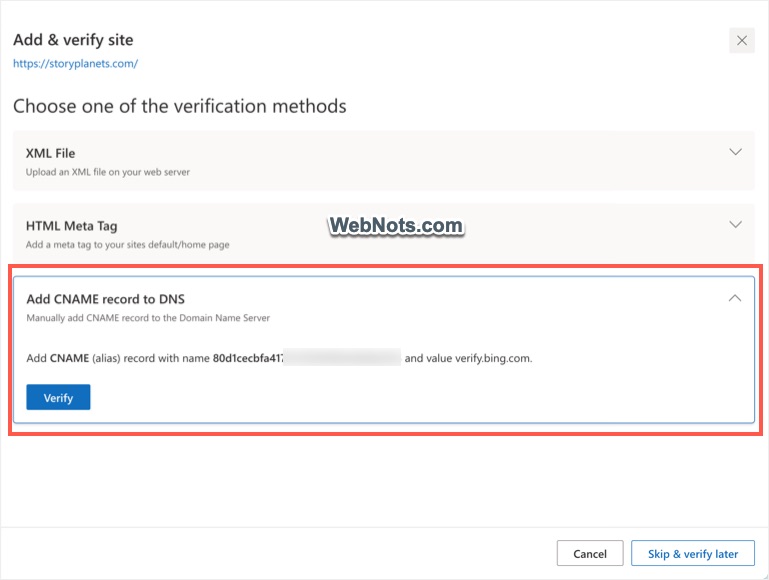
Method 3: Add CNAME record to DNS
- Expand this option to see the record provided by Bing.
- Log in to your domain registrar (e.g., GoDaddy, Namecheap).
- Add the provided DNS record to your website’s DNS settings.
- Go back to Bing Webmaster Tools and click “Verify”.
Troubleshooting: Ensure that the HTML file, meta tag, or DNS record is correctly implemented before clicking the “Verify” button. Verification may take some time depending on the method you choose, so be patient.
If the verification is successful, you will see a congratulation message showing that your domain is added to Bing Webmaster Tools.

Submitting Your Sitemap
A Sitemap is a file that lists all the important URLs on your website, helping search engines like Bing crawl and index your site more efficiently. Submitting a Sitemap is essential for improving your site’s visibility on search engines.
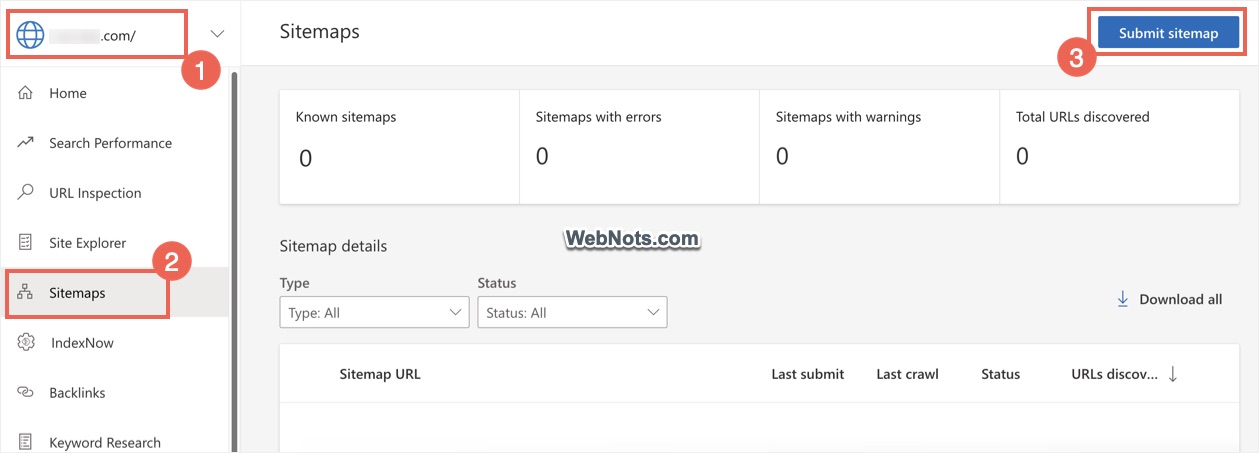
- In Bing Webmaster Tools, go to the “Sitemaps” section in the left-hand menu and click “Submit sitemap” button.
- Enter the URL of your sitemap in the box and click “Submit”. Typically, your sitemap URL will look something like this: https://www.webnots.com/sitemap.xml.
- Bing will now begin crawling the URLs in your Sitemap, improving the chances of your pages appearing in search results.
Tip: WordPress content management system offers lot of SEO plugins like Yoast SEO, which automatically generate a Sitemap index file for your site. You can find the generated Sitemap index using the URL: https://www.yourwebsite.com/sitemap_index.xml.
Key Features of Bing Webmaster Tools
After verifying your site and submitting your Sitemap, you can start exploring the powerful features of Bing Webmaster Tools. Here are some key features to focus on:
- Search Performance Data: Track important metrics like clicks, impressions, and click-through rates in normal and Copilot AI search results. This helps you understand how your website is performing in Bing search results and identify the areas for improvement.
- Backlink Profiles: The tool provides detailed insights into the backlinks pointing to your website, which are essential for SEO. You can see where your backlinks are coming from and their quality, helping you refine your link-building strategy.
- SEO Reports: Bing Webmaster Tools offers in-depth SEO reports that highlight any issues on your website that could negatively impact search rankings, such as broken links, slow page load speeds, or missing meta descriptions.
- Crawl Control: Bing provides tools to manage how its crawler interacts with your website. You can specify the crawl frequency and block specific pages or directories from being indexed, which is useful if you have sensitive or temporary content.
- URL Submission: In addition to sitemaps, you can manually submit individual URLs to Bing. This is helpful for getting new pages indexed quickly or ensuring that recently updated pages are crawled faster.
- IndexNow: Monitor the status of the submitted URLs through IndexNow feature.
Conclusion
Adding your website to Bing Webmaster Tools not only ensures that Bing can properly index and crawl your site but also provides valuable insights into your SEO efforts. Bing Webmaster Tools offers robust features like backlink analysis, SEO reports, and search performance tracking, making it an indispensable tool for any website owner looking to improve their site’s visibility and performance. By regularly monitoring and optimizing your site using the data from Bing Webmaster Tools, you can enhance your search rankings, drive more traffic, and create a better overall user experience.