Working on Apple devices is so cool due to the seamless integration between software and hardware. MacBook and iMac are known for their sleek design and high-quality displays (monitor screen). However, sometimes the display may look distorted and blurred making it difficult to read or see the screen. If you have problem with screen flickering, blurry text and distorted or unresponsive display, here are some suggestions to troubleshoot and resolve these problems on your Mac.
Basic Steps Before Troubleshooting
First thing is, check our earlier article if your app windows are going out of the Mac’s display. If you are facing other problems, follow the below basic steps before trying to troubleshoot the issue.
- Restart Mac – Go to “Apple logo menu” and select “Restart” option. This is one of the simplest and effective options especially if your Mac is running for many days without shutting down. Restarting your Mac can help reset hardware and software components, resolving minor glitches that may cause display issues.
- Check Cables – If you are using iMac, Studio Display, Pro Display XDR or third-party external monitor, make sure all cables are working and connected properly. Since loose or faulty connections can result in display problems, check the HDMI or Thunderbolt cable is properly plugged in. You can also try using a different cable or port and test with a direct connection if you are using an adapter.
- External Display Compatibility – Apple devices like Studio Display and Pro Display XDR will work seamlessly with supported Mac models. However, if you are using third-party monitor, make sure your external display is compatible with your Mac. Check the technical specifications on your monitor and macOS guides to find the compatibility and supported display resolutions.
If the issue persists, follow further troubleshooting steps.
1. Adjust Display Resolution
Incorrect display resolution settings can lead to blurry or distorted screens, especially on larger screens like iMac. You can manually adjust the resolution to fit your needs.
- Click the Apple logo and go to “System Settings…” menu.
- Select “Displays” from the left sidebar.
- You will see a list of resolution options and select the one that fits your display properly.
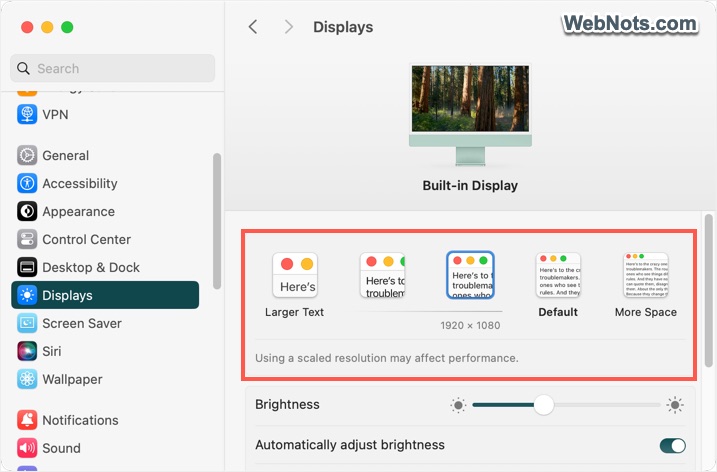
As you can see, we use the scaled resolution of 1920 x 1080 pixels on iMac instead of the default 2240 x 1260 pixels. Because many apps will be simply unreadable with such a large resolution and distort the display or text. On other hand, lower resolutions will distort the display when you play HD games or edit videos with custom apps. So, sometimes you may need to manually switch the resolution based on the task you are doing.
2. Update macOS and Apps
Outdated software can cause display issues. Check if there’s an available update for your macOS.
- Go to “Apple logo > System Settings… > General > Software Update” section.
- Check if any update is available and install it.
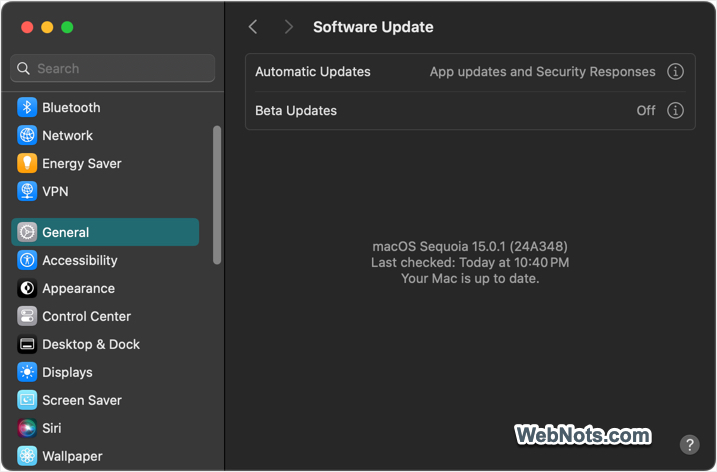
If you have problems with a specific app, go to “App Store > Updates” section and install the latest version of the app.
3. Reset NVRAM
Non-Volatile Random Access Memory (NVRAM) on Mac stores certain settings, including display preferences. If the display issues persist, resetting NVRAM may help to fix that.
- First, shutdown your Mac by going to “Apple logo > Shut Down…”.
- After that, hold “Command + Option + P + R” keys and press the power button.
- Keep holding the keys for about 20 seconds until your Mac restarts.

This will automatically reset NVRAM on your Mac and check if that fixed that issue.
4. Reset SMC (System Management Controller)
Resetting the SMC can resolve hardware problems including display related issues especially on MacBooks.
- Go to “Apple logo > Shut Down…” to power off your system
- Press “Control + Shift + Option + Power” keys at the same time for 10 seconds.
- Release all keys, then turn on your Mac.

5. Check Display Brightness and Contrast
Sometimes display problems arise due to brightness or contrast settings.
- Press the F1 and F2 keys on your keyboard to adjust the brightness.
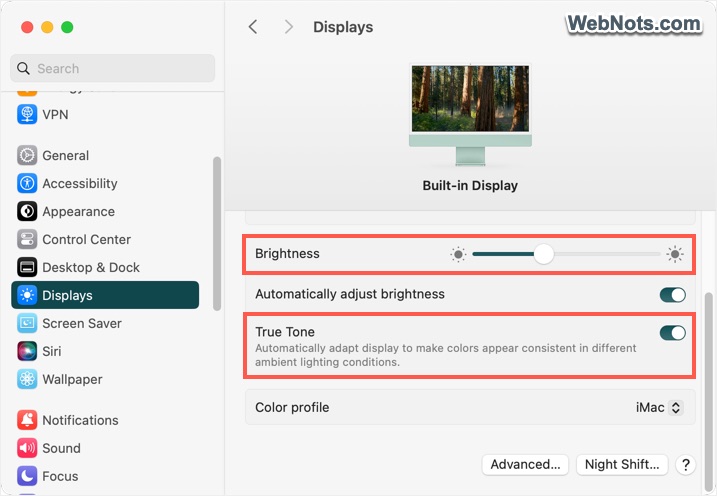
- Go to “Apple logo > System Settings… > Displays” section and use the “Brightness” slider to adjust the level.
- If using an external monitor, check the buttons on the display to change the brightness settings (buttons are usually located on bottom right corner of the monitor).
6. Turn Off True Tone and Night Shift
True tone and night shift features automatically adjust your display’s color temperature based on lighting conditions. While useful, they can sometimes lead to unwanted display effects. You can turn these settings off and check if that helps to fix your issue.
- True Tone – Go to “Apple logo > System Settings… > Displays” and turn off “True Tone” option if it is enabled.
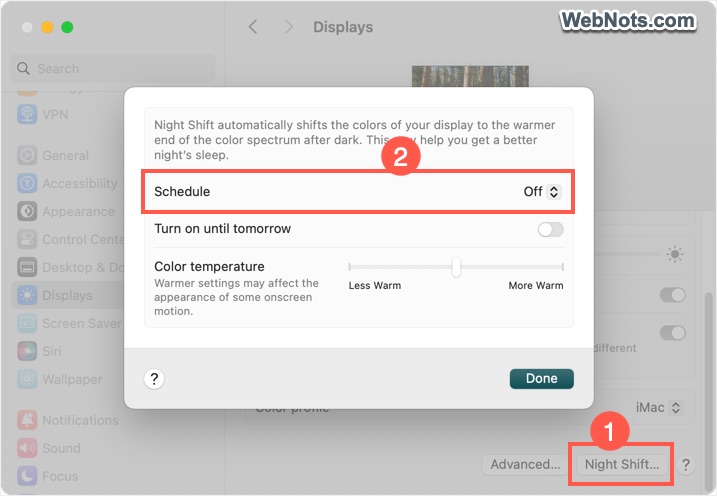
- Night Shift – Go to “Apple logo > System Settings… > Displays” and click the “Night Shift…” button showing on the bottom right corner. Click the dropdown against “Schedule” and select “Off” option to disable it. You can also adjust the “Color temperature” to adjust the display if required.
7. Use Safe Mode
Booting your Mac in safe mode can help you identify whether a third-party app or setting is causing display issues.
- First, shutdown your Mac.
- Turn it back on while holding the “Shift” key until you see the login window.
- This will boot your Mac in safe mode.

Now, check if the display issue persists. If it is gone, a third-party software might be the problem, and you may need to check your installed apps to remove or update the problematic app(s). If you are running incompatible Intel based apps on Apple silicon using Rosetta, then those are the apps you should check first.
8. Run Apple Diagnostics
Apple Diagnostics can help to identify hardware issues, including your display problems.
- Go to “Apple logo > Shut Down…” to shut down your Mac.
- Turn it on and press and hold the D key while booting.
- Follow the on-screen instructions to run the diagnostics.
- If hardware issues are found, you will receive a reference code to assist with repair options.
9. Get Official Apple Support
If none of the above solutions work, there could be a more significant hardware problem, such as a malfunctioning graphics card or display panel. In such cases, you can chat or call the Apple support and get help from them.
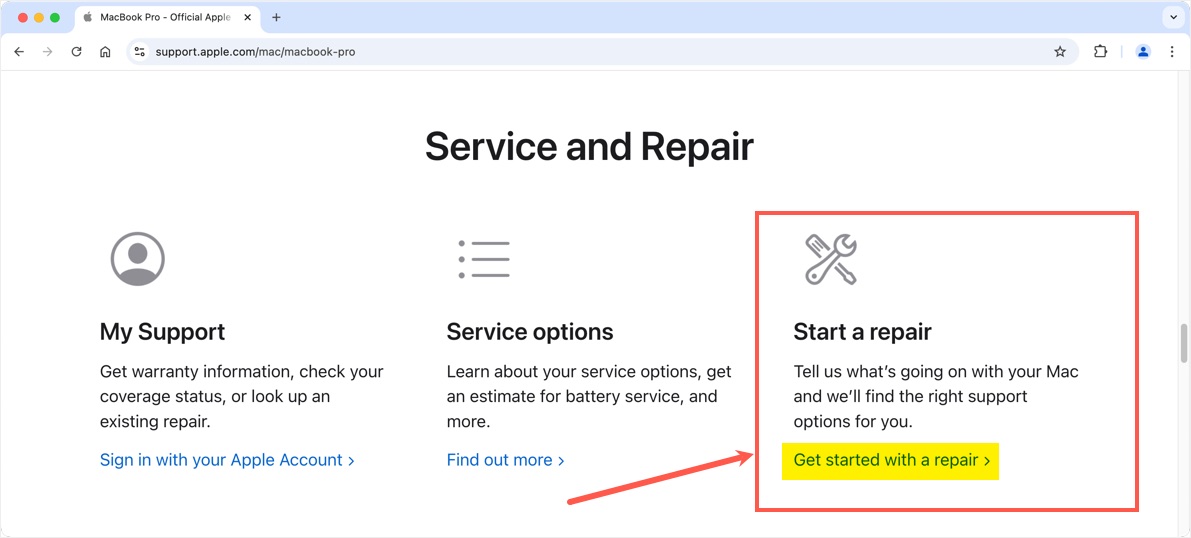
- Visit official Apple Mac support page and select your Mac model.
- Under “Service and Repair” section, click the “Get started with a repair” link under “Start a repair” heading.
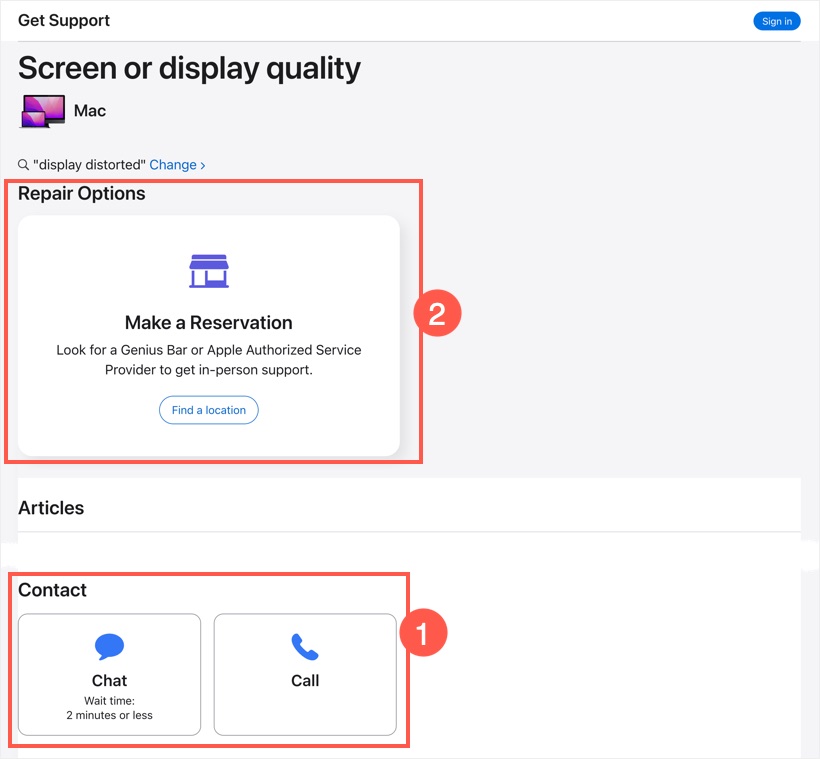
- Select “Display” related topic or search for “display distorted”. Login with your account to get customized solution.
- Use chat or call option to discuss with the representative about your problem.
- If required, find a nearby location of Genius Bar or Apple Authorized Service Provider and make a reservation to fix your issue.
Conclusion
In most cases, adjusting the display resolution and resetting SMC / NVRAM will help to fix your display distorted issue. Otherwise, you can boot in safe mode to confirm the issue is caused by third-party apps. Though contacting Apple support is easy, it will cost you hefty if your Mac does not have warranty coverage. So, you need to keep that option as a last resort if coverage is expired.