Microsoft offers multiple email services including hotmail.com, outlook.com, msn.com and live.com. You can configure these mails and get a limited free storage to start using Outlook app and web interface. Since Outlook app is part of Microsoft 365 (Office) package, there is also some additional free storage space available for you. In this article, we will explain how to check your current Outlook storage situation using old, new and web interfaces.
Microsoft Cloud and Outlook Storage
Before checking the storage space in Outlook, you need to understand the two separate storage spaces offered by Microsoft:
- Microsoft Cloud – this includes OneDrive files and Outlook attachments.
- Outlook – this is only applicable for Outlook emails and attachments.
Now that there is an overlapping of Outlook attachments which are stored in Cloud and used in Outlook app. Below is the representation of these two storage spaces for better understanding:

Check Storage Space in Outlook New Interface
- Make sure to open your Outlook (new) app which uses the new interface. You may find Outlook (classic) app which uses the old interface. If you are using classic app, make sure to turn on the new interface option.

- Click gear “Setting” icon showing on the right side of the title bar.
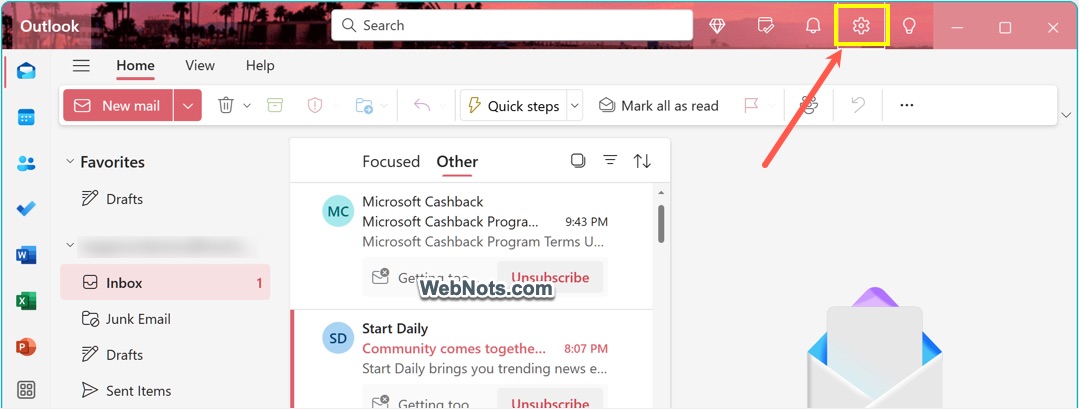
- On the Settings pop-up, go to “Accounts > Storage” or “Premium” section. You can find “Microsoft storage” and “Email storage” sections.

- First, expand the “Microsoft storage” section to check the used and total cloud storage. and take necessary actions if needed. For cleaning up Microsoft storage, click on the “Outlook (Attachments)” link. This will open Outlook web interface sorted with email attachment size. You can check and delete the emails with larger attachments. You can also click on the “OneDrive” link to view and delete files stored in your Microsoft Cloud account.
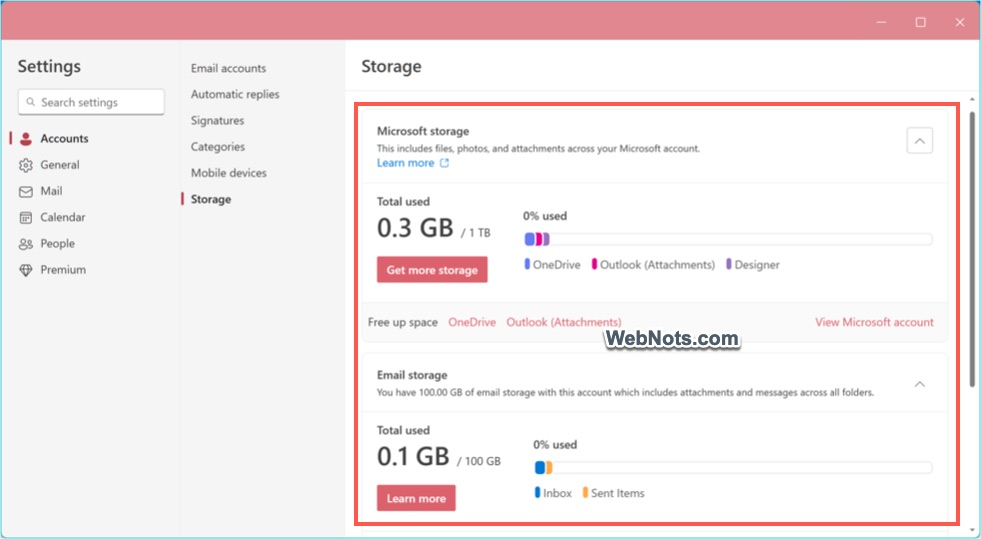
- Expand “Email storage” section where you can find the folder wise sizes of your Outlook account. If required, click on the “Empty” button against folder and select a timeframe to delete older emails from Outlook app.

Check Outlook Storage in Classical Interface
If you are still using the old interface, follow the below steps:
- Open Outlook (classic) app and make sure you have turned off the “Try the new Outlook” button.

- Go to “File” menu and click “Info” option.
- Check under “Mail Settings” against “Tools” button.
- Here you can find the used and total storage sizes.
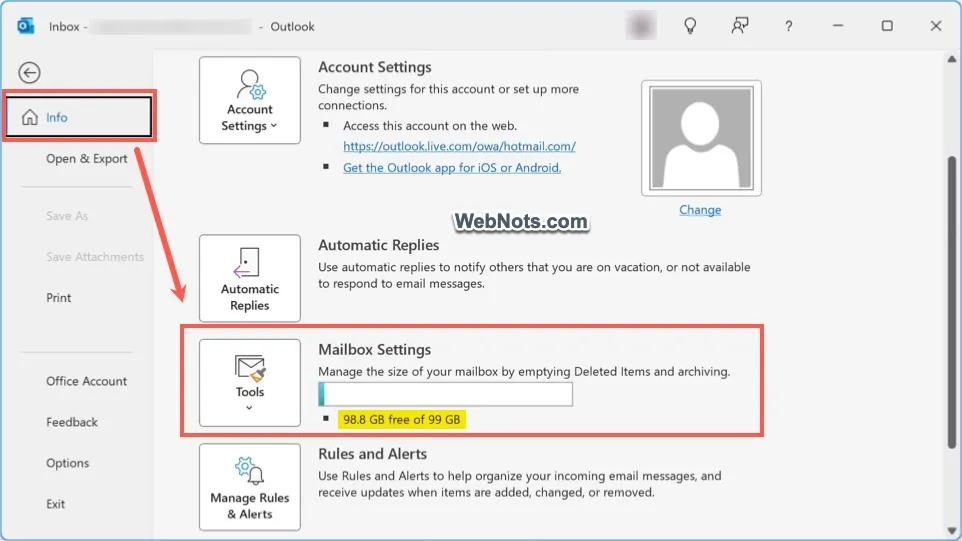
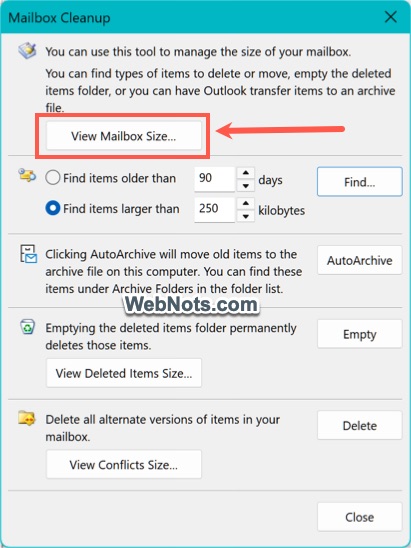
- Click the “Tools” button and select “Mailbox Cleanup…” option. Click “View Mailbox Size…” button.
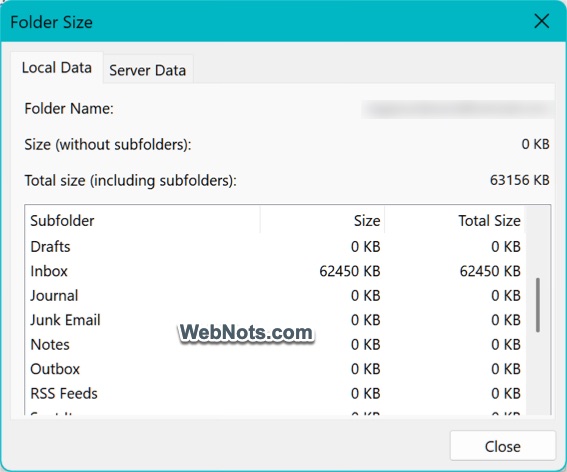
- Go to “Local Data” and “Server Data” tabs to check the folder wise sizes of your Outlook account.
On the “Mailbox Cleanup” dialog box, you have multiple options to find and delete or archive older items.
Check Storage in Outlook Web
It is also possible to check your email storage directly from the web without using desktop app. Though Outlook web uses the same new interface, storage option is available in different place.
- Go to Outlook web interface and login with your Microsoft account.
- Click the gear “Settings” icon on the title bar.
- Go to “General > Storage” or “Premium” section.
- Here you can find the used and total spaces for Microsoft cloud and Email storage.

Microsoft Storage Plans
As you can see, Microsoft has a clever trick to combine Outlook attachments to the cloud storage. The problem is that when your Microsoft Cloud storage is full, you will not be able to send and receive emails in Outlook app. In this case, you may need to clean up the OneDrive / Outlook files as explained above to start using Outlook again.
Below are the pricing plans from Microsoft, and you should purchase a premium plan to get additional cloud storage if needed.
| Plan | Cloud Storage | Outlook Storage | Price |
|---|---|---|---|
| Free (Home or Business) | 5 GB | 15 GB | Free |
| Microsoft 365 Basic | 100 GB | 100 GB | $19.99 / year |
| Microsoft 365 Personal | 1 TB | 100 GB | $69.99 / year |
| Microsoft 365 Family (6 persons) | 1 TB | 100 GB | $99.99 / year |
| Microsoft 365 Business Basic (300 persons) | 1 TB | 50 GB | $6.00 / month |
| Microsoft 365 Business Standard (365 persons) | 1 TB | 50 GB | $12.50 / month |