Safari offers various options to browse distraction free on Mac. You can use reader mode or hide items that are distracting you on a webpage. Though these options work well on text and image content, they do not work properly on pages with videos. Apple added a new feature called “Video Viewer” in Safari which resolves the problem to view videos without distractions.
Using Video Viewer Mode
This feature is available in macOS 15 with Safari version 18. So, first update your device to the latest OS to start using it.
- Open a webpage in Safari that contains a video. You can also open a YouTube or Vimeo video.
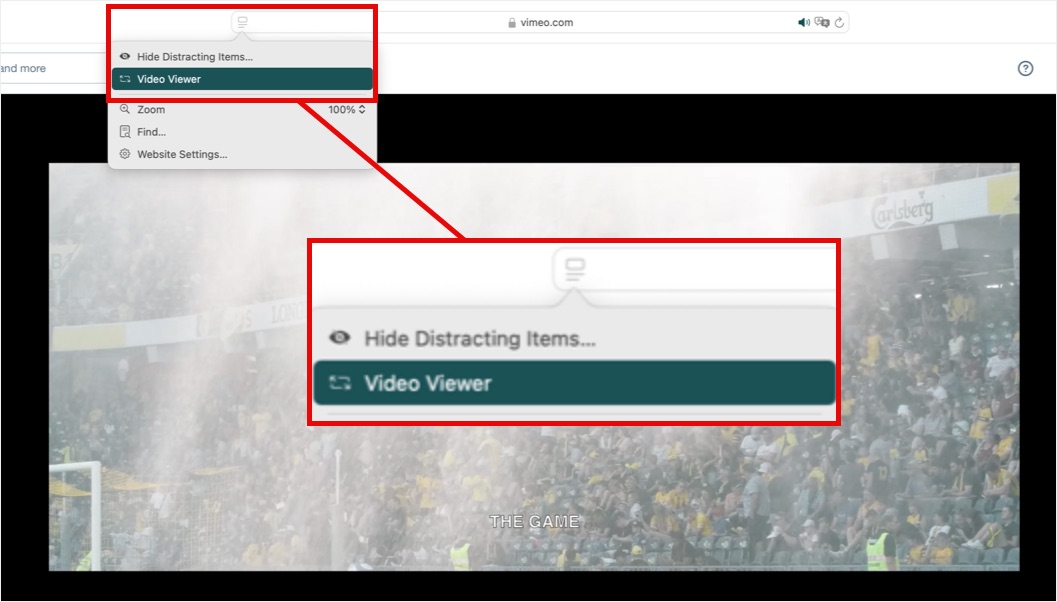
- Click the distraction free icon showing on the left end of address bar.
- Select “Video Viewer” option to open the video in full screen pop-up.
- You will have player controls for video to play without distractions from the page content.

Using Picture in Picture (PiP) with Video Viewer
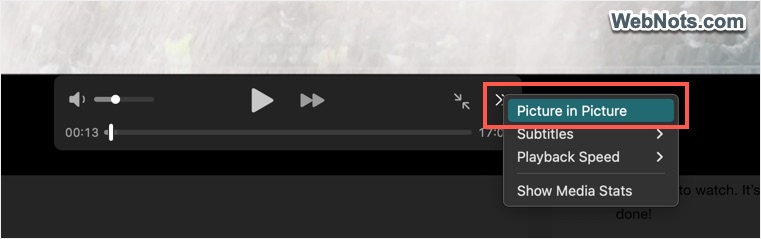
Other than audio and video controls, you have few additional options when using Video Viewer mode. Click on the double arrow icon showing on the right edge of the player controls box and select “Picture in Picture” option. This will move the video to smaller size floating on top right corner. You can resize the floating video and move to one of the screen corners to watch in comfortable position while doing any other task.
The video will also automatically go into picture in picture mode when you open a new tab or switch to another app with “Command + Tab” shortcut. When switching back to Safari, PiP mode will be automatically closed and the video will start playing on Safari tab in Video Viewer mode.
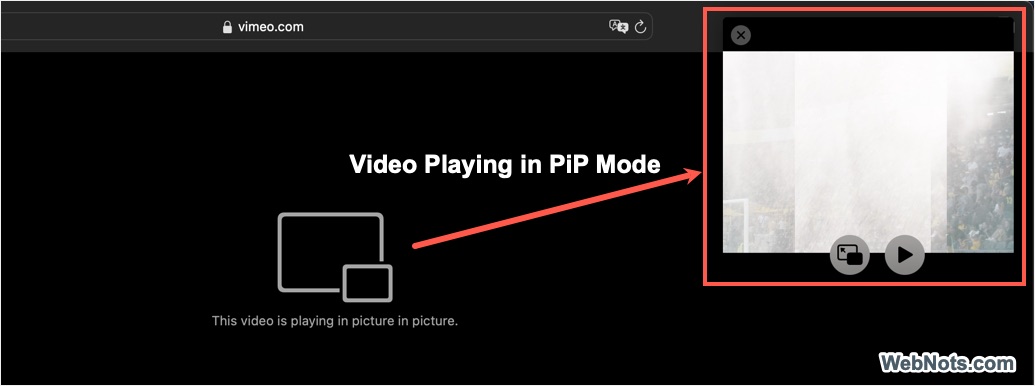
If you have changed the PiP video position, Safari will remember that and move the video to previously used position from next time.
Additional Features
- Subtitles – select “Subtitles” option to show captions if the video supports it.
- Playback Speed – you can change the speed by selecting “Playback Speed” option. Choose from 0.5x, 1x, 1.25x, 1.5x or 2x as you need.
- Live Text – while watching video in “Viewer Mode”, you can also use Live Text icon to copy the text from your video.
Exiting Video Viewer
If the video is playing in PiP mode, simply close it or switch back to Safari Tab. Click on the same distraction free icon on address bar and select “Exit Video Viewer” option to return to normal mode.
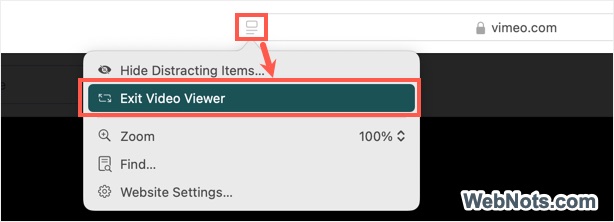
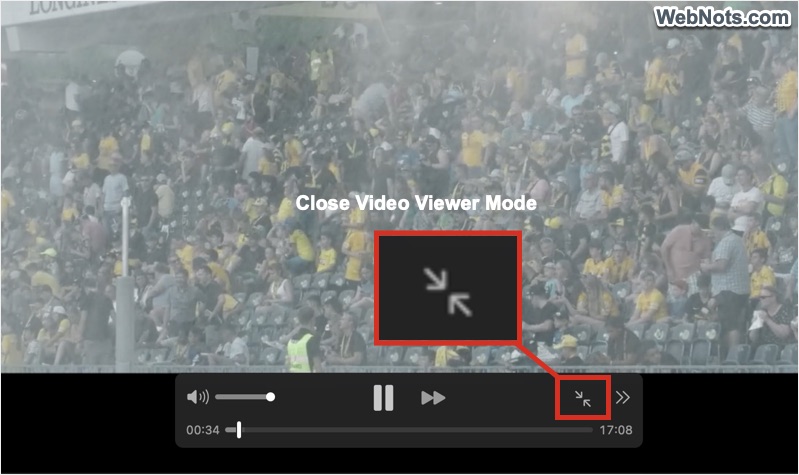
Alternatively, press the contract icon (two small arrows pointing each other) on the player controls box to close the “Video Viewer” mode.