WhatsApp has become an indispensable part of modern communication, connecting billions worldwide through text, voice, and video (unless you are living in countries like China). For many, the need to separate personal and professional interactions or manage multiple businesses and personas means keeping more than one WhatsApp account handy. While Android users have long enjoyed flexible options for dual WhatsApp accounts, iPhone users also have options to use multiple accounts within a single WhatsApp app. In this article, we will explain all possible workarounds, so you can communicate with ease.
1. Add Additional Account in WhatsApp Messenger
Earlier, there were no options in WhatsApp iOS app to add a second account. However, this feature has been added recently. Update your iOS and WhatsApp app, and follow the below steps:
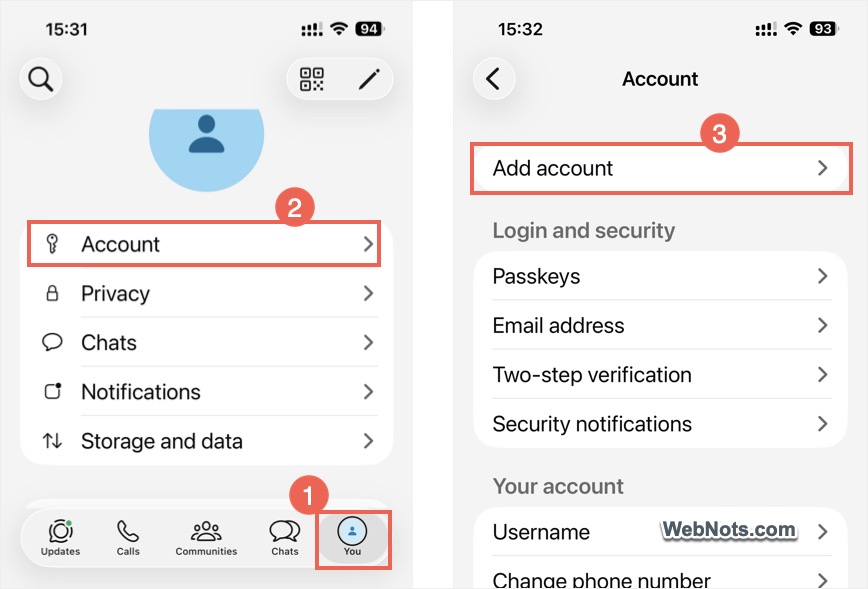
- Open your WhatsApp Messenger app, tap on “You” on the bottom right corner.
- Tap “Account” and navigate to “Add Account” section.
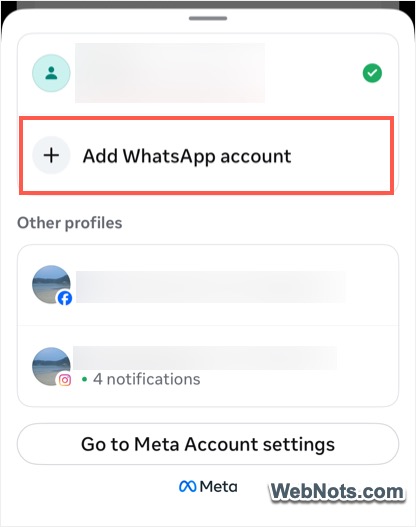
- You will see the current account and other profiles (like Facebook and Instagram). Tap on “Add WhatsApp Account” option.
- Accept the terms and select the phone number. The app will automatically show the number from your SIM or from the WhatsApp Business account. If you want to use another number, tap on “Use a different number” option.
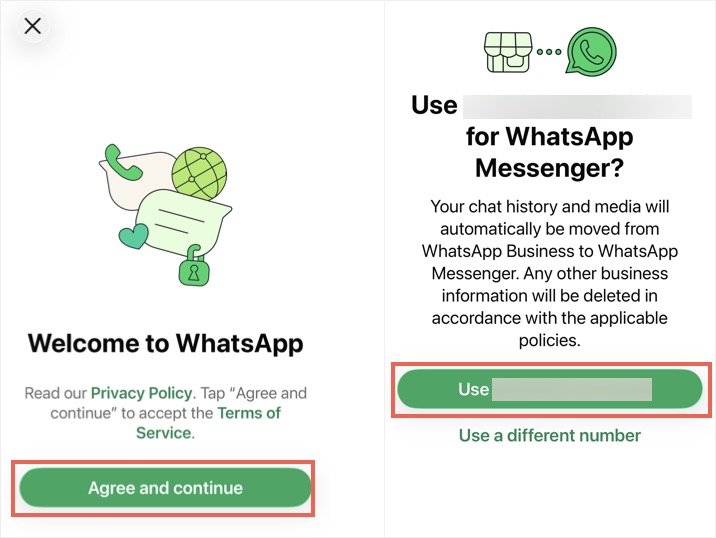
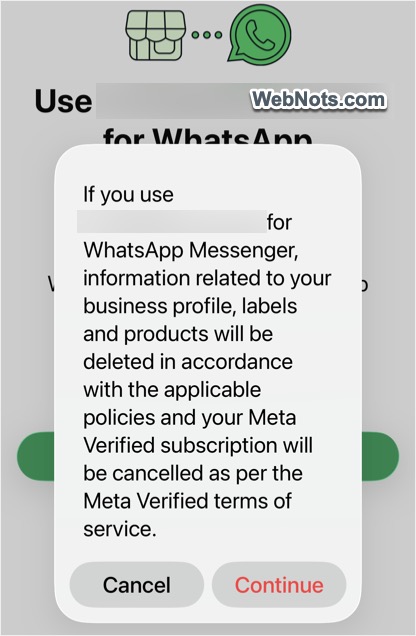
- You will see a warning message if the selected phone number is used on the WhatsApp Business account. All business profile information associated with the phone number will be deleted and the chat conversations will be migrate to personal messenger app automatically. Tap “Continue” to proceed. Remember that you will not see this warning if the selected phone number is not associated with a business account.
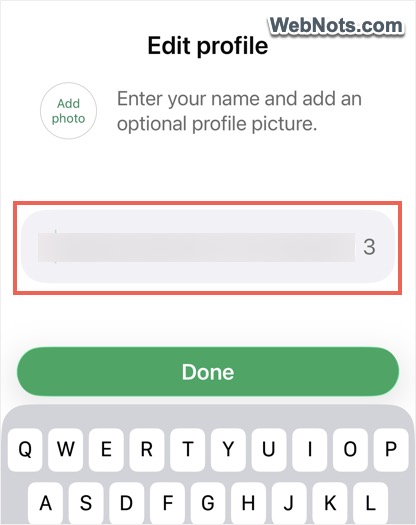
- Wait for few minutes for the account creation and provide a profile name for your newly added account.
Tap on “You” and then the your profile name showing below the profile picture. You will see the both the accounts and select the one you want to use. Alternatively, go to “You > Account > Switch account” and select the phone number you want to use or simply double tap on “You” to switch the account. WhatsApp will automatically show the relevant conversations applicable only for that account. This feature is a big relief for those having two phone numbers (SIM) on their iPhone.
2. Use WhatsApp Messenger and WhatsApp Business Apps
Another simplest and most reliable way to use two WhatsApp accounts on an iPhone is by installing both the standard WhatsApp Messenger app and the WhatsApp Business app. Both are available for free on the App Store and are developed by WhatsApp. While WhatsApp Messenger is intended for personal use, you can use the WhatsApp Business app for business communication. There are no limitations or restrictions, which means you can use business app for personal use also with any phone number. However, your friends can see that you are using a business account.
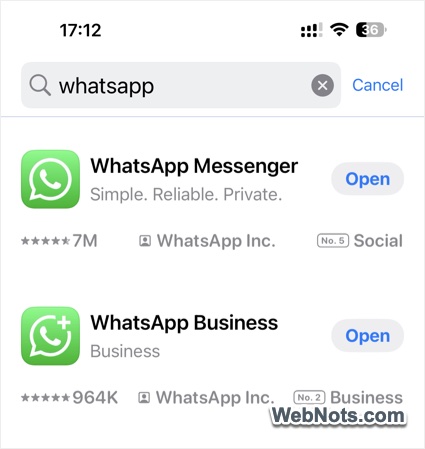
- Download and install both WhatsApp Messenger and WhatsApp Business from the App Store.
- Register each app with a unique phone number. You must have access to both numbers for verification.
- Set up your profiles as desired on both apps. WhatsApp Business app has extra features, such as catalog and business details, which may not be necessary for personal use and you can ignore that.
- Customize notification settings in each app for optimal management.
Note: As mentioned in option 1, you can anytime migrate all chat conversations to a personal messenger account without losing the history. However, all business related information on your profile will be deleted during migration.
3. Using Dual-SIM/eSIM Capabilities
Latest iPhone models (XS, XS Max, XR, or later) support dual SIM via physical SIM and eSIM. This means you can associate multiple phone numbers with your device. You can make use of this dual SIM setup to register two WhatsApp accounts (Messenger & Business).
- Activate both SIMs (physical or eSIM) on your iPhone.
- Use one number for WhatsApp Messenger, and the other for WhatsApp Business.

Although both of the above methods are official and easy, they do have certain limitations.
- You need to manage two apps and you can only use two accounts with this method – one on each app.
- Each account requires a unique phone number – you can’t use the same number on two apps.
- Though you can change the default status message (“Hello. I’m using WhatsApp Business.”) to hide you are using the business app, people can still see you are using the business account and may get confused.
4. Use WhatsApp Web for Multiple Accounts
If you need to access a second WhatsApp account occasionally, WhatsApp Web can serve as a workaround. While WhatsApp Web is usually tied to the primary account on your phone, you can use the following trick.

- Set up your second WhatsApp account on another device (secondary phone or emulator).
- Open Safari or another browser on your iPhone and navigate to web.whatsapp.com (switch to desktop view using the browser settings).
- Scan the QR code from your secondary device (where the second WhatsApp account is active).
- You can now access chats and media from the second account via browser.
This method is not ideal for simultaneous push notifications or always-on access but works for temporary or occasional use.
5. Third-Party App Solutions
Apple’s App Store policies restrict unofficial WhatsApp clones or parallel apps. However, there are plenty of third-party apps in App Store offer multi-account features. Examples include “Messenger Duo for WhatsApp” and Dual WA: Whats Web Messenger”.
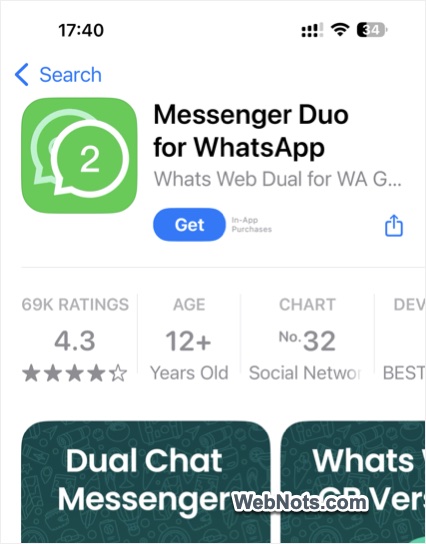
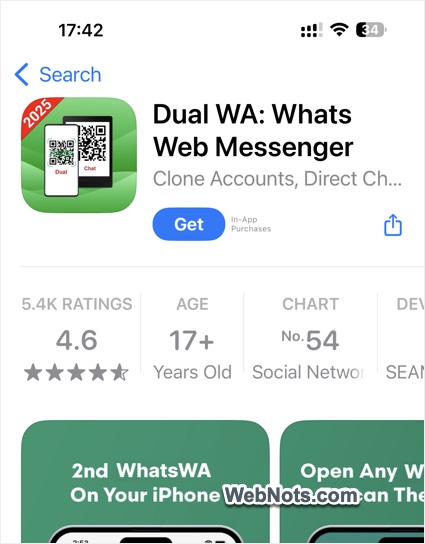
These apps often use web-based wrappers and may not function reliably. Also, exercise caution as these may pose privacy and security risks. WhatsApp and Apple do not endorse such apps, and your data may be at risk.
Frequently Asked Questions
Yes, as WhatsApp added multiple accounts feature in iOS app. You can also use WhatsApp Messenger and WhatsApp Business for two accounts.
Yes, each WhatsApp account requires its own unique phone number.
Yes, you can do that within the WhatsApp app without the need of signing out and re-verify each time. Using two official apps (Messenger & Business) is also another approach.
If you stick to official WhatsApp apps and avoid third-party clones, your data remains secure.
Yes, but you must have the second account running on another device to scan the QR code.