Apple Intelligence is Apple’s own suite of AI-driven features designed to seamlessly enhance productivity and user experience across macOS. Though it works well on native apps like Pages, it’s not accessible on other platforms as an independent app. While initially developed with Windows in mind, Microsoft Copilot is now accessible to Mac users, harnessing the best of both worlds: Apple’s elegant hardware and Microsoft’s cutting-edge software intelligence. In this article, we will explain you through everything you need to know about using Microsoft Copilot on your Mac.
What is Microsoft Copilot?
At its core, Microsoft Copilot is an AI-powered assistant integrated into Microsoft’s suite of software and services. Designed to help you write, summarize, analyze, code, and more, Copilot leverages large language models (LLMs) to provide intelligent suggestions, complete tasks, and answer questions in real-time. Its applications range from writing emails and documents to automating workflows and generating data insights.
Copilot is embedded across Microsoft’s ecosystem like Windows 11, Microsoft 365 apps (Word, Excel, PowerPoint, Outlook, and Teams), Microsoft Edge browser, and Microsoft Copilot standalone web and desktop apps.
Even if you already benefit from Apple Intelligence, Copilot supercharges your productivity, especially if you rely on Microsoft’s suite for work, study, or creative pursuits. The primary distinction between Apple Intelligence and Copilot is that Apple Intelligence operates on-device, whereas Copilot processing is cloud-based.
Using Microsoft Copilot on Mac
Mac users can access Microsoft Copilot through multiple entry points:
- Copilot App for Mac: Install Copilot app and use all the features similar to web access (copilot.microsoft.com).
- Microsoft 365 Apps for Mac: Copilot is built into the latest versions of Word, Excel, PowerPoint, and Outlook for macOS (with a valid Microsoft 365 and Copilot Pro subscriptions).
- Microsoft Edge for Mac: Copilot is integrated directly into the Edge browser sidebar.
- GitHub Copilot: For developers using Visual Studio Code on Mac, GitHub Copilot brings AI-powered code suggestions and completions.
This article explains Copilot and Microsoft 365 apps, which many Mac users depend on. Microsoft also released a Microsoft 365 Copilot app for Mac, however, this app is not yet available for all users.
1. Copilot App for Mac
This is the best option to work independently with your AI assistant. Open App Store and search for “copilot” to find and install the Microsoft Copilot app on your Mac.

Launch the app and login with your Microsoft account. The app will look like ChatGPT app’s interface with a sidebar showing your historical conversations and the chat area.

Customizing Copilot App Settings
Before start using the app, click your name showing on bottom left corner or go to “Copilot > Settings…” menu. You can customize the followings:
- App language is based on your Mac’s regional setup (Mac Settings > General > Language & Region).
- Select the voice you want to use and setup the appearance. App can use dark, light or auto mode for appearance.
- Select where you want to show the Copilot icon – only on Dock or both on Dock and top Menu Bar.
- Turn on “Launch at Login” to open Copilot whenever you boot the Mac.
- “Option + Space” is the default keyboard shortcut to launch Copilot app which you can change if required.

Selecting Mode for Chatting
Simply type your query in the chat box and press enter key to get the response. By default, Copilot will answer in a Quick Response mode which will take just 2-3 seconds. However, if you want to get detailed analysis, click that Quick Response button and change the mode to Think Deeper which will take around 30 seconds to respond. If you have Pro subscription, select Deep Research mode which is suitable for data analytics and takes around 10 minutes to respond.

You can also ask Copilot to generate images in addition to text message chatting.
Using Voice Mode
Instead of typing your query, click on the microphone icon (and provide the permission) to use voice input. This will on complete voice chat mode (including the response) and later you can find the entire transcript is saved as a conversation.

Click on the gear icon and setup the voice (if you have not setup in settings) before starting voice mode as changing the voice in-between will reset your conversation.

Uploading Files
Click the + icon in the prompt box and select “Upload” option to upload a file for analysis.

Alternatively, right-click (Control + Click) on any file and select “Ask Copilot” option from the context menu. This will open Copilot app and automatically attach the file in the chat box. You can type your query related to the attached file and get a response.

If you want to use the screen capture as an input, click the Copilot icon on the Menu Bar (you need to enable it in app’s settings) and select “Take Screenshot” option.

Note: We don’t see Copilot Vision in available on Mac app. Soon you can expect Microsoft to add that feature in the app.
2. Microsoft 365 Apps for Mac
If you are relying on Word, Excel, PowerPoint, or Outlook for daily work, then Copilot will change the way you prepare documents, slides, spreadsheets and emails. Here are the things you can do with Word for Mac and other apps offer similar features.
- Generate Content: Simply open a blank document and you will see the Copilot prompt on the top of your document. Type your query in the prompt and press enter to generate your content.

- Chat with Copilot: Click the Copilot button on the ribbon under “Home” tab to open the chat box. You can now ask Copilot to help draft documents, summarize text, rewrite sections, or brainstorm ideas.
- Summarizing Documents: Open any of your existing document and click the “Generate” button on top against “Summary by Copilot” notification. You can also use the chat box for this purpose.

- Inline Features: Click the Copilot icon showing on the left-hand side of each line and select the option you need.

Similarly:
- On Excel, you can ask Copilot to analyze data, create formulas, visualize trends, or automate repetitive calculations.
- PowerPoint allows Copilot help design slides, generate content, suggest images, or summarize presentations.
- In Outlook for Mac, use Copilot to compose emails, summarize long threads, or generate replies.
- For Teams meetings or chats, use Copilot to take notes, summarize discussions, or suggest action items.
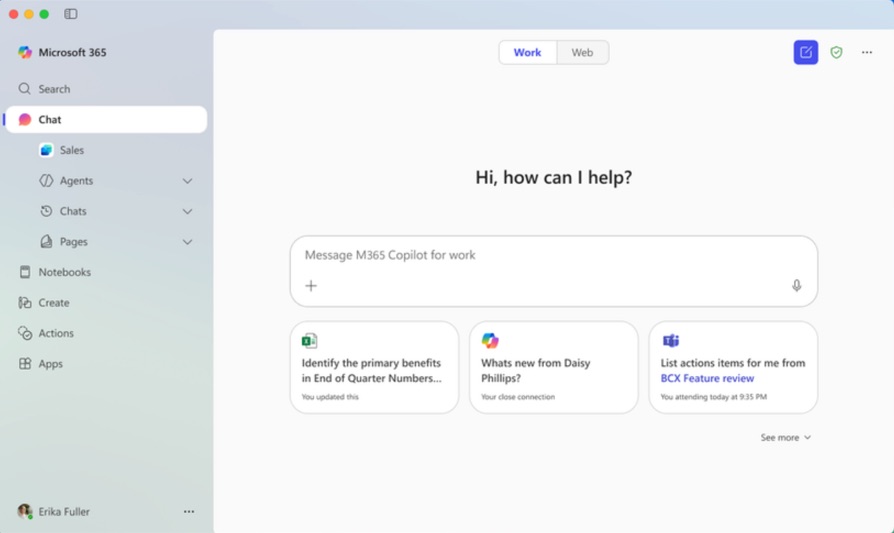
As mentioned, there is also a Microsoft 365 apps for Mac as shown in the below screenshot which will available soon to all users. As you can see in the sidebar, there are numerous features available in this app including chatting and AI agents.
Conclusion
Microsoft Copilot brings next-level AI productivity tools to Mac users, integrating seamlessly with both Copilot app and Microsoft 365 apps. Whether you’re drafting documents, analyzing data, managing projects, or writing code, Copilot can save time, spark creativity, and elevate your work. With this article, you’re well-equipped to explore Copilot’s capabilities and make the most of your Mac.