Downtime is the one thing all website owners hate as it makes users frustrated and most of them will never return again. Though choosing a quality web hosting company helps to reduce downtime to certain extent, it is unavoidable for handling maintenance and emergency situations. If you worry about losing visitors during downtime, the best solution is to use Always Online feature in Cloudflare. In this article, let us see how to enable Always Online in Cloudflare and how to make it work for your important pages.
What You Need?
- You must have added and setup Cloudflare CDN to route all site’s traffic through their DNS.
- Allowed internet archive’s robot to crawl your site and not blocked their crawler.
How to Enable Always-On in Cloudflare?
- Login to your Cloudflare account and select the site which you want to enable Always Online.
- Go to “ Caching > Configuration “ section.
- Scroll down on the right pane to find and turn-on “Always Online” option.

How Always Online Works in Cloudflare?
Internet archive is the largest backup of old websites content which you can refer anytime. For example, if you wonder how your site looked few years before then you can go to internet archive site and find the snapshot.
To make Always Online works for your high traffic pages, Cloudflare will share those pages from your site with Internet Archive’s WayBack Machine and request for crawling. The crawling request is based on the live pages visited in last 5 hours and the interval depends on your Cloudflare’s account plan. Below are the details of crawl interval for various plans as per Cloudflare:
- Free – 30 days
- Pro – 15 days
- Business – 5 days
- Enterprise – 5 days
When your hosting server is down, Cloudflare redirect the request to archive and fetch the most recent content of the requested page. Users will see a notification on top of the page indicating the content is loaded from the archive and not from the live server.
Note: Always Online will show a snapshot from internet archive and hence interactive features like shopping cart or form submissions will not work though the page is accessible.
Page Not Working with Always Online?
If you see server error instead of a backup page. It could be due to one of the following reasons:
- Though internet archive crawler will scan through all websites available on the internet, you can block it using different methods. This is done to avoid the crawler using server’s bandwidth when you do not want to save the pages in archive.
- Cloudflare only shares most visited pages on your site with WayBack Machine. So, less visited pages on your site are not available in internet archive.
- Custom rules are enabled in Cloudflare bot blocking bots.
Most importantly, Cloudflare will NOT use Always Online for 404 and certain 4xx HTTP responses like database error.
Making Always-On Work for You
If you have few important pages that you always wanted to keep online, then make sure to do the followings:
Manually Submit Pages to Internet Archive
Though Cloudflare Always Online feature automatically requests WayBack Machine only for high traffic pages, you have an option to manually submit pages to internet archive. This will help to keep a backup in archive so that Cloudflare’s Always Online can fetch.
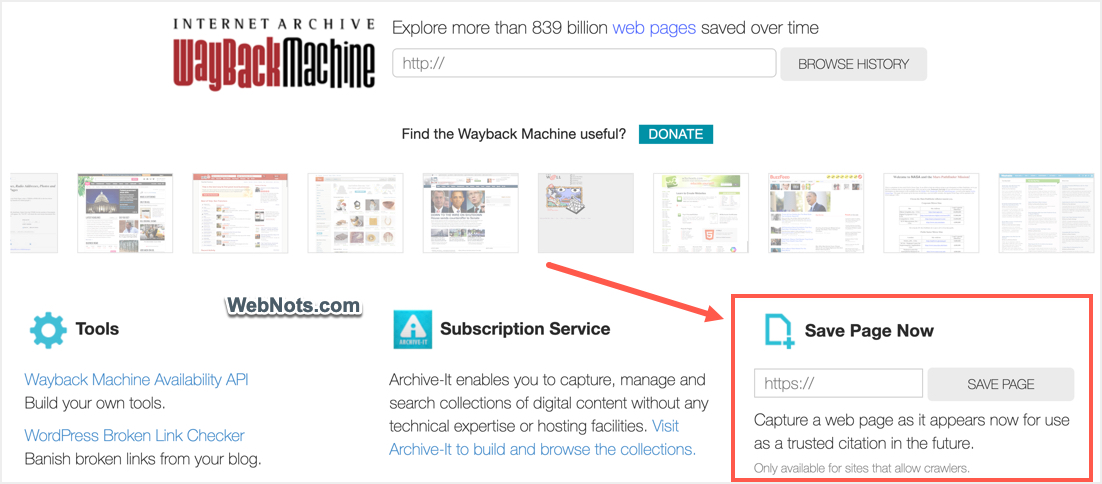
- Go to internet archive’s WayBack Machine section.
- Enter your page URL below the “Save Page Now” box and click “Save Page” button.
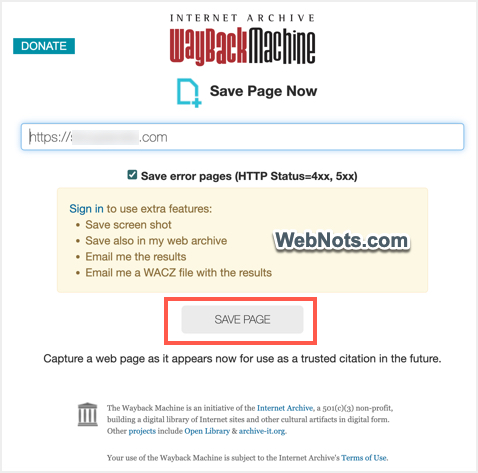
- You will be taken to WayBack Machine manual submission page.
- Again, click on the “Save Page” button.
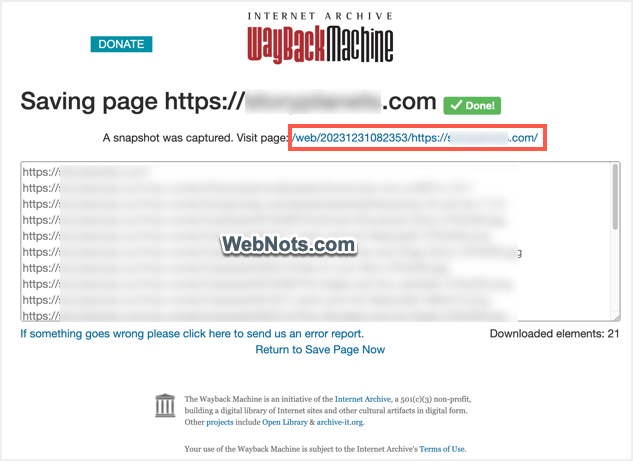
- The crawler will take some time to download all resources on the page to build an offline snapshot.
- Wait for the process to finish and you will see a link to view your archived page.
Do Not Block Internet Archive Crawler
There are multiple ways to block internet archive’s WayBack Machine crawler.
Check Robots.txt Entries
Check your robots.txt file has any entries to disallow the crawler. Sometimes, your hosting company might have blocked internet archive’s crawler to save bandwidth (which is common in shared hosting environment). Open yourdomain.com/robots.txt URL in a browser tab and check its content is having the following lines. If yes, use FTP or File Manager to edit the robots.txt file and remove the lines.
User-agent: ia_archiver
Disallow: /
Since robots.txt is a static file, you should delete your server’s cache and purge Cloudflare’s cache for the changes to reflect. Make sure to only purge robots.txt URL to delete its cache in Cloudflare instead of deleting entire site’s cache.
Check IP and User Agents are Not Blocked
Make sure your hosting company does not block internet archive WayBack Machine’s IP addresses and user agents. IP addresses are 207.241.224.0/20 and 208.70.24.0/21 and user agent string is:
Mozilla/5.0 (Windows NT 10.0; Win64; x64) AppleWebKit/605.1.15 (KHTML, like Gecko) Chrome/89.0.4389.82 Safari/605.1.15Disable Cloudflare WAF Rules for Bot Management
You can create custom Web Application Firewall (WAF) rules in Cloudflare to block known and verified bots. Enabling this will also block internet archive’s crawler also. Go to “Security > WAF” section and remove any rules that were created to match the incoming requests from “Know Bots” and “Verified Bot Category”.

Final Words
Cloudflare Always Online is a good feature to keep your content online even when the hosting server is down. However, enabling this feature will trigger lot of crawl requests as it is integrated with internet archive crawler. Some hosting companies will block this kind of crawler and you need to discuss with them to unblock if you want to use Always Online feature. In addition, you should not block known bots in Cloudflare account for this to work.