Windows computers have a super useful function called Aero Snap. This helps to snap app windows on the screen and arrange them for effective multitasking. However, Mac has a simplified snapping feature to move the window left or right horizontally till macOS version 14. Apple finally introduced windows snapping feature in macOS 15 Sequoia and now you can easily arrange app windows as tiles.
Update macOS
As of macOS version 14, you will simply see options to move an app to left or right or enter full screen. The app tiling feature is available from macOS Sequoia. Hence, make sure to update your macOS to version 15 or later to avail this feature.
Arranging App Windows in Mac Screen
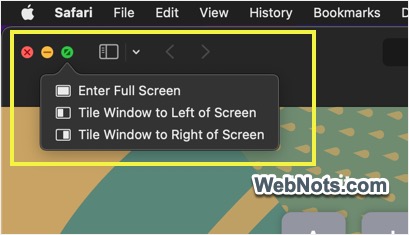
Open any app and hover your mouse over the green dot next to minimize / close buttons. You will see the following options:
- Move & Resize
- Fill & Arrange
- Full Screen

Move & Resize App Windows
This option will help to move the app to top, bottom, right or left half of the screen. Other half will not be filled and you may see any other open apps or desktop screen.

Fill & Arrange Apps
You have another four options under this group for filling up the entire screen with open app windows. You can arrange app windows as tiles to occupy the screen with 4, 3, 2 or a single app. When you 4, 3, 2 app options, Mac will automatically fill the remaining screen portion with other open apps.


Full Screen
This was an existing option available with previous macOS versions. You can make an app full screen hiding top bar or move to left / right half of the screen. Note that filling the screen with a single app tile option is not as using it in full screen mode. You will still see the top bar and app’s menu bar when tiling a single app to occupy full screen.

Snap by Moving to Edge
In addition to using the green icon on title bar, you can move an app window to left or right edge of the screen. Mac will highlight the preview of how the app will occupy the left / right half in screen. Simply drop the app to use it in vertical split window.
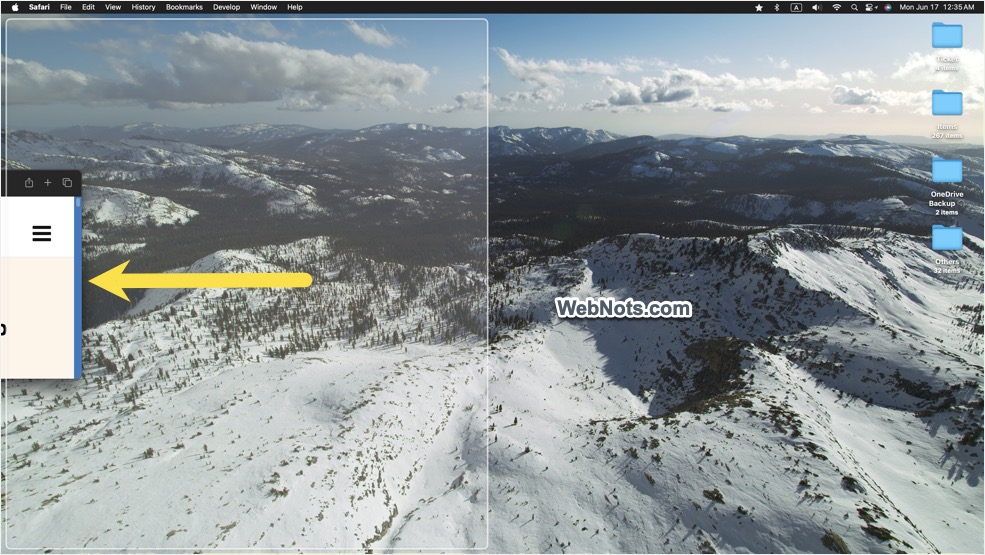
You can also move an app nearer to top edge (just below) to occupy the full screen area. Note that moving to complete top edge will show Mission Control and bottom portion is generally occupied by Dock.
Option + Drag for Splitting Screen
There is also an option to use keyboard when moving an app. Hold the Option key and drag an app to one of the screen edges. Mac will show the available tile option to resize and arrange that app window. You can use quarter or half of the screen or make an app to use full screen area using this method.

Tiling Using App Menu
All the apps will have a new “Move & Resize” sub-menu item added under “Window” menu. This option is much clearer than using the green button.
- You can select Halves, Quarters, Arrange and Return to Preview Size easily from the menu items.
- Arrange options will tile the current and previous active app windows as per your selection.
- Quarters option will simply split the screen to 4 equal quarters and allocate the available apps to occupy the portions.
- You can also anytime return the app window to use its previous size.

“Full Screen Tile” menu has the old options for arranging the app to left or right halve.
Keyboard Shortcuts for App Tiling in Mac
Use the following keyboard shortcuts to move and arrange app tiles on the Mac screen. Note that Fn and Globe are the same key shown at the left bottom of Mac keyboard. You may see Fn in most MacBook models while Globe key in Magic Keyboard and few Mac models.
| Shortcut | Tile Action |
|---|---|
| Option + Drag App | Preview and drop in tile |
| Fn + Control + Left Arrow | Left halve |
| Fn + Control + Right Arrow | Right halve |
| Fn + Control + Up Arrow | Top halve |
| Fn + Control + Down Arrow | Bottom halve |
| Fn + Control + Shift + Left Arrow | Left and right |
| Fn + Control + Shift + Right Arrow | Right and left |
| Fn + Control + Shift + Up Arrow | Top and bottom |
| Fn + Control + Shift + Down Arrow | Bottom and top |
| Fn + Control + R | Return to previous size |
Final Words
So, you can easily split Mac screen and arrange apps as tiles without using any third-party apps. It works nicely in apps like Safari to keep multiple open windows as tiles. However, you will find bit difficult to fit some of the apps within the available tile space. For example, App Store app can’t fit in one quarter of the screen and Settings app can’t occupy the full screen area. Though it is not convenient as in Windows PC, you can expect this to become easier in future macOS updates.