Unlike WhatsApp and many other instant messaging platforms, WeChat is a complete package offering packaged features. You can send messages, watch short videos, use mini apps and most importantly use WeChat Pay for money transfer. This brings problems when your kids are using the app. So, you need to selectively enable the features to make sure the kids are not distracted with unnecessary stuffs in the app.
Why Parental Control Mode is Necessary in WeChat?
If you go to “Discover > Live” section, WeChat will automatically show a safety warning about using parental control mode for minors as shown below. This is an indication about the type of videos shown in the live feed.
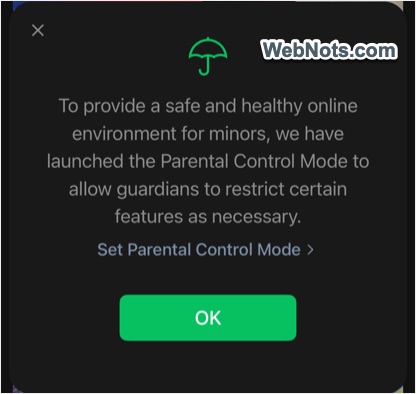
That’s just one example – you have Moments, Channels, Top Stories, Nearby, Search, Games and Mini Programs to share and view content.
Step 1: Enable Parental Control Mode
The process and screenshots are from WeChat iPhone app and mostly same in Android version also.
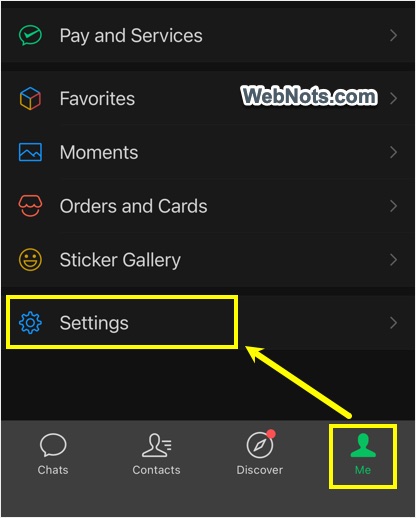
- Open your kid’s WeChat app and go to “Me > Settings” section.
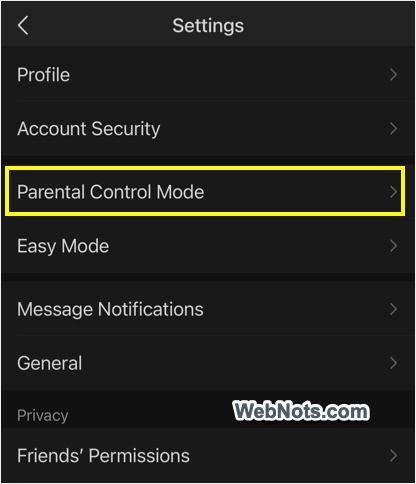
- Find and tap “Parental Control Mode” option.
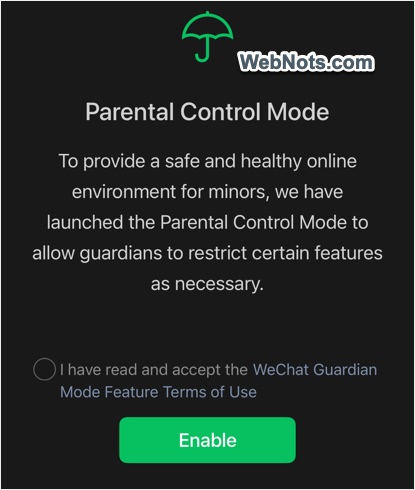
- Accept the terms of usage and tap on “Enable” button.
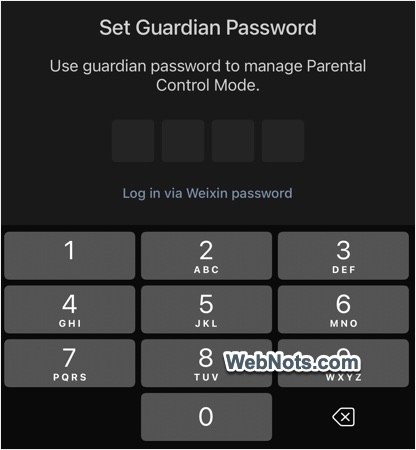
- Type a passcode and confirm again by re-typing it.
Step 2: Setting a Guardian
Next step is to set a parent as a guardian for approving access requests.
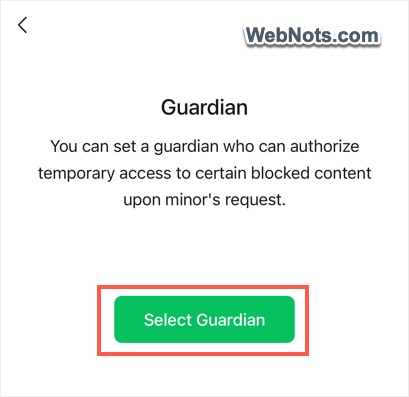
- After confirming the passcode, you will see a “Guardian” screen and tap on “Select Guardian” button.
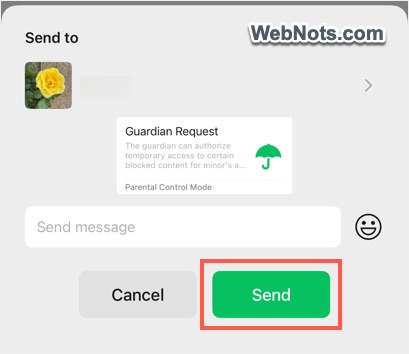
- Choose your name (parent’s name) from the contact list and send the “Guardian Request”.
Step 3: Approve Guardian Request
- Open your WeChat app (to whom the request was sent) and go to your kid’s chat section.
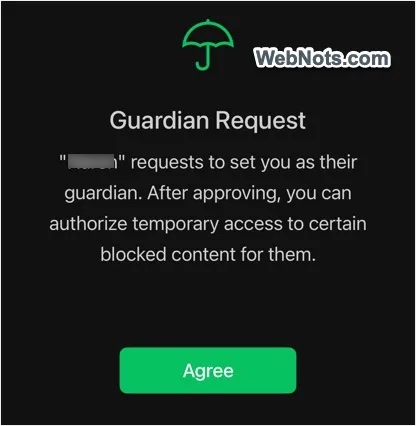
- You will find the pending request and approve it by tapping on the “Agree” button.
Step 4: Setting the Restrictions
- Go to “Me > Settings > Parental Control Mode” section in your kids WeChat app.
- Type the passcode and you will see a list of items available for setting restrictions.
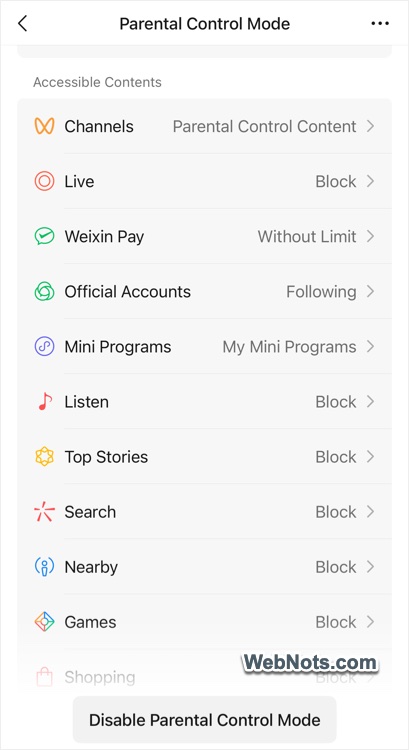
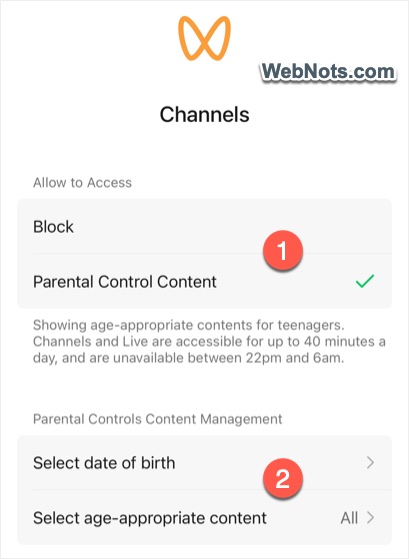
- Select each item and set the access restriction. For example, tap on “Channels” and select “Parent Control Content” option. Set the age and categories for allowing age-appropriate content. WeChat will allow the content for 40 minutes per day and show only from 6 AM to 10 PM (blocked during nighttime). We recommend blocking “Live” section and allow age-appropriate content for “Channels”.
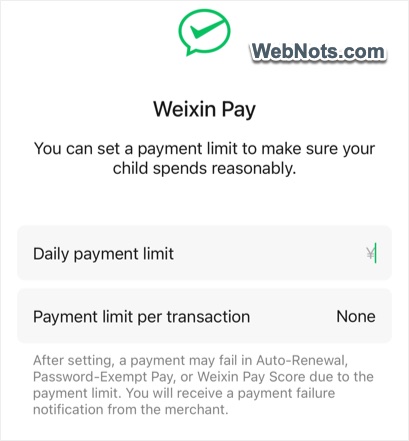
- For Weixin Pay (WeChat Pay), tap on that option and set a daily and transaction limit. This will protect your kid from spending the money though it is available in the balance.
That’s All!!! Close the app and give the phone to your kid!!!
Step 5: Approving Access Requests
Whenever your kid wants to access the blocked content or pay more than the set limit in WeChat Pay, the kid can send the request for approval. You can check the request in the chat section and approve or reject.
Final Words
Though you can block and limit the features, we don’t find any options are available to monitor the usage from parent’s phone. The only option is to type the passcode on your kid’s WeChat app to change the access settings or disable the parental control mode. You can combine the Screen Time on iPhone and parental control features on Android along with WeChat Parental Control Mode to provide a better online experience for your kids.