Setting an alarm on an iPhone is simple using the Clock app. Likewise, the Reminders app lets you create tasks and receive notification alerts when they are due. Traditionally, these apps worked independently: alarms were mainly used for waking up, while Reminders focused on managing to-do lists. Until iOS 26.2, there was no way to set an alarm specifically for a reminder. With iOS 26.2, you can now add an alarm directly to a reminder, making it easier to get a sound alert for important task deadlines.
Update Your iOS
This function is available on iOS or later. So, go to “Settings > General > Software Update” section on your iPhone and update the iOS to the latest version.
Set Alarm for a Reminder
- Open Reminders app and tap on the + icon to create a task. Or select a list and then tap the + icon to create a task.
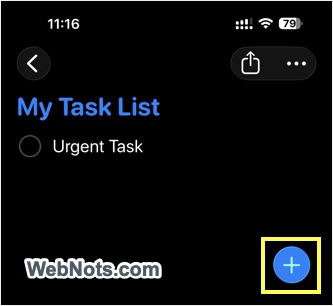
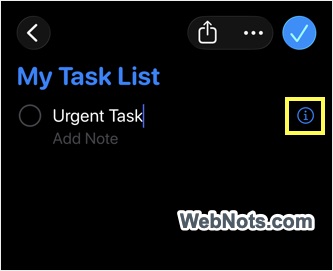
- After providing the name, tap on the ⓘ information icon showing against the task name.
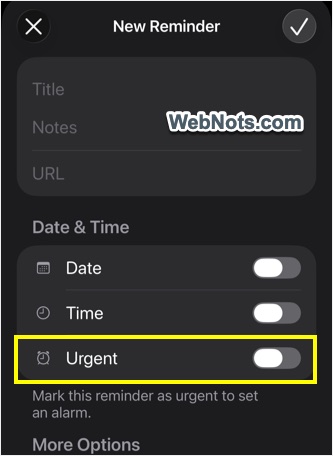
- Fill the details, set the due date & time and tap on the “Urgent” button to turn it on.
- First time iPhone will show a notification and tap the “Continue” button.
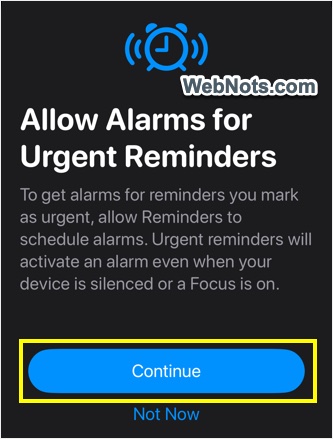
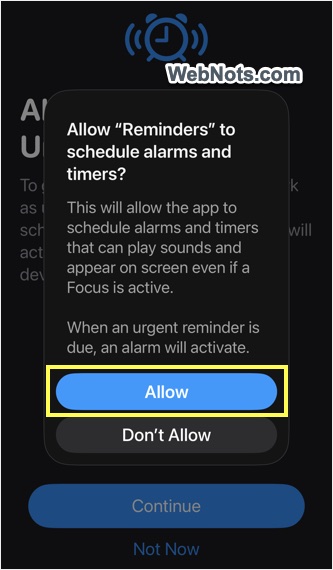
- On the next screen, tap “Allow” button to provide permission for Reminders app to schedule an alarm.
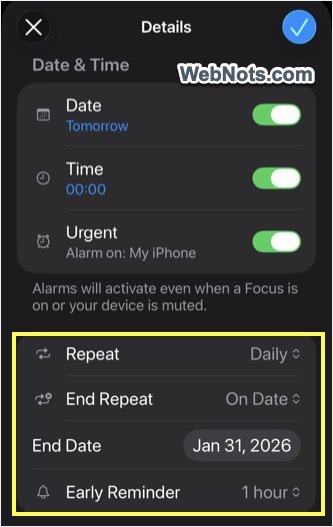
- This will enable alarm for that task and you will see additional options for selecting repeat schedule, end date for repeat, and the early reminder time.
- Tap the tick icon on top right corner to create a task with alarm.
- When the due date / time reaches, the task will trigger an alarm. You can either turn it off or snooze it similar to the alarm set in Clock app.
Remember that the alarm sound will work even when your iPhone is on Focus or silent mode. So, set an alarm for a task only when you need it to avoid unnecessary sound alert.
Manually Setup Permission for Alarm
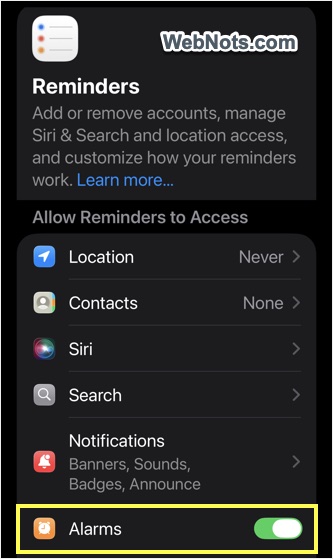
As mentioned, Reminders app will ask your permission for accessing alarm when using the “Urgent” option for the first time. Once allowed, you will not see the permission screen next time onwards. If the urgent option is not working, you can manually provide the permission for access.
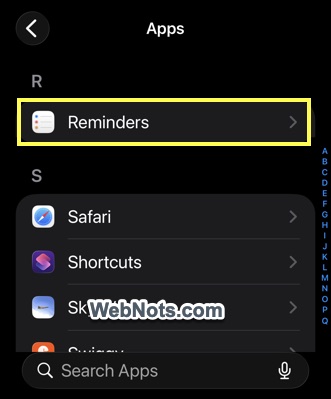
- Open Settings app, scroll to bottom and tap on “Apps” option.
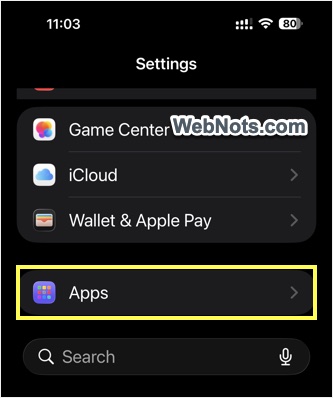
- Scroll down and tap on “Reminders” app from the list. Press and move down on the A to Z sidebar to quickly reach R section and find the “Reminders” app.
- Find “Alarms” option under “Allow Reminders to Access” section and turn it on.
Changing Alarm Behavior
By default, the alarm will show a snooze and close (or slide to close) buttons. These two buttons will exactly behave like a standard alarm set from the Clock app.
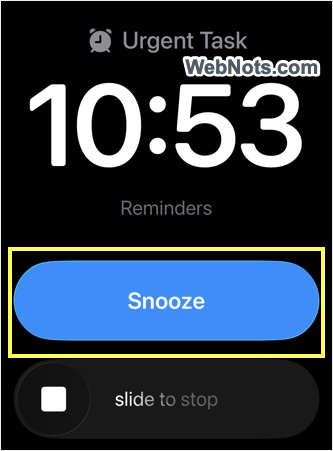
This means tapping on the snooze or close button will not mark the task as completed. The task will show as overdue with red color date / time and you need to manually mark it for completion.
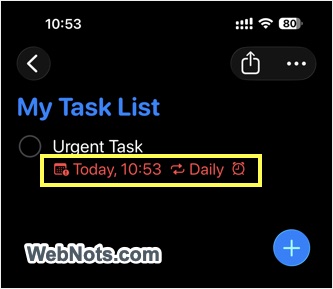
However, you can change this behavior to complete the task directly when the alarm rings.
- Go to “Settings > Apps > Reminders” section.
- Scroll down to the bottom and turn on “Complete from Alarm” option under “Urgent Reminders” heading.
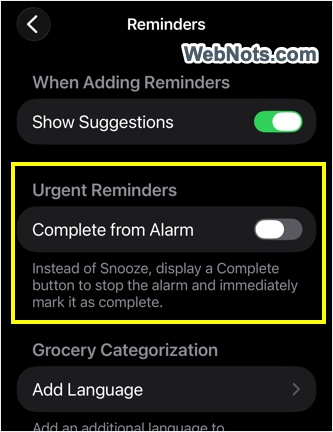
- This will show a “Complete” button when the alarm rings instead of a “Snooze” button.
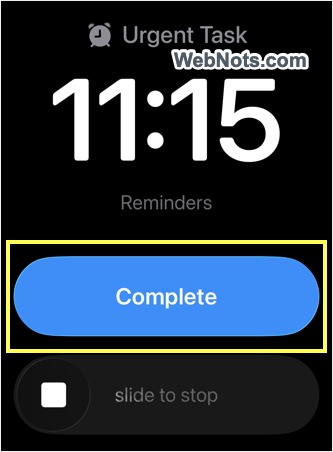
- Tap on the “Complete” button to mark the task as completed in Reminders app.
- Otherwise, tap on the “Slide to Close” button to simply close the alarm (the task will show as overdue in Reminders app).
Setting Alarm from Mac Reminders App
Reminders app will synchronize all your tasks on iCloud and allow you to access them from any device logged in with the same Apple account. When a task is marked as urgent on iPhone, it will show a notification alert on Mac without any alarm sound. The alarm will work only on a device that shares the location in Find My app. On iPhone, go to “Find My > Me” and check the device showing against “Sharing From” option. On Mac, go to “Find My > People > Me” and click the ⓘ icon on the map to find the “Sharing From” device.
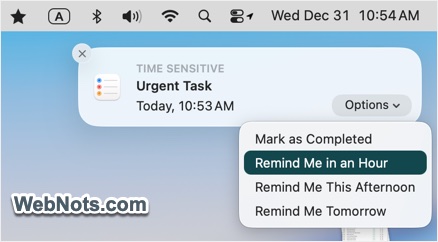
With macOS 26.2, you can also setup an alarm for an urgent task from Reminders app on your Mac.
- Open Reminders app on your Mac, select a list and create a task.
- Provide the task name and tap on the information ⓘ icon.
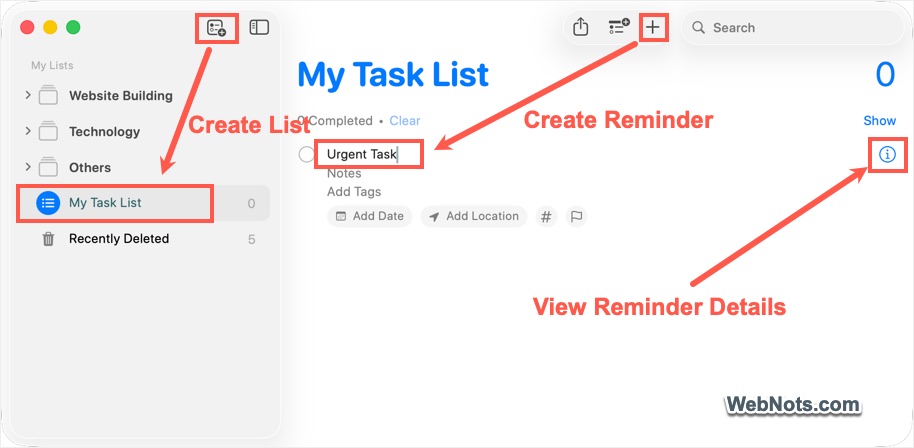
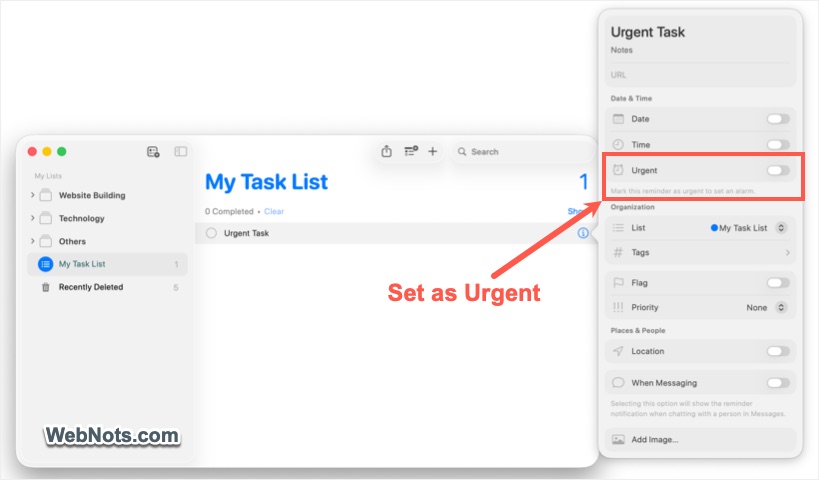
- Fill up the title, date & time details and turn on the “Urgent” option.
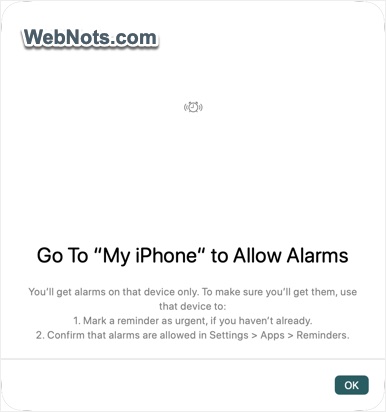
- You will see a notification for allowing permission on your iPhone and tap “OK” to close the pop-up. Make sure to go to iPhone Settings app and allow alarm access for Reminders app as explained above.
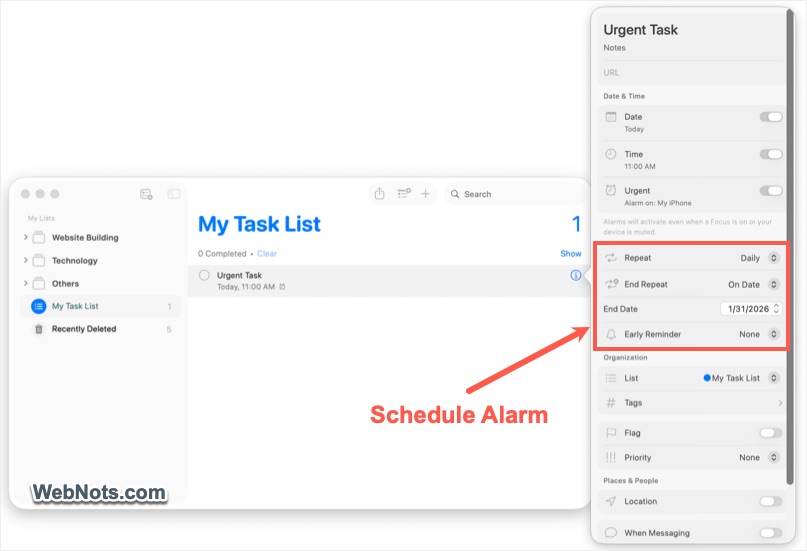
- Select schedule for “Repeat” and set the “End Repeat” date.
- If needed, set the “Early Reminder” time to get a notification in advance.
- You can see a message “Alarm on: Your iPhone Name” below the “Urgent” label indicating the alarm is set on iPhone and not on the Mac. This is because iPhone is the location sharing device in Find My app in our case.
- The urgent task will trigger the alarm sound on iPhone when the due time arrives.
- You can either snooze or complete based on the setting on your iPhone and the action will be synchronized instantly in Reminders app both on your Mac and iPhone.
Note that it is also possible to schedule a reminder task from Calendar app on Mac.