WeChat or WeiXin is the most popular app in China. You can register for WeChat Pay and connect with your bankcard to do money transfers to friends and merchants. There is also a split bill option to divide the spent among your friends and request them for payment. However, most WeChat users do not know how to request a specific amount from others. In this article, we will explain how you can do that.
Example Case
Let’s take an example. You are going to a shop with your friend and spent 20 RMB on behalf of him. Now that you need to request him to pay exactly 20 RMB to your WeChat Pay Wallet. Here, we will explain with iPhone app and you can follow similar steps on Android app.
Generating Payment QR Code with Specific Amount
The first step is to generate a QR code for your amount:
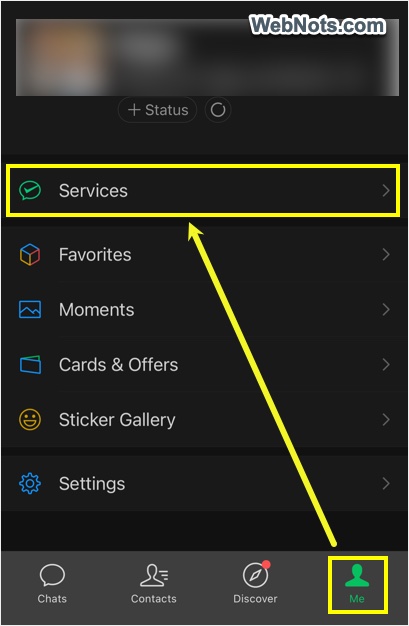
- Open WeChat and tap on “Me” option.
- Tap on “Services” option and unlock the screen if you have setup security lock.
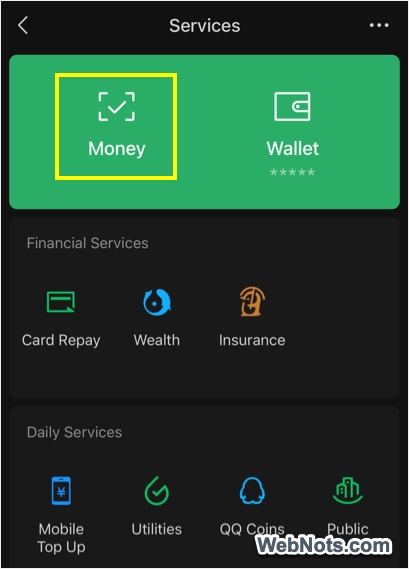
- You will see “Money” and “Wallet” on the top and tap on “Money” option.
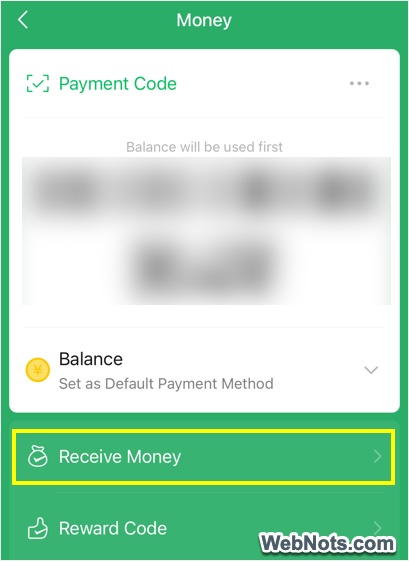
- It will show your Payment Code for showing to merchant outlets for automatic deduction of amount. Below the QR code, you will see list of options and tap on the “Receive Money” item.
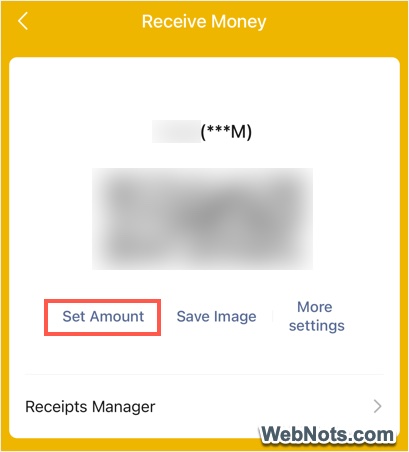
- You will see “Receive Money” code which can be scanned from another WeChat app for sending money to your account. Tap on “Set Amount” option showing below the QR code.
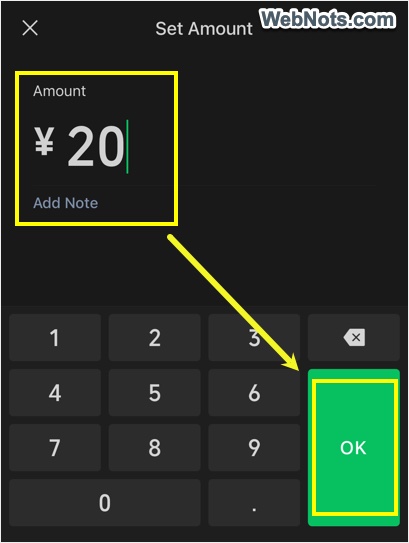
- Enter your amount and tap “OK” button on the keyboard. You can also enter a note (like “for lunch payment”) if required.
Requesting Money
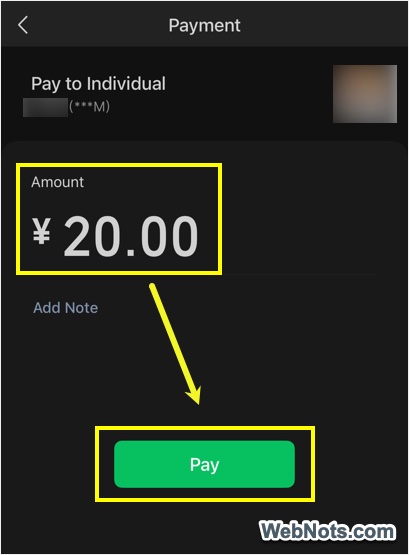
Next step is to request the money from your friend and you have two options for that. Your friend can scan your QR code and will see the exact amount on his screen for payment. He can also add a note and make payment to you.
Alternatively, you can tap on the “Save Image” link to download the QR code to your photo album or library.
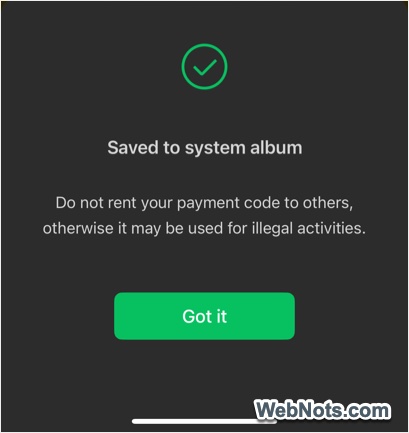
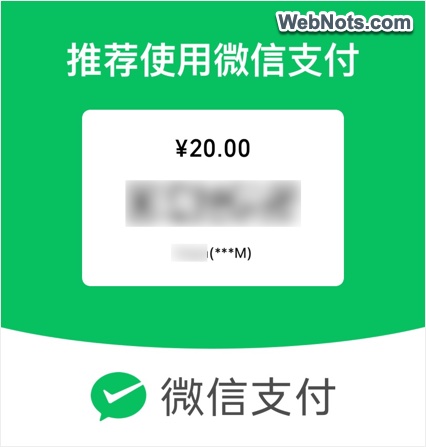
The image will look like below mentioning the amount along with QR code. Now, you can send the image to your friend through chat. Your friend can simply tap on the QR code and transfer the exact requested amount.
Tracking Money Receipts
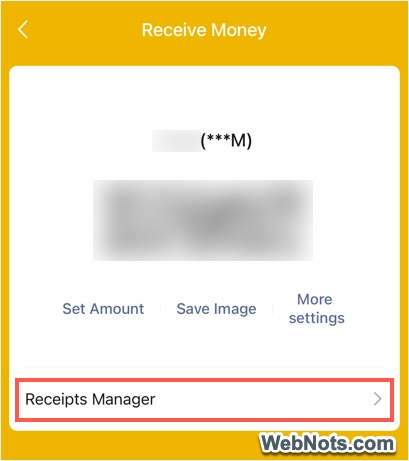
When you are in “Receive Money” QR code page, tap on the “Receipts Manager” option. This will show all transactions of the amount received and help you to do the fund analysis.
Alternative Method
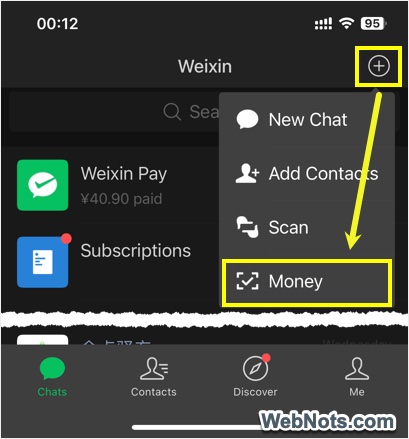
Instead of going to “Me > Services > Money > Payment QR code”, you can tap on the + icon showing on top right corner of the app. Select “Money” option to directly view your payment QR code and follow the remaining steps as explained above.
Points to Remember
Here are some important points to note when handling payment / receive money QR codes:
- You should never send Payment QR code to others.
- Make sure to use the “Save Image” option to save the “Receive Money” QR code, taking screenshot and sending will NOT work.
- WeChat app also will warn you when you take screenshot of the QR codes.
- The note you enter when setting the amount will be shown to the person scanning the code. Similarly, note entered from sender will be also shown to you.
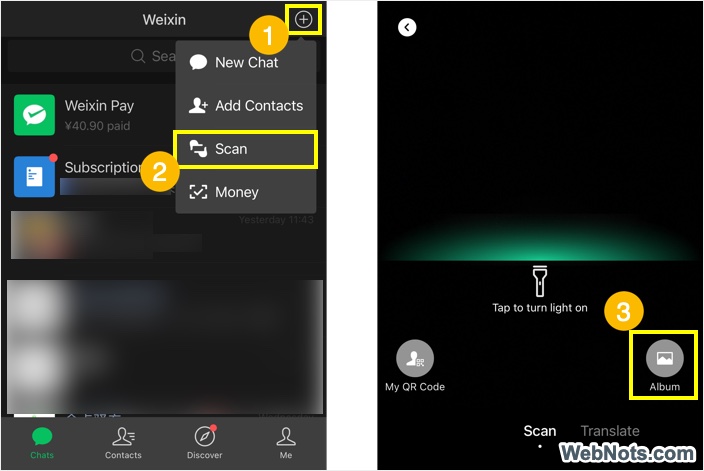
- QR code for receiving money will not expire and can be scanned for payment by anyone for any number of times. The saved image from the photo gallery can also be scanned by going to “+ icon > Scan > Album” and select the QR code for paying the amount. This is the way roadside vendors ask for a fixed amount with the printout of QR code.
Final Words
This is the simple way to request a specific amount from your colleague, friend and others if they forget to send your money. Also, it will help to avoid mentioning the amount in the chat and mistakes when manually entering the amount as the exact amount will be fixed with the QR code.