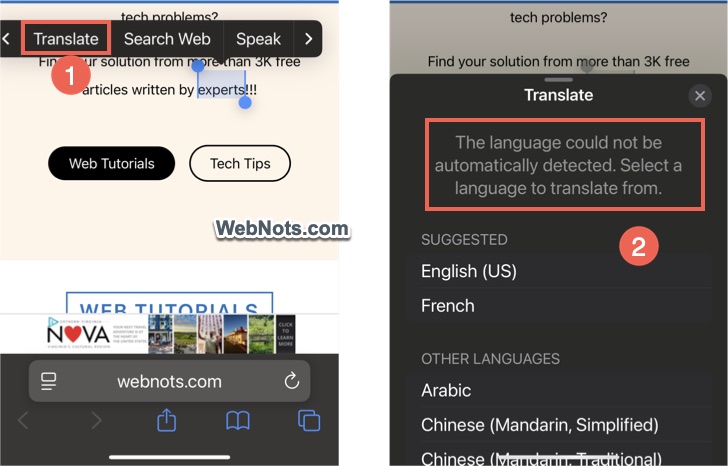
Translate is one of the default apps that comes as part of iOS. You can simply long press on any word(s) and select “Translate” option to get the translated content. You can also work with offline using On-Device Mode option by downloading the languages in prior. However, what if you prefer to use Google Translate instead of default Translate app for better accuracy? It is super easy and here is how you can do that on your iPhone.
Why Switch to Google Translate?
Translate app uses the iPhone’s language as a preferred language (set in “Settings > General > Language & Region > Preferred Languages”). Sometimes, this will prevent detecting the language of the selected word(s) automatically. In that case, you need to manually select the language or customize the preferred language in the app.
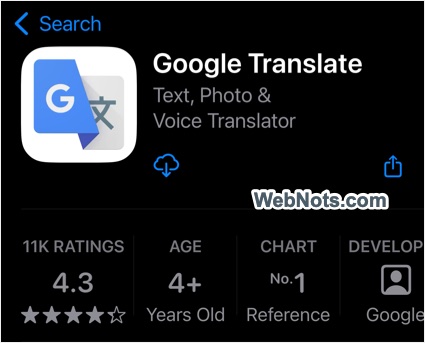
Google Translate is known for its accuracy and it also works offline offering similar functions like the default app. There are multiple ways to change the default translation on iPhone. Make sure you are using iOS 18 or later and install Google Translate app from the App Store.
1. Use Default App Settings
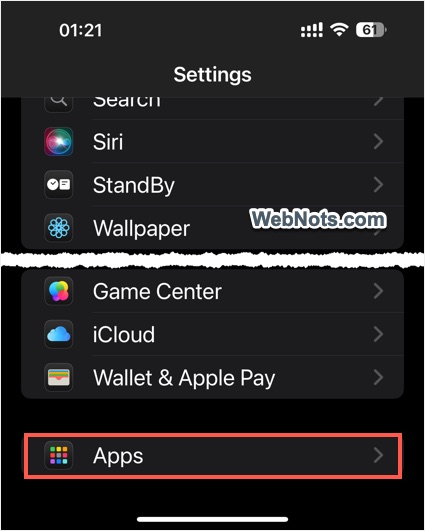
- Open Settings app, scroll down to the bottom and tap on “Apps”.
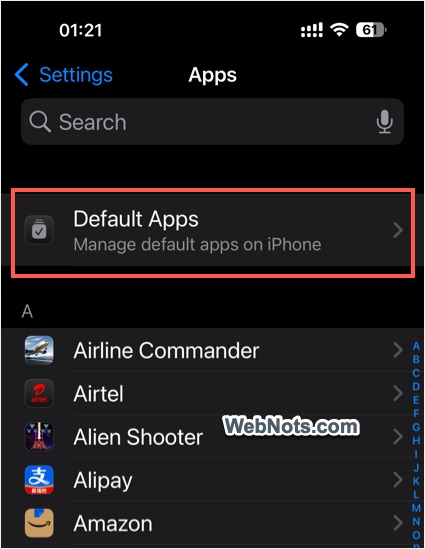
- Tap on “Default Apps” option.
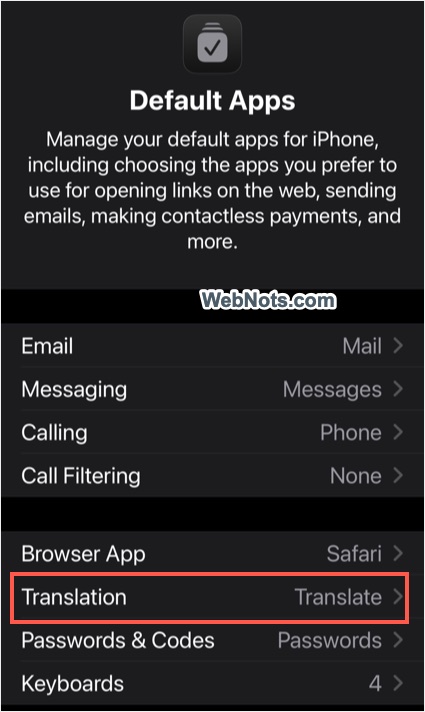
- You will see “Translate” app is set for “Translation” function and tap on it.
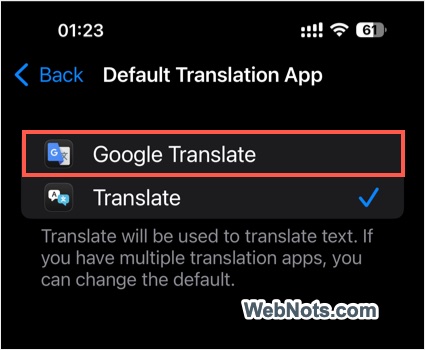
- Select “Google Translate” option.
2. Use Translate App Settings
- Open Settings app, scroll down to bottom and tap on “Apps”.
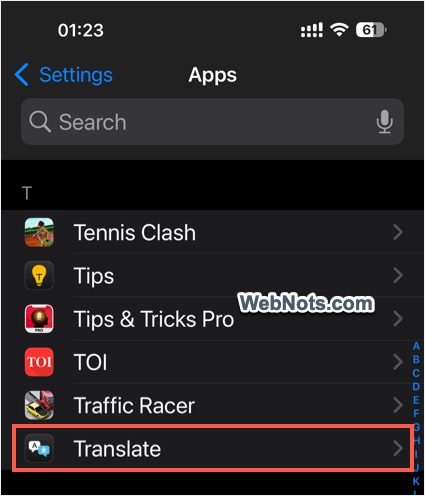
- Find “Translate” app and tap on it.
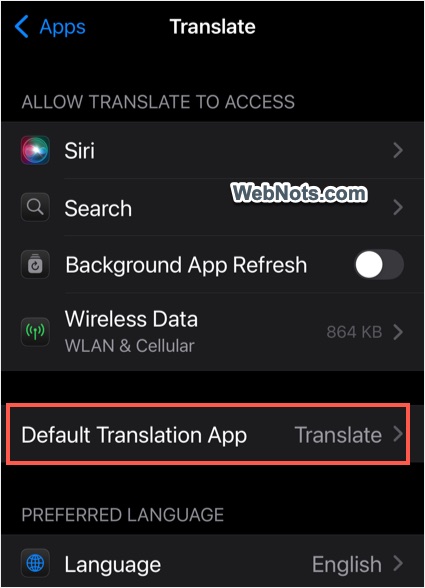
- Tap on “Default Translation App” setting.
- Select “Google Translate”.
3. Use Google Translate App Settings
- Open Settings app, scroll down to bottom and tap on “Apps”.
- Find and open “Google Translate” app.
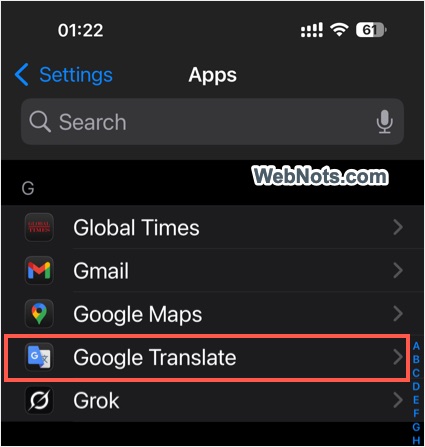
- Tap on “Default Translation App” option.
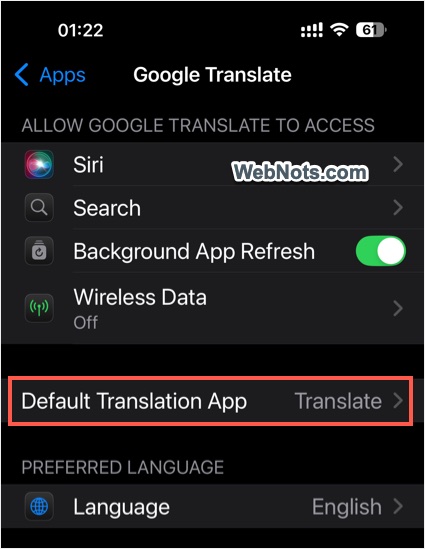
- Select “Google Translate” from the list.
Testing the Translation
Now, long press on any text in Safari or other app and select “Translate” option from the toolbar. You will see Google Translate pop-up opens and prompts you to confirm sending the selected text to Google. This is for using online translation, you can use offline translation by downloading languages in the app’s settings.
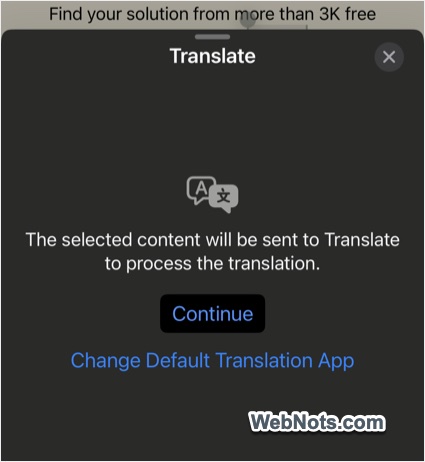
You can anytime simply delete the Google Translate app or revert the “Default Translation App” to “Translate” for using the default setup.