
Do you know that even a small watermark can steal the spotlight from a perfect video? It distracts the eye, breaks immersion, and diverts attention from your core message. However, it’s not easy to remove a watermark from a video simply by clicking a button. If you’re wondering how to remove a watermark from any video, we’ll guide you through it step-by-step using the best tools.
Watermarks on Videos
You see watermarks everywhere for a reason. They protect original work and serve as a visible deterrent to unauthorized use. For creators, businesses, and video owners, these marks help claim ownership and maintain trust. But if you’re working with licensed footage or refining your own content, you may want a cleaner visual that better matches your final vision. This is also where the challenge begins.

Removing a watermark without damaging the video is not easy. One wrong move can leave behind blurring, pixelation, or strange distortions that ruin the entire frame. Instead of improving the video, poor methods often make it look worse.
Methods to Remove Watermarks from Video Without Blur
Now that you understand the challenge, the next step is knowing how to handle it the right way. If you want clear results, the method you choose matters more than you think. Let us explore the methods you can use to remove watermarks while keeping your video sharp.
1. HitPaw VikPea
HitPaw VikPea is an AI-powered video enhancement and restoration tool that cleans up visuals without compromising clarity. When it comes to watermark removal, the approach focuses on intelligently reconstructing the background rather than simply erasing pixels. This makes it especially useful when you are editing your own or properly licensed content and want a clear, professional finish without visible damage. Here’s how you can remove a watermark from a video without blur by using this tool:
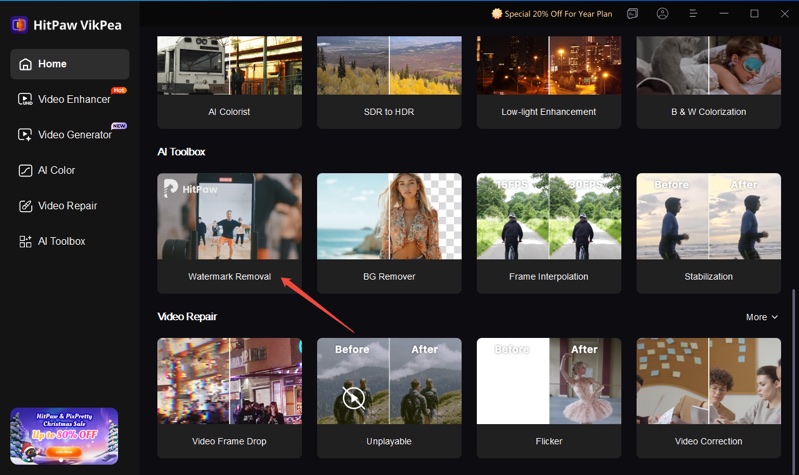
- Go to HitPaw’s official website and download “VikPea” on your Windows or Mac system. Open the app, click the “Watermark Removal” tool on the homepage.
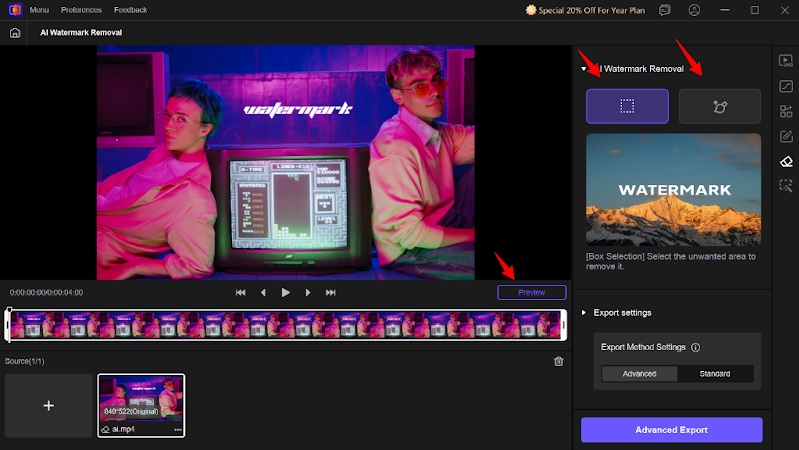
- Upload your watermarked video, select the area using the box or click-to-remove tool, then click “Preview” to remove the watermark.
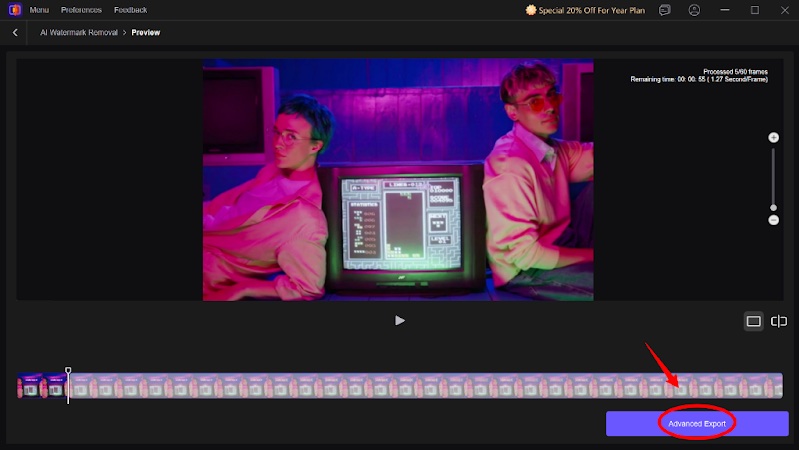
- Once rendering is completed, click “Advanced Export” and download the file to any location in any format.
HitPaw VikPea delivers consistent results without causing blur or distortion. Moreover, its design made it easy to navigate. Here are additional features of the tool:
- Enhance video quality to boost low-resolution footage up to 8K, reduce noise, and sharpen details with advanced AI models.
- Create engaging videos from text prompts or images to build scenes, motion, and transitions with AI.
- Bring black-and-white or faded footage back to life with natural colors and for a more cinematic look.
- Repair corrupted videos and remove video backgrounds instantly.
2. FliFlik Watermark Remover
FliFlik Watermark Remover is a lightweight desktop tool designed for quickly removing visible marks from videos. This tool works best for static watermarks placed in consistent positions across short clips. Here is how to use the app:
- Upload your video file into the software.
- Then, use the selection box to highlight the watermark area.
- Confirm the marked region and start the removal process.
- Now, allow the tool to process and preview the result before saving.
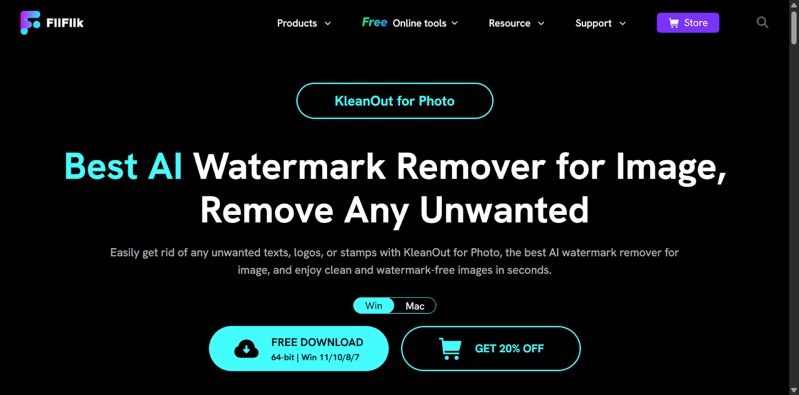
FliFlik does not use advanced AI reconstruction. This can lead to blurred patches or texture loss, especially in videos with movement or layered detail.
3. Wondershare Filmora
Wondershare Filmora is a popular video editing platform that provides a broad toolkit, including watermark handling. It is more of a full video editor than a dedicated remover, offering users greater flexibility. Here is how to use the tool:
- First, import the video into Filmora’s workspace.
- You can use cropping, masking, or overlay tools to cover the watermark.
- Adjust position and blending to disguise the mark naturally.
- Preview the result and export the final video.

Filmora is not a dedicated watermark remover, so results depend heavily on manual effort. Also, larger videos can slow down processing, and you need more editing experience to use this tool.
4. PixBim Video Watermark Remover
PixBim Video Watermark Remover focuses on automated detection and elimination of unwanted marks. It relies on frame analysis to disguise watermark areas by smoothing or blending them with nearby pixels. Here is how to use the tool:
- Load the video into Pixbim app.
- Mark the watermark area using the selection tool.
- Allow the software to process the region across all frames.
- Finally, export the cleaned video once processing completes.

Output from PixBim may show slight distortion in complex scenes. Moreover, the processing time can be slow for longer videos, and you might still see some faint watermark traces.
5. Online Tools
If you’re looking for a quick edit, online watermark removal tools are the ideal choice. They require no installation and often work with automated processing. Here are some common options you can try:
- HitPaw Online Watermark Remover – This web-based tool offers a simple, AI-assisted approach to watermarking. It’s one of the best ways to remove watermark from a video online without blur. You can simply upload a video, outline the watermark area, and let the system process them automatically. Its key advantages include a clean interface, decent output quality, and fast processing for short clips.
- WatermarkRemover – this is designed for quick edits and ease of access. It works well for static marks and still footage but lacks advanced precision tools. Results can appear slightly blurred or uneven, especially when the watermark overlaps with detailed textures or motion-heavy areas.
- Apowersoft Watermark Remover – it offers an easy entry point for simple watermark adjustments. Its interface is user-friendly and suitable for beginners. However, its processing may reduce visual sharpness, and performance can slow down with larger file sizes.
Points to Consider When Choosing a Watermark Removal Tool
With various watermark-removal tools available, finding the right one can be overwhelming. Let’s look at the things you should consider before deciding.
- Price – Desktop software usually involves a one-time fee or subscription, but it often provides better control over the video quality. Meanwhile, online services may seem cheaper or even free yet have hidden limits that can cause issues.
- Usability – Remember, a clean interface makes a real difference. Some tools feel intuitive from the first click, while others require technical knowledge. Always look for clear menus, step-by-step guidance, and preview options.
- Video Length Support – Not all tools handle long videos well. Many online platforms work best for short clips and may restrict file size or duration. If you want to remove water from a longer video, always use dedicated software.
- Online or Offline Availability – Offline tools provide stability and privacy. They do not rely on internet speed or server performance. Online tools, on the other hand, offer convenience but require constant connectivity and may compress your video.
Conclusion
When it comes to removing watermarks from videos, precision and clarity matter more than speed. As mentioned earlier, not all tools maintain the same level of visual quality. While Filmora is popular, it doesn’t provide the dedicated AI-powered watermark removal that HitPaw VikPea offers. Whether you’re refining licensed footage or enhancing your own videos, HitPaw VikPea ensures consistent results with a simple, straightforward workflow. If you’re interested in exploring more AI tools, be sure to check out the full range of HitPaw products on their official website.


