
Google Chrome is a powerful browser used as a marketing tool by Google. When you open the browser or open a new tab, by default it will show a page with the title as “New Tab”. This new tab page shows Google search box, links for many Google products like Gmail. It will also show a list of thumbnails or favicons of the websites you have recently viewed as shortcuts. These shortcuts or thumbnails history may look good option so that you can easily access the pages. However, it will be annoying in many situations like screen sharing or when showing your desktop to others. Anyone can clearly see those thumbnails which is a direct intrusion of your privacy. Here, we will explain how to remove shortcuts from Chrome new tab page in desktop browser. Unfortunately, there are no options available to remove the shortcuts in iOS and Android mobile apps.
Can I Remove Those Annoying Shortcuts?
The answer depends on the Chrome version you use.
- If you have the latest Chrome version, you can turn off the shortcuts with a switch.
- Google updated the Chrome browser on version 69. Now you will see the circular favicons of recently visited sites on new tab page instead of large rectangle thumbnails. Now that these are called shortcuts which you can remove at your wish and restore them at one click.
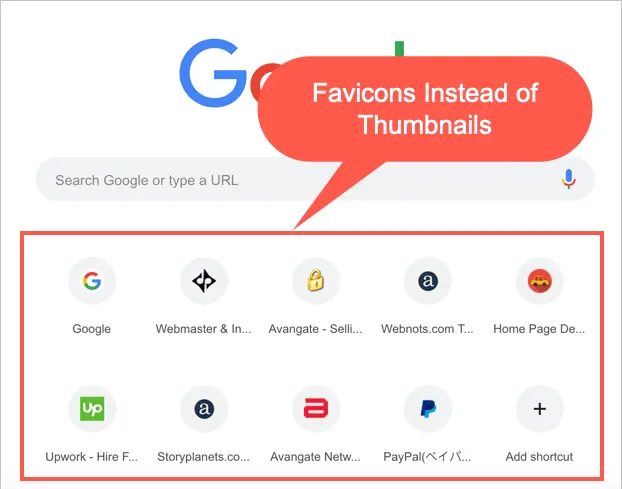
- On version lower than 69 Chrome shows bigger rectangular thumbnails on the new tab pages. And there are no default settings to switch of the thumbnails history. Even complete deletion of history will still show empty thumbnail boxes. These boxes will again start showing website preview when you browse sites. But there are some indirect ways that you can use to delete these thumbnails.

Also check out how to remove thumbnails on Firefox Quantum, Mac Safari and iOS Safari to protect your privacy.
How to Remove Shortcuts from Chrome New Tab Page?
Let us discuss the following options and you may try the suitable one for you.
- Disable shortcuts on new tab page
- Deleting individual shortcuts
- Restoring deleted shortcuts
- Adding custom shortcuts
- Deleting complete history
- Changing the start up page settings
- Opening complete blank new tab page
First, we would recommend you to upgrade to the latest Chrome version so that you can easily remove the shortcuts appearing on the new tab page.
1. Remove Shortcuts in New Tab Page
If you are using Chrome version 114 or later, Google will show shortcuts either based on your own items or based on the sites you visit. You can choose what to show or completely disable all the shortcuts on the new tab page.
- Open Chrome browser. If you have any other page as your home page, open a new tab.
- Click on the “Customize Chrome” button showing on the lower right corner.
- Scroll down and go to “Shortcuts” section from the sidebar.
- For completely removing all shortcut icons from new tab page in Chrome, turn off “Show shortcuts” option. Otherwise, you can enable this and choose one of the other options if you want to continue with your shortcuts.
- My shortcuts will show all the items you have added manually along with an “Add shortcut” icon. Most visited sites will show eight frequently visited pages from your browsing history.

2. Deleting Individual Shortcuts
Instead of completely disabling all shortcuts, you can also delete individual items from new tab page. Open Chrome and hover your mouse over the thumbnail preview image. You will see an “X” mark on the image with the description as “Remove”. Click on the “X” mark to delete the site thumbnail.

This will instantly delete the item and Chrome will add a new frequently visited item from your history to the list. Once you have removed the shortcut icon, it will not appear again. This will help you to remove only annoying thumbnail images from new tab pages. However, you need to delete the shortcuts one by one. We don’t see any option to delete multiple items in one click.
3. Restoring Deleted Shortcuts
After you delete a shortcut, Chrome will offer two options – undo and restore default shortcuts. Undo will only restore the last deleted shortcut while restoring will put back all the annoying favicons.

If you ignored the message and want to restore all shortcuts after some time for any reason, simply delete another shortcut. You will see the prompt again and select “Restore all” option to bring back all the history records on your new tab pages.
4. Adding Custom Website Shortcuts
If you have selected “My Shortcuts” option, Chrome will show a “Add shortcut” icon in new tab page. Click on the “Add shortcut” button to add your own custom shortcuts.

On the pop-up, enter website name, URL and click on “Done” button. This will add the favicon of the entered website on the home and new tab pages. This is an easy way to keep all your favorite websites on the new tab page and access them quickly.

5. Deleting Entire History
Press “Command + Shift + Delete” on Mac or “Control + Shift + Delete” in Windows. Select “Time range” as “All time” and click “Clear Data” button to delete all browsing history.
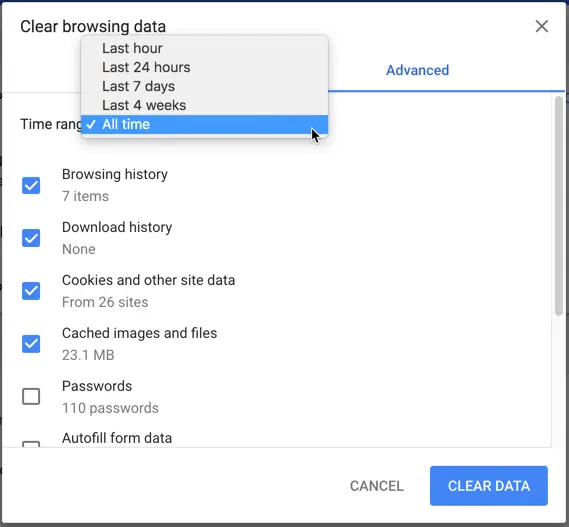
This will delete all thumbnails from the new tab page. Learn more about clearing browser history in different browsers. However, the thumbnails or favicons will start appearing when you start browsing websites and accumulating the history.
6. Changing Startup Settings
If you are still seeing empty thumbnail placeholders or “Add shortcut” button, then changing the startup page to a blank page will help to open a blank page when you launch the browser.

Go to the command URL “chrome://settings” and scroll down to “On startup” section. Choose the option “Open a specific page or set of pages” and click on “Add a new page. Enter “about:blank” as site URL and click on “Add” button.

The “On startup” section should look like below:

Close all open windows and reopen Chrome. It will show a blank page as a startup page. However, clicking on a new tab will again show the page with Google search and site’s thumbnails from history or add shortcut button.
Changing startup page is very useful in Windows where closing all open browser windows will close the browser. So, when you launch Chrome again, it will show a blank page as startup page. But this will not be much useful on Mac. Because closing all windows will not close the browser. It will be still running on the dock and launching again will open a new page tab with history thumbnails or add shortcut button.
7. Open Completely Blank New Tab Page
This is the last solution to remove all those annoying thumbnails or shortcuts from Google Chrome new tab page completely. But you need to install an extension from Chrome Web Store for that. Go to the Web Store and search for “empty page”. Use filter as “Extensions” to restrict the results to only extension.

There are lots of empty new tab page extensions available in Chrome Web Store. Click on the “Add to Chrome” button and install the “Empty New Tab Page” extension. You will see an empty page whenever you open a new tab or new window.

Remember the extension will also change the startup page as an empty page. But you can go to settings and change the startup page as per your need, if you want different or default startup page.

Final Thoughts
Modern browsers have lots of features for saving favorites, bookmarks, history to help users to quickly access websites. Almost all browsers show thumbnails on the home and new tab pages from history and favorites. Though this is useful, it also affects the privacy. In our opinion, the main purpose of the web browsers is to surf the internet and all other features should be optional with the ability to turn on or off. Fortunately, the latest Chrome version offers an option for removing the shortcuts completely from new tab page. Otherwise, you can use a third-party extensions to remove the thumbnails and keep a blank new tab page.




This does not work. I clean up my history every couple of days. I delete the unwanted shortcut thumbnail tile, yet it appears again on every new tab. It even repopulates while I’m typing in a search term, and will not go away even after shutdown of Chrome & rebooting.
I am trying to rewove thumbnail shortcuts. I am using a Samsung Galaxy Tab A device using Android Version greater than 78. When I open a new Tab in chrome I do not see a Customize button at the bottom right hand corner to open. So any instructions you have provided after that are moot as there is nothing for me to do.
Can you please tell me what I need to do to find the Customize button?
Thank you
What are the keyboard commands for editing and deleting shortcuts from the home page without having to use a mouse? blind people using a screen reader do not have the luxury of using a mouse.
The removing favicons short cuts does not work. I repeatedly remove Chrome web store and next time I launch Chrome it has returned despite using the site only once in a blue moon. Things I regularly access never appear or only after weeks of use. I feel like Google is just thumbing it’s nose at me with this one.
thanks for the way to delete thumbnails on home page. new version was driving me crazy.
This non-changeable “feature” is the final nail in the coffin for me with Chrome. It’s a ridiculous thing that exposes my browsing history everytime I open up a new tab/search, whether while sharing screen in conferences or even with my wife hovering over my shoulder at home.
I’ve been lazy at switching because of my bookmarks, but back to Firefox for me!
On Firefox also you need to disable this from settings. Chrome version 69 or later allows you to remove those annoying small icons called shortcuts though one by one.
Ruined my birthday surprise for my wife when she used the computer and saw the site I used to book it staring her in the face!
Terrible idea……..
Sad to hear, at least you should use extension to open blank page or update to latest version and remove them one by one.
I just figured out a way to get rid of the ones which have the new update, you hover over the icon then there should faintly show three dots near it on the top right. Just click on it and then click remove short cut. Hope this helps :)
Thanks! I would never have seen those three dots. Now I can delete these favicons at will. Which makes all this work better for me.
Absolutely agree – they are infuriating and fill up the screen. Like to keep just a few favourites but the rest are just rubbish and may never be used again.
It’s really dumb that you’re unable to change this on Chromebooks owned by schools.
It wasn’t broken so why try to fix it !!!
It’s not about breaking, it’s about privacy. When you share screen or open to the browser in front of someone, you should not get annoyed with the irrelevant icons on the Chrome page. So there should be an option to remove this if people don’t want it.
I really don’t like the Favicons. I could easily see what was in each box, but can’t make out anything with the Favicons. Please bring back the boxes.
Wait for another 10 years for Google to update Chrome :-(
Real simply friend, OK? Now to be on the same page as you so to say, You are talking about those icon shortcuts just below the Google search box, Eh? OK now at the bottom right hand corner of the Google Chrome web browser there should be an oval box that says Customize, See it? Click on that box to remove all those annoying icon by turning them all off. If you do not see the oval box that says Customize then either all your icons are gone and only the add is there then you need to add just one new icon and Walla the Customize box will appear again in the lower right hand corner of your browser screen, Now you can click on Customize and remove all the icon shortcuts.
I liked the thumbnails because it was convenient to see and re-visit my common sites without having to think, I just look at the pic and I know what site it is. Now I have to think what silly favicon belongs to what site and read the half cut-off text.
Unfortunately software developers are not normal people, they have ideas that they think are good and they do it without thinking too much about the rest of the planet of normal people and without any kind of research. It’s just life. Eventually they will figure it out when the product they are working on gets bad reviews and their manager tells them to do the typical backward step to the previous way. It just takes time.
Agreed this is worser design than the thumbnails.
We thought the design will give options like Firefox to get rid of the thumbnails instead it forces the small favicons now.
Thumbnails awful. Leave it to Google to ruin a good thing.
Yes I agree Chrome should give us the option of removing the thumbnail feature or even let people choose the amount of thumbnail they would like to use up to a certain limit of course (lets say 12). Personally I would like to remove the feature.
Google, like facebook will decide what they feel is best for themselves. If you notice, the thumbnails are part of their grand data collection scheme which you are forced to participate in. You can not stop their data collection!
Wish we had the same strict privacy policy like in Europe.
I agree – I have a lovely theme which I can’t see because these thumbnails are in the way.
I can see what they were getting at trying to make it easy to reach pages you regularly use – but opening a new tab the http/search bar is already selected so typing a couple of letters gives the same option without having to mess about with the mouse. Smoother, easier and doesn’t require those annoying thumbnails!
Google – please give us the option of turning them off!
yes it is so annoying aaaah
Chrome should consider adding the option of removing this feature by default.