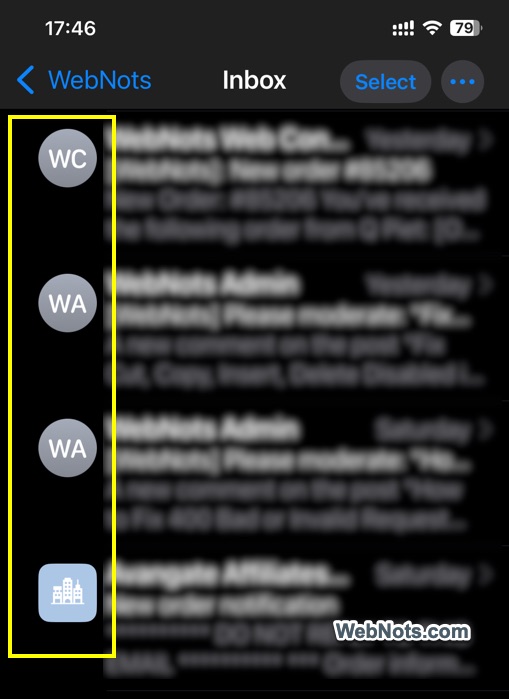
Normally, Apple introduce lot of features in a major iOS version like iOS 17 or iOS 18. However, surprising there are lot of functionalities and changes were introduced as part of iOS 18.02. This includes, Apple Intelligence features, import / export browsing data in Safari, email categories, default apps, etc. Though most features are useful, one may clutter your email inboxes – that is showing contact’s photos against each email preview in the inbox. Here is how you can remove those pictures.
Why to Remove Contact Photos in Inbox?
It does not make any sense for the following reasons.
- The interface will be cluttered and truncate the sender, subject and preview lines shown from the email content.
- Not many users add photos to their contacts. If photo not found, iPhone will automatically show the letters from the name (JD for John Doe) which is not useful at all.
Removing Contact Photos from Email
- Open Settings app, scroll down to bottom and tap on “Apps” option.
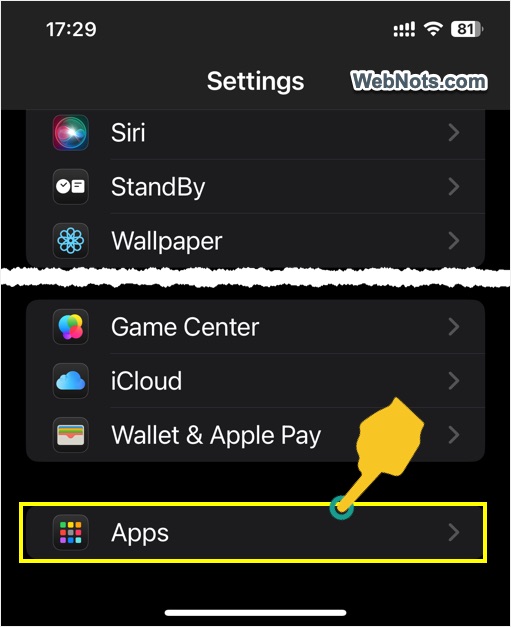
- Scroll to letter M and find the Mail app.
- Tap on it to open Mail settings page.
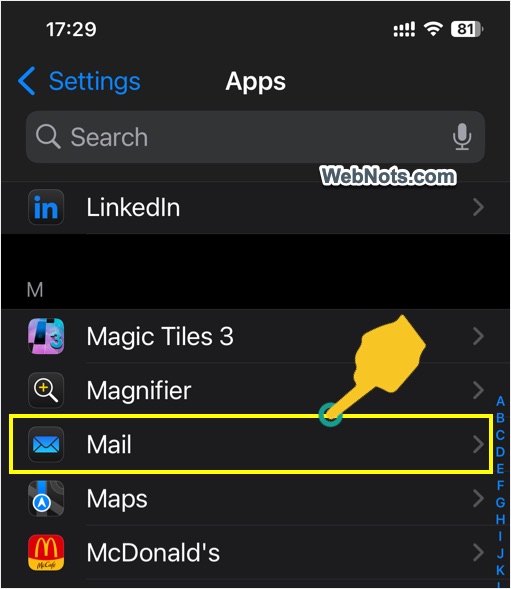
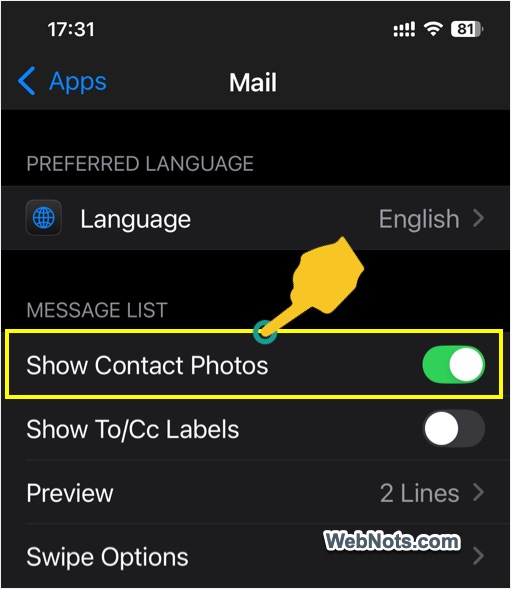
- Scroll down to “Message List” section.
- Turn off “Show Contact Photos” option.
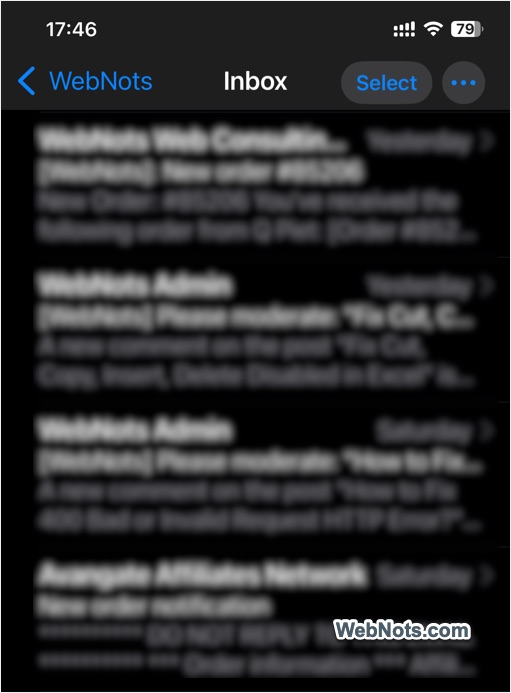
Now, get back to your inbox in Mail app and you will not see the contact pictures.
Note: From the same settings page you can increase or reduce the preview lines to adjust the visibility as per your need.
Final Words
Showing profile picture normally works in an organizational network for official email account. Companies’ mange the contacts with profile pictures and it is nice to see them in the emails. However, on personal devices or when using personal email account, this may be a distracting feature. Follow the above steps to remove the pictures and work distraction free.