If you are someone who constantly has dozens of browser tabs open, you know how easy it is to lose track of what’s where. Thankfully, Google Chrome has a built-in Tab Search feature that makes it easy to find exactly what you are looking for – no more frantically clicking through tabs. In this article, we will explain different ways to use Tab Search feature in Google Chrome like a pro.
What is Tab Search?
Tab Search is a feature in Google Chrome that lets you quickly find and switch to any open tab – even across multiple Chrome windows. It also shows recently closed tabs, making it easier to pick up where you left off. Here’s why Tab Search is a game changer:
- Saves time when navigating through 20+ tabs.
- Prevents duplicate tabs from being opened.
- Helps manage work and personal browsing more efficiently.
- Keeps your workflow smooth and interruption-free.
1. Using Address Bar Shortcut
- Type @tabs in Chrome address bar of any open tabs.

- Press space key to start tab search.
- Enter a keyword about the tab you’re searching for.
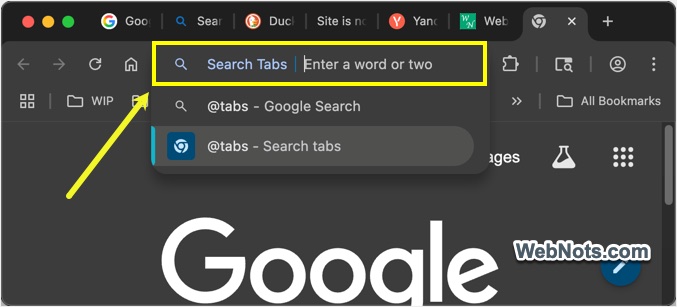
- Select the tab from the list to navigate to that open tab.

2. Use the Tab Search Icon in Toolbar
- Look at Chrome toolbar located right side of the address bar / extensions icon and find the Tab Search icon. It will look like a tiny square with a lens.
- Click that Tab Search icon. A dropdown will appear showing all your open tabs, across all windows, and even some recently closed ones.
- Find the tab from the list. If there are too many tabs, start typing the keyword from title or content of the tab you are looking for, and Chrome will narrow down the results.
- Once you see the tab you want, just click on it to jump directly to it.

Note: If you do not see Tab Search icon, right-click on the toolbar area and select “Customize Toolbar” option. Otherwise, go to chrome://settings/appearance settings page and click on the “Customize your toolbar” option. This will open a sidebar, scroll down to “Tools and Actions” section and enable “Tab Search” option.

3. Use the Keyboard Shortcut
If you are more of a keyboard ninja, try this:
- Windows / Linux: Press Control + Shift + A
- Mac: Press Command + Shift + A
This shortcut instantly opens the Tab Search interface – super handy when you have got a lot going on.

Bonus Tips
Here are some of the tips to manage your tabs efficiently in Chrome.
- Pin important tabs to keep them visible and avoid losing them among your many open tabs.
- Group tabs by topic using Chrome’s Tab Group feature to make searching even more intuitive.
- Use descriptive page titles for renaming Google Docs, Sheets and other local files you open in Chrome to make tabs easier to find via search.
Final Thoughts
Whether you are a student dealing with assignments, a professional managing projects or just a curious user with 50 open tabs, Chrome’s Tab Search is a tool you will wonder how you ever lived without.