
HostGator is one of the cheap web hosting platforms where you can start your initial online journey. However, soon you need to move the site to another hosting company for better performance and to manage increased traffic. After successful migration, HostGator will delete your content and account details if you are not renewing and using the platform. It is also a good idea that you take a backup and manually delete sites in HostGator account instead of leaving your content there.
Deleting Content of Website
When you permanently delete a website, all files including the database content will be deleted from the server. You will not have any option to recover the deleted files. Therefore, make sure your site is migrated properly and live on a new platform. Also, take a backup of your current HostGator site’s files and database so that you can restore if needed.
Deleting Site from HostGator
Many users will delete folders from File Manager thinking that it is sufficient to remove the content. however, this is not a correct way as it will not remove your backups and database content. Follow the below steps to permanently remove all your site’s content from HostGator with single click. You can follow the same steps for subdomains, subdirectories and domains.
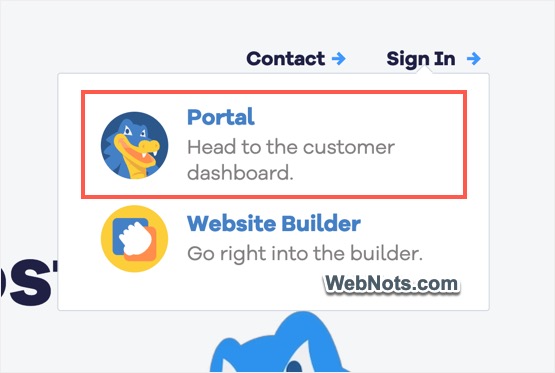
- Go to HostGator website, click on the “Sing In” link showing on top right corner and select “Portal” option.
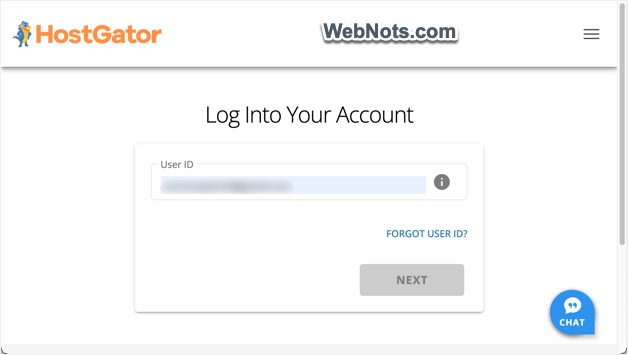
- Login with your username and password to go to your hosting account setup.
- If you are prompted with any upselling of product, skip that by clicking on “No thanks, continue to Account Manager” link.

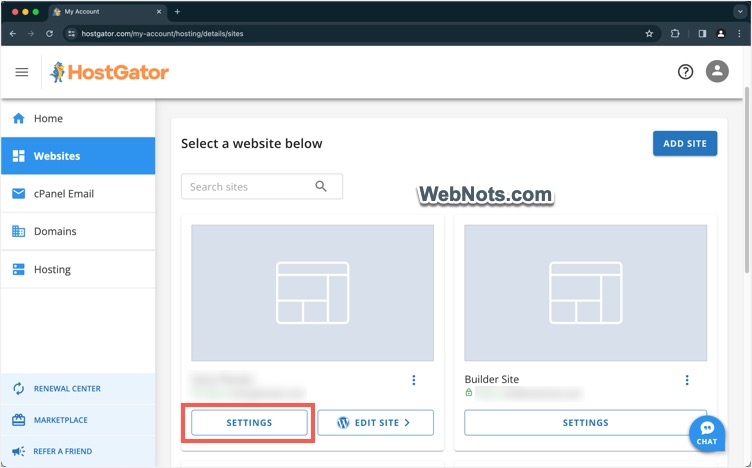
- Go to “Websites” section where you can find all your websites added in HostGator account. You can also go to “Hosting” section to find these details.
- Click on the “Settings” button showing below the site that you want to remove.
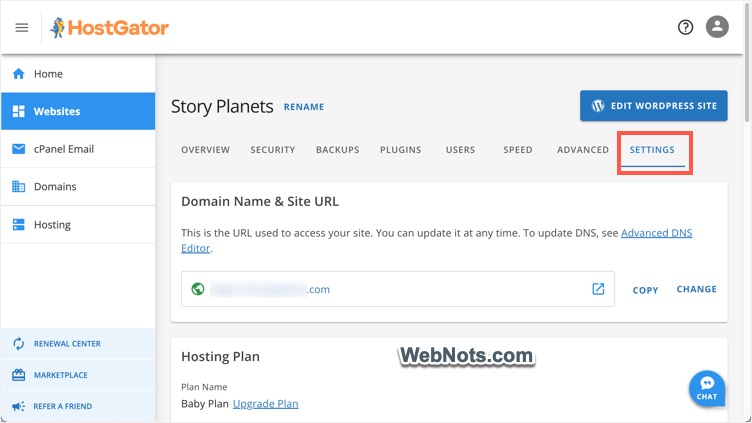
- Next screen will show details of the website under different sections and go to the last “Settings” tab.
- Scroll down to bottom of the screen and check under “Delete Website” section. You will see different options depending upon the site’s setup and whether it is your account’s primary site.
- Since primary site name can’t be removed from the account, simply click on the “Delete Content Only” button.
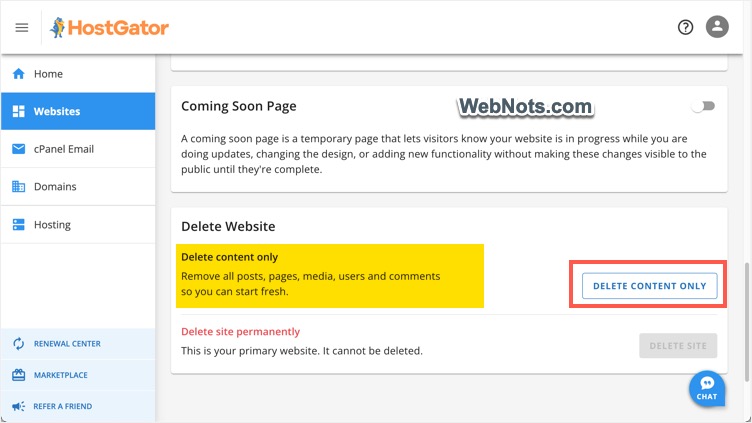
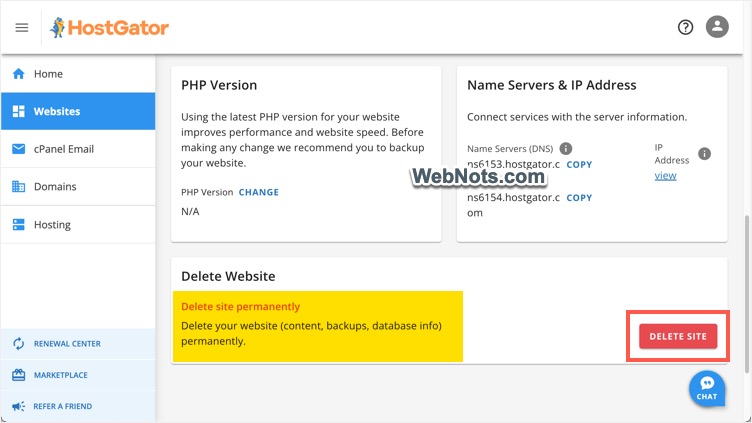
- If it is not your primary site, click on “Delete Site” button.
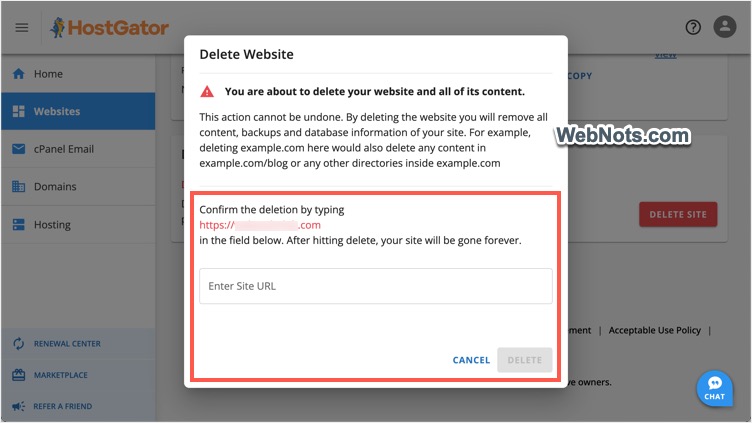
- HostGator will show a prompt warning all content, database and backups will be deleted and ask you to type the site’s URL.
- Simply copy and paste your site’s URL in the box and press “Delete” button.
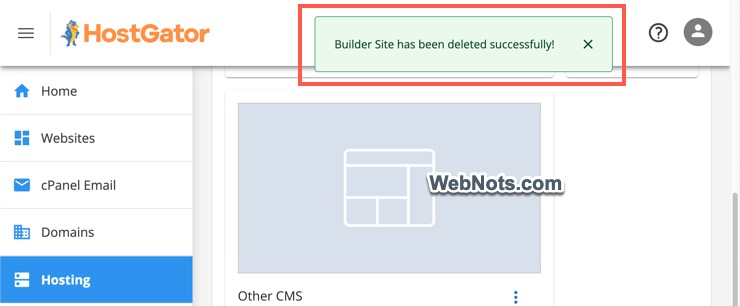
- You will see a message showing that the site has been deleted. It will be removed from “Websites” and “Hosting” section in your Account Manager.
Now that you can forget about HostGator site as the content is deleted permanently. If you do not want to renew HostGator hosting, make sure to stop the auto renewal so that you will not be billed though your site is deleted or moved to another company.


