
File extensions help to identify the type of file and determine which application to use to open it. It also helps to trust the file like plain text files with .txt extension. When the extension is missing or unfamiliar, it can leave you puzzled about how to access its contents. In this article, we will explore practical steps to identify, analyze, and open such files safely.
Understanding File Extensions
File extensions are the characters after the period in a filename. For example:
- .docx – Microsoft Word document file.
- .png – Image file.
- .mp3 – Audio file.
They indicate the file format and suggest which program to use for opening it. Without an extension, your operating system lacks a clear directive, making manual identification necessary. Sometimes, you may receive unknown files in emails which can be a potential security risk. Malware often hides in files with unknown extensions. So, before opening, scan the file with antivirus software to make sure it is safe. We have also compiled a list of 100 popular file extensions which you can refer to understand their purposes.
1. Start with Basic File Identification
If a file has no extension or an unknown one, these initial steps can help:
- Make sure to enable extensions in File Explorer (Windows) or Finder (Mac) to find the correct file type. If you have received the file from trusted source, then look the file name to get any hint about its purpose.
- There are also files with no name like .htaccess which is the configuration file for Apache servers. These files are hidden by default and can be opened with plain text editor apps like VS Code. Learn more on how to show hidden files in Windows and Mac.
- Other option is to view the file properties without opening it. On Windows, right-click and select “Properties” option. On macOS, right-click and choose “Get Info” option. Look for metadata or details that might identify the file type.
If you received the file from someone, ask them about its purpose or the software they used to create it.
2. Change File Association
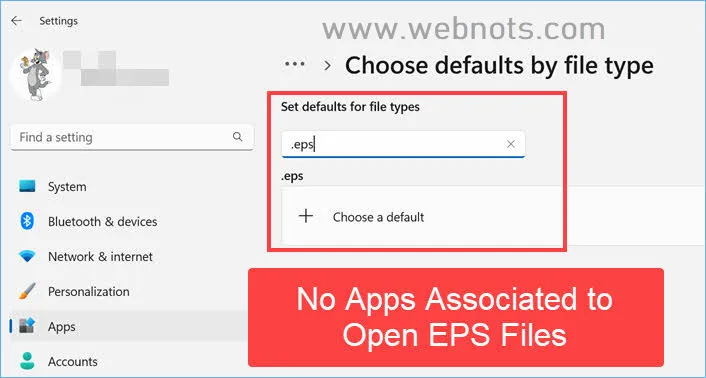
Your computer may be missing the correct association to link a file extension with a corresponding app. It is also possible that you do not have an app to open that file (for example – CAD drawing files need AutoCAD app). In these cases, you will get a suggestion to find and install the correct app. However, you can also manually change the file association to open the file with different app by default. Learn more on how to change default file association in Windows and Mac to open files with correct apps.
3. Inspect the File Content
Both Mac and Windows allow you to preview the file content without opening it. However, it may not work in all cases. There is another easy way to view the file content without opening it:
- On Mac – simply select the file and press Space key to open Quick Look window showing the file content along with the suggested app.
- On Windows – use PowerToys Peek to preview file’s content along with the suggested app.

If you find the content is legitimate, use the suggested app to open it to edit its content.
4. Open the File in a Text Editor
Though text editor apps will not help to view the correct content, it may reveal the file’s structure. You can use the apps like Notepad (Windows), TextEdit (macOS), or third-party apps like Notepad++ for this purpose.
- Simply drag and drop the file into a text editor.
- Look for headers or recognizable text, such as PPT, PDF, PNG, HTML, or JPEG. These often indicate the file type.

Once you know the clue, you can search online to find the relevant app to open or confirm it is a virus.
5. Manually Add an Extension
Sometimes, the operating system converts the file to unreadable format when transferred from external disks. For example, macOS will automatically converts the file to UNIX executable file which can’t be opened with any apps. If you know or identified the file type but it lacks an extension, rename the file and append the correct extension.
- On Mac – highlight the file and press enter key. Simply add the extension at the end to rename it.
- On Windows – select the file and press F2 key to add the extension.
For example, rename the “example” file to “example.rtf” if you suspect it’s a rich text file.

Note: Ensure you save a backup of the original file before renaming it, as incorrect modifications can corrupt the file.
6. Use Universal Tools to Identify Files
Several applications are designed to handle a wide range of file formats. These tools can identify formats like images, documents, and executable files based on the file’s signature. For example, you can use the File Viewer Plus app in Windows to open 10K+ file types without requiring the correct extension. You can install the 14 days free version from Microsoft Store and continue to use with restrictions on upgrade to premium version for $24.99.

If you do not want to install an app or using Mac, then there are many online file viewer tools available to analyze files to determine their format. For example, go to FILExt.com online file viewer and upload the file to identify its type.

Note: Do not upload private and confidential files in online websites, though they claim the content is not stored on their server.
Conclusion
Opening files with no or unknown extensions doesn’t have to be a daunting task especially if you trust the file or sender. Always prioritize security and handle such files cautiously to protect your data and devices. If all the above options fail and the file is important, contact an IT professional or the creator of the file.


