By default, WordPress offers two taxonomies – tags and categories. Categories are useful to classify your content and is also mandatory for publishing a blog post. Though tags can also be used for classification purpose, they are optional. For a simple blog, it is sufficient to use categories and it is a good idea to avoid tags. However, if you wanted to use both taxonomies, then consider hiding tag pages from search engines to improve your SEO.
Why Noindex Tags?
Just creating a tag will not have any impact on your site as they will not be visible. However, when you assign a tag to a post, WordPress will automatically create archive page for that tag. While these pages can help users to navigate easily, they may not always add significant SEO value. Here’s why you might want to hide tag pages from search engines:
- Nowadays, Google started showing the tag archive pages instead of the individual blog posts. Users landing on the archive page will get frustrated to see a list of posts instead of the actual post content they searched for.
- When you assign a tag to only few posts, the tag archives will show only those few posts thus creating a thin-content problem. Since these pages don’t offer unique value, they may be considered low-quality content by search engines.
- Search engines have a limited amount of crawl budget for each website. Hiding tag archive pages ensures search engines focus on your most important pages.
How to Deal with this?
There are two ways to deal:
- Noindex individual tags that you do not want search engines to index.
- Noindex all tag archives to stop search engines from crawling them entirely.
Unfortunately, WordPress does not provide any default settings to manage SEO. So, you need a SEO plugin like Yoast SEO, Rank Math or All-in-One SEO. In this article, we will explain with the most popular Yoast SEO plugin. You can follow similar steps with any other plugin.
Noindex Individual Tags in WordPress
If you are not familiar with Yoast SEO, check our article on how to setup the plugin. By default, the plugin will allow all content on your site to be indexed by search engines including tags.
- Go to “Posts > Tags” section in your admin panel.
- Edit the tag which you want to hide from search engines.
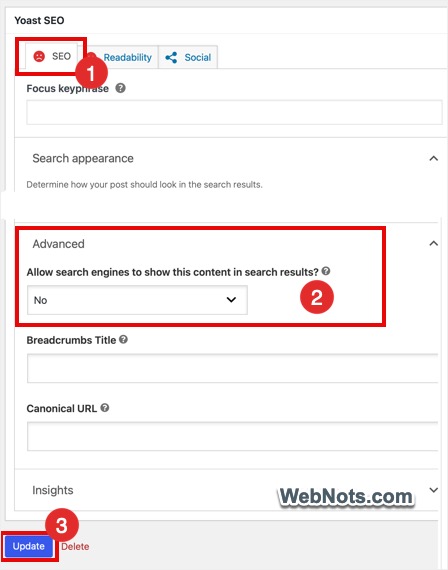
- Scroll down to the bottom and find “Yoast SEO” meta box.
- Make sure you are in “SEO” tab, scroll down and expand “Advanced” section.
- Click the dropdown below “Allow search engines to show this content in search results?” option.
- Select “No” and then click “Update” button at the bottom to save your changes.
Testing Tag Archive Page
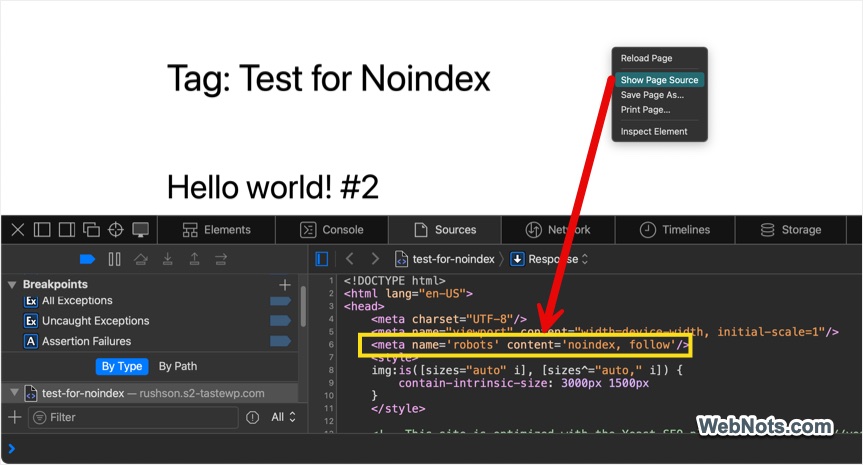
To test, open that tag archive page, right-click and select “Show Page Source” or “View Page Source” option (depends on your browser). You will find a meta robots tag in the page header showing noindex value (otherwise, it will show index).
Hide All Tags from Search Engines
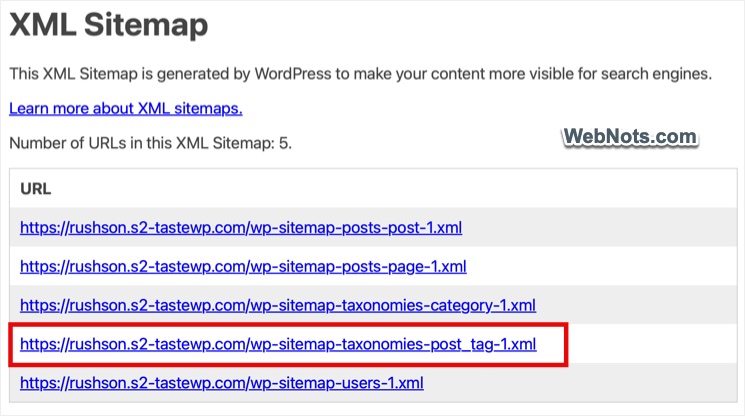
To completely prevent search engines from accessing tag archive pages, you need to remove them from the XML Sitemap. Since default WordPress Sitemap is generated automatically, you have no option to remove tags Sitemap.
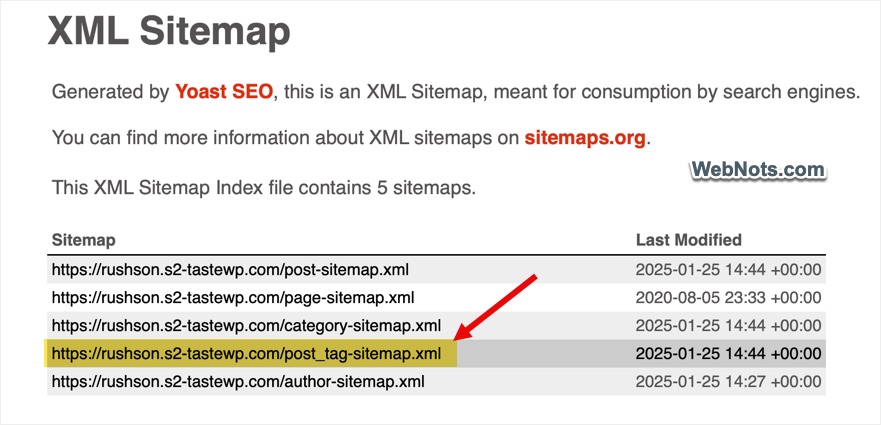
Good thing is that Yoast SEO will disable the WordPress Sitemap and allows you to customize the plugin generated Sitemap.
- Go to “Yoast SEO > Settings” menu.
- Expand “Categories & tags” option and navigate to “Tags” section.
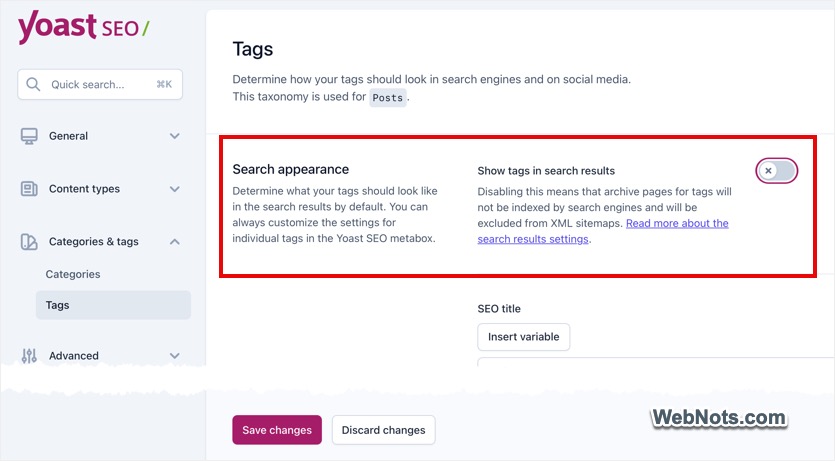
- Find “Show tags in search results” option against “Search appearance” section and turn it off.
- Click “Save Changes” button to remove tags from your Sitemap.
Testing XML Sitemap
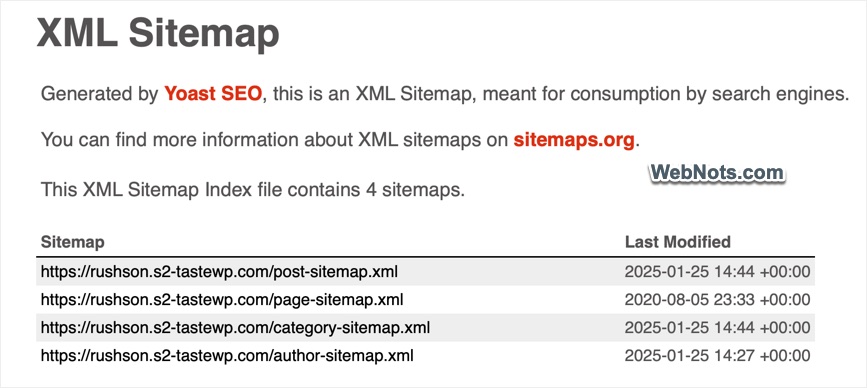
You can open Yoast generated XML Sitemap by adding /sitemap_index.xml to your site address – for example, https://www.yoursite.com/sitemap_index.xml. Open your XML Sitemap URL in a browser tab and you will find the tags Sitemap URL is removed.
Using Rank Math Plugin
As you can see in the above page source screenshot with Yoast, though the meta robots tag has “noindex”, it has another “follow” value. This means search engines will not index the page but still follow (crawl) its content if you have linked anywhere on your content thus wasting your server resources.
<meta name='robots' content='noindex, follow'/>If you want to noindex and nofollow tag archive pages, then Rank Math is the plugin for you.
Noindex and Nofollow Individual Tag Archive Page
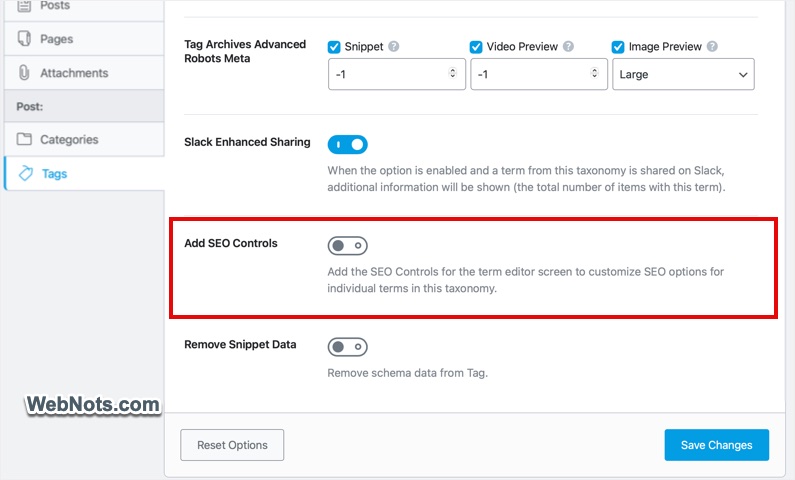
By default, Rank Math does not show meta box when editing an individual tag and you need to enable it from the settings.
- After installing and activating the plugin, go to “Rank Math SEO > Titles & Meta > Tags” section and turn on “Add SEO Controls” option.
- Now, go to “Posts > Tags” and edit a tag that you want to noindex and nofollow.
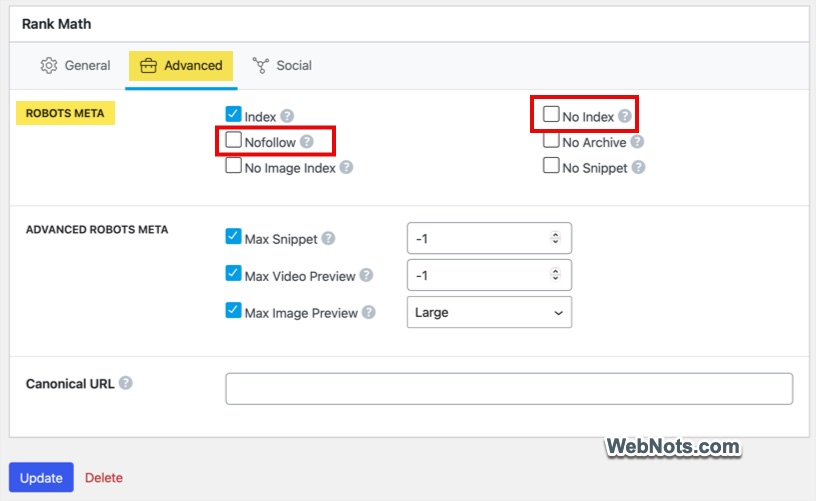
- Scroll down to bottom the page and find “Rank Math” meta box.
- Go to “Advanced” tab and check “No Index” and “Nofollow” options.
- Click “Update” button to apply your changes.
Testing Tag Archive Page
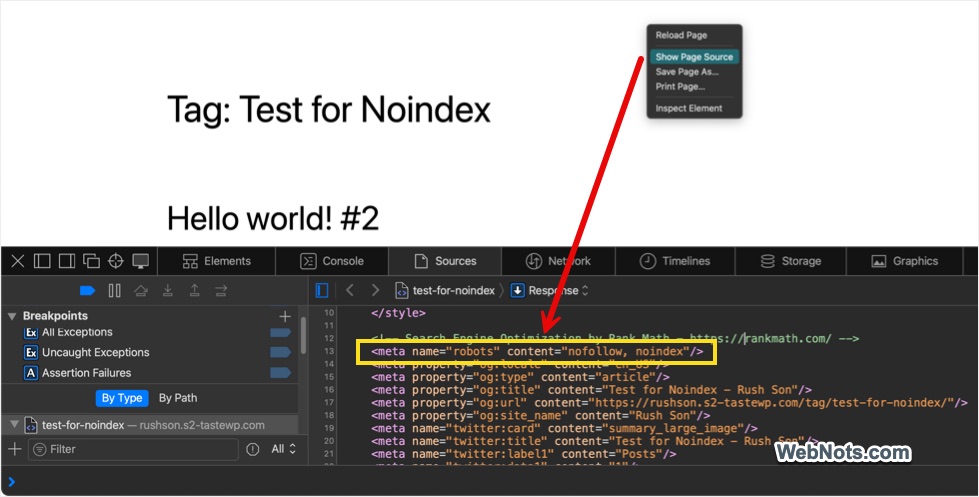
Open that tag archive page (which you have added robots meta) in a browser tab and view its source. You can find the meta robots tag has both noindex and nofollow values (otherwise, it will be follow and index).
Noindex and Nofollow All Tag Archives
- Go to “Rank Math SEO > Titles & Meta” menu.
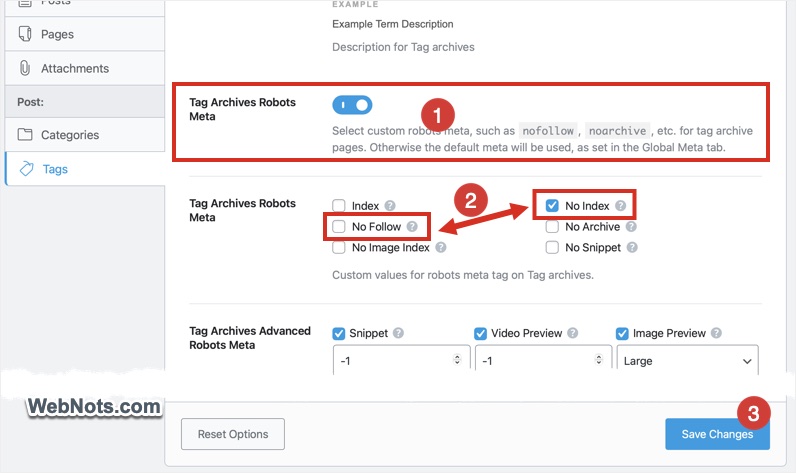
- Select “Tags” from the sidebar and turn on “Tag Archives Robots Meta” option to reveal additional settings.
- Check “No Index” and “No Follow” options (if required, you can also select “No Image Index, “No Archive” and “No Snippet” options).
- Scroll down and click “Save Changes” button.
Testing XML Sitemap
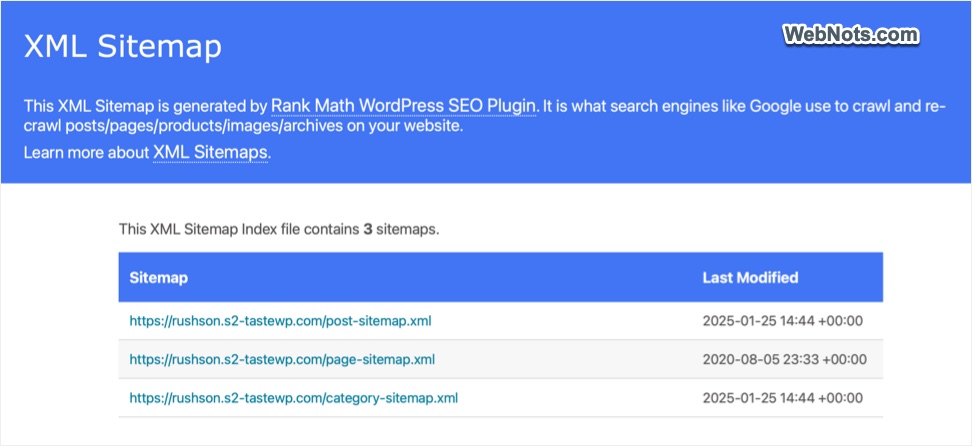
Whether you select noindex, nofollow or both, Rank Math plugin will remove the tags URL from XML Sitemap.
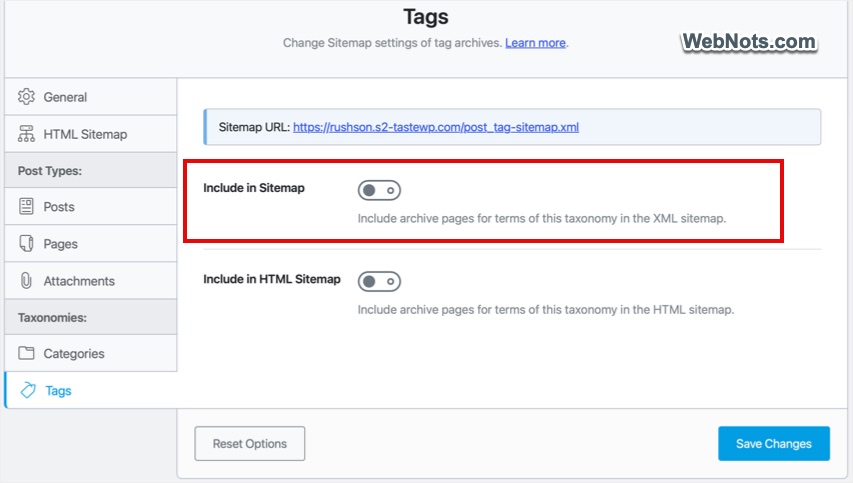
This setting will supersede even if you have enabled tags in XML Sitemap under “Rank Math SEO > Sitemap Settings > Tags” section.
Points to Note
There are few points to remember:
- You can either use Yoast SEO or Rank Math to hide single tag archive page or the entire tag archives. But make sure to use only one SEO plugin.
- If you have removed tags Sitemap but allowed individual tags to index / follow, then make sure to link that tag archives page URLs in your content. Otherwise, you can create a plain text file with those URLs and submit to search engines. This will help search engines to find and index those tag pages.
- Google Search Console and Bing Webmaster Tools will show errors that tag pages are blocked from indexing / crawling. You can safely ignore tag related crawl errors as you have intentionally hidden those pages.