WooCommerce is a heavyweight plugin offering lot of features to boost your online store. When you have plenty of products, it makes sense to showcase few important ones to your users. You can do that in WooCommerce by marking a product as a featured item and showcase in content area, sidebar or footer.
Mark Featured Product from WooCommerce Products List
It’s super simple.
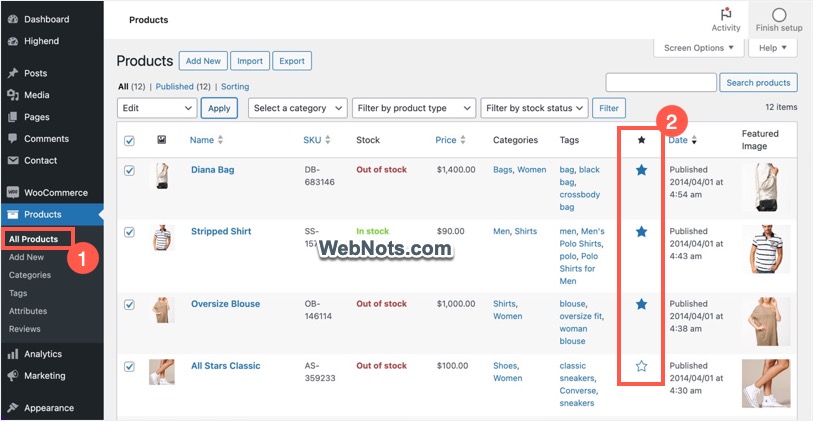
- Login to your WordPress admin panel and go to “Products > All Products” section.
- Find a product and click the star icon under “Featured” column.
That’s it, the product is now a featured product.
Not Seeing Featured Column
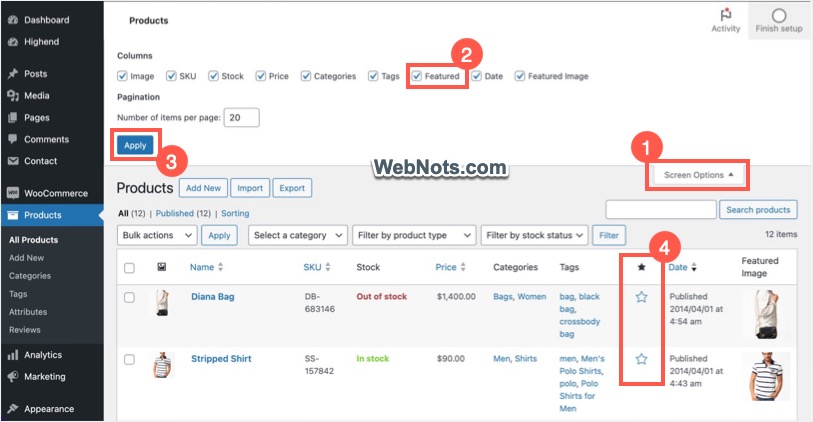
If you are not seeing the “Featured” column (which is also shown with a star icon in the column header), click the “Screen Options” button showing nearer to top right of the screen. Check the “Featured” option and click “Apply” button. This will add the column in your products list.
Marking Featured Products in Bulk from Products List
You can mark multiple items one-by-one on “Products > All Products” screen by clicking on the star icon. Though the screen will refresh when marking each item as “Featured”, it is still easy to do that for limited number of products. However, there is also a simple trick to mark bulk products as “Featured” which is useful when you want to change hundreds of products.
- Go to “Products > All Products” section.
- Click “Select All” check box or manually select multiple items from the list.
- Select “Edit” option from “Bulk actions” dropdown and click “Apply” button.
- Under “Bulk Edit” column, click on the X icon to remove unnecessary items if you have selected all.
- Scroll down under “Product data” section and click the dropdown against “Featured” option.
- Select “Yes” and click “Update” button showing on the bottom.

Marking a Product Featured When Editing
It is also possible to mark an item as “Featured” while editing (creating or modifying).
- Select a product from “Products > All Products” list for editing. Or go to “Products > Add New” for creating a new product.
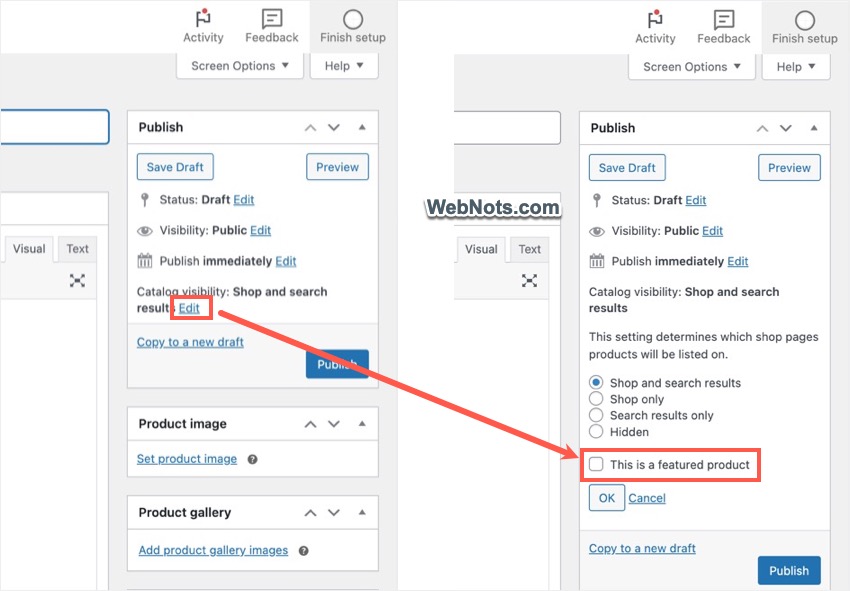
- Click the “Edit” link showing against “Catalog visibility” heading under “Publish” meta box.
- Check “This is a featured product” option and click “OK” button.
- Add or edit your product and publish/update it.
Removing Featured Products
When you want to remove a single item as a featured product, simply click the star icon in “Products > All Products” page. For changing in bulk, edit the items in bulk as explained above, change the “Featured” status to “No” and “Update” your products.
You can also remove the featured status when editing a single product in Classic Editor.
Showcasing Featured Products in Your Content
Now that you have marked featured products, it’s time to showcase them in your content. WooCommerce offers a “Featured Product” block for Gutenberg allowing you to showcase any single product. It means you do not need to identify the product as “Featured” to use this block. So, do not confuse this “Featured Block” with the “Featured” products you have marked. You can use the marked “Featured” products in other ways.
Using Featured Products in Widget Area
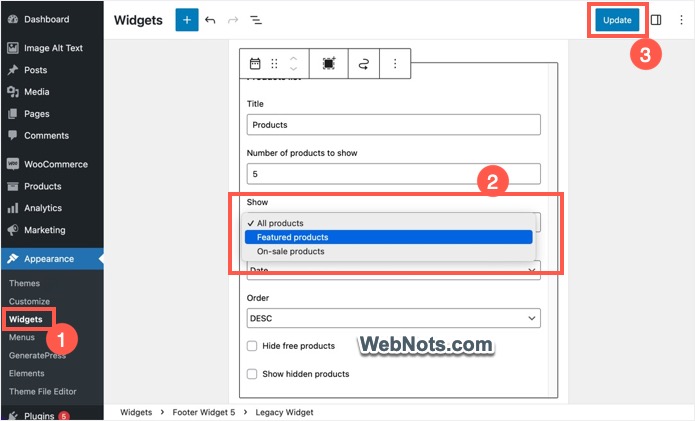
You can showcase featured products in sidebar and footer using “Products list” widget/block.
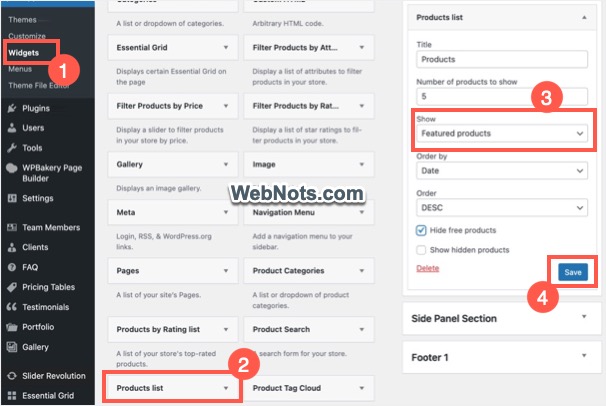
- Go to “Appearance > Widgets” section.
- If you are using Classic Widgets, drag and add “Products list” widget to your sidebar or footer. If you are using Gutenberg widgets, add “Products list” block.
- Click “Show” dropdown and select “Featured products”.
- Fill other details and click “Save” or “Update” button.
Showcasing Featured Products with Shortcode
WooCommerce also offers lot of product shortcodes and you can make use of them to show your featured items. Insert a “Shortcode” block and copy paste the following shortcode for showing your featured products.
[products visibility="featured" limit="3" columns="3" orderby="name" order="DESC"]Limit indicates the total number of products and columns indicates the number of columns you want to show the items. Order by and order parameters help to sort and filter the items from your featured items list. The above shortcode will show 3 items in a single row with three columns arranged in descending order by name as shown below.
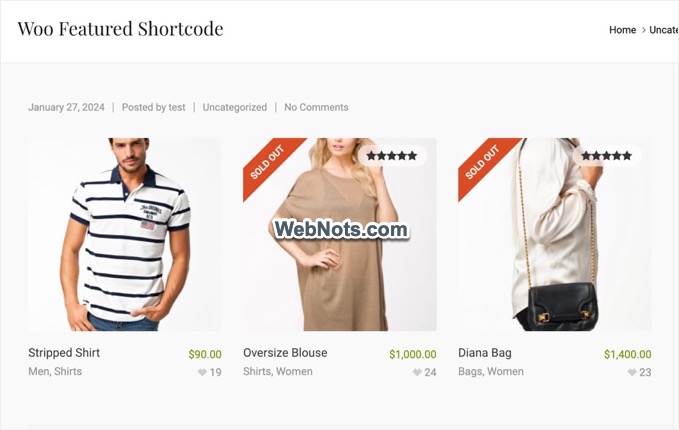
You can create a separate page to show all your featured products or insert the shortcode in an existing post or page to show limited items. Check out all available shortcode parameters on official WooCommerce documentation page.
Using Third-Party Plugin to Showcase Featured Products
Frankly, you do not need additional plugin as WooCommerce already offers bocks, widgets and shortcodes to insert the featured products anywhere on the site. However, there are some special plugins like “Product Table by WBW” which help to showcase your products in a neat table.
- Go to “Plugins > Add New Plugin” section to install/activate “Product Table by WBW” plugin.
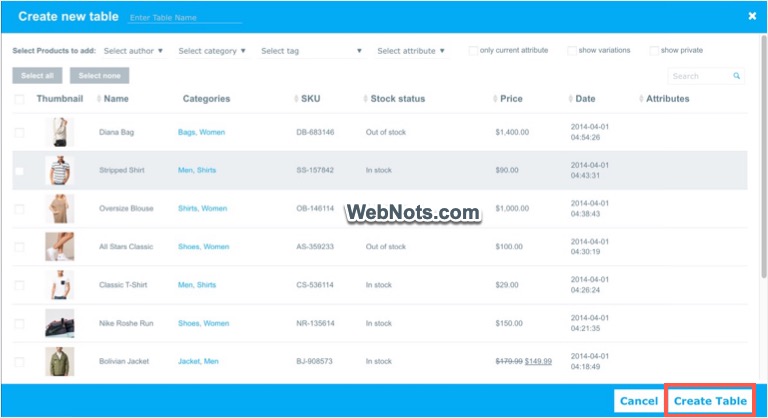
- After that, go to “Product Tables > Add New Table” to create your table.
- Add all the products you want to showcase in the table.
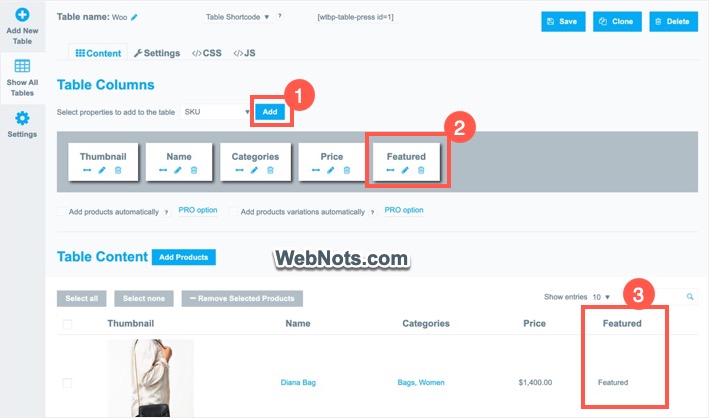
- Include “Featured” properties in the table header so that the table has a “Featured” column.
- Save your table and copy the shortcode.
- Insert the table’s shortcode anywhere on your post or page.
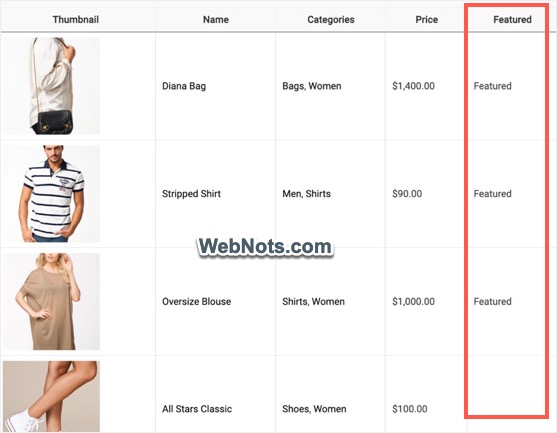
The published post will look something like below showing the featured products. You can customize the table by removing all non-featured products and then deleting the “Featured” column to only show featured products in the table. However, this plugin will be useful only when you have small number of products to showcase. Otherwise, it will be hassle to create a table and only show the featured items.
Final Words
Now you know how to mark products as “Featured” in your WooCommerce store and showcase them. Using the shortcode and widget are the best options, though you can also try any other add-on plugin. Currently, “Featured Product” Gutenberg block is the confusion as it is not intended for showing identified featured items. We hope WooCommerce will make this block to only filter and show single or multiple featured items in future.