WhatsApp offers lot of privacy and security features to protect your chat conversations. You can set password for the app or archive contacts to mute notifications from them. Locking a chat conversation from a contact is one of the notable privacy features which you can use for private discussions. All it needs is few taps and you are done with separating a chat and lock with Face ID or PIN or pattern.
Lock Chat in WhatsApp
Here is how you can do that in iPhone app and the process is kind of similar in Android app.
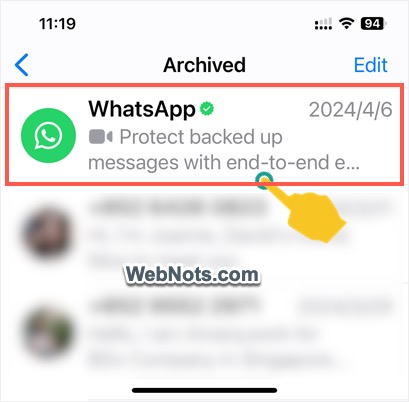
- Open WhatsApp, go to “Chat” section and tap on the contact you want to lock.
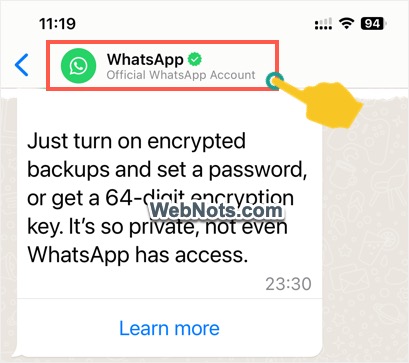
- On the conversation page, tap on the contact’s name showing on the top and go to “Contact Info” page.
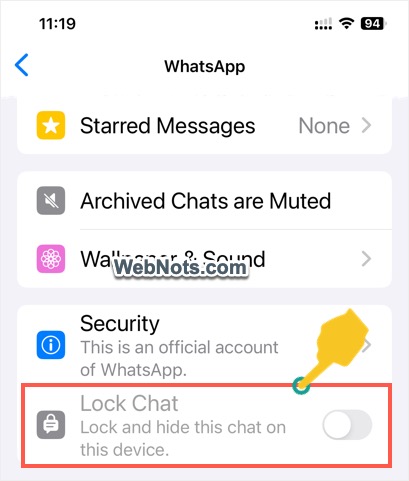
- Scroll down a bit and tap on the switch showing against “Lock Chat” option.
- You will see a notification showing the selected chat section will be locked and hidden. Tap on “Continue” button to proceed further.

- You will see another notification mentioning the chat will be moved to separate “Locked Chats” section and tap “Continue”.
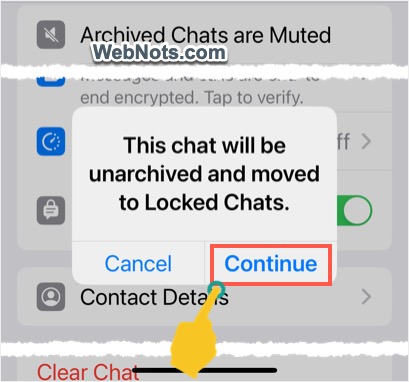
Notifications appear when you use the lock feature for the first time, and you will not see them on further use.
How it Works?
You can lock multiple chats and all locked chats will be moved to a separate “Locked Chats” folder which you can see by going to “Chats” section. If you are locking an archived chat, it will be unarchived and move to locked folder. These locked chats will be hidden from other chats and all notifications will be muted.
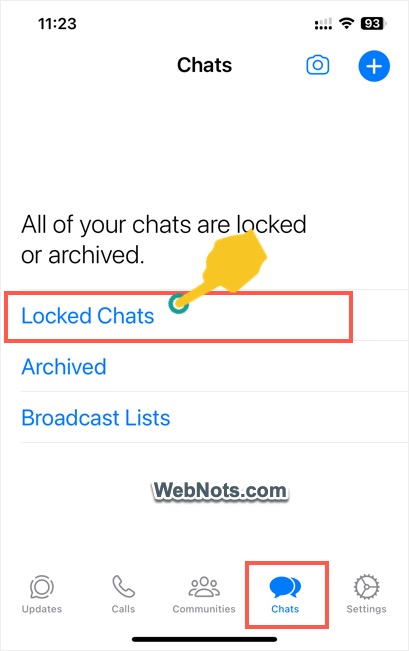
Tap on the “Locked Chats” and you will be prompted to unlock with Face ID or PIN or pattern depending upon the protection you are using for the device. You also need to unlock whenever switching to WhatsApp if the locked section is opened previously.
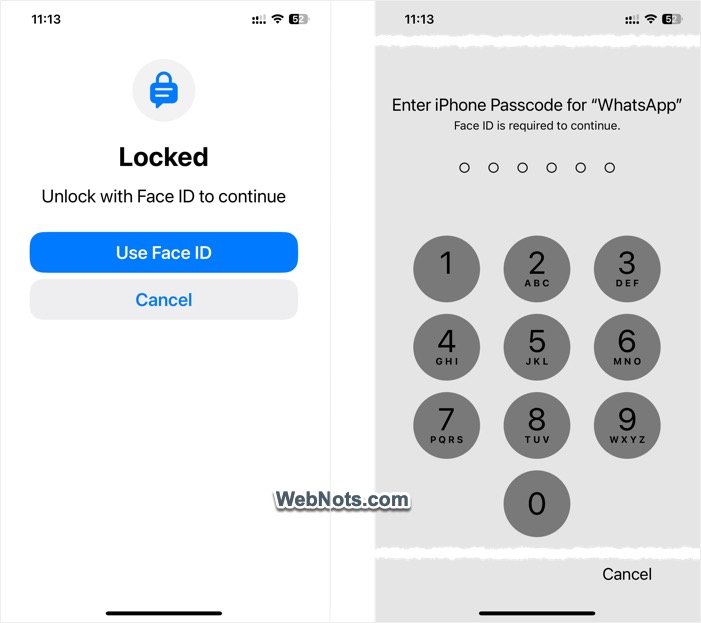
Follow the same steps and disable “Lock Chat” option if you want to move the conversation to normal or archived section.