In the past two decades, WordPress has become one of the most popular content management systems (CMS) in the world. Though learning WordPress is a highly valuable skill, whether you’re looking to start a blog, build a portfolio, or offer professional web design services. However, learning WordPress is not an easy task like learning other popular systems like Squarespace, Weebly or Wix. Many beginners hesitate to dive in due to the costs associated with purchasing a domain and hosting. Fortunately, there are ways to practice and learn WordPress lively without any upfront investment.
Understanding WordPress: Self-Hosted vs. WordPress.com
Before diving into the practical steps, it is necessary to understand the two main versions of WordPress: WordPress.org and WordPress.com.
- WordPress.org: This is the self-hosted version of WordPress that requires a domain name and hosting service. It offers complete freedom and customization options, making it ideal for professionals.
- WordPress.com: This is a hosted platform that provides free and paid plans. While the free plan does not require hosting or a domain, it has limitations on customization and functionality.
This article focuses on methods to learn and practice WordPress.org without paying for a domain or hosting.
Option 1: Use Local Development Software
One of the best ways to learn, text and experiment with WordPress is through local development tools. These tools allow you to install and run WordPress software on your local computer (Windows, Mac, Linux or on any operating system) without connecting to a live server. Here are some of the popular tools:
- MAMP: MAMP is another feature-rich option compatible with macOS and Windows.
- XAMPP: XAMPP is a free software package that includes Apache, MySQL, PHP, and Perl, essential components for running WordPress locally.
- Local by Flywheel: Known for its user-friendly interface, Local by Flywheel simplifies the process of setting up a local WordPress environment. Note that Flywheel is owned by the popular hosting company WP Engine.
- DevKinsta: This is from Kinsta hosting and allows to build a local setup quickly. You can connect your Kinsta live hosting account and move the local site to live server easily.
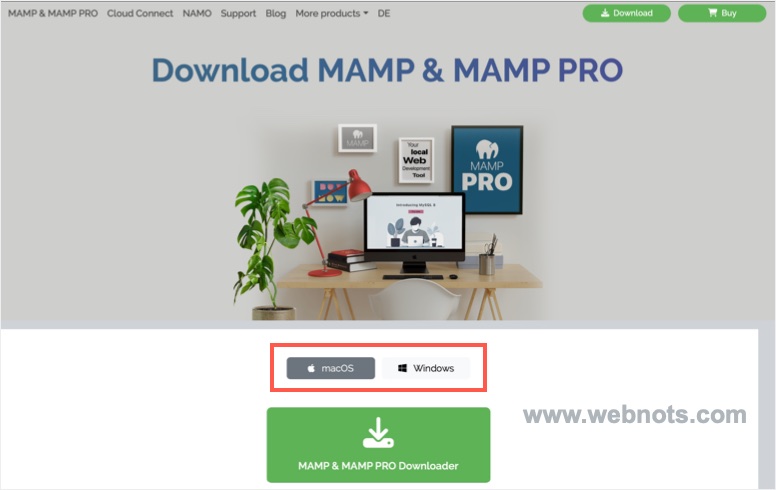
Though apps like Local offers one-click WordPress installation, we recommend starting with MAMP. In that case, you should manually download the WordPress software from WordPress.org website and install it on your local Windows PC or Mac. This will help you to learn database creation, connecting database with WordPress setup, managing database through phpMyAdmin and configurating PHP variables (if needed). You can now experiment with themes, plugins, and configurations just as you would on a live website.
Option 2: Explore WordPress.org Playground
WordPress.org offers great tool called Playground that allows you to experiment with WordPress directly on your web browser. This virtual environment enables you to test themes, plugins, and configurations in real time. It’s an excellent option for beginners who want to familiarize themselves with the WordPress dashboard and functionalities. Good thing is that you don’t need any account registration or need any app installation and it’s completely free accessible from anywhere.
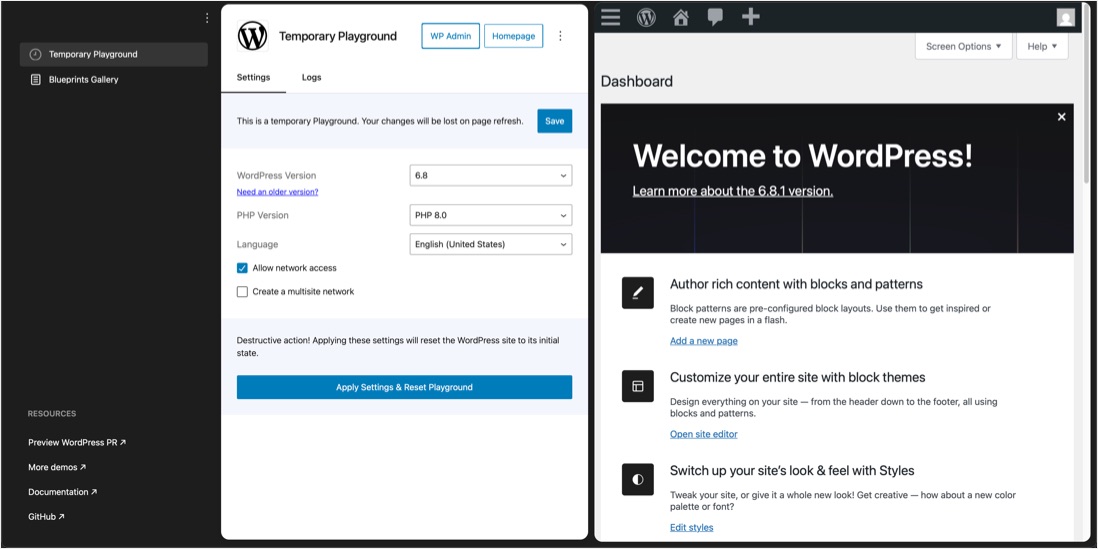
Note: WordPress also offers an online editor for learning Gutenberg with the default block theme.
Option 3: Use Online Platforms Like TasteWP
Though using online platforms is similar to WordPress Playground, these are from third-parties for learning WordPress. For example, TasteWP allows users to create a WordPress site within minutes by automating the setup and design process. You can create two sites without account registration or login with 1GB total storage. While TasteWP is primarily aimed at simplifying site creation, it can also serve as a learning tool by letting users understand the process of building and customizing WordPress sites.
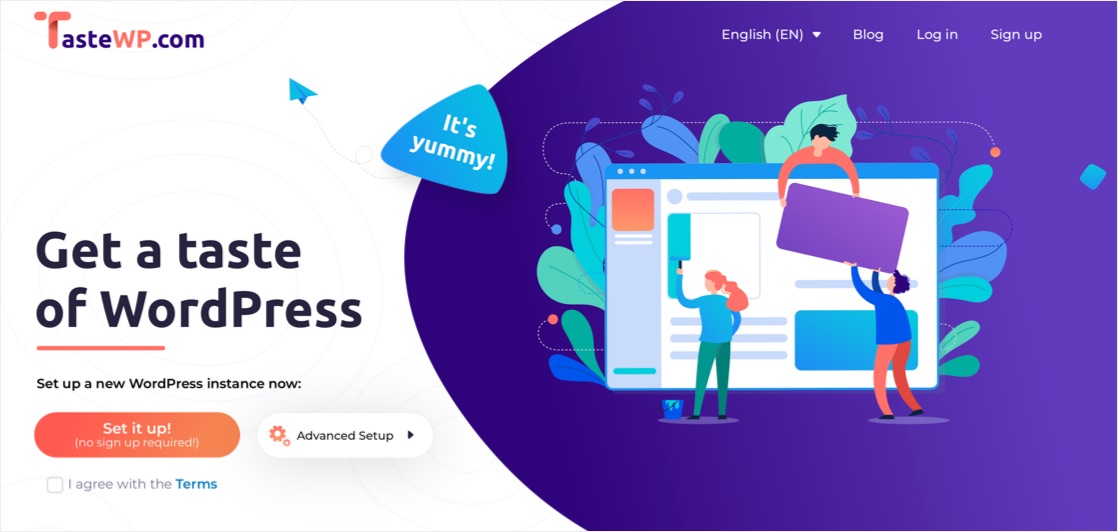
There are also online sandboxes provide virtual environments to test and learn WordPress without installation hassles. For example, WP Sandbox provides isolated environments for WordPress testing and learning without requiring any downloads.
Most sandboxes automatically expire after a few days or hours, making them unsuitable for long-term projects but perfect for short-term learning.
Option 4: Leverage Free WordPress.com Accounts
While WordPress.org offers unparalleled flexibility, beginners can still learn the basics using a free WordPress.com account. This approach does not require any technical setup and is ideal for those who want a hassle-free entry into the platform. Though free and you don’t need a domain, WordPress.com has some limitations:
- Limited themes and customization options.
- Unable to install third-party plugins.
- Free subdomain like mysite.wordpress.com (instead of custom domains).
- No database or server access.
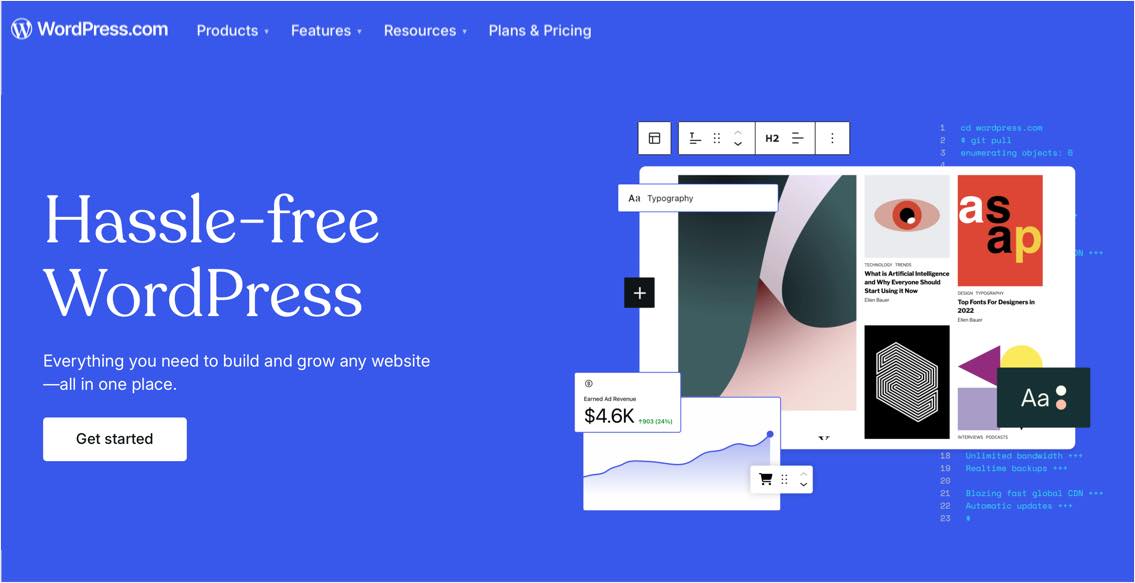
Despite these restrictions, WordPress.com is a valuable starting point for exploring content management, post creation, and basic site structure.
Option 5: Experiment with Free Hosting Providers
If you’re keen on exploring WordPress.org in a live environment but don’t want to pay, some hosting providers offer free plans suitable for testing purposes. While these plans come with restrictions, they allow users to practice setting up WordPress sites online. Unfortunately, there are not many companies offer free hosting. You can try InfinityFree which provides free hosting with unlimited bandwidth, MySQL database and ads free site on subdomain. You can also connect a custom domain if required.
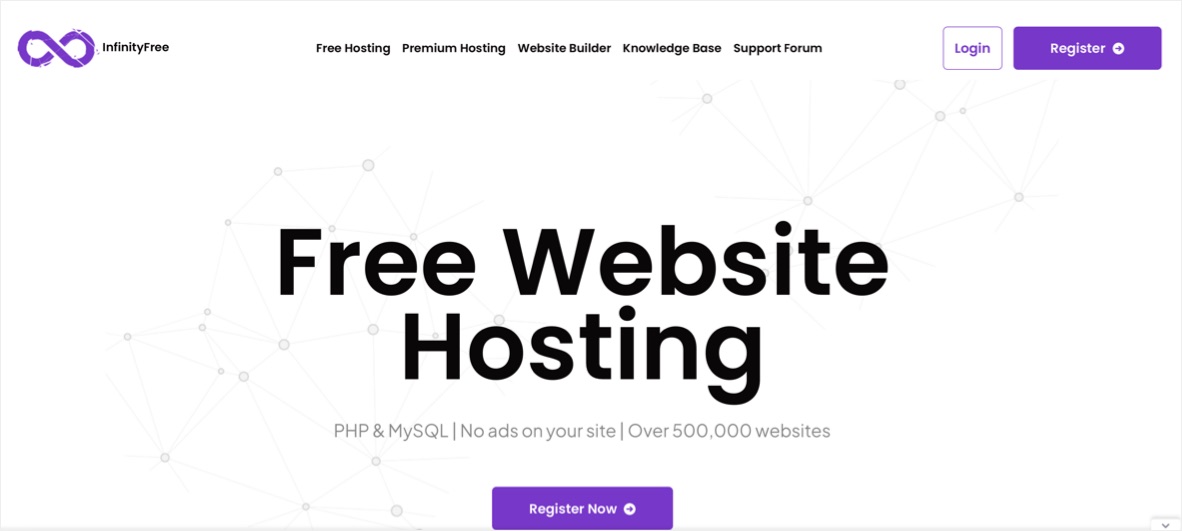
This is an ideal option for beginners to learn WordPress basics without spending any cost.
Tips for Effective WordPress Learning
Regardless of the method you choose, here are some tips to make the most of your WordPress learning experience:
- Set specific goals: Focus on tasks like creating a blog, testing plugins, or building a portfolio site.
- Experiment freely: Don’t hesitate to break things and troubleshoot. The learning process often involves trial and error.
- Explore themes and plugins: Familiarize yourself with free themes and plugins available in the WordPress repository.
- Join the WordPress community: Participate in forums and groups to seek guidance and share experiences.
Learning WordPress doesn’t have to be an expensive endeavor. You can acquire the skills necessary to build and manage WordPress sites using the above options without investing in a domain or hosting.