Unlike running text and media-based websites, presenting mathematical expressions in a proper format is essential for academic, scientific, and educational content. For example, while you might type 1/x in a regular blog, an educational blog requires properly formatted mathematical notation like for clarity and accuracy. Poorly formatted equations can reduce readability and undermine your credibility, so using appropriate tools is important. The good news is that there are several effective ways to integrate mathematical expressions into your WordPress site, ranging from built-in core blocks to specialized plugins.
Markup Languages for Math Expressions
Regardless of the method you choose, you should know the basic markup languages like LaTeX or MathML. These languages use specific commands to properly format mathematical expressions. For example, in LaTeX, typing (a + b)^2 = a^2 + b^2 + 2ab (where ^ is the caret symbol, entered using Shift + 6) will render the equation correctly as . WordPress simply facilitates the use of LaTeX or other markup language with a built-in block or a third-party plugin.
1. Using Gutenberg Math Block
For a simple, plugin-free solution, WordPress versions 6.9 and later include a native “Math” block. This is the most straightforward method and is perfect for users with basic equation needs.
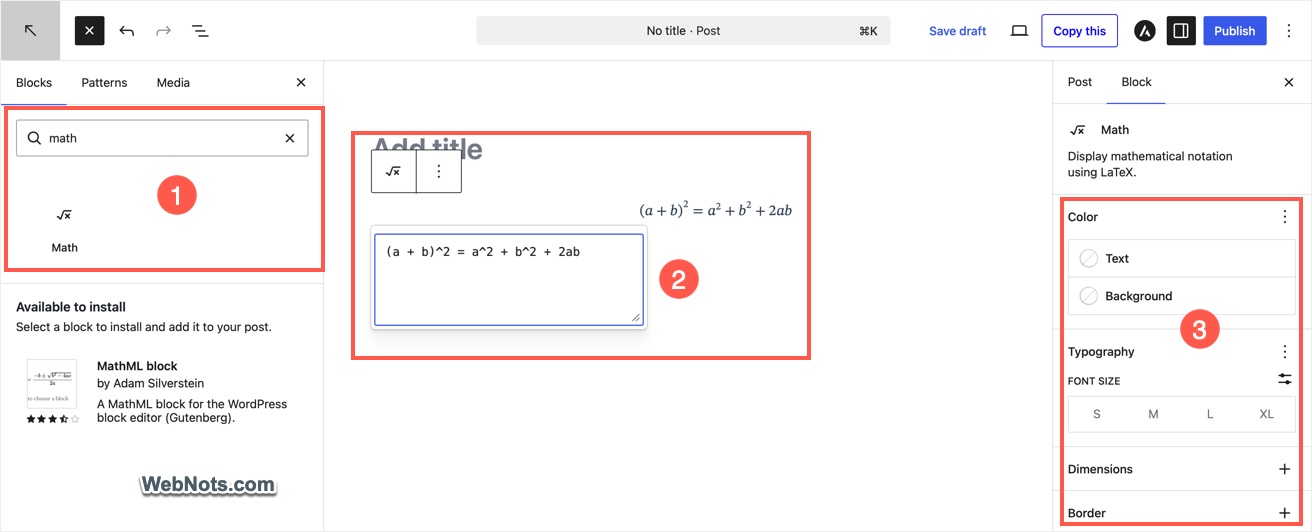
- Open a post or page in Gutenberg editor and click the ‘+’ icon to add a new block.
- Search for “Math” to select and insert that block.
- Unlike other blocks, you will see a small floating text area where you can type the math expressions using LaTeX or MathML syntax.
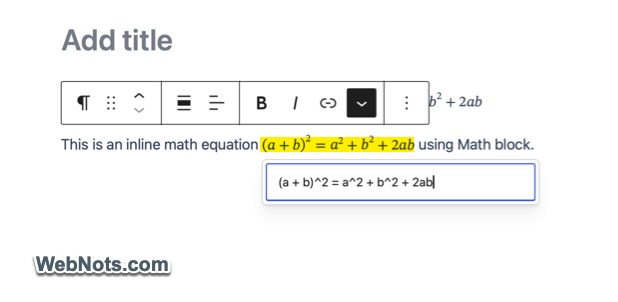
- You can also insert expressions inline by using the “Math” option from the text toolbar.
This method does not need any additional plugin and you can customize the appearance (like changing font size, adding background, and adding borders). However, if you need more flexibility and professional-grade typesetting, LaTeX plugins are the way to go. Here we will explain with two plugins.
2. MathJax-LaTeX
MathJax-LaTeX is a powerful JavaScript engine that renders LaTeX and MathML in all modern browsers.
- Install and activate the MathJax-LaTeX plugin on your site.
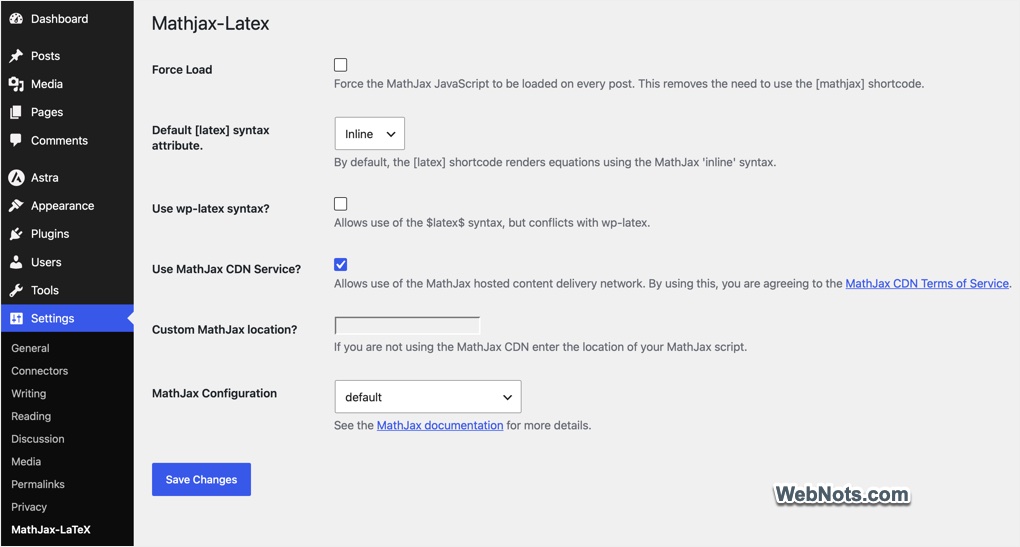
- Go to “Settings > MathJax-LaTeX” section and make sure the “Force Load” option is disabled. This ensures the plugin does not load the script on entire site and load only on required pages to interpret the shortcode automatically.
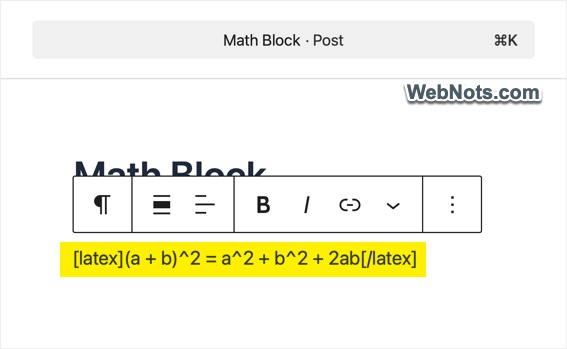
- In your post or page, wrap your LaTeX code with the plugin’s shortcode. For example, typing [latex](a + b)^2 = a^2 + b^2 + 2ab[/latex] as a paragraph will display the formula as on your published page.
- The plugin also offers other syntaxes like $$(a + b)^2 = a^2 + b^2 + 2ab$$ and \((a + b)^2 = a^2 + b^2 + 2ab\). For these cases to work, you should either enable the “Force Load” option in settings or add an additional [mathjax] shortcode (one time per page) to load the script only on that page.
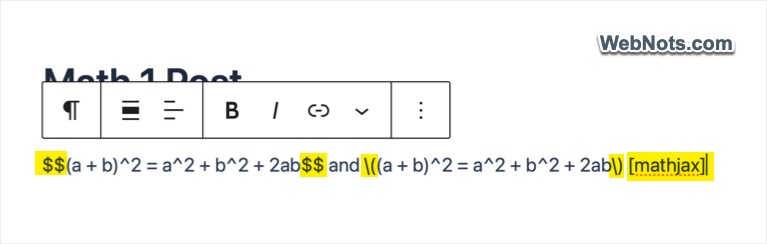
- If you have enabled “wp-latex syntax” option in the settings page, then you can use the syntax like $latex (a + b)^2 = a^2 + b^2 + 2ab$.
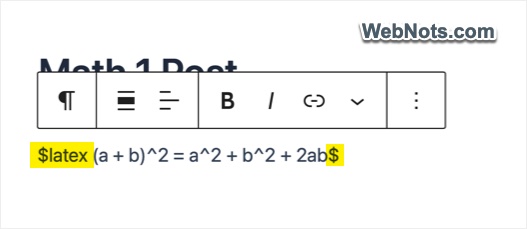
As you can see, the plugin offers multiple formatting options and control over script loading for better performance. However, you may notice that the page initially displays plain text before rendering the mathematical expressions, which can make the page appear to load more slowly.
3. KaTeX
KaTeX is a modern LaTeX renderer that prioritizes speed. So, you will not notice the rendering delay as with the previous case leading to better page load times.
- Install and activate the KaTeX plugin on your site.
- Use the [katex]...[/katex] shortcode to wrap your LaTeX code.
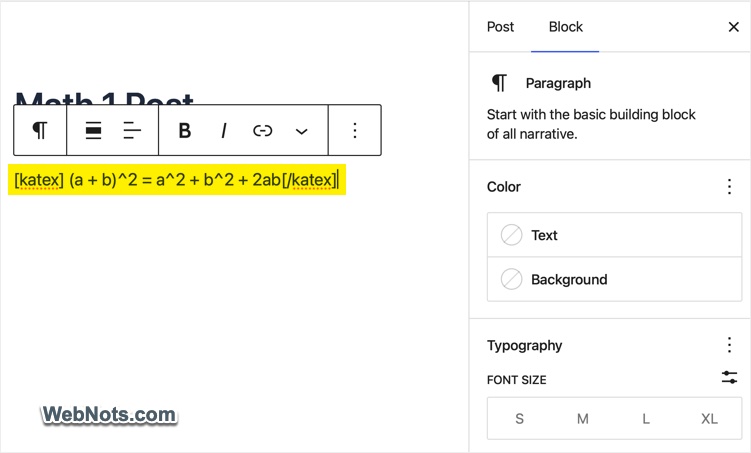
- Alternatively, use the KaTeX block to insert LaTeX codes in Gutenberg editor. For example, [katex] (a + b)^2 = a^2 + b^2 + 2ab [/katex] will render it as an equation.
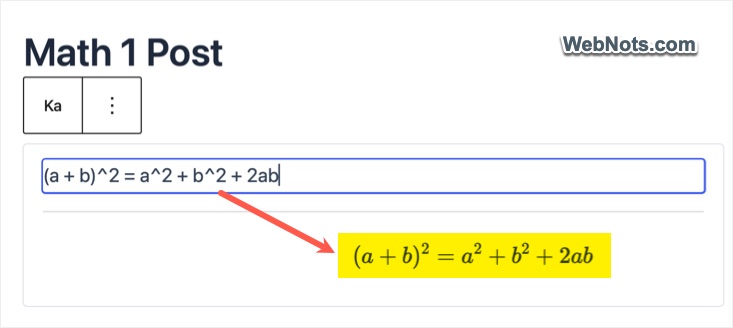
Using the block is recommended as it renders equations immediately in the Gutenberg editor, offering a visual experience.
Troubleshooting Common Issues
If your beautifully crafted LaTeX code isn’t displaying correctly, don’t panic. Here are a few quick checks:
- Double-check that your chosen math plugin is installed and activated. for blocks, make sure the blocks are not hidden in the Gutenberg editor.
- Even a misplaced brace or backslash can break an equation. So, look for typos in the syntax like unmatched { } or $ $.
- Ensure you have wrapped your LaTeX code with the correct delimiters for your chosen plugin (like $$…$$, [latex]…[/latex], [katex]…[/katex]).
- Sometimes, other plugins (like caching or optimization tools) can interfere with how your equations are rendered. Try deactivating other plugins one by one to identify a potential conflict.