
Unicode is the standardization for character encoding and applications like Microsoft Excel supports Unicode Transformation Format (UTF-8 or UTF-16). In our earlier article, we have explained how to insert emoji in Microsoft Excel worksheets. However, emojis are just one of the categories of Unicode which includes a vast array of symbols from different languages, math symbols, currency signs, etc. If you want to insert any of those Unicode symbols in Excel, here are some of the available options for you.
Getting Unicode Code Point
Unicode assigns code point value in hexadecimal format to each character like “U+Hexadecimal Code point”. You can get the code points from official Unicode site or using our quick reference table. Some of the below explained methods need decimal equivalent value of the hexadecimal Unicode code point. In such a case, use =HEX2DEC(Hexadecimal_Code_Point) function in Excel to convert hexadecimal to decimal format. For example, capital letter B has the Unicode point of U+42 and the decimal equivalent of 42 is =HEX2DEC(42) which is 66.
Method 1: Using Symbol Utility
Excel includes an “Symbol” utility that allows you to insert Unicode characters directly into your worksheet.
- Open Excel and select the cell where you want to insert the symbol.
- Go to the “Insert” tab in the ribbon and click on “Symbols” button under “Symbols” group.
- A dialog box will appear as shown below.

- In the “Character code” text box, you can manually enter the Unicode code point and press enter to find the symbol you want (make sure “Unicode (hex)” option is selected against “From” dropdown).
- Once you find your desired symbol, click on it, then press the “Insert” button.
- The symbol will now appear in the selected cell. For example, type 2465 to find and insert the circled number ⑥ symbol.

Alternatively, select the symbol category from “Subject” dropdown to scroll through the list of available symbols and insert one.
Method 2: Using Alt Code Keyboard Shortcuts
For symbols with shorter Unicode values, you can use keyboard shortcuts with the Alt key. This method is particularly useful for quick symbol entry without needing to open the Symbol utility. However, you need the decimal equivalent of the hexadecimal Unicode number to use this method.
- Select the cell where you want the symbol to appear.
- Hold down the Alt key on your keyboard.
- While holding Alt, type the Unicode code point on the numeric keypad.
For example, the black star (★) symbol has a code point U+2605. You can use =HEX2DEC(2605) in an Excel cell to find the equivalent decimal number which is 9733. So, using Alt + 9733 will insert a black star (★) symbol.
Note: This works best for symbols that are available through the numeric keypad. It might not work for all Unicode symbols, especially those with larger code points.
Method 3: Using the UNICHAR Function
Excel provides the UNICHAR function, which allows you to insert Unicode characters using their decimal code points.
- Select a cell where you want the symbol to appear.
- In the formula bar, type the following formula:
=UNICHAR(Decimal code point)- Press enter and the symbol will appear in the cell.
For example, type =UNICHAR(8532) to insert a vulgar fraction two thirds ⅔. In this case, 8532 is a decimal equivalent of Unicode number 2154.

You can also use UNICHAR with cell references to dynamically insert Unicode symbols. For example, if a cell (A1) contains the Unicode decimal value 9786, you can use the formula =UNICHAR(A1) to insert the corresponding symbol (which is a smiling face ☺).
Note: Excel also offers another function =UNICODE(“text”) to get the decimal value of any Unicode symbol. For example, =UNICODE(“⅔”) will provide you 8532. If you enter text with more than one character, then the decimal equivalent of the first letter will be resulted (=UNICODE(“Bill”) will result in 66).
Method 4: Use Character Map (For Windows Users)
The Character Map is a built-in Windows tool that allows you to copy any Unicode symbol and paste it into Excel. This works similar to “Symbol” utility supplied within Excel app.
- Open the Start Menu and search for Character Map.
- Find and launch the Character Map application.
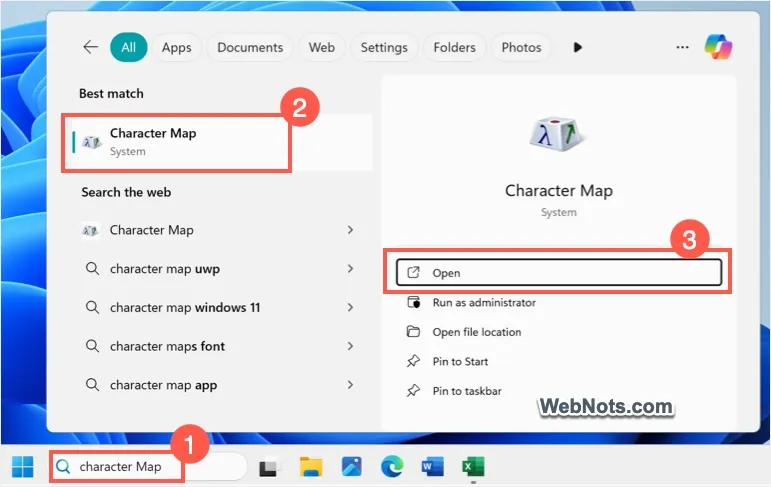
- In the Character Map, select the “Character set” as “Unicode”. Type the code point (hexadecimal) in the “Go to Unicode” box and press enter to find the symbol. Alternatively, you can browse through the list of available characters to find the symbol.
- Once you find the desired symbol, click it, then click “Select” button.
- After that click “Copy” button. Now, go to Excel and paste the symbol (Control + V) into your worksheet.

Method 5: Use Character Viewer (For Mac Users)
If you are using Excel on Mac, you can use the Character Viewer utility that comes as part of macOS.
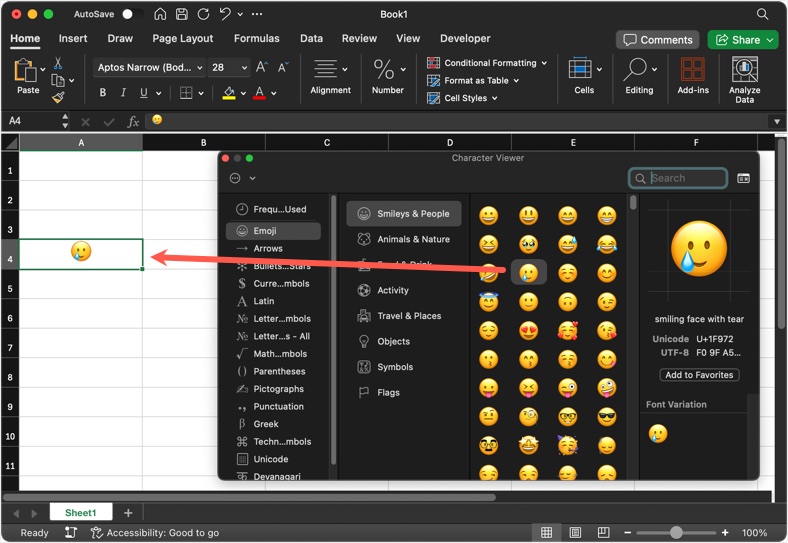
- Select the cell in Excel and go to “Edit > Emoji & Symbols” menu to open Character Viewer tool.
- Type the Unicode code point (hexadecimal) or name in the search box and press enter to find the corresponding symbol.
- Alternatively, browse through the categories and find the symbol.
- Double click on it to insert in a cell.
Tips for Working with Unicode in Excel
Unlike Microsoft Word, Excel does not support all Unicode symbols. So, consider the following points if the expected symbol does not show up:
- Font Compatibility: Not all fonts support every Unicode character. If a symbol appears as a square or an empty box or a question mark, try changing the font to one that supports the symbol, such as Segoe UI Symbol or Segoe UI Emoji in Windows PC and Apple Symbols or Apple Color Emoji in Mac.
- Excel Cell Size: Some Unicode symbols, especially larger ones, might not fit properly in a cell if the row or column size is too small. Adjust the cell size if necessary.
- Multilingual Support: Unicode symbols can help you work with various languages but ensure that the font you are using supports characters from the desired language or script.
- Decimal Vs Hexadecimal: Make sure to use correct format depending on the method you choose.
Conclusion
Whether you’re using the Symbol utility, keyboard shortcuts, or the UNICHAR function, Excel provides flexibility to make your data more visually appealing and culturally inclusive with ease. If you find it difficult to use the above explained methods, then the last option is to copy the symbol online and paste it in your sheet.


