Did you know that Apple keeps a record of every app you download from the App Store? Unfortunately, it is not possible to permanently remove this history, even if you have deleted the app from your iPhone. Apple retains all transaction records for licensing and legal purposes. However, you can hide apps from your purchase history to keep the list organized and make unnecessary apps invisible to anyone browsing your account.
Deleting Vs Hiding an App Vs Hiding from History
iPhone offers multiple ways to handle your apps:
- Deleting an App – this will remove the app from your device but keep a record in purchased history (even for free apps).
- Hiding from Home Screen – this will simply hide an app from iPhone’s Home Screens and you can also lock it with a Face ID. This does not delete the app or its purchase history.
- Hiding from History – this is the topic we are discussing in this article. It simply hides the history record in your Apple account without deleting or hiding an app from your device.
Hide Apps from Purchased History
- Open App Store on your iPhone.
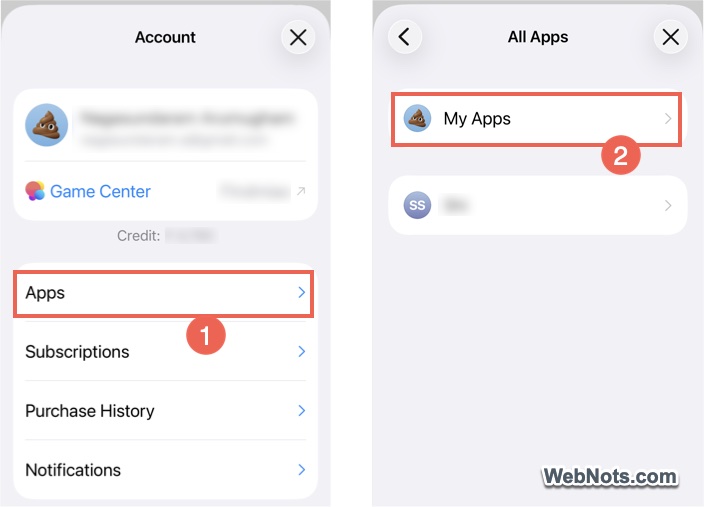
- Tap your profile icon (or your photo or initials) in the top-right corner of the screen.
- Go to “Apps” section to find the list of apps you have installed from the time you have created your Apple account. If you use Family Sharing, tap “My Apps” to see your personal list rather than the family list.
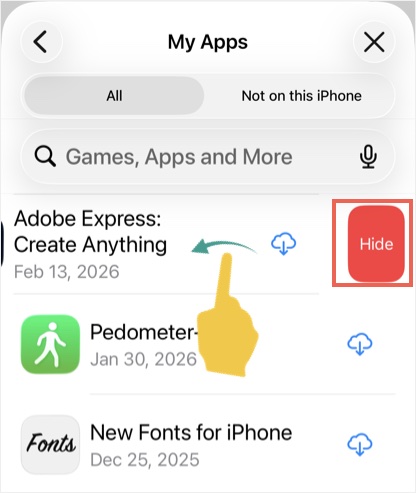
- Search and find the app you want to hide.
- Swipe left on the app and tap on the “Hide” button.
- This will hide the app from the list without any notification and you can repeat the same steps for as many apps as you like.
What Happens When You Hide an App from Purchase History?
When you hide an app:
- iPhone moves that app to a “Hidden Purchases” folder within your Apple account settings for safekeeping.
- As you still own the license, you can always unhide the app and install it without paying again.
- If you are part of a Family Sharing group, hiding an app prevents family members from seeing or downloading that specific app from your shared purchases. However, they may still see it if it is installed on a shared device.
Remember that the purchase history of all paid apps and services (like iCloud+) can be accessed from “Settings > Your Apple Account > Media & Purchases > View Account > Purchase History” section. You can’t hide these records.
Unhide Apps in Purchase History
- Open App Store and tap your profile icon in top-right corner.
- Now, tap on your name at the very top to open your Apple account’s settings page.
- Unlock with your Face ID or passcode if prompted.
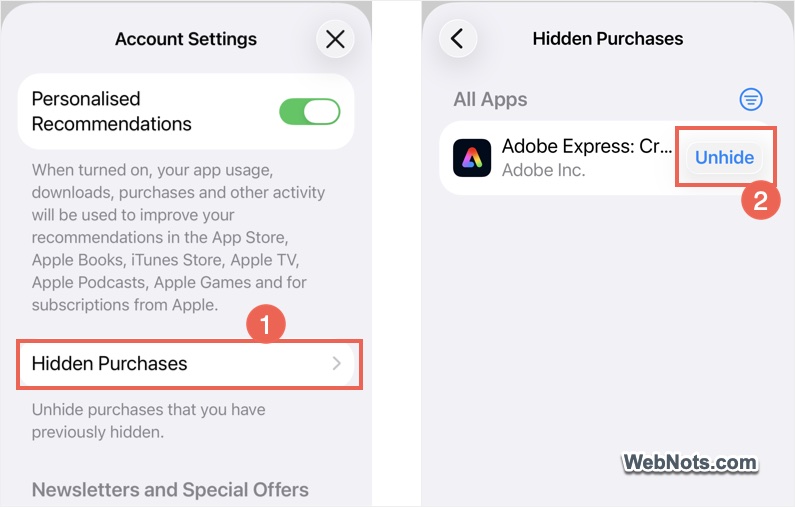
- Scroll down and tap on “Hidden Purchases” option.
- Here, you will see a list of all hidden apps. Simply tap the “Unhide” button next to an app you want to restore.
- The app will immediately disappear from the “Hidden Purchases” list without any notification. It may take some time for the app to reappear in your main App Store purchase history.
Final Words
You can hide apps, books, movies, songs and TV episodes from the purchased history. As mentioned, it is simply hiding a record from the history and not permanently deleting it. This helps to prevent you or someone from seeing what you have downloaded. However, if the app is still installed on your Home Screen, hiding the history is pointless as anyone using your phone can still see the icon. For complete privacy, you should combine purchase history hiding with hiding an app from Home Screen and locking it with your Face ID.