WeChat is the most popular app in China for instant messaging and money transfers. The app has many hidden features, and forwarding multiple documents at once is one of them. For example, you may have received several files in a chat and want to forward all of them to a few recipients. Sending files one by one can be frustrating, as with WhatsApp, so here is how you can forward multiple files at once.
Forwarding Multiple Files from Chat
The screenshots are shown from the WeChat iPhone app and you can follow the same steps in Android version also.
- Open the chat conversation that contains the files.

- Long press on any file and tap “Select” option.
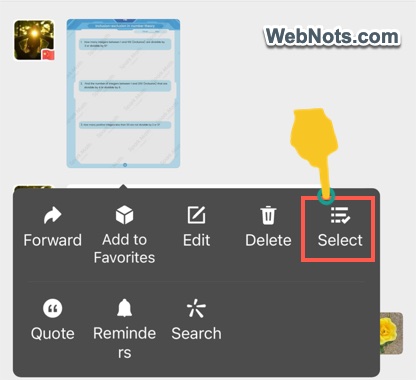
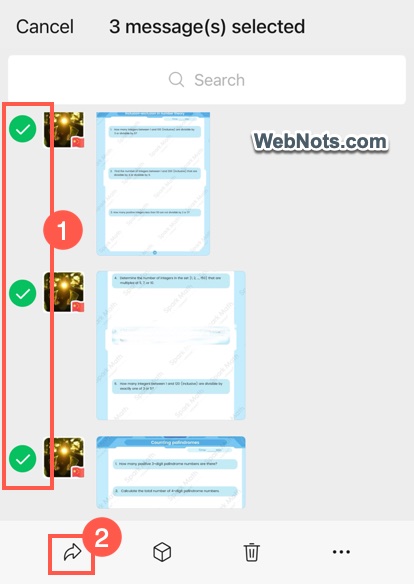
- This will show radio buttons on each conversation item and select the files that you want to forward. You can also use the search box to find the old items.
- After that, tap the forward icon showing on bottom left corner.
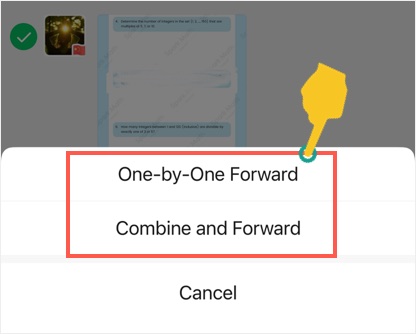
- You will see two options – “One-by-One Forward” and “Combing and Forward”. Select your preferred option.
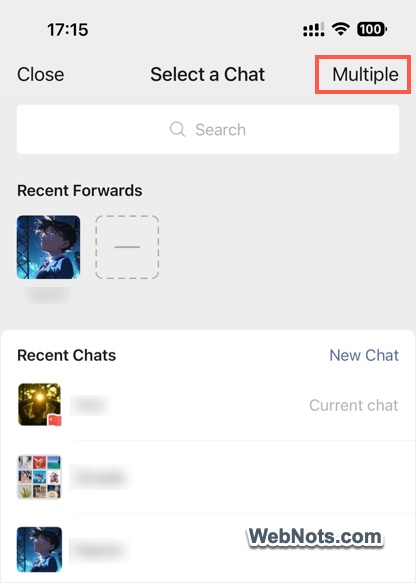
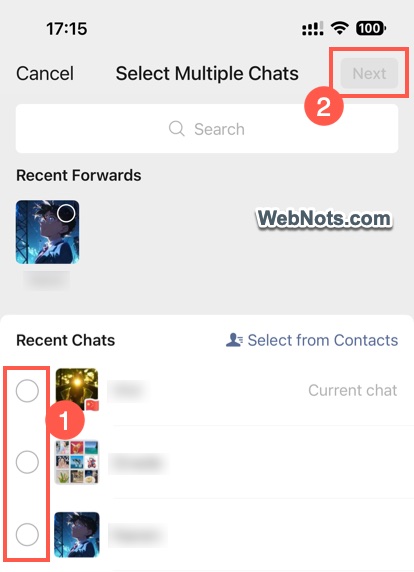
- On the next screen, select a contact you want to send. For sending to multiple people, tap on the “Multiple” option.
- Now, select the recipients from your contact list and tap “Next” button on top right corner.
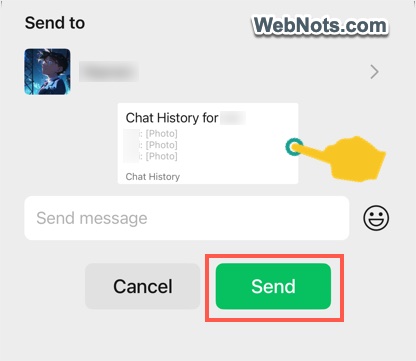
- Check the message preview and tap on it to check how it will look on the chat conversation.
- If required add an emoji and type any additional text you want to include.
- Tap the “Send” button to forward the selected items.
One-by-One Vs Combining
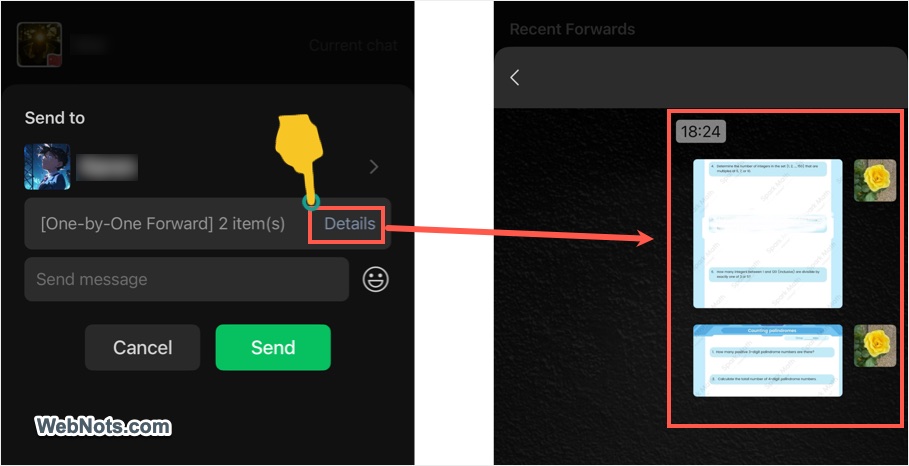
Selecting one-by-one will forward the files individually as you have received them. Before sending, tap on the “Details” link to check how the recipients will see the forwarded items. Recipients will see the files are sent by you and will not see the original sender.
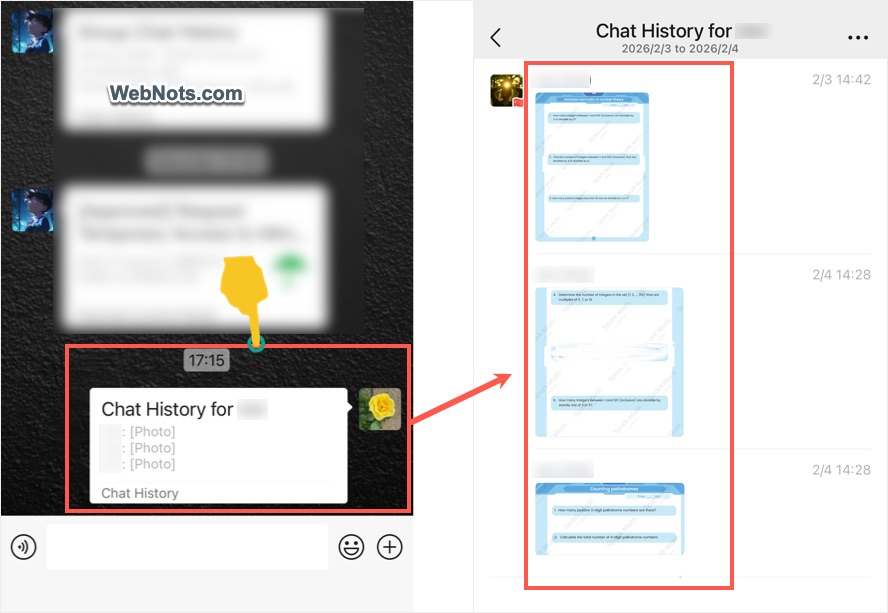
However, combine option will put all the files in a single conversation and forward it as a chat history item. Recipients need to tap on the chat history to view individual files. The problem with combining is that the recipient can see the original sender along with the original date and time of the conversations. If you don’t to reveal these information, make sure to select one-by-one option.
Note: You can forward any item from the chat history including plain text, files, and images.