Zoom in and out functionalities in Microsoft Word allows users to adjust the view size of a document for easier reading or editing. However, sometimes you find that the zoom feature is grayed out or unresponsive. This can be puzzling, especially when you need to change your view for better accessibility or navigation. Below are several reasons why zoom might be disabled in Word, along with potential solutions.
Zooming a Word Document
By default, you can find the zoom in/out slider on bottom left corner of the status bar. Otherwise, go to “View > Zoom” and adjust the size or use Control – and Control + keyboard shortcuts.
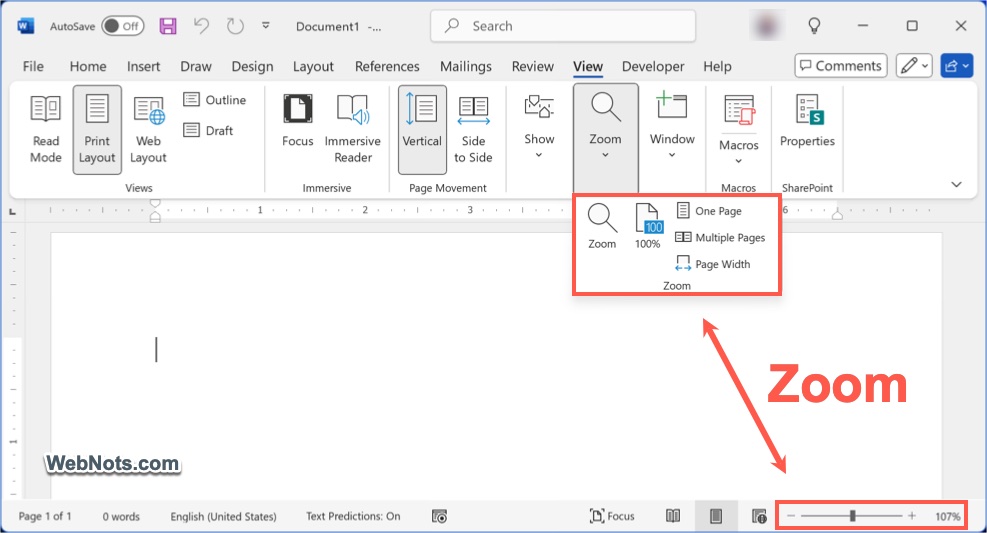
You will find the zoom options in both ribbon as well as status bar are greyed out whenever there is a problem. The keyboard shortcuts also will not work.
1. Using Side-by-Side or Multiple Page View
Word offers two types of page movements – vertical and horizontal (side to side). Zooming features in Word are available only when you use vertical page movement and Word will automatically disable all zoom related features in Side to Side view. Good thing is that Word will show a warning when hovering on the zooming slider as well as in the ribbon items.

Solution:
If you see multiple pages side by side, go to “View” tab. Disable “Side to Side” option by selecting “Vertical” page movement. This will enable zoom settings in your document.
2. Document is Protected with Read Mode
When a Word document is opened in Read Mode or Protected View, zooming will be restricted. Though this is not an editing feature, Word will automatically disable zooming in protected documents to simplify the interface or protect your system from potentially unsafe files.
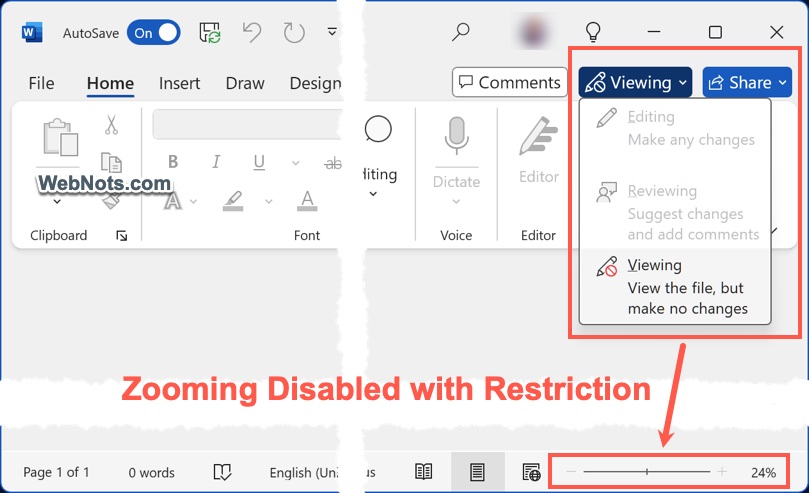
Solution:
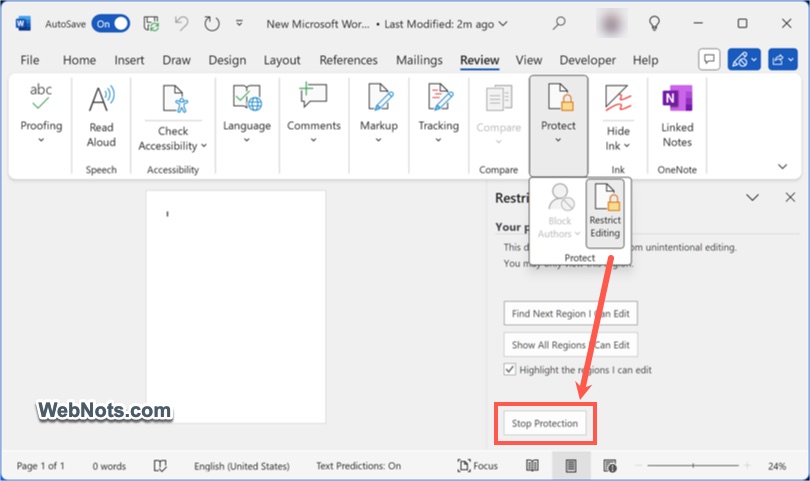
If it’s your own document, go to “Review > Protect Restrict Editing” and click the “Stop Protection” button showing on the right sidebar. Type the password to unlock your document in edit mode. If the file is received from someone, you need to ask for the password or change the permission or remove the protection.
3. Document is Shared or Co-Authoring is Active
When collaborating in real-time (co-authoring) using OneDrive or SharePoint, some view settings – including zoom – can be limited depending on how the document is being used.
Solution:
Save a local copy of the document and open it outside of the shared environment to regain full control. Also, try opening the document with the Word desktop app if you’re using Word for the web.
4. Check Your Add-Ins
Add-ins can help to improve your productivity. However, outdated or corrupted items may restrict features in Word, including zooming.
Solution:
Try starting Word in Safe Mode by holding the Control key while starting Word to see if zoom is re-enabled. If it is, an add-in may be the cause. You may need to remove / disable all the add-ins and enable one by one to find the problematic item. Go to “File > Options > Add-ins” and click the “Go” button next to “Manage > COM Add-ins”. Uncheck the items to disable or remove them completely from the pop-up that appears.
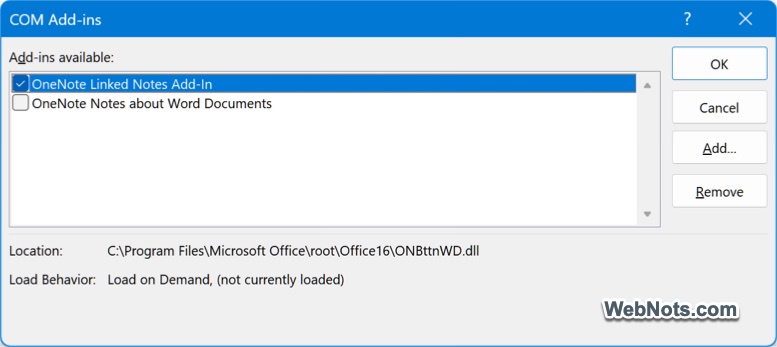
Note: Go to “File > Info” menu and click on the “Manage COM Add-ins” button to find the items that affect Word features.
5. Temporary Glitch or Corrupted App
Sometimes, the zoom functionality may be disabled simply due to a temporary glitch or memory issue within Word.
Solution:
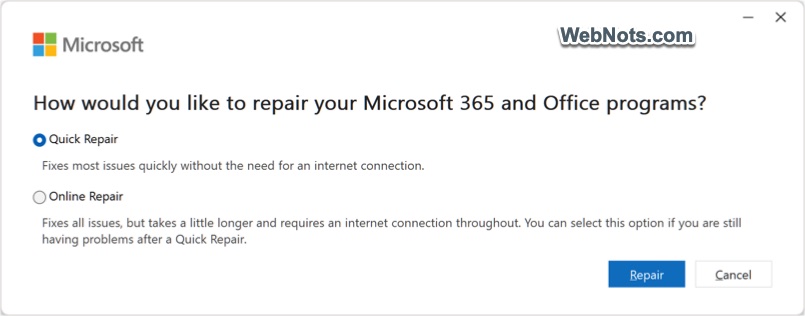
Restart Microsoft Word or reboot your computer. You can also try repairing the Office installation or reinstall Microsoft 365 package if needed. This is not a recommended action as it’ll repair / reinstall the entire Office package including Excel, Outlook, etc. Open Windows Settings app and go to “Apps > Installed apps” section. Find Microsoft 365, click on the three-dots (More Options) icon against the app and select “Modify” option. This will open a pop-up and do a “Quick Repair” first. If that is not solving your problem, then go for “Online Repair” option.
Note: If you’re suspecting the problem comes due to older Word version, go to “File > Account > Update Options > Update Now” to get the latest release.
Final Thoughts
Zoom in / out being disabled in Microsoft Word is typically tied to the document’s viewing mode, collaboration settings, or restrictions imposed for editing. Identifying the active view or editing mode is the first step in resolving the issue. If all else fails, try restarting Word in Safe Mode or check with your IT department if you’re in a managed environment.