Microsoft will automatically push Windows updates to keep your computer safe and secure. Otherwise, you can manually update by navigating to “Windows Update” section in Settings app. If you can’t find “Windows Update” in the Settings app on your Windows PC, it’s a sign that something’s wrong. This can prevent you from getting critical updates and security patches. Fortunately, there are ways to fix it and below are some of the easy options for that.
Missing Windows Update
By default, the Settings app will show a “Windows Update” button on the header section of “Home” tab.
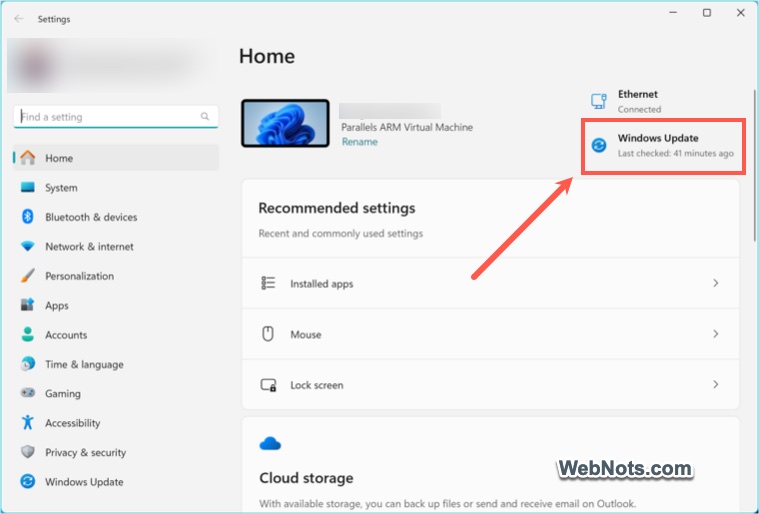
Clicking on the will take you to the “Windows Update” tab where you can check for the available updates and install.

When there is a problem, the button will be greyed out and you will not see the “Windows Update” tab at all. Even if you see the button is available, clicking on that will not have any impact when the update section itself is not available.

The issue happens when you have played around with the policies, Registry entries or disabled update service. For example, apps like Update Manager allows you to control the Windows Update service. So, if you have dealt with such type of app, it would have removed the update option in Settings app. It could be simply hiding the option or completely disabling the service.
1. Run Windows Update Troubleshooter
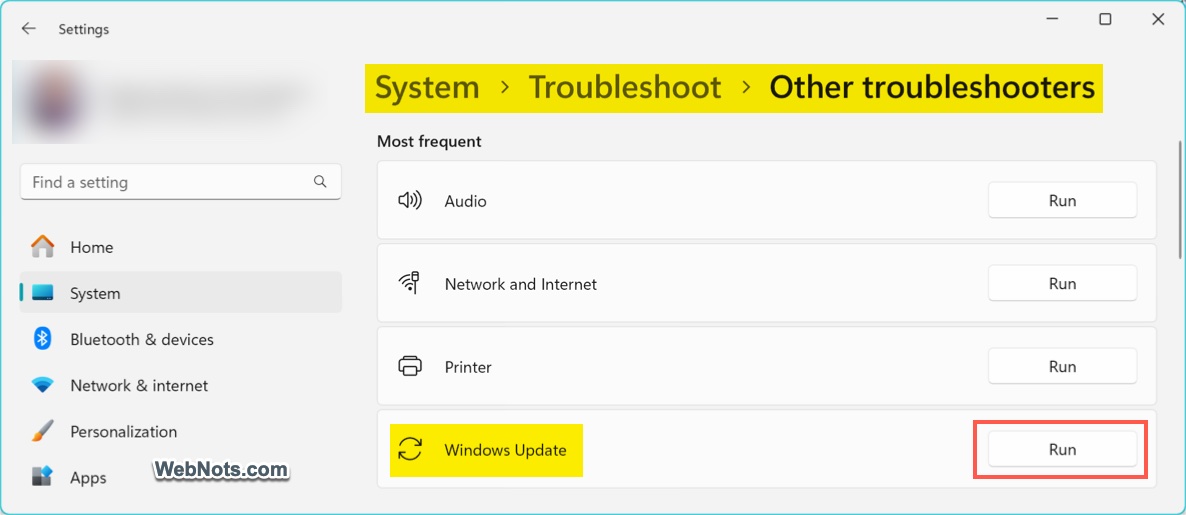
- Open Windows Settings app and navigate to “System > Troubleshoot > Other troubleshooters” section.
- Click “Run” button against “Windows Update” option.
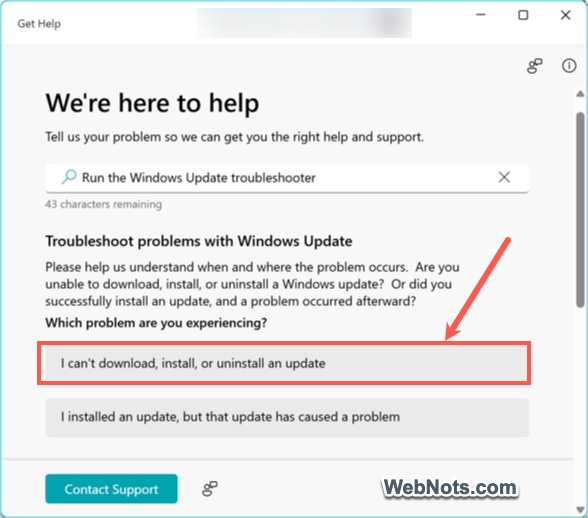
- Select “I can’t download, install, or uninstall an update” option.
- Select “Yes” for “Can we run the Windows Update automated diagnostic?” option.
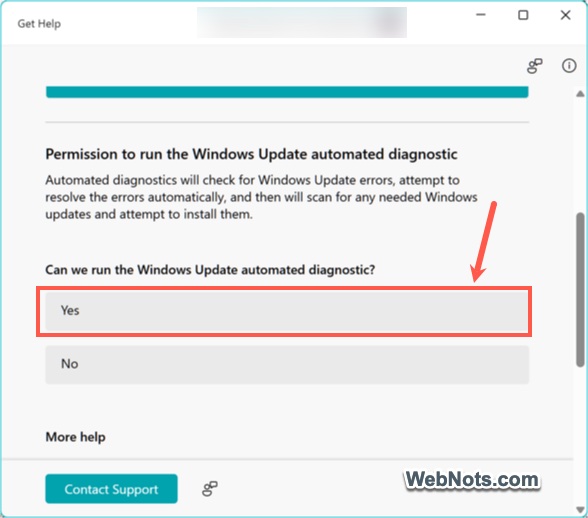
- Troubleshooter will scan and fix the problem if any.
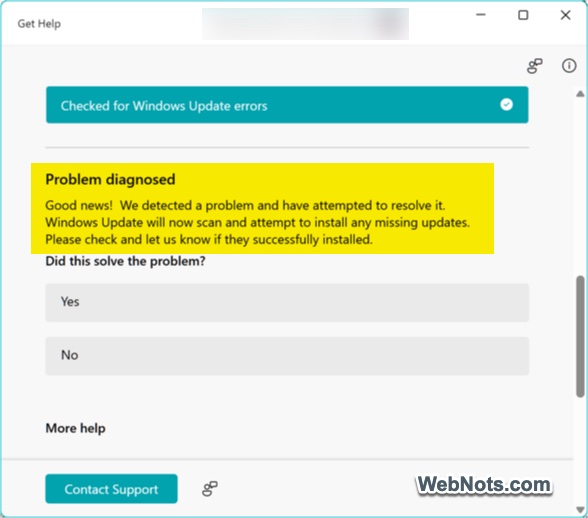
Get back to Settings app and check if the “Windows Update” option is enabled now.
2. Enable Windows Update Service
If the Windows Update service is disabled, the option won’t appear in Settings.
- Press “Windows Logo + R” keys and type services.msc, then press enter.
- Scroll down and locate “Windows Update” service.
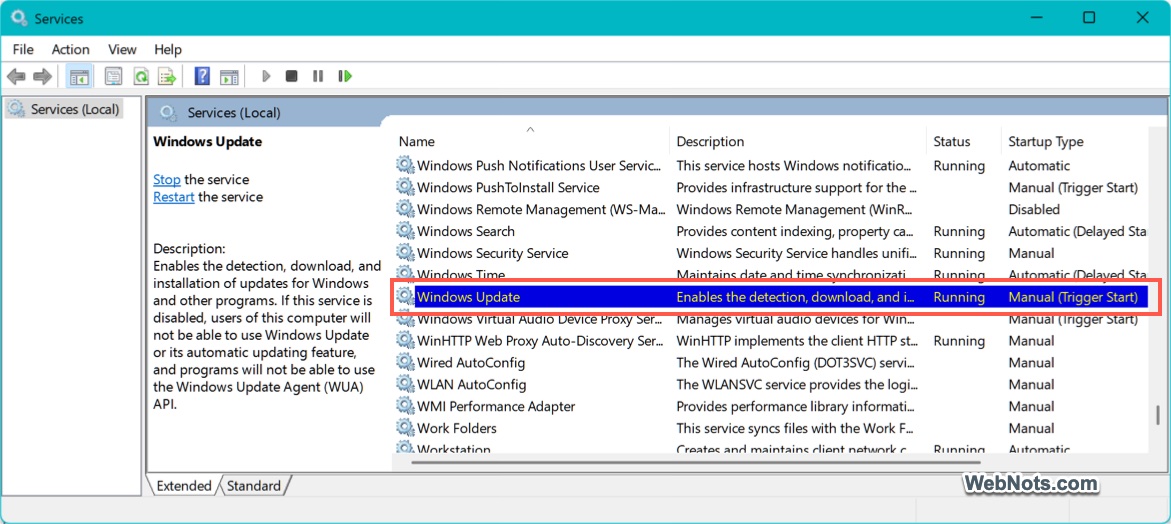
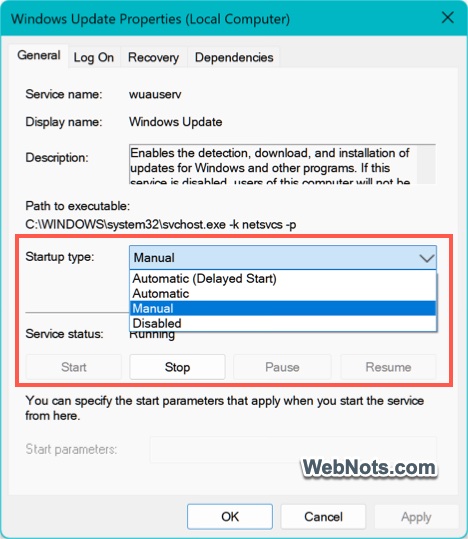
- Double-click it and set the “Startup type” to “Automatic”.
- Click “Start” button if the service isn’t running.
- Click “Apply” and “OK” buttons.
Now, go back to Settings app and the Windows Update should be available.
3. Check for Group Policy Restrictions
If you are using Windows Student, Pro or Enterprise edition, a policy setting may be hiding the Windows Update option.
- Press “Windows Logo + R” keys to open the Run dialog.
- Type gpedit.msc in the box and press enter.
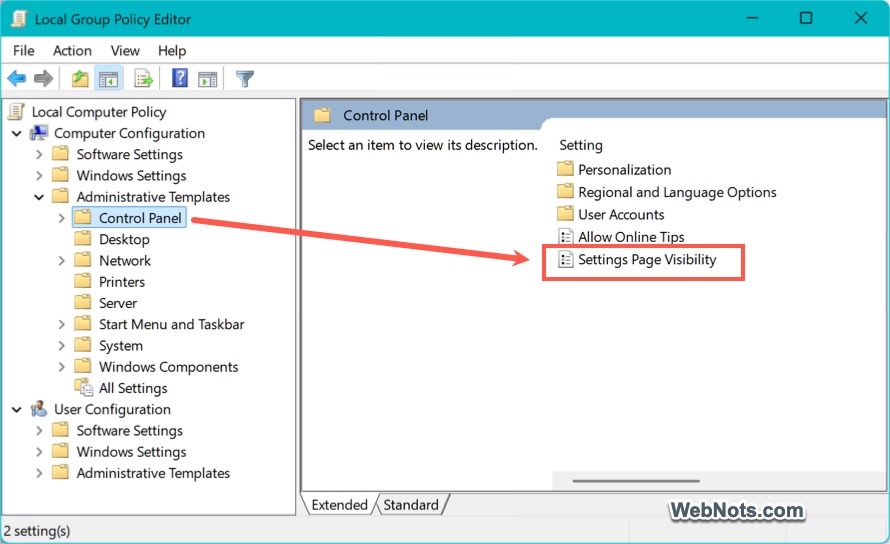
- Navigate to Computer Configuration > Administrative Templates > Control Panel section
- Find and double-click on the “Settings Page Visibility” option.
- Check if the policy is “Enabled” and the check if there are any text like hide:windowsupdate in the box below.
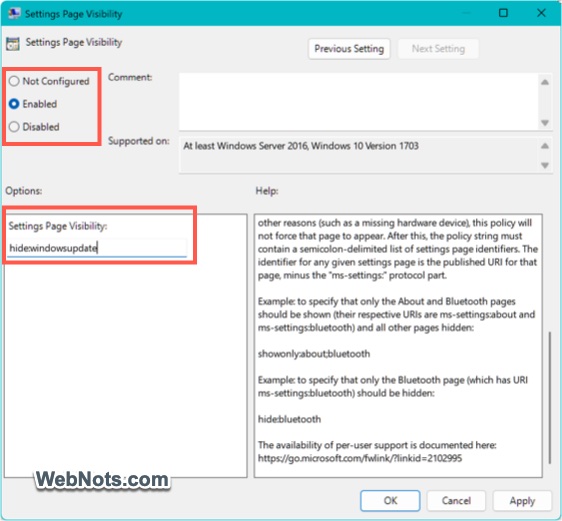
- Remove any text from the box and then change to “Not Configured” status.
- Click “Apply” and then “OK” buttons.
- Restart your computer and check this restored the Windows Update option in the Settings app.
4. Use the Registry Editor (Home Edition Fix)
For Windows Home edition users or if Group Policy isn’t available, the same restriction may be set via the Registry Editor.
- Press “Windows Logo + R” keys, type regedit, then press enter.
- Navigate to HKEY_LOCAL_MACHINE\SOFTWARE\Microsoft\Windows\CurrentVersion\Policies\Explorer.
- Look for an item named SettingsPageVisibility and check its value is showing as hide:windowsupdate.
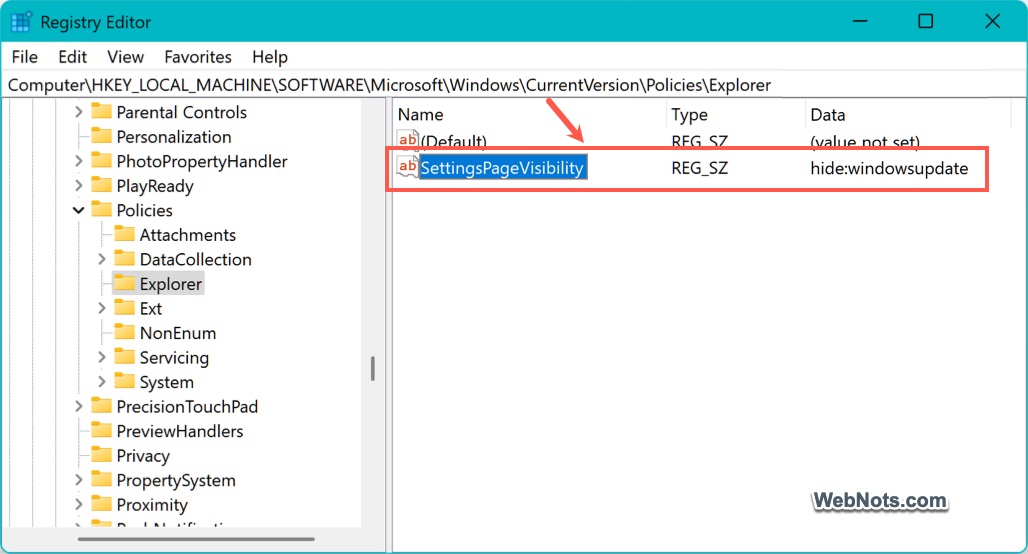
- If it exists, double-click on the SettingsPageVisibility and remove the text from “Value data”.
- Click “OK” button to apply the change.
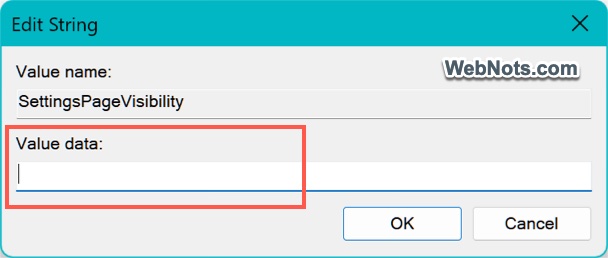
Close the Registry Editor and restart your computer to check if that fixes the problem.
5. Perform Windows Repair
If nothing works, a repair installation can restore Windows without deleting your files.
- Download the latest Windows ISO installation file from Microsoft’s website.
- Double-click the ISO to mount it and run the setup.exe.
- Choose “Upgrade this PC” now and follow the on-screen instructions.
This keeps your files intact while reinstalling core Windows components.
Final Thoughts
As mentioned, “Windows Update” option might have been hidden which can be fixed using Registry Editor (#4) or Group Policy Editor (#3). Otherwise, you can try the troubleshooter, check the service and repair Windows installation. If none of these solutions restore the Windows Update option in Settings app, consider a clean install as a last resort.