Rank Math is one of the popular SEO plugins to optimize WordPress websites. It offers most features for free including the redirect manager. However, sometimes the basic XML Sitemap feature will stop working properly. Since that can hurt your site’s indexing and visibility in search engines, you should immediately fix the problem. If your Rank Math Sitemap returns errors or won’t load, here’s how to fix it.
Common Sitemap Issues in Rank Math
By default, Rank Math will generate a Sitemap index that includes individual sitemaps for posts, pages and other custom post types on your site. Here are some of the common problems you may face with the generated Sitemap.
- Sitemap URL shows 404 error.
- Blank sitemap page showing no content.
- Sitemap index loads but clicking on individual sitemaps don’t load.
- Sitemap(s) not updating automatically with the latest posts.
Let’s break down how to fix these issues.
1. Enable XML Sitemap
First, make sure the Sitemap option is turned on under “Rank Math SEO > Dashboard > Modules” section in your WordPress admin panel.
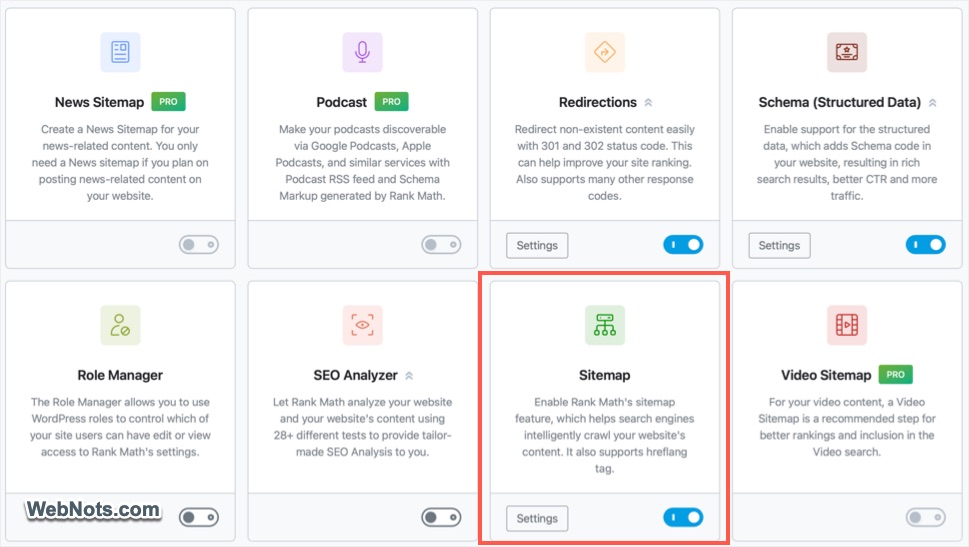
This should automatically overwrite the default WordPress Sitemap (as explained in section 4) and load Rank Math’s Sitemap file.
2. Change Links Per Sitemap
Go to “Rank Math > Sitemap Settings > General” section and click on the “Save Changes” button at the bottom. If you have restricted number of links per Sitemap to a specific number, change that to different number. For example, if you have set 300 against “Links Per Sitemap” option, change that to 299 and save the changes.
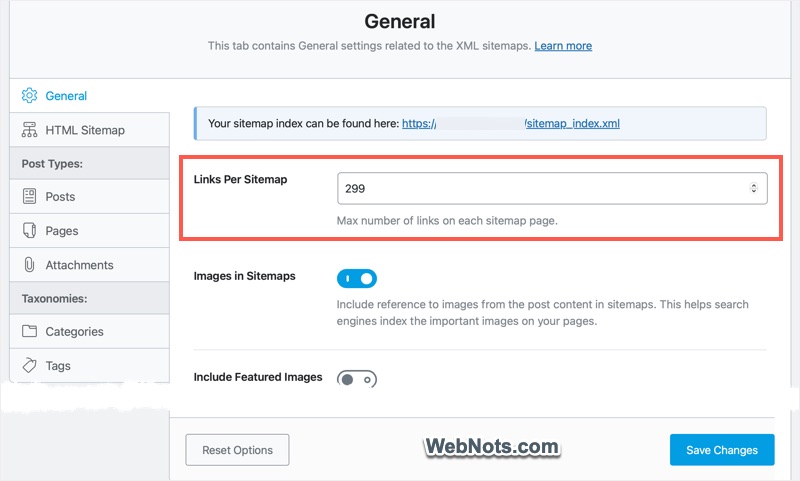
Make sure the number of links per sitemap is reasonable (default is 200; lower it if you have huge content on the site). This should load the correct Sitemap index in most cases.
3. Enable Sitemap for Post Types
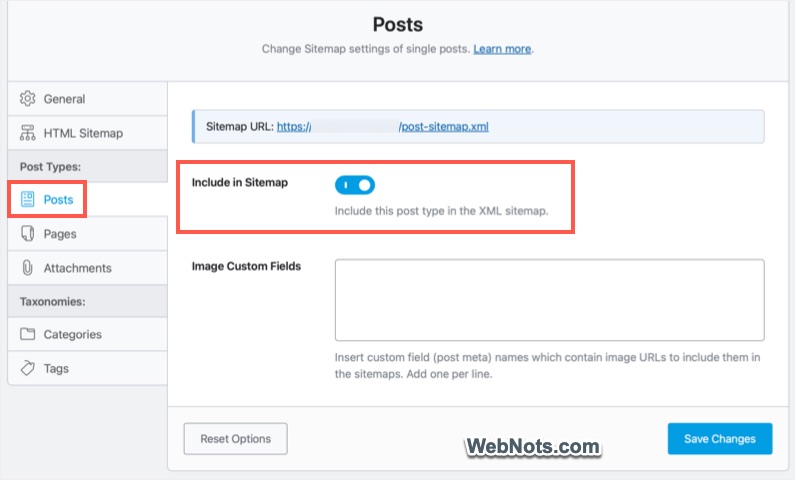
If you are missing individual Sitemaps in the index, then go to “rank Math SEO > Sitemap Settings” section. Navigate to individual sections like Posts, Pages, Categories, Tags, etc. and turn on the Sitemap you are missing.
4. Disable Other Sitemap Generators
If you have other optimization and speed plugins, make sure they are also not generating Sitemaps. Some popular XML Sitemap generator plugins include Jetpack, Yoast SEO, and Google XML Sitemaps. Disable their Sitemap feature or deactivate them completely if you are using Rank Math. If deactivating the plugin helps to fix the issue, then you may need to contact the plugin’s developer to fix the conflict.
As mentioned, since WordPress 5.5, a basic XML Sitemap is built into WordPress core. It can sometimes conflict with Rank Math plugin’s Sitemap generation feature. If you suspect a conflict, add the following code to your functions.php file (use Code Snippets plugin for this purpose):
add_filter( 'wp_sitemaps_enabled', '__return_false' );This disables the native WordPress sitemap so Rank Math can take full control for Sitemap generation.
5. Exclude Sitemap URL from Caching
If the above suggestions did not fix the issue or the problem reappears again, then it could be due to the caching setup on your site. First, purge the caching on your site with the plugin, server side and with the CDN setup. If this resolves the issue, then exclude the XML Sitemap URL from your caching setup. For example, if you are using SiteGround hosting, Speed Optimizer plugin will comes preinstalled with WordPress installation (you can also install the plugin on other hosting setup). You can go to “Speed Optimizer > Caching > Exclude URLs from Caching” and add Sitemap index and individual Sitemaps URL.
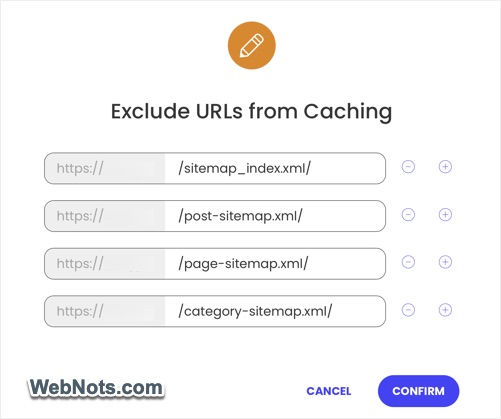
After clearing or excluding the URLs, make sure to clear your browser’s cache and check the Sitemap is loading properly.
6. Save Permalink Settings
If Rank Math Sitemap shows 404 page not found error or a blank page, then resaving the permalink settings may resolve the issue. This is also a necessary step, if you have changed the URL setup on your site.
- Go to “Settings > Permalinks” in WordPress admin panel.
- Simply click on “Save Changes” button and don’t change anything.
This will reset the rewrite rules in your .htaccess file.
7. Check .htaccess or Server Configuration
If resaving permalink did not resolve the issue, misconfigured .htaccess files or server rules (especially on Apache or NGINX) can block Sitemap access. If using Apache, ensure your .htaccess contains:
# BEGIN WordPress
<IfModule mod_rewrite.c>
RewriteEngine On
RewriteBase /
RewriteRule ^index\.php$ - [L]
RewriteCond %{REQUEST_FILENAME} !-f
RewriteCond %{REQUEST_FILENAME} !-d
RewriteRule . /index.php [L]
</IfModule>
# END WordPress
For NGINX, ensure it forwards Sitemap requests properly to WordPress. You may need to ask your host to check this.
8. Fix Plugin or Theme Conflicts
If you suspect the conflict between your theme or one of the installed plugins, follow the below steps:
- Temporarily switch your theme to a default WordPress theme (like Twenty Twenty-Four).
- Disable all plugins except Rank Math.
- Check if the Sitemap works.
- If it does, reactivate your theme and plugins one at a time to find the culprit.
Other than the optimization or SEO plugins, there are also some types of plugins that affects the Sitemap generation. These plugins include security plugins blocking XML output and page builders altering header output.
Final Tips
If the problem persists after trying everything above, consider reaching out to Rank Math support. They are responsive and familiar with common hosting-specific bugs. Here are some tips to deal with your Sitemap:
- Keep Rank Math plugin updated.
- Don’t use two SEO plugins at the same time.
- Check Sitemap validation tools to find any errors.
Once the issue is fixed, go to Google Search Console and Bing Webmaster Tools and resubmit your Sitemap.