
WordPress uses block-based Gutenberg editor for publishing posts and pages. Though Gutenberg has lot of features, it occasionally shows error messages difficult for users to understand. “Publishing failed: Could not update database” is one such error message preventing users from publishing or saving content in the editor. This will be annoying if you have worked long time on the editor only to find it can’t be saved or published. If you are facing this issue, this guide explores its causes and provides step-by-step solutions to fix it.

Before Troubleshooting – Backup Your Content
Though the content can’t be saved in the editor (in your database), you have an option to save it offline.
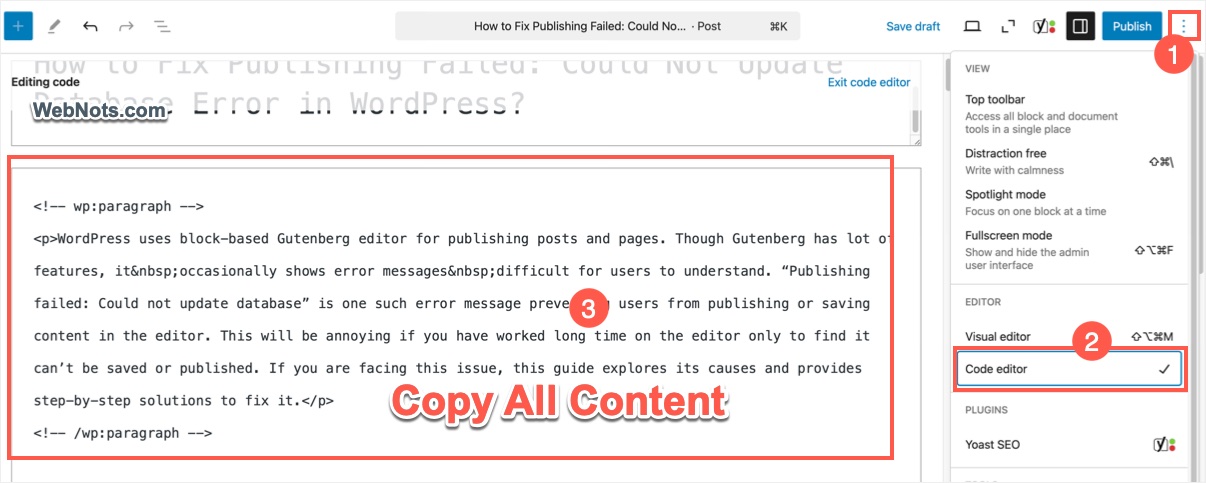
- Click on the three vertical dots (Options) on top-right corner of the editor.
- Select “Code Editor” option.
- Copy all the raw content and paste it in plain text editor like Notepad or TextEdit (you can also use advanced editors like Visual Studio Code). However, Make sure to save the file in plain text format and not in rich text format as in Microsoft Word.
- Whenever you want, open Code Editor and paste the content from your file.
Also, some of the suggested options need changes in database and core files. So, make sure to take a complete backup of your site (including database) before doing such changes.
How to Fix the Error?
Since the error does not provide any clue about the root cause, you have no other options to troubleshoot with the following suggestions one by one.
1. Saving Unicode Emoji Symbols
WordPress by default allows the use of emoji symbols in content. Emojis are converted to HTML entity using wp_encode_emoji() function and stored in databased with UTF-8 character set. So, you should have proper database character set and collation to support the emoji symbols, especially the symbols formed with multiple Unicode code points. For example, you may be able to save the content with a Skull and Crossbones ☠ emoji which has a code point as U+2620. However, you can’t save the post when you have emoji like Face in Clouds 😶🌫️ which has a combination of code points as U+1F636 U+200D U+1F32B U+FE0F.
If you have emoji symbols in the content, remove them and then try to save or publish. If that works but you need to frequently use emoji symbols in your content, use the one of the following options:
- Make sure to change the database character set and collation to utf8mb4 or utf8mb4_unicode_ci or something similar supported by your hosting company.
- Properly define character set and collation in your wp-config.php file using the following code (change utf8mb4 to correct value):
define( 'DB_CHARSET', 'utf8mb4_unicode_ci' );
define( 'DB_COLLATE', 'utf8mb4_unicode_ci' );
- If needed use a plugin for inserting emoji.
If the above options did not work, then add the following code in your current theme’s functions.php file. You may need a child theme or a plugin so that the code will not be deleted when updating or changing your theme.
add_filter( 'wp_insert_post_data', function( $data, $postarr ) {
    if ( ! empty( $data['post_content'] ) ) {
        $data['post_content'] = wp_encode_emoji( $data['post_content'] );
    }
    return $data;
    }, 99, 2 );
Now, you should be able to save the content with any Unicode emoji symbols. If you are not using emoji in the content, then follow the below suggestions.
2. Check WordPress Site Health
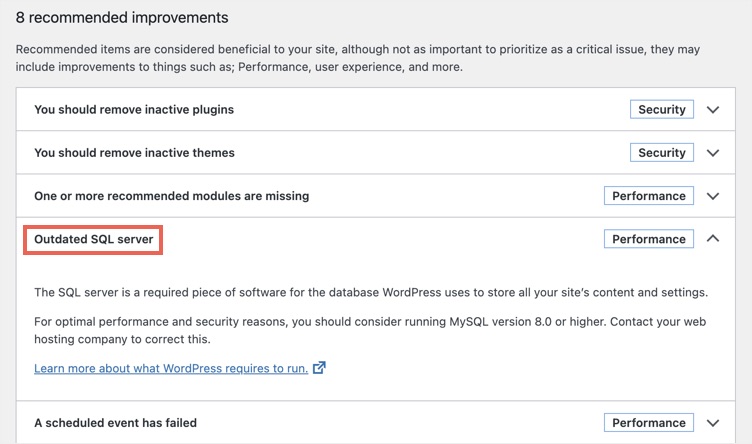
Go to “Tools > Site Health” in your WordPress dashboard to check for any database-related and REST API-related issues. If the REST API is blocked, disable any security or firewall plugins that might be causing the issue.
3. Repair the WordPress Database
Corrupt database tables can cause this issue. To repair your database:
- Open phpMyAdmin app from your hosting account.
- Select your WordPress database and under “Structure” tab, scroll down to bottom (below the list of database tables).
- Click “Check All” box to select all tables, then select “Repair table” from the dropdown.

Alternatively, you can enable WordPress’ built-in repair mode:
- Edit the wp-config.php file.
- Add this line before /* That’s all, stop editing! */:
define('WP_ALLOW_REPAIR', true);- Visit https://www.yoursite.com/wp-admin/maint/repair.php and click “Repair Database” button.

4. Reset WordPress Permalinks
A corrupt .htaccess file may cause this issue. Resetting permalinks can help:
- Go to “Settings > Permalinks” menu in the dashboard.
- Scroll down to bottom and click on “Save Changes” button without making modifications.
5. Disable Plugins and Themes
Some plugins or themes may interfere with database updates.
- Go to “Plugins > Installed Plugins” section and deactivate all.
- After that, go to “Appearance > Themes” section and switch to a default theme like Twenty Twenty-Five.
- Now, try publishing again to confirm your theme is not causing the issue.
- If it works, enable plugins one by one to identify the culprit. If all the plugins work properly with the default WordPress theme, then you can confirm the problem is caused by your theme.
6. Increase PHP Memory Limit
A low memory limit can cause database errors. Increase your site’s PHP memory limit using one of the below methods:
define('WP_MEMORY_LIMIT', '256M');php_value memory_limit 256M- Editing php.ini (if accessible):
memory_limit = 256MNote that the changes will not be effective if your hosting company does limit the maximum memory. So, make sure to check in your hosting panel or confirm with the hosting support team to understand the allowed limit for your plan.
7. Update WordPress Core, Plugins, and Themes
Outdated WordPress files can cause conflicts. You can update and check if that helps. Go to “Dashboard > Updates” section in your WordPress admin panel and update WordPress, themes and plugins.
Conclusion
In most cases, WordPress shows “Publishing failed: Could not update database” error due to compatibility issues with emoji symbols. So, the first option should fix the issue and allow to include emoji in your content. in WordPress can stem from database corruption, plugin conflicts, or insufficient resources. By following these troubleshooting steps, you can resolve the issue and get back to publishing content seamlessly. If none of the above solutions work, your hosting provider might be experiencing database-related issues. Contact their support for professional support to resolve your problem.


