GeneratePress is one of the lightweight WordPress themes without bloat and unnecessary stuffs. It comes with a Site Library from where you can install prebuilt demo templates. However, most demo templates need GenerateBlocks page builder plugin which is also from the same developer. Premium version of GenerateBlocks plugin offers a Pattern Library block to find and insert predefined patterns. If you do not find the Patter Library block after installing and activating GenerateBlocks plugin, here is how to fix the issue.
GenerateBlocks Pattern Library
GenerateBlocks Pro plugin offers two types of patterns:
- Remote Patterns – Download and use blocks from GenerateBlocks site.
- Local Patterns – create and save the block as a local pattern on your site.
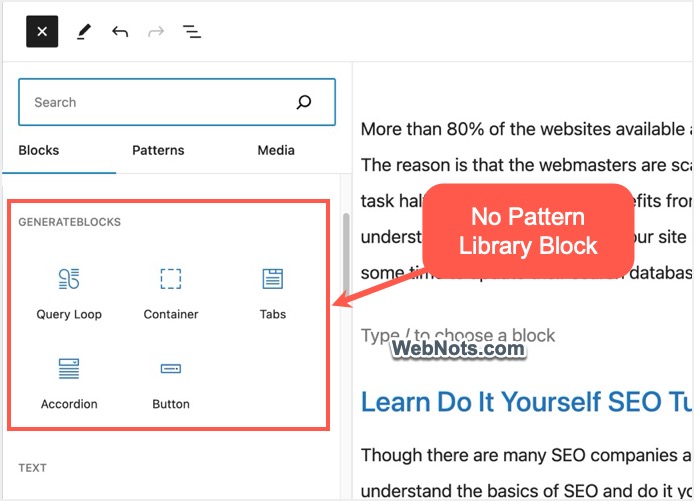
For inserting both local and remote patterns, you need a Pattern Library block in Gutenberg editor. So, the plugin will be kind of useless if this block is missing as you can’t copy paste pro patterns from GenerateBlocks site (though you can still use heading, image, etc.).
1. Enable Remote Patterns in Settings
To use Pattern Library block, you should first enable it in plugin settings.
- Go to “GenerateBlocks > Settings” menu in your admin panel.
- Scroll down to bottom of the Settings page.
- Turn on “Enable Local Patterns” and “Enable Remote Patterns” under “Pattern Library” section.
- Click “Save” button.
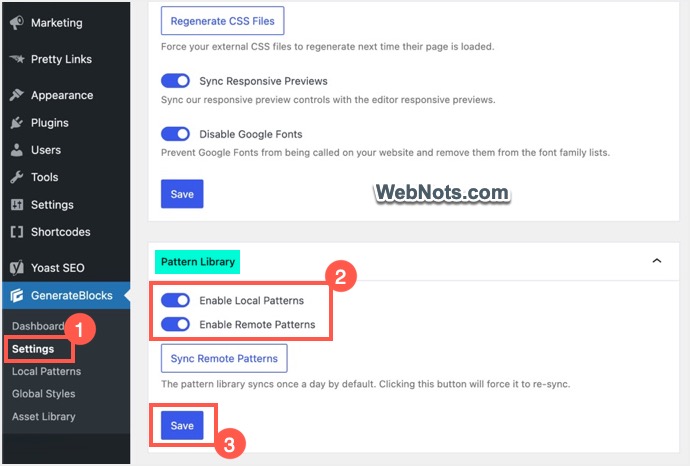
Now, create or edit a post/page and you will see the Pattern Library block appears.

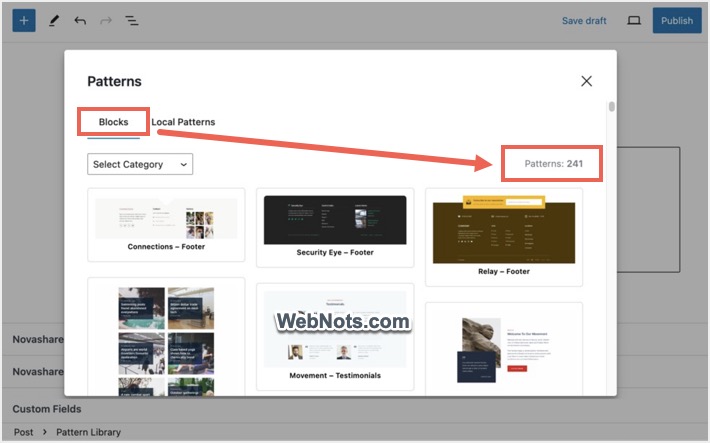
Inserting it will open a pop-up showing “Blocks” and “Local Patterns” sections. Under “Blocks” section, you can find all remote patterns from GenerateBlocks website.

2. Some Remote Pattern Blocks are Missing
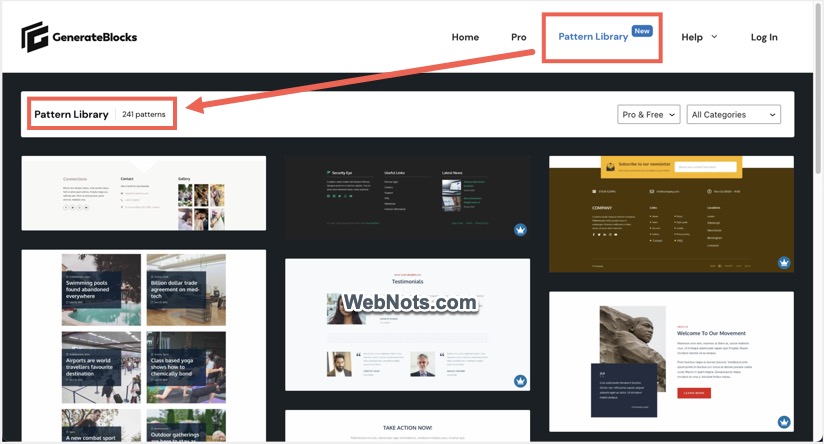
You can find all free and pro remote blocks under “Pattern Library” section of GenerateBlocks website. As you can in the below screen capture, there are 241 blocks available on GenerateBlocks site at this point. Each category will also show a total available block within that category.
You can verify these numbers (total and category wise) are same when Pattern Library pop-up opens in your site.
By default, remote pattern blocks from GenerateBlocks site are synced once a day frequency with your site. If you see some patterns are missing based on the total number, go to “GenerateBlocks > Settings > Pattern Library” section in your WordPress admin panel. Click “Sync Remote Patterns” button to manually sync the latest content.

3. Pattern Library Missing with Settings Enabled
If you are not finding Pattern Library block even after enabling the settings, then follow the below steps.
- Click the three vertical dots (Options) icon showing on top right corner of the Gutenberg editor.
- Go to bottom of the menu that appears and click “Preferences”.
- Navigate to “Blocks” section and find “GenerateBlocks” heading.
- Check “Pattern Library” to enable that block and close the pop-up.
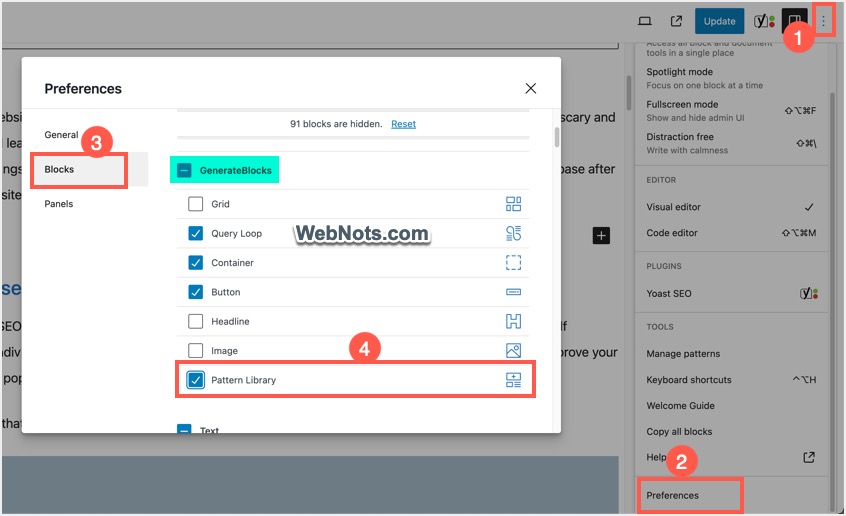
You can also use the search box in “Preferences” pop-up to find and enable required blocks in Gutenberg editor.
4. Blocks are Not Getting Inserted
You may have the Pattern Library block and see the remote (blocks) / local patterns in the pop-up. However, clicking on any of that item will not insert that pattern and do nothing. This happens if you have disabled any of the blocks used in that remote pattern. For example, you should have enabled GenerateBlocks heading block if the pattern uses heading.
- Click on the “Options” and select “Preferences” in Gutenberg editor.
- Go to “Blocks” section and find “GenerateBlocks” heading.
- Check the box before that “GenerateBlocks” heading to select all the blocks under that.
- Now, close the pop-up and try to reinsert a remote pattern from Pattern Library.
- You should see the pattern is successfully inserted now.

Points to Note
- Disabling blocks in Gutenberg editor will NOT affect the frontend visibility.
- Being a block-based plugin, GenerateBlocks can’t be used with Classic Editor.
- Pattern Library block was earlier referred as Template Library and the name was changed subsequently.
- WordPress by default comes with “Patterns” (earlier referred as Block Library) for Gutenberg. Do not confuse GenerateBlocks patterns with default WordPress patterns.
- Also, do not confuse with the common blocks like heading and image offered by both WordPress Gutenberg and GenerateBlocks plugin. You can enable/disable those common named blocks as explained from Gutenberg Preferences section (you can either disable default blocks or GenerateBlocks items depending upon your need).