Apple’s Continuity features work like a magic to transfer content across all your Apple devices. Though there are bunch of features available, the best one is to copy text, images, or links on your iPhone and paste them directly onto your Mac. This does not need any no cables, no emailing yourself, or you don’t even need the AirDrop. Since copy and paste works by default, it can be frustrating when it suddenly stops working. If you frequently struggle with copy and paste between your Apple devices, here’s how to understand how it works and fix the issue.
Requirements for Universal Clipboard
Universal Clipboard is the official name of the feature (from Apple), that allows you to copy content from one device and paste it on another. For example, you can copy a link from Mail app on iPhone and paste it into Notes app on your Mac. Here are the things needed for the Universal Clipboard to work:
- Both devices should be signed into the same Apple account.
- Wi-Fi and Bluetooth are enabled on both devices.
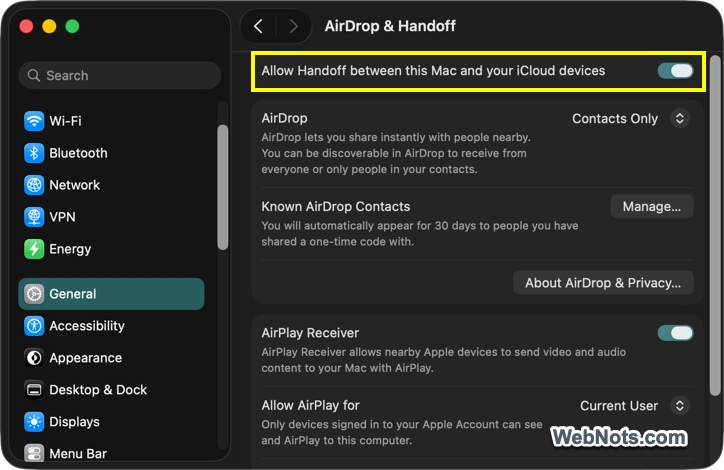
- Handoff turned on both devices.
- Devices are available within the Bluetooth range (generally about 30 feet or 10 meters).
- iPhone running iOS 10 or later, Mac running macOS Sierra 10.12 or later.
- Models later than iPhone 5, Mac 2012, and Mac Pro 2013.
You can always check the official Apple’s support page for the latest OS and device compatibility requirements. Whenever there is an issue with pasting, you may see a notification such as “Pasting from iPhone” or “Pasting from Mac”. If the clipboard is empty, nothing will happen at all.

1. Quick Checklist: First Things First
If copy and paste is not working at all or only works in one direction, check the basic requirements before troubleshooting.
| Requirement | Where to Check |
|---|---|
| Same Apple Account | iPhone: Settings > Your Account Name. Mac: Apple Menu > System Settings… > Account Name. |
| Wi-Fi On | iPhone: Control Center / Settings. Mac: Menu Bar / Settings. |
| Bluetooth On | iPhone: Control Center / Settings. Mac: Menu Bar / Settings. |
| Handoff Enabled | iPhone: Settings > General > AirPlay & Handoff” and turn on Handoff. Mac: Apple Menu > System Settings > General > AirDrop & Handoff” and turn on “Allow Handoff between this Mac and your iCloud devices”. |
Also, make sure both your iPhone and Mac are unlocked while pasting content. Although this is not an official requirement, it can sometimes prevent the clipboard from syncing.
2. Toggle Settings Off and On
Sometimes the feature just needs a reset:
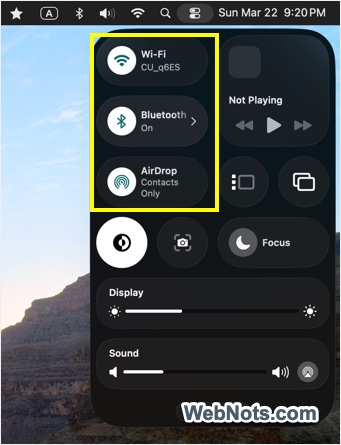
- Toggle Bluetooth off and on again on both devices via Control Center.
- Toggle Handoff off and on in settings on both devices.
- Toggle Wi-Fi off and on (ensure both devices are on the same Wi-Fi network).
Make sure to copy the content again after turning on and toggling Bluetooth will fix the issue in most cases.
3. Restart Your Devices
A simple restart resolves many temporary glitches:
- iPhone (Face ID models): Press and hold Side + Volume Up buttons > Slide to power off > Press Side button to turn back on.
- Mac: Apple Menu > Restart.
4. Check for Software Updates
Running outdated software can cause compatibility issues:
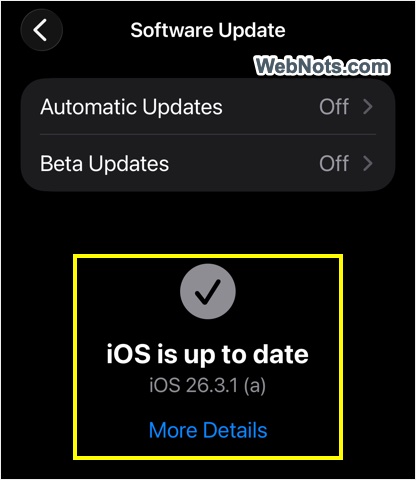
- iPhone: Settings > General > Software Update.
- Mac: System Settings > General > Software Update.
5. Disable VPN and Firewall Temporarily
VPNs and firewalls can interfere with the local connection between devices:
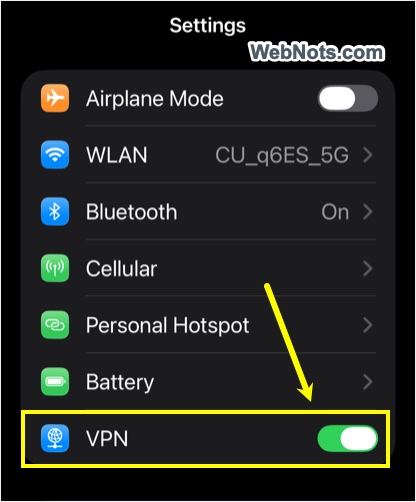
- Turn off any active VPN connections.
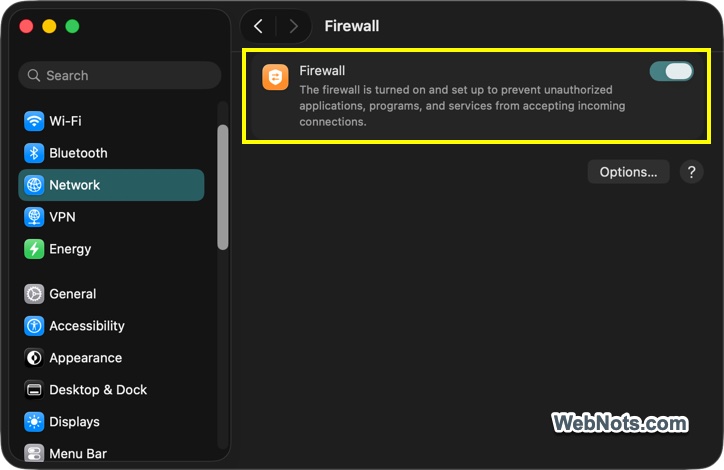
- Temporarily disable firewall on Mac by going to “Apple Menu > System Settings… > Network > Firewall”.
6. Reset Network Settings on iPhone
If the issue persists, resetting network settings on your iPhone can help.
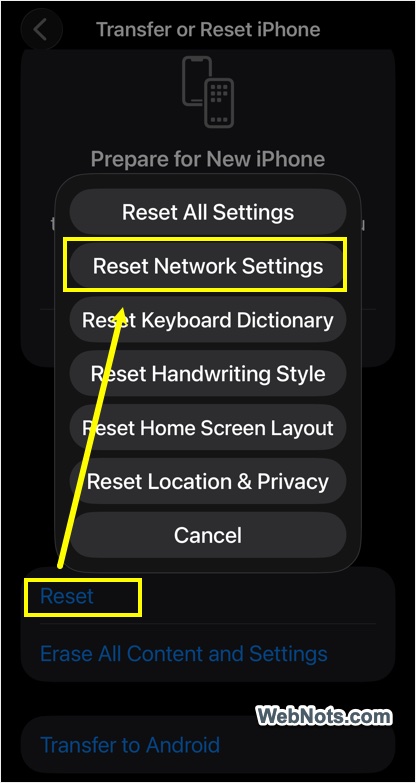
- Go to “Settings > General > Transfer or Reset iPhone” section.
- Tap on “Reset” and then select “Reset Network Settings”.
Note that resetting network will remove saved Wi-Fi password. So, keep your password handy for reconnecting.
7. Sign Out of Apple Account and Sign Back In
Logging out from your Apple account and logging again may help to fix iCloud related syncing issues.
- iPhone: Settings > Your Apple Account Name (Scroll down to bottom) > Sign Out.
- Mac: Apple Menu > System Settings > Apple Account > Sign Out.
After signing out, restart your device and sign in back.
Note: This is not recommended if you have huge amount of data synchronized in iCloud as re-synchronization will take longer time.
8. Reset Mac Clipboard via Terminal
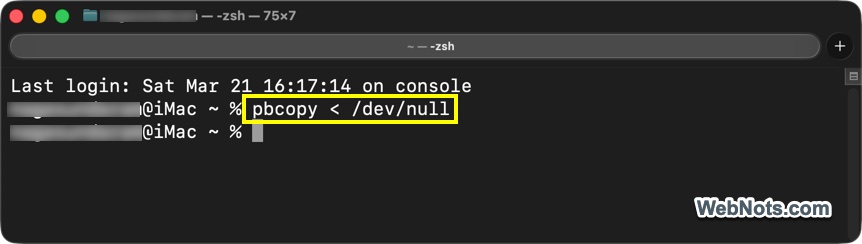
It is also possible to clear the clipboard’s content using Terminal app on Mac to help resolve clipboard issues.
- Open Terminal app from “Applications > Utilities” folder.
- Type the following command press enter.
pbcopy < /dev/null- Verify the clipboard is empty by going to “Finder > Edit > Show Clipboard”.
9. Enable Clipboard Sharing on Mac via Terminal
You can force enable the Universal Clipboard function by running the following command in Terminal.
defaults write ~/Library/Preferences/com.apple.coreservices.useractivityd.plist ClipboardSharingEnabled 1After running this command, restart your Mac and check if that fixed your issue.
Still Not Working?
If copy and paste is still not working after following all the steps above, consider contacting Apple Support, especially if your devices are under warranty. If you need to transfer content urgently, you can use AirDrop as a workaround.