
Parallels Desktop is a popular virtualization software that allows Mac users to run Windows 11 without the need of rebooting the system. Though it is super easy to work across macOS and Windows on a single system, you may face some frustrating problems like Windows 11 displays a black screen when launched through Parallels Desktop app. In this article, we will explore common causes and step-by-step methods to resolve the issue.
Common Causes of the Black Screen Issue
For us, the problem happened suddenly with no indication of slowness or corrupted files. After digging deep, here are some of the reasons behind the black screen problem in Parallels Desktop as we understood.
- A corrupted Windows 11 installation in Parallels which leads to startup issues.
- Outdated or incompatible GPU drivers preventing Windows 11 from displaying correctly.
- Parallels Tools not installed or outdated causing compatibility problems.
- Windows 11 might be set to an unsupported resolution or refresh rate.
- Mac lacks enough RAM or CPU cores allocated to Parallels, failing Windows 11 to load properly.
Stuck at Black Screen without Login / Desktop Screen Access
Follow fixes 1 to 6 if you are not able to access the system, for us the fix #1 did the magic.
Fix 1: Restart, Stop or Reset Your Virtual Machine
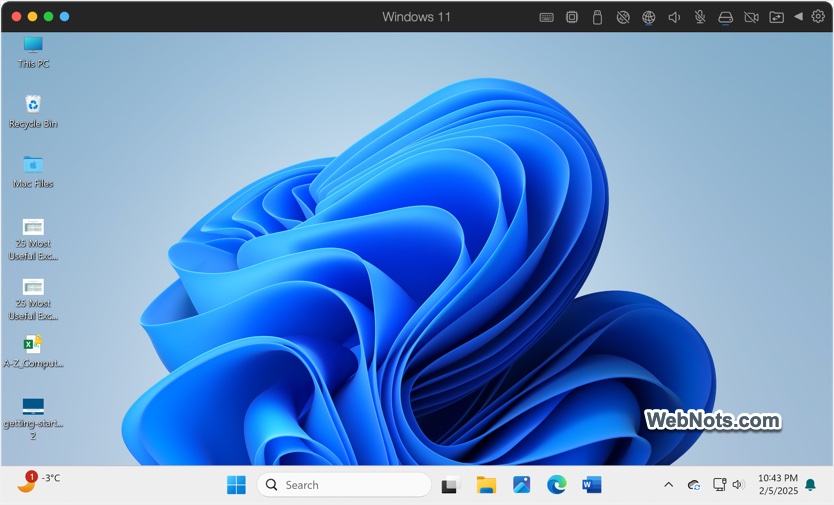
If you are running Windows 11 for long time without shutting down, then the simple restart can resolve temporary glitches. Though you will see a black screen without the access, Parallel VM has options to restart the setup.
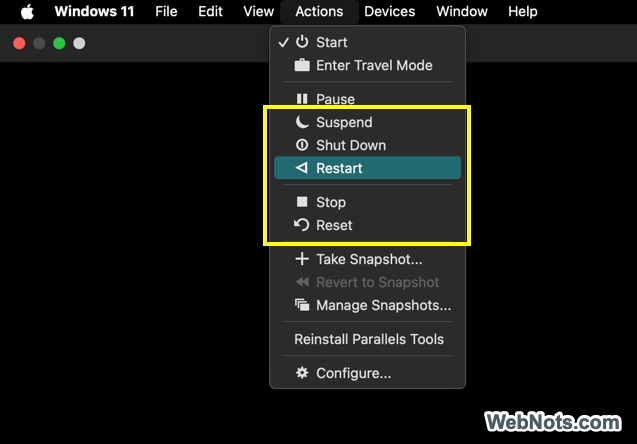
- Launch Windows 11, when it is stuck on a black screen, click the “Actions” menu and select “Restart” from top menu bar.
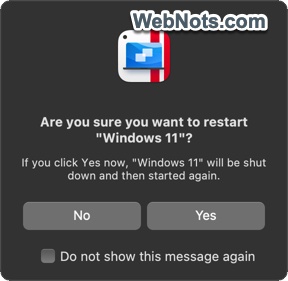
- You will be shown a notification that Windows 11 will be shut down and then restarted. Confirm your action by pressing “Yes” button.
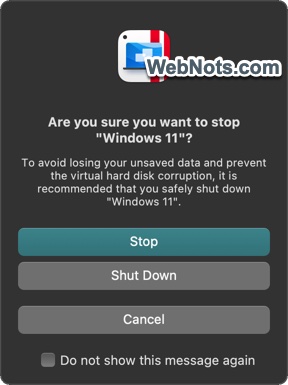
- If the restart doesn’t work, try Force Shutdown by selecting “Actions > Stop” option. Confirm your action by clicking on “Stop” button and then relaunch Windows to check if it works properly.
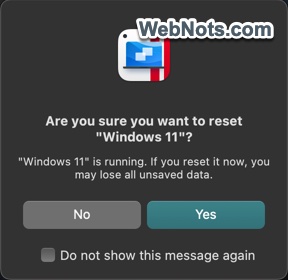
- You can also go to “Actions > Reset” and reset Windows 11 or try “Actions > Suspend” and then resume again.
One of these options should resolve the black screen issue in most cases and you should be able to access Windows 11 login & desktop screens.
Fix 2: Adjust Virtual Machine Display Settings
Your display settings in Parallels might be causing the black screen issue. To modify them:
- Open Parallels Desktop but do not start Windows 11 and click on “Control Center” menu.
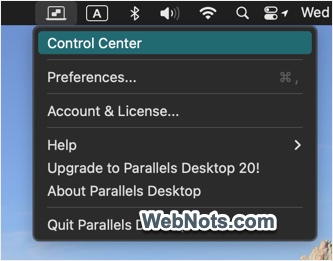
- Select your Windows 11 virtual machine and click on the “Configuration” (Gear icon) option.

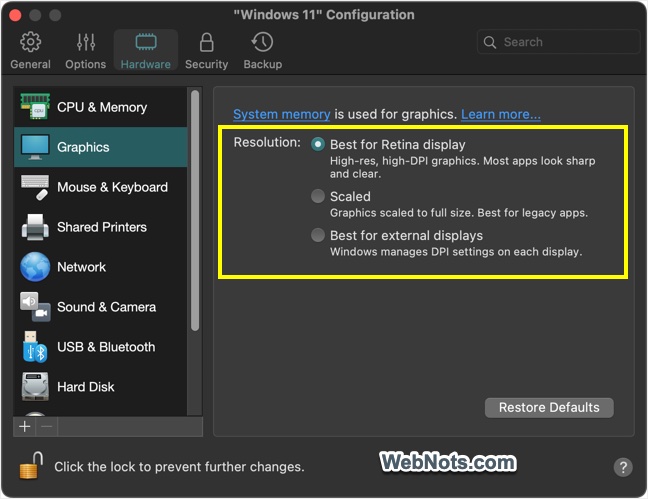
- Navigate to “Hardware > Graphics” section and change the “Resolution” setting to “Scaled” or “Best for Retina Display”.
Fix 3: Increase Virtual Machine Resources
If your Windows 11 virtual machine doesn’t have enough RAM or CPU, it may fail to display correctly. To increase resources:
- First, shut down your Windows 11 virtual machine.
- Open Parallels Desktop app and go to “Control Center”.
- Select your virtual machine and click the “Configuration” (Gear icon).
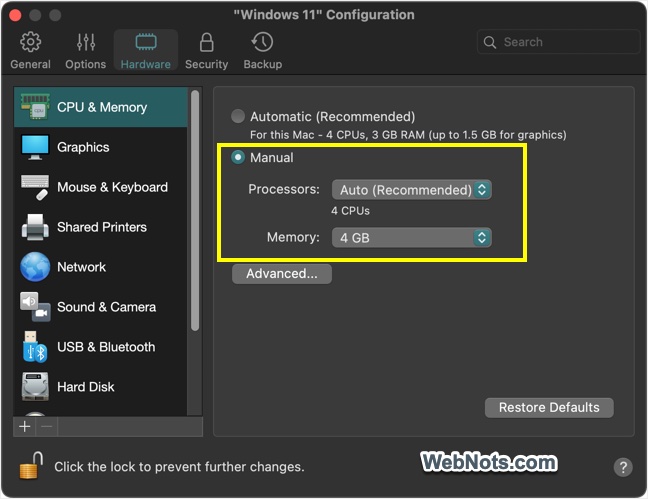
- Navigate to “Hardware > CPU & Memory” section.
- Select “Manual” option and increase “Processor” CPU cores to at least 2.
- Increase the RAM allocation to at least 4GB (more if available) by selecting it from the “Memory” dropdown.
Now, start your VM and check you can access the login screen.
Fix 4: Change Startup Configuration
If you launch Windows 11 with macOS or Parallels Desktop, you can separate these actions and check if that helps to fix the issue.
- When you are in Windows 11 Configuration, go to “Options > Startup and Shutdown” section.
- Select “Custom” options and then select “Never” for “Start Automatically”.
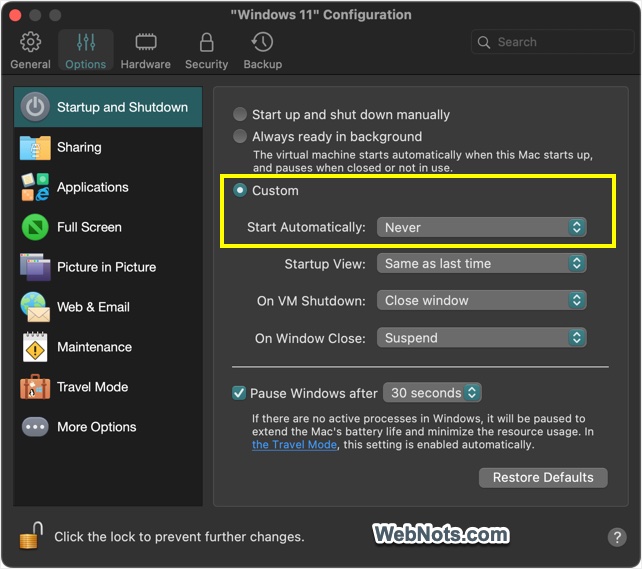
Now, manually launch Windows 11 and check you can access the system without black screen.
Fix 5: Update Parallels Desktop
Parallels frequently releases updates that fix bugs and improve compatibility. You need to check the compatibility especially after upgrading Parallel Desktop app or macOS to next major version.
- If you have installed Parallels Desktop from Mac App Store, make sure to enable automatic app updates.
- If you have installed the app from the website, open the app and go to “Parallels Desktop > Check for Updates” from the menu bar.
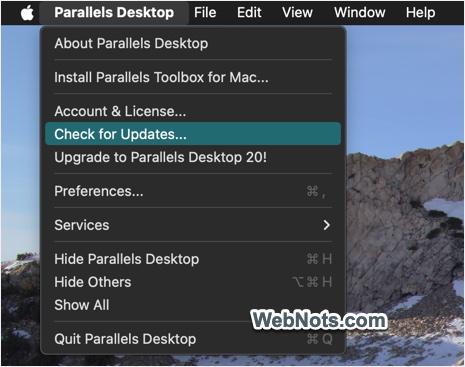
After updating, relaunch Windows 11 and check if the black screen issue is resolved.
Note: If you are using a perpetual license, make sure to check the compatibility before updating macOS to major version. Otherwise, upgrading Parallels Desktop app will become the only option to access your VM setups if there are incompatibilities.
Fix 6: Restore Backup or the Virtual Machine
If none of the above fixes work, your virtual machine may be corrupted. The final option is to restore from the backup or snapshot. In both cases, you must have taken a backup or snapshot beforehand.
- For restoring backup – Parallels will backup Windows 11 in your Time Machine. So, you must have added the backup disk and created a backup beforehand to restore. So, it is simply restoring from Time Machine backup on any earlier dates when Windows 11 was working.
- For restoring a snapshot – Right-click on the Windows 11 VM in Control Center and select “Manage Snapshots…” option. Select a snapshot and click on the “Go To” button to access it.
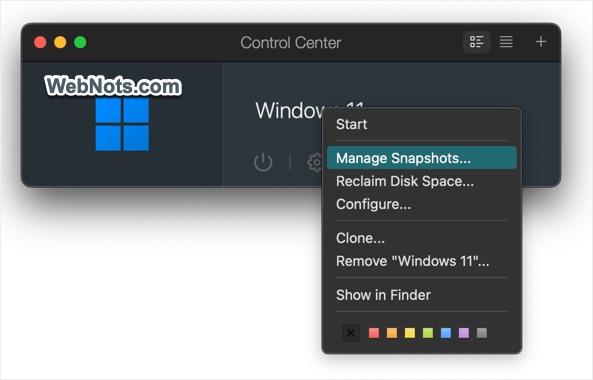
Note: All Windows related stuffs are stored in a single .pvm file stored under /Shared/Parallels/ folder in your user account. For example, the file is under /Users/<Username>/Library/Group Containers/4C6364ACXT.com.parallels.desktop.appstore/Shared/Parallels/ folder in our case. You can simply copy this file and open on any other machine with Parallels Desktop app to check whether you can access Windows 11 screen. You can also delete the current VM and create a new one as explained in our earlier article. However, this is a tedious process involving data loss and you may need to reset Windows 11 license. So, you can try this as a last resort or if you don’t have a backup / snapshot.
Able to Access Windows System
Sometimes the black screen appears temporarily (but frequently) and then you will be able to login to Windows. In this case, follow one of the below fixes in Windows 11.
Fix 7: Reinstall or Update Parallels Tools
Parallels Tools is essential for proper Windows 11 operation inside Parallels app. If it’s outdated or corrupted, it can cause display issues. You can reinstall Parallels Tools only when the Windows VM is opened.
- Start your Windows 11 virtual machine.
- If Windows becomes accessible, go to “Actions > Reinstall Parallels Tools” and follow the on-screen instructions.
- Restart your virtual machine after installation.

Note: Do not confuse with Parallels Tools with Parallels Toolbox, they are different things.
Fix 8: Boot Windows 11 into Safe Mode
Safe Mode allows you to troubleshoot issues without loading unnecessary drivers. To boot into Safe Mode:
- Go to “Windows Settings > System > Recovery > Advanced startup” and click the “Restart now” button.
- Navigate to “Troubleshoot > Advanced Options > Startup Settings > Restart”.
- Press F4 to F6 (or simply 4 to 6) keys to open Windows in Safe Mode.

Once in Safe Mode, update drivers, adjust display settings, or reinstall Parallels Tools as needed.
Fix 9: Check and Update Graphics Drivers
Incompatible or outdated graphics drivers may be responsible for the black screen issue. To update graphics drivers:
- First, boot into Safe Mode as explained above.
- Press “Windows Logo + X” keys and select “Device Manager” option.
- Expand “Display adapters” and right-click on its name
- Select “Update Driver” and choose “Search automatically for updated driver software” to search and install.

Fix 10: Repair Windows 11 Installation
A corrupted Windows installation may be causing the black screen issue. To repair Windows:
- Boot into Windows Recovery Mode by going to “Windows Settings > System > Recovery > Advanced startup” and click the “Restart now” button.
- Navigate to “Troubleshoot > Advanced Options > Startup Repair” section.
- Follow the prompts to let Windows attempt to fix itself.
Final Thoughts
When running a Windows 11 VM with Parallels Desktop, always shutdown the setup properly instead of going to “Windows 11 > Quit Window 11” menu. This will help to avoid data corruption and the problems like showing a black screen suddenly. Though starring at the black screen will be frustrating, you can fix it with a reset / shut down / suspend / stop option from the “Actions” menu. Otherwise, start with simple solutions like adjusting display settings, and reinstalling Parallels Tools. If the problem persists, consider updating drivers, increasing resources, or even restoring the virtual machine.


